1
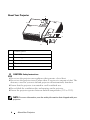
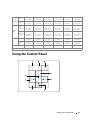
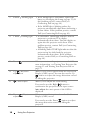
19 Auto adjust
Press to synchronize the projector with the input
source. Auto adjust does not operate if the OSD
is displayed.
20 Keystone adjustment
Press to adjust image distortion caused by tilting
the projector. (+40/-35 degrees)
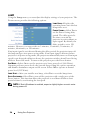
Using the On-Screen Display
The projector has a multi-language On-Screen Display (OSD) that can be
displayed with or without an input source present.
In the Main menu, press
or
to navigate through the tabs. Press the Enter
on the control panel or the remote control to select a submenu.
button
In the submenu, press
or
to make a selection. When an item is selected,
the color changes to dark gray. Use
or
on the control panel or the remote
control to make adjustments to a setting.
To go back to Main menu, go to Back tab and press the Enter button
control panel or the remote control.
To exit the OSD, go to Exit tab and press Enter button
on the control panel or the remote control.
on the
or press Menu button
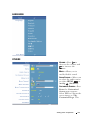
Main Menu
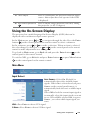
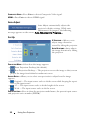
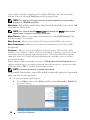
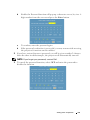
Input Select
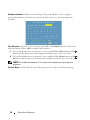
AUTO SOURCE—Select On (Default) to
automatically detect the available input
signals. When On is selected and you press
Source on the control panel/remote, it
automatically finds the next available input
signal.
Select Off to lock the current input signal or
to manually select the input signal you want
to use. When Off is selected and you press
Source , you select which input signal you
want.
VGA—Press Enter to detect VGA signal.
S-VIDEO—Press Enter to detect S-Video signal.
Using Your Projector
21