1
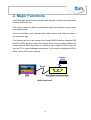
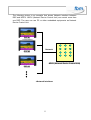
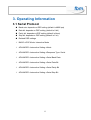
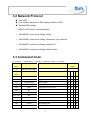
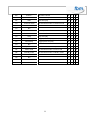
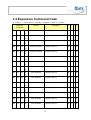
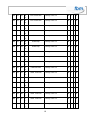
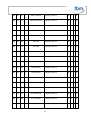
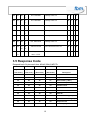
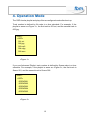
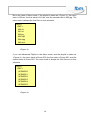
MPL 031 Interactive User’s Guide Ver. 1.5 [ Index ] 1. Introduction..................................................................................................... 3 2. Major Functions.............................................................................................. 4 3. Operating Information..................................................................................... 6 3.1 Serial Protocol ....................................................................................... 6 3.2 Network Protocol ................................................................................... 7 3.3 Command Code .................................................................................... 7 3.4 Expansion Command Code................................................................... 9 3.5 Response Code................................................................................... 12 4. Operation Mode............................................................................................ 13 4.1 Standby Mode ..................................................................................... 15 4.2 Repeat Mode....................................................................................... 15 4.3 Menu Mode ......................................................................................... 15 4.4 Continue Mode .................................................................................... 16 2 1. Introduction 1.1 Notation This Documentation uses various labels and name that serve as your guides to operating this product. Notational conventions Caution Reference Example Note A “caution” indicates a section of the manual that requires special attention. A “referene” provides information related to the current topic. An “example” indicates on example related to the current topic. A “note” provides supplementary information. 3 2. Major Functions Interactive type support Serial interface and Network interface to communicate between DSP and user. This type is suitable for Kiosk or information system at museums, tourist center and shopping mall. There are Standby mode, Repeat mode, Menu mode, and Continue mode in the Interactive type. The following picture is an example that shows RS232 interface between DSP and DCU. DCU (Device Control Unit) allows direct communication between the human and the DSP that works in interactive type. Instead of DCU, the user can use PC or other embedded equipments. If you want to know about DCU in detail, refer to DCU user’s manual. Sensor Serial Buttons DSP DCU (Device Control Unit) <Serial Interface> 4 The following picture is an example that shows Network interface between DSP and NDCU. NDCU (Network Device Control Unit) can control more than one DSP. The user can use PC or other embedded equipments as Network Device Control Unit. DSP #1 Network DSP #2 NDCU (Network Device Control Unit) DSP #3 <Network Interface> 5 3. Operating Information 3.1 Serial Protocol Baud rate: depends on DSP setting (default is 4800 bps) Data bit: depends on DSP setting (default is 8 bit) Parity bit: depends on DSP setting (default is None) Stop bit: depends on DSP setting (default is 1 bit) Related DSP settings BASIC->DSP Mode: Interactive Mode ADVANCED->Interactive Setting->Mode ADVANCED->Interactive Setting->Response Type: Serial ADVANCED->Interactive Setting->Serial Baud Rate ADVANCED->Interactive Setting->Serial Data Bit ADVANCED->Interactive Setting->Serial Parity Bit ADVANCED->Interactive Setting->Serial Stop Bit 6 3.2 Network Protocol uses UDP Port number: depends on DSP setting (default is 9300) Related DSP settings BASIC->DSP Mode: Interactive Mode ADVANCED->Interactive Setting->Mode ADVANCED->Interactive Setting->Response Type: Network ADVANCED->Interactive Setting->Network IP ADVANCED->Interactive Setting->Network Port 3.3 Command Code ■ : Support, □ : Not-Support, 1 : Standby, 2 : Repeat, 3 : Menu, 4 : Continue Code Content Description Operating (Hex) Mode 1~C7 Play track #001~#200 Code Content Description 1 2 3 4 □ □ □ □ Toggle Power ON and OFF ■ ■ ■ ■ Reset system ■ ■ ■ ■ □ □ □ □ ■ ■ ■ ■ □ □ □ □ ■ ■ ■ ■ □ □ □ □ ■ ■ ■ ■ □ □ □ □ Pause playing file ■ ■ ■ ■ Play paused file ■ ■ ■ ■ (Hex) C8 NC C9 Power ON/OFF CA System Reset CB ~ D9 NC DA Mute DB NC DC Expansion Command DD ~ E8 NC E9 Volume + EA NC EB Pause EC Play Toggle Mute ON and OFF Refer to 3.4 expansion command code Increase volume 7 ED Volume - Decrease volume ■ ■ ■ ■ EE Expansion Command Refer to 3.4 expansion command code ■ ■ ■ ■ EF Start Start auto play ■ ■ ■ ■ F0 Continue mode Set interactive mode to continue mode ■ ■ ■ ■ F1 NC □ □ □ □ F2 NC □ □ □ □ F3 Prev Back to previous file ■ ■ ■ ■ F4 Next Go to next file ■ ■ ■ ■ F5 Stop Stop auto play ■ ■ ■ ■ F6 Pause/Play Toggle pause and play ■ ■ ■ ■ F7 Pause/Play Toggle pause and play ■ ■ ■ ■ F8 NC □ □ □ □ F9 Repeat mode Set interactive mode to repeat mode ■ ■ ■ ■ FA Menu mode Set interactive mode to menu mode ■ ■ ■ ■ FB Standby mode Set interactive mode to standby mode ■ ■ ■ ■ FC NC □ □ □ □ FD NC □ □ □ □ FE NC □ □ □ □ FF NC □ □ □ □ 8 3.4 Expansion Command Code ■ : Support, □ : Not-Support, 1 : Standby, 2 : Repeat, 3 : Menu, 4 : Continue Expansion Content Description 1 2 3 4 Code(Hex) DC 01 10 D S-Video Change video out ■ ■ ■ ■ Component 480p Change video out ■ ■ ■ ■ Component 720p Change video out ■ ■ ■ ■ Component 1080i Change video out ■ ■ ■ ■ Component 1080p Change video out ■ ■ ■ ■ VGA 640x480 Change video out ■ ■ ■ ■ VGA 800x600 Change video out ■ ■ ■ ■ VGA 1024x768 Change video out ■ ■ ■ ■ VGA 1280x720 Change video out ■ ■ ■ ■ VGA 1280x768 Change video out ■ ■ ■ ■ VGA 1280x1024 Change video out ■ ■ ■ ■ VGA 1360x768 Change video out ■ ■ ■ ■ VGA 1366x768 Change video out ■ ■ ■ ■ VGA 1440x900 Change video out ■ ■ ■ ■ VGA 1600x900 Change video out ■ ■ ■ ■ C DC 01 20 D C DC 01 21 D C DC 01 22 D C DC 01 23 D C DC 01 30 D C DC 01 31 D C DC 01 32 D C DC 01 33 D C DC 01 34 D C DC 01 35 D C DC 01 36 D C DC 01 37 D C DC 01 38 D C DC 01 39 D C 9 DC 01 3A D VGA 1600x1200 Change video out ■ ■ ■ ■ VGA 1680x1050 Change video out ■ ■ ■ ■ VGA 1920x1080 Change video out ■ ■ ■ ■ VGA 1920x1200 Change video out ■ ■ ■ ■ HDMI 480i Change video out ■ ■ ■ ■ HDMI 480p Change video out ■ ■ ■ ■ HDMI 720p Change video out ■ ■ ■ ■ HDMI 1080i Change video out ■ ■ ■ ■ HDMI 1080p Change video out ■ ■ ■ ■ HDMI 640x480 Change video out ■ ■ ■ ■ HDMI 800x600 Change video out ■ ■ ■ ■ HDMI 1024x768 Change video out ■ ■ ■ ■ HDMI 1280x720 Change video out ■ ■ ■ ■ HDMI 1280x768 Change video out ■ ■ ■ ■ HDMI 1280x1024 Change video out ■ ■ ■ ■ HDMI 1360x768 Change video out ■ ■ ■ ■ HDMI 1366x768 Change video out ■ ■ ■ ■ HDMI 1440x900 Change video out ■ ■ ■ ■ C DC 01 3B D C DC 01 3C D C DC 01 3D D C DC 01 50 D C DC 01 51 D C DC 01 52 D C DC 01 53 D C DC 01 54 D C DC 01 55 D C DC 01 56 D C DC 01 57 D C DC 01 58 D C DC 01 59 D C DC 01 5A D C DC 01 5B D C DC 01 5C D C DC 01 5D D C 10 DC 01 5E D HDMI 1600x900 Change video out ■ ■ ■ ■ HDMI 1600x1200 Change video out ■ ■ ■ ■ HDMI 1680x1050 Change video out ■ ■ ■ ■ HDMI 1920x1080 Change video out ■ ■ ■ ■ HDMI 1920x1200 Change video out ■ ■ ■ ■ DVI 480i Change video out ■ ■ ■ ■ DVI 480p Change video out ■ ■ ■ ■ DVI 720p Change video out ■ ■ ■ ■ DVI 1080i Change video out ■ ■ ■ ■ DVI 1080p Change video out ■ ■ ■ ■ DVI 640x480 Change video out ■ ■ ■ ■ DVI 800x600 Change video out ■ ■ ■ ■ DVI 1024x768 Change video out ■ ■ ■ ■ DVI 1280x720 Change video out ■ ■ ■ ■ DVI 1280x768 Change video out ■ ■ ■ ■ DVI 1280x1024 Change video out ■ ■ ■ ■ DVI 1360x768 Change video out ■ ■ ■ ■ DVI 1366x768 Change video out ■ ■ ■ ■ C DC 01 5F D C DC 01 60 D C DC 01 61 D C DC 01 62 D C DC 01 70 D C DC 01 71 D C DC 01 72 D C DC 01 73 D C DC 01 74 D C DC 01 75 D C DC 01 76 D C DC 01 77 D C DC 01 78 D C DC 01 79 D C DC 01 7A D C DC 01 7B D C DC 01 7C D C 11 DC 01 7D D DVI 1440x900 Change video out ■ ■ ■ ■ DVI 1600x900 Change video out ■ ■ ■ ■ DVI 1600x1200 Change video out ■ ■ ■ ■ DVI 1680x1050 Change video out ■ ■ ■ ■ DVI 1920x1080 Change video out ■ ■ ■ ■ DVI 1920x1200 Change video out ■ ■ ■ ■ Volume Control Set volume From 0 to 31 ■ ■ ■ ■ ■ ■ ■ ■ C DC 01 7E D C DC 01 7F D C DC 01 80 D C DC 01 81 D C DC 01 82 D C DC EE 02 X 0~ D 1F C XX EE Play track X 0001 ~ FFFF 3.5 Response Code Respond back 6 bytes each time: #W,#X,20h,#Y,#Z,FFh #W #X #Y #Z Byte No. Byte No. Function Function ( Hex Code ) ( Hex Code ) ( Hex Code ) ( Hex Code ) 30 33 30 42 pause 30 33 30 39 play, start of a file 30 42 30 31 time counter (1 Sec.) 30 42 39 39 time counter (99 Sec.) 30 39 30 30 volume level 0 30 39 33 31 volume level 31 30 38 30 31 track 1 30 38 39 39 track 99 30 34 30 31 end of a file of a group 30 31 30 31 end of file or end of group 30 32 32 43 loop menu file 30 32 30 35 initial the player 12 Description 4. Operation Mode The DSP checks playlist and plays files as configured mode after boot-up. Track number is defined by file order in a time schedule. For example, if the playlist is same as <Figure 1>, the first track is 001.avi, and the second track is 002.jpg. <ANY> <DEF> 001.avi 002.jpg 003.mp3 004.mpg 005.wmv <Figure 1> If you use Advanced Playlist, track number is defined by Scene order in a time schedule. For example, if the playlist is same as <Figure 2>, the first track is Scene 001, and the second track is Scene 002. <ANY> <DEF> :SCENE001 :SCENE002 :SCENE003 :SCENE004 :SCENE005 <Figure 2> 13 But in the case of Menu mode, if the playlist is same as <Figure 3>, the menu track is 000.avi, the first track is 001.avi, and the second track is 002.jpg. The menu track is always the first file in a time schedule. <ANY> <DEF> 000.avi 001.avi 002.jpg 003.mp3 004.mpg 005.wmv <Figure 3> If you use Advanced Playlist in the Menu mode, and the playlist is same as <Figure 4>, the menu track is Scene 000, the first track is Scene 001, and the second track is Scene 002. The menu track is always the first Scene in a time schedule. <ANY> <DEF> :SCENE000 :SCENE001 :SCENE002 :SCENE003 :SCENE004 :SCENE005 <Figure 4> 14 4.1 Standby Mode DSP normally displays black screen. If DSP receives “Play Track” as command code, it plays corresponding track file. After it finishes playing corresponding file, DSP displays black screen. For example, if the playlist is same as <Figure 1> or <Figure 2>, DSP plays as follows. black screen->(get 0x03 code)->003->black screen 4.2 Repeat Mode DSP normally plays files from start track to end track as circulation way. If DSP receives “Play Track” as command code, it plays corresponding track file. After it finishes playing corresponding file, DSP starts from next track file. For example, if the playlist is same as <Figure 1> or <Figure 2>, DSP plays as follows. 001->002->003->004->005->001->(get 0x03 code)->003 ->004- 4.3 Menu Mode DSP normally plays menu file repeatedly. If DSP receives “Play Track” as command code, it plays corresponding track file. After it finishes playing corresponding file, DSP plays menu file repeatedly. For example, if the playlist is same as <Figure 3> or <Figure 4>, DSP plays as follows. 000->000->000->(get 0x03 code)->003->000->000->000 15 4.4 Continue Mode DSP plays first track file repeatedly after boot-up. If DSP receives “Play Track” as command code, it plays corresponding track file repeatedly. For example, if the playlist is same as <Figure 1> or <Figure 2>, DSP plays as follows. 001->001->001->(get 0x03 code)->003->003->003->003 16 Probleme mit einem tbm Gerät? Bitte kontaktieren Sie uns. Wenn Sie technische Fragen an die Serviceabteilung von tbm haben, senden Sie eine E-Mail an [email protected] und machen bitte folgende Angaben zu Ihrem Gerät: 1. Modell Bezeichnung und Nummer: 2. Seriennummer: 3. Firmware Version: 4. Speichergröße und Fabrikat der Speicherkarte: 5. Eine Beschreibung des Problems: 6. Den Namen des Händlers oder der Internetadresse, wo Sie das Gerät erworben haben. tbm Technologieberatung & Medienservice GmbH Schragenhofstraße 35 D-80992 München Fon + 49 (0) 89 30 76 42 81 Fax + 49 (0) 89 30 76 42 83 E-Mail [email protected] 17