1
DMP-BD30PP_Book1.book
21 ページ 2007年10月5日 金曜日 午前10時44分
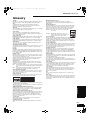
Settings 11 Changing the unit’s settings
“Audio” tab (continued)
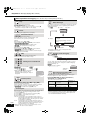
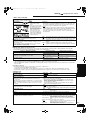
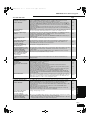
Digital Audio Output
≥Press [OK] to show the following settings.
Dolby Digital
[Note]
≥Bitstream:
≥Not making the proper
When “Bitstream” is selected, audio is output as bitstreams from either the
settings may result in
HDMI AV OUT or DIGITAL AUDIO OUT terminal. Select “Bitstream” when
noise.
the connected equipment can decode the respective audio format. (The
Dolby Digital Plus/TrueHD
≥If the unit is connected with
logo shown on the left is displayed on the equipment.)
the HDMI AV OUT terminal, ≥PCM:
the specifications of the
When “PCM” is selected, these audio formats are output as PCM 5.1ch
connected equipment take
from the HDMI AV OUT and PCM 2ch from DIGITAL AUDIO OUT terminal.
DTS
preference over this unit and Select “PCM” when the connected equipment cannot decode the
audio selected in these
respective audio format. (The logo shown on the left is not displayed on
items may not be output
the equipment.)
(e.g., when a television is
connected, the HDMI audio
DTS-HD
output of this unit is limited
to down-mixed 2ch.)
Regarding 7.1ch LPCM
The settings described below are recommended to output as the original format.
– Connect the unit with the HDMI AV OUT terminal.§3
– Set “BD-Video Secondary Audio” to “Off”. (Otherwise down-mixed 5.1ch PCM will be output from the HDMI AV OUT terminal.)
§3Down-mixed 2ch PCM is output from the DIGITAL AUDIO OUT terminal, regardless of the “BD-Video Secondary Audio” setting.
“Display” tab
Status Messages
Choose whether to show status messages automatically.
On-screen Language
Choose the language for these menus and on-screen messages.
Screen Saver Function
This is to prevent burn-in on the screen.
≥When this is set to “On”, the masked-off area on the screen
becomes gray.
[Only when connecting with an HDMI cable or a component video
cable and “HDMI Resolution” (> 22) is set to any other mode than
“480p”, or “Component Video Resolution” (> 22) is set to “720p”
or “1080i”]
FL Display
Changes the brightness of the unit’s display.
SD Card LED Control
Set the lighting method for the lamp on the SD card slot.
License
≥Automatic
≥English
Settings
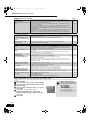
≥On: The primary audio and secondary audio are mixed and output. The
BD-Video Secondary Audio [BD-V]
sampling frequency is converted to 48 kHz.
Turn on/off the clicking sound on the menu and audio with
secondary video in picture-in-picture mode. (> 13)
≥Off: The clicking sound on the menu and secondary audio are not output.
PCM Down Conversion
≥On: Signals are converted to 48 kHz. (Choose when the connected
Select how to output audio with a sampling frequency of 96 kHz.
equipment cannot process signals with sampling frequency of
≥Signals are converted to 48 kHz despite the settings across in
96 kHz.)
the following cases:
≥Off: Signals are output as 96 kHz. (Choose when the connected
– when the signals have a sampling frequency of over 96 kHz
equipment can process signals with sampling frequency of 96 kHz.)
– when the disc has copy protection
– when “BD-Video Secondary Audio” is set to “On”
[Note]
Regarding Dolby Digital Plus/TrueHD, DTS-HD
The settings described in the shaded area are recommended to output the high specification audio of Dolby Digital Plus, Dolby TrueHD,
DTS-HD High Resolution Audio and DTS-HD Master Audio as the original format.
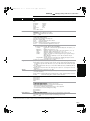
Settings of “Digital Audio Output”
Connected terminal
Audio formats are output as:
HDMI AV OUT terminal
≥“Bitstream” is selected.
Dolby Digital§2
≥“BD-Video Secondary Audio” is set to “On”.
DIGITAL AUDIO OUT terminal
The original format
HDMI AV OUT terminal§1
≥“Bitstream” is selected.
Dolby Digital or DTS Digital Surround
≥“BD-Video Secondary Audio” is set to “Off”.
DIGITAL AUDIO OUT terminal
(depending on the original format)
HDMI AV OUT terminal
Down-mixed 5.1ch PCM
≥“PCM” is selected.
≥“BD-Video Secondary Audio” setting is either “On” or “Off”.
DIGITAL AUDIO OUT terminal
Down-mixed 2ch PCM
§1In the following cases, audio is output as Dolby Digital or DTS Digital Surround.
– The connected device does not support Dolby Digital Plus, Dolby TrueHD, DTS-HD High Resolution Audio and DTS-HD Master Audio.
– Since multiple devices are connected using HDMI cables, operations on the device are restricted.
§2When playing BD-Video without secondary audio or clicking sound, the audio is output as the same format as if “BD-Video Secondary Audio”
was set to “Off”.
≥Off
≥Français ≥Español
≥On:
If there is no operation for 10 minutes or more, the displayed screen
switches to the other states automatically.
– When the Direct Navigator or FUNCTIONS menu is displayed, the
display returns to the screen saver mode.
– When CD or MP3 is played, the display returns to the screen saver
mode. (Playback continues.)
– When still pictures are shown (except for slideshows), the display
returns to the Direct Navigator screen.
≥Off
≥Bright
≥Dim: The display is dimmed.
≥Auto: The display is dimmed during playback and bright except playback.
≥Off
≥On
≥SD inserted: When this unit is turned on and SD card is inserted, the
lamp is lighted.
Information about the software used by this unit is displayed.
“TV/Device Connection” tab
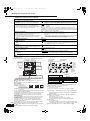
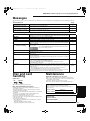
TV Aspect
Set to match the type of television connected.
When connected to a 4:3 aspect television:
≥4:3 Pan & Scan:Video recorded for a widescreen is played as Pan & Scan
(unless prohibited by the producer of the disc). When
playing BD-Video, video is output as “4:3 Letterbox”.
≥4:3 Letterbox: Video recorded for a widescreen is played in the letterbox
style.
When connected to a 16:9 widescreen television:
Video recorded for 4:3 aspect screen is displayed as a 4:3
≥16:9:
ratio image in the center of the screen.
≥16:9 Full:
Video recorded for 4:3 aspect screen is displayed as a
horizontally stretched 16:9 image.
(Continued on the next page)
RQT9037
(ENG)
21