1
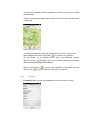
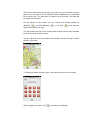
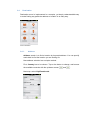
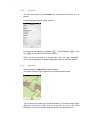
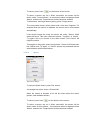
Map Screen with POIs
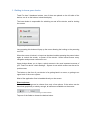
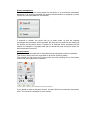
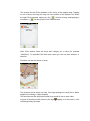
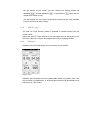
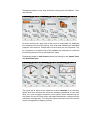
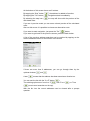
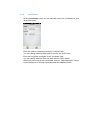
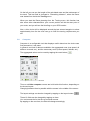
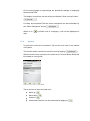
To select a POI on map, tap on a POI indicated visually by its category icon.
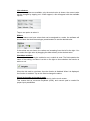
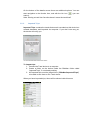
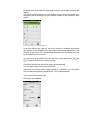
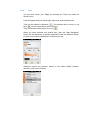
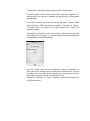
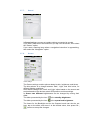
POI Details
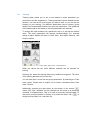
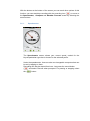
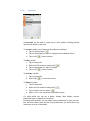
This way the POI Details screen is opened, showing useful information (name,
address, direction) about the POI. Tap on ‘Go’ icon to start navigating, and tap
on ‘Map’ icon to show on map. When more POIs are close to each other, they
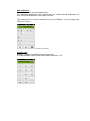
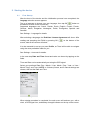
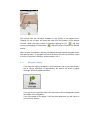
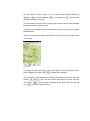
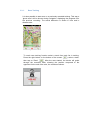
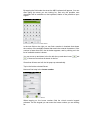
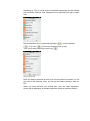
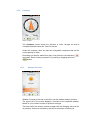
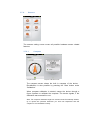
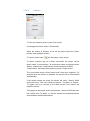
are visually grouped with this sign:
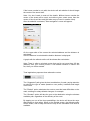
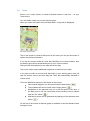
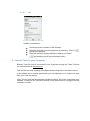
Multiple POI selection screen.
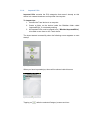
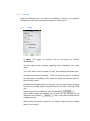
Multiple POI selection
. Tapping on this icon will open the