1
Carrier: AT&T
SonyEricsson W350a
Software tested:
R11AA004prg1205-7398_CINGULAR_JH R11AA004
How to find the
software version:
On the Home screen press RightCursor * LeftCursor LeftCursor
* LeftCursor *, then go to Service Info Software Info
Note:
BMW makes no guarantees or warranties as to the performance of each
phone while connected to your BMW via Bluetooth® Wireless
Technology. Furthermore, software releases by BMW, the phone
supplier or the wireless carrier dated after testing might alter
compatibility results.
Vehicles compatible:
1-series
3-series
5-series
6-series
7-series
X5
X6
Produced after:
March 2005
March 2005
March 2005
March 2005
September 2008
March 2005
March 2008
Pairing Instructions:
1.
Set vehicle in pairing mode. For details please see the vehicle user’s manual.
2.
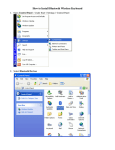
To turn on Bluetooth at phone: Menu Settings Connectivity Bluetooth Turn on
To search for Devices: On the Home screen press Menu Settings Connectivity Handsfree My Handsfree add
Your phone will display a list of any Bluetooth device(s) that it discovers in range and
available to be paired
3.
4.
Select the name of the Bluetooth enabled device (e.g. BMW xxxxx) with which you are
pairing. Please note that the Bluetooth enabled device name may first appear as
“Handsfree”.
Type in a passkey on the cell phone first (on some BMW models like X3, Z4 and 7 series
the passkey that is required for this step is fixed. See the car manual for the passkey. On all
other cars the passkey can be selected by the user).
Then the Confirm Passkey dialog appears in the display of the car:
Page 1 of 2
Repeat the passkey that was used on the device to authenticate the cell phone and press
Confirm passkey.
Limitations:
1.
No entries from SIM card are transferred to car kit
The telephone directory of the SIM card is not accessible over Bluetooth interface. Please
copy entries from SIM card to the internal telephone directory.
2.
No automatic audio transfer during active call after reconnecting to car kit
After phone reconnects automatically to car kit during an active call (Active Call screen
displayed at Headunit), user has to transfer audio manually to car kit by
Pressing More -> Transfer Sound -> then choose your car identification (BMW xxxxx) ->
Select. Call is transferred to hands free then. To come back to usual call screen on phone
press OK.
Scenarios:
• User turns off Bluetooth on Headunit during an active call and on again.
• User turns off Bluetooth at handset during an active call and on again.
• User enters car with active call on handset.
• User takes handset out of Bluetooth range and re-enters the range area with an
active call
3.
Automatic reconnection to car
If phone does not reconnect automatically, please double-check security feature of phone.
Press Menu Settings Connectivity Bluetooth Handsfree My Handsfree your car (BMW xxxxx) Options Allow connection. Set to “Always allow”.
4.
Call Waiting is not completely supported
5.
Transfer sound screen
With some car kits the cell phone for each outgoing call will display "Sound in headset.
Transfer to phone?" yes / no. The user can select no to make the message go away and the
call will continue in handsfree mode
Page 2 of 2