1
SETTINGS MENU
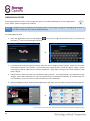
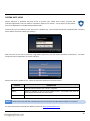
The Settings menu allows you to adjust Scroll Basic Plus’s system configuration.
To change settings:
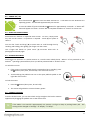
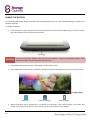
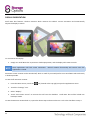
1. Touch the “Settings”
menu icon on the Applications menu. The Settings menu will open.
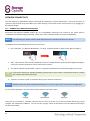
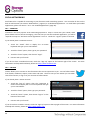
2. Glide your finger up or down the left side of the screen to scroll through the list of available categories.
3. Touch a category title to view further options on the right side of the screen.
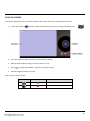
System
Personal
Device
Network
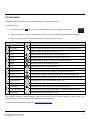
ITEM
ICON
DESCRIPTION
Wi-Fi
Connect to / disconnect from wireless networks, view connection status, etc
Data usage
Enable / disable mobile data, view current usage, set mobile data limit, etc
More…
Airplane mode, 3G support information, etc
Sound
Change volume, touch sounds, screen lock sounds, etc
Display
Change brightness, wallpaper, sleep settings, font size, etc
Storage
Manage NAND and Micro SD card, view available capacity, etc
Battery
See battery status and powered-on time
Apps
Manage applications, running services, etc
Accounts & sync
Switch synchronisation on / off, manage accounts, etc
Location services
Change approximate location detection, improve search results
Security
Change screen lock type, encryption, passwords, credential storage, etc
Language & input
Select language, add to the dictionary, edit on-screen keyboard settings, etc
Backup & reset
Backup & restore data, perform factory reset, etc
Date & time
Set date, time zone, time, clock format, etc
Accessibility
Set up large text, auto-rotate screen, speak passwords, etc
Developer options
Advanced functions for Android developers – debugging, HDCP check, etc
About tablet
Information about your AndroidTM device
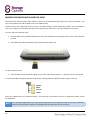
Some options will have a simple checkbox, while others will have a list of further settings to choose from. You
should take time to become familiar with the options in these categories.
For more detailed information, please visit http://www.android.com/.
13