1
VPCL1 Series Optical Disk Drive
Replacement Instructions
IMPORTANT!
PLEASE READ BEFORE YOU START
These easy instructions are intended to guide you through the replacement process.
To avoid electric shock, please make sure product is turned off and the AC plug is disconnected from
the power source. Remove jewelry before you begin work to avoid scratching the surface of your
computer.*
Place your computer on a clean, stable and covered surface to avoid damage to the computer’s
case.*
Follow the ESD (Electrostatic Discharge) damage prevention instructions:
o
o
Hold parts by the edges, away from exposed circuitry when possible.
Do not walk around excessively as this promotes static build-up.
The appearance of the electronic components shown in the illustrations may be different from the
components shipped. This slight difference does not affect the accuracy of these instructions.
* Sony is not responsible for any loss of data associated with your computer or any damage caused by incorrect handling of
the computer under these procedures. The terms of your Sony limited warranty continue to apply.
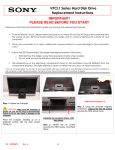
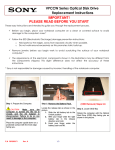
Step 1. Prepare the Computer.
CAUTION: Make sure the computer is
turned off, and the AC plug is disconnected.
Failure to do so can result in damage to the
computer.
Carefully lay computer down. LCD
face down. Preferably on a towel to
help protect LCD.
Place the computer standing up on a
protected surface with the back portion
facing you.
P/N 989200673
Rev. A
1/4
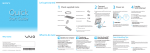
Step 2. Rotate computer so the ODD
Bay is facing you.
VPCL1 Series Optical Disk Drive
Replacement Instructions
Step 3. Locate ODD manual eject hole.
Manually eject the ODD using a paper clip
to eject via eject hole.
Step 4. Identify the (2) screws securing
the ODD to the computer.
Step 6. Pull ODD tray all the way out to
expose side brackets. Use these brackets to
help release ODD from connector.
Step 7. Once ODD is released from
connector continue to slide ODD
assembly out.
Step 8. After the ODD is completely
removed, identify the (5) side screws that
mount the HDD brackets to the HDD.
Step 9. Holding the edge of the HDD,
remove each screw and set the screw
aside. These screws will be used to
mount the HDD brackets onto the
new HDD.
P/N 989200673
Rev. A
2/4
Step 5. Using the included magnetic
screwdriver, loosen the (4) screws
securing the ODD Assembly.
CLOSE ODD BEFORE
COMPETELY REMOVING.
Step 10. All (5) screws and brackets
should now be removed from old HDD.
VPCL1 Series Optical Disk Drive
Replacement Instructions
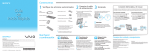
Step 11. Take the new ODD and bezel
provided in the CRU kit and prepare for
assembly.
Note! Identify tabs on the bezel and tab
holes located on the ODD.
Step 12. Align the tabs on the bezel with
the tab holes located on the ODD. Firmly
but carefully press the bezel into place.
Step 13. Position the new ODD (Label
side down) and identify the correct
bracket with the correct side it is to be
mounted. Notice the different shapes for
each bracket and the way the available
screw holes should align.
Step 14. Firmly but carefully hold the ODD
and begin the re-installation of the screws
& brackets.
Note! Flat surface of bracket should
sit flush with silver side of ODD.
Step 15. To install the new drive, hold the
optical drive by the edges and align it with
the bay opening.
Step 16. To ensure proper assembly and
connection, with even force push the ODD
back into place. You should feel ODD
connect to connector.
(Optical drive should be sitting flush with
the edge of the computer)
Step 17. Manually eject the ODD to
secure the new ODD to the computer.
P/N 989200673
Rev. A
3/4
VPCL1 Series Optical Disk Drive
Replacement Instructions
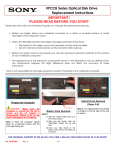
Step 20. Plug in power cord.
Return the old ODD to Sony
following
the
included
shipping instructions.
Step 18. Tighten the two previously
loosened screws.
P/N 989200673
Rev. A
Step 19. Close ODD tray.
4/4