1
Ports
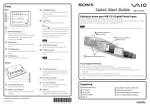
qs DISPLAY button
Press this button to turn on the
display on the Home Server and
select the required information.
Front
qd Memory Stick slot
Insert a “Memory Stick” media.
This slot can also accommodate
the Duo-type media without an
adapter.
VGF-HS1 Series
Getting to know your VGF-HS1 Home Server
The information provided here is designed to help you become familiar with your Home Server.
qf OK button
Press this button to confirm the
information displayed on the
display.
1 COPY indicator light
Indicates the state of a USB device
or a memory card and the status of
data imported from the device or
card.
2 NETSERVER indicator light
Indicates the server test status or
the state of the Home Server.
3 1 (POWER) indicator light
Indicates the state of the power
supply or the state of the Home
Server.
7 CONNECT button
Press this button to obtain a
permission code for adding a Data
Sync (receiving) profile.
8 COPY button
Press this button to import data
from a USB device or a memory
card.
9 SD (SD memory card) slot
Insert an SD memory card.
q;
4 1 (POWER) button
Press this button to turn on and off
the Home Server.
5 INFO indicator light
Indicates the state of the Home
Server.
6 HDD indicator light
Indicates the remaining capacity or
the state of the hard disk drive.
(USB) port
Connect a USB mass storage
class device, such as a digital still
camera or a digital camcorder.
This port is also labeled as Front
USB on the Home Server Settings
Page.
qa Display
Displays information on the Home
Server.
Store
qg CANCEL button
Press this button to cancel the ongoing operation. You can also
press and hold this button for 10
seconds to clear the administrator
registration and the IP address
settings.
qh MEMORY CARD access indicator
light
Blinks while access to the memory
card is in progress.
qj CF (CompactFlash) slot
Share
Note
Some of the above products may not be available, depending on the country or region of residency.
qk CF (CompactFlash) media eject
button
ql Front door
To open the front door, put your
fingertip on the left end of the door
and slide it half way to the right. To
close the door, slide it half way to
the left.
w; ID label
Shows the model name of the
Home Server.
Unpacking
❑ Home Server
❑ Network (LAN) cable (straightthrough Ethernet cable, 2 m)
❑ Rear cover
❑ User Guide
❑ Setup Guide
Back
❑ AC adapter
❑ Warranty sheet or Guarantee
and Service Support booklet
(depending on the country or
region of residency)
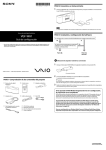
1 Air vents
2 DC IN port
Connect to the AC adapter.
3 Network (LAN) port
Connect a network (LAN) cable.
Note
Be sure not to connect any
unsupported networks or any
telephone lines to the Network
port.
❑ Quick Start Guide
(this document)
4
(USB) port 1
Connect a USB mass storage
class device, such as a digital still
camera or a digital camcorder.
This port is also labeled as Rear
USB1 on the Home Server Settings
Page.
5
(USB) port 2
Connect a USB mass storage
class device, such as a digital still
camera or a digital camcorder.
This port is also labeled as Rear
USB2 on the Home Server Settings
Page.
❑ Power cord
4-121-976-01(1)
© 2008 Sony Corporation / Printed in Japan
❑ CD-ROM disc
• Software
– PC Link
– VAIO Media
• Contents
Sample contents
(also stored on your Home
Server at the time of delivery)
Connecting
Installing Software
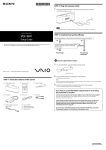
1 Connect the supplied network (LAN) cable to the network (LAN) port on the back of your Home Server.
The PC Link software provides you with easy ways to keep your folder content updated (data synchronization)
between your personal computer and your Home Server.
1 Insert the supplied CD-ROM disc into the optical
7 Select a Home Server and click “Next.”
disc drive of your computer.
2 The License Agreement is displayed, read the
terms and conditions, select “I accept the terms of
the license agreement,” and click “Next.”
The software setup window appears.
Router
3 Click “PC Link” 1 and then “Install” 2.
To the network (LAN) port
1
2 Connect your Home Server to a power outlet with the supplied AC adapter.
8 Select your desired folder(s).
2
4 Click “Next” on the InstallShield Wizard.
2
4 To an AC outlet
AC adapter
(supplied)
1 To DC IN 19.5V
Power cord
(supplied)
3 To the AC adapter
z Tip
Please refer to the Setup Guide for detailed instructions on connecting to a network.
5 Click “Finish” upon completion of the software
3 Attach the rear cover.
installation.
z Tip
If the above window does not appear, please refer to
“When your Home Server has a global IP address” (page
47) in the Setup Guide.
9 Finish the setup.
6 Click “Next” when the PC Link software starts.
Turning On/Off
Turning on your Home Server
Turning off your Home Server
1 Press the 1 (POWER) button for about 2 seconds
1 Press the 1 (POWER) button for about 2 seconds
until the 1 (POWER) indicator light blinks in orange.
When the Home Server is completely turned on, the
power indicator light stops blinking and turns
green.
until the 1 (POWER) indicator light blinks in green.
z Tip
Your Home Server is designed to be always on and has
power saving features to reduce energy use when no being
accessed.
1 (POWER) button / 1 (POWER) indicator light
When you click “Close,” the PC Link software will
begin to upload the selected folders.