1
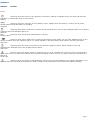
Functions of the keyboard keys
Key
Description
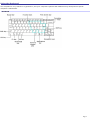
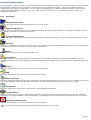
Numeric keypad area Contains the keys found on a typical calculator. Use the numeric keypad area to type numbers or to
perform mathematical calculations such as addition and subtraction. Numbers appear on the front beveled edge of the
numeric keys. You must press the Num Lock key to activate the numeric keypad. (When you do so, the Num Lock indicator
lights up.)
Navigation keys Several keys are devoted to moving the cursor on the screen (the four arrow keys which also function as
the Home, End, Page Up, and Page Down keys).
Correction keys The Insert, Backspace, and Delete keys enable you to make corrections in your documents.
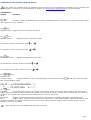
Function keys
The twelve function keys along the top of the keyboard are used to perform designated tasks. For
example, in many applications, F1 is the Help key. The task associated with each function key may vary among applications.
Escape key
The Esc (Escape) key is used to cancel commands.
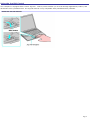
Print Screen key
The Print Screen key takes an electronic snapshot of the screen and moves it to the Windows®
Clipboard. You can then paste the screen shot into a document and print it.
Operator keys (Shift, Ctrl, Alt keys)
Several keys are always used with at least one other key: Ctrl, Alt, and Shift. When
held down with another key, the Ctrl (Control) and Alt (Alternate) keys offer another way to give commands. For example,
in many applications, instead of choosing the Save command from a menu, you can hold down Ctrl and press the S key
(referred to as Ctrl+S). The Shift key operates the same way as on a typewriter; it is used to produce capital letters or
special symbols, such as @ and $.
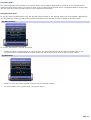
Windows ® key
The key with the Windows® logo displays the Windows ® Start menu; it's the equivalent of clicking Start on
the taskbar. See Combinations and functions with the Windows key for more information.
Fn key
The Fn key is used in combination with other keys to issue commands. See Combinations and functions
with the Fn key for more information.
Applications key
The Applications key displays a shortcut menu of context-sensitive choices. Pressing this key is the
equivalent of clicking the right mouse button.
Page 4