1
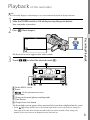
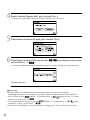
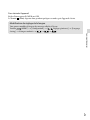
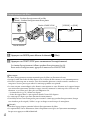
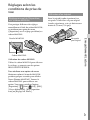
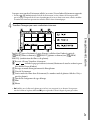
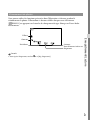
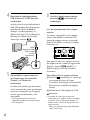
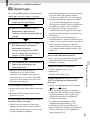
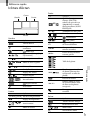
Playback on the camcorder Tips The camcorder displays recorded images as an event automatically based on the date and time. 1 2 Slide the POWER switch to ON while pressing the green button. Your camcorder is turned on. (View Images). Press Touch / to select the desired event (). Recording/Playback 3 The Event View screen appears after some seconds. To the MENU screen Events / : To the previous/next event Event name Change to the movie/photo recording mode Time-line bar Change Event Scale button The Event Index screen appears when you touch the event that is displayed on the center. Touch ( Change Event Scale) on the bottom right of the screen so that you can change the time range of the time-line bar from one and a half years to three months, which changes the number of the events that can be displayed on the time-line bar. US 37