1
CHAPTER 46: Managing SonicWALL Gateway Anti-Virus Service
Activating SonicWALL Gateway Anti-Virus
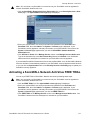
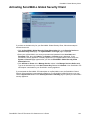
If you have an Activation Key for your SonicWALL Gateway Anti-Virus, perform these steps to activate
the service:
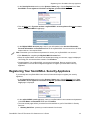
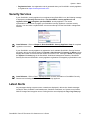
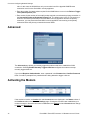
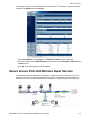
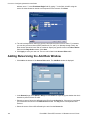
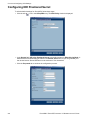
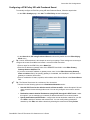
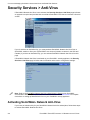
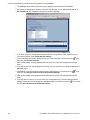
1 On the Security Services > Gateway Anti-Virus page, click the SonicWALL Gateway AntiVirus Subscription link. The mySonicWALL.com Login page is displayed.
2 Enter your mySonicWALL.com account username and password in the User Name and
Password fields, then click Submit. If your SonicWALL security appliance is already registered to
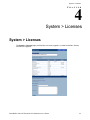
your mySonicWALL.com account, the System > Licenses page appears.
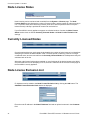
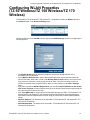
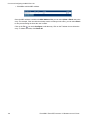
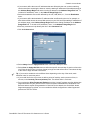
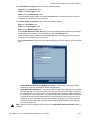
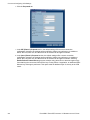
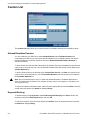
3 Click Activate or Renew in the Manage Service column in the Manage Services Online table.
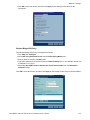
4 Type in the Activation Key in the New License Key field and click Submit. Your SonicWALL
Gateway Anti-Virus subscription is activated on your SonicWALL security appliance.
If you activated the SonicWALL Gateway Anti-Virus subscription on mySonicWALL.com, the
SonicWALL IPS activation is automatically enabled on your SonicWALL within 24-hours or you can
click the Synchronize button on the Security Services > Summary page to update your SonicWALL
security appliance.
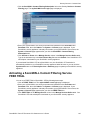
Activating the SonicWALL Gateway Anti-Virus
FREE TRIAL
To try a FREE TRIAL of SonicWALL Gateway Anti-Virus, perform these steps:
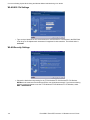
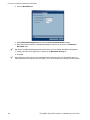
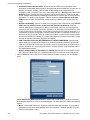
1 Click the FREE TRIAL link. The mySonicWALL.com Login page is displayed.
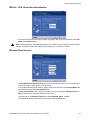
2 Enter your mySonicWALL.com account username and password in the User Name and
Password fields, then click Submit. If your SonicWALL security appliance is already connected to
your mySonicWALL.com account, the System > Licenses page appears after you click the FREE
TRIAL link.
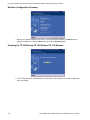
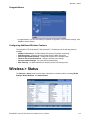
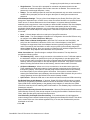
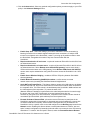
3 Click Try in the FREE TRIAL column in the Manage Services Online table. Your SonicWALL
Gateway Anti-Virus trial subscription is activated on your SonicWALL security appliance.
282
SONICWALL SONICOS STANDARD 3.0 ADMINISTRATOR’S GUIDE