1
Preparation
Preparation
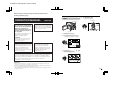
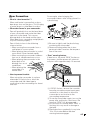
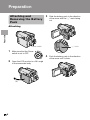
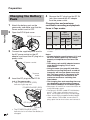
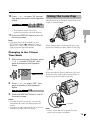
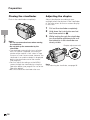
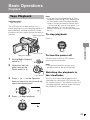
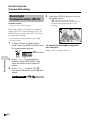
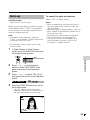
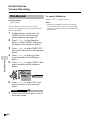
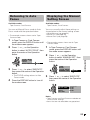
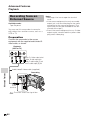
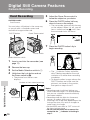
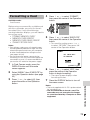
Closing the viewfinder
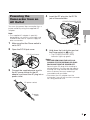
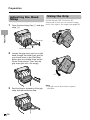
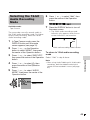
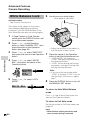
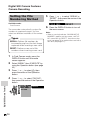
Adjusting the dioptre
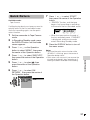
Push in the viewfinder completely.
Adjust the dioptre according to your
eyesight when the picture in the viewfinder
or the characters on the on-screen display
is not clear.
Notes:
• Do not use excessive force when moving
the viewfinder.
• Do not pick up the camcorder by the
viewfinder.
• The viewfinder automatically turns off when
the LCD monitor is opened. If the vertical
rotation of the monitor is 180° when in Tape
Camera or Card Camera mode, however, the
viewfinder is on and the subject is displayed
both in the viewfinder and on the monitor
(see page 40).
• You can adjust the settings on the MENU
screen through the viewfinder by using the
Operation button (see page 31 for use of the
Operation button).
• Be sure to close the viewfinder after use.
18
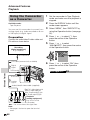
1
2
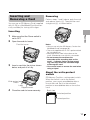
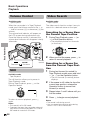
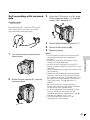
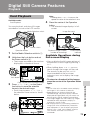
Pull out the viewfinder completely.
3
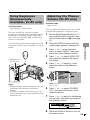
While looking through the viewfinder,
turn the dioptre adjustment dial until
the indicators in the viewfinder are
clearly visible.
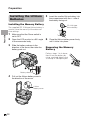
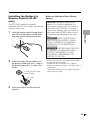
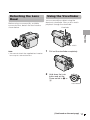
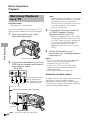
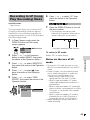
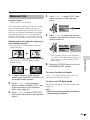
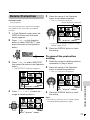
Hold down the Lock button and set
the Power switch to v.
Dioptre adjustment dial
Note:
• For cleaning the viewfinder, see page 95.