1
Editing
Available mode:
Tape Playback
Video editing lets you refine your videos by
removing unwanted sequences from your
tape, or transposing one sequence with
another.
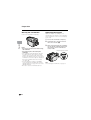
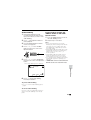
This camcorder lets you monitor the source
program on the built-in LCD monitor without
having to connect it to an external TV or
video monitor.
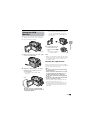
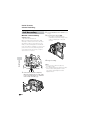
• See page 2 for how to open the terminal
cover.
• If your VCR has only one audio input jack,
use the white plug for the audio connection
on the VCR.
• If your VCR has an S-video input socket, you
do not need to connect the yellow video plug.
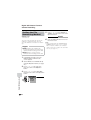
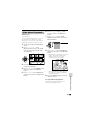
Cutting Unwanted Sequences
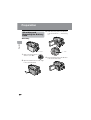
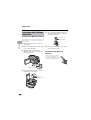
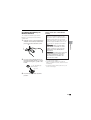
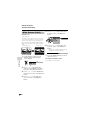
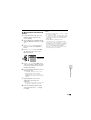
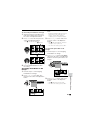
Play back the tape to be edited on the
camcorder, and locate the beginning
and end of the sequence you wish to
cut. Write down the time code reading
at the beginning and end of that
sequence (see page 60). Then, rewind
the tape to before the beginning of the
portion that you wish to keep.
2
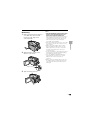
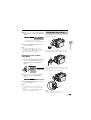
Load a video cassette into the
recording VCR.
3
Press m on the camcorder to begin
playback, then press the Record
button on the VCR to begin recording.
4
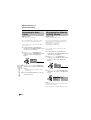
Press the Pause/Still button on the
VCR to pause recording when the
source tape reaches the beginning of
the sequence to be cut.
5
Press the Pause/Still (or Record)
button on the VCR to resume recording
when the source tape reaches the end
of the sequence to be cut.
Preparation
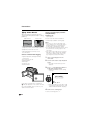
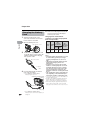
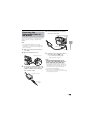
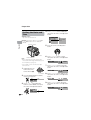
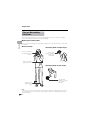
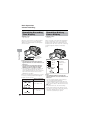
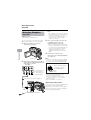
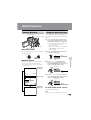
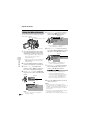
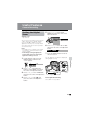
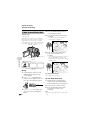
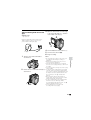
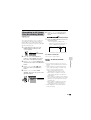
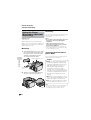
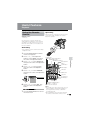
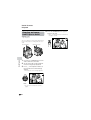
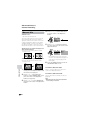
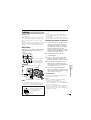
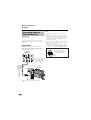
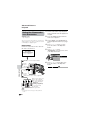
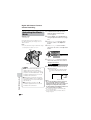
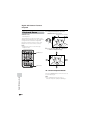
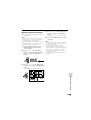
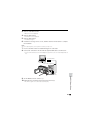
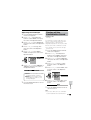
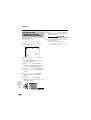
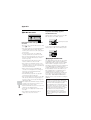
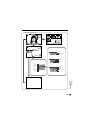
Connect the camcorder to a VCR with the
supplied audio/video/S-video cable, as
shown.
Recording (VCR)
S-VIDEO
VIDEO (MONO) L-AUDIO-R
AV-IN
Black: To S-video input socket
Yellow: To video input jack
White: To audio input (L) jack
Red: To audio input (R) jack
Audio/video/S-video cable (supplied)
Playback
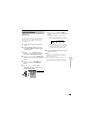
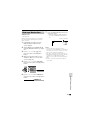
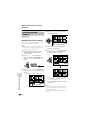
To stop editing
Press l on the camcorder and press the
Stop button on the VCR.
To AV
terminal
: The arrow shows the signal flow.
Notes:
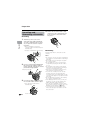
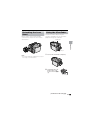
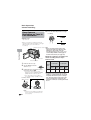
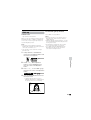
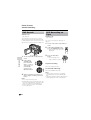
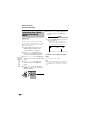
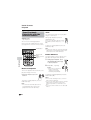
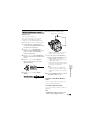
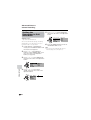
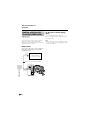
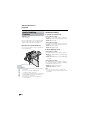
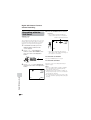
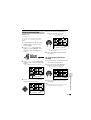
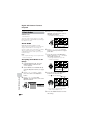
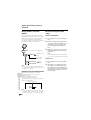
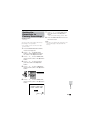
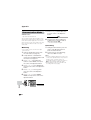
• If your VCR has a 21-pin Euro-SCART
connector, use the RCA/21-pin Euro-SCART
conversion connector (QSOCZ0033TAZZ).
21-pin Euro-SCART on VCR
0
VIDEO
Video
AUDIO
AUDIO
(L/MONO)
(R)
RCA/21-pin Euro-SCART
conversion connector
(QSOCZ0033TAZZ)
Audio R
Audio L
Notes:
• Some of the transitions between edited
sequences may be slightly off.
• There may be picture noise during video
search or still playback. This does not imply a
defect in the camcorder.
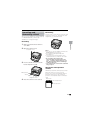
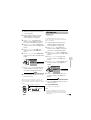
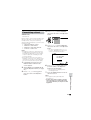
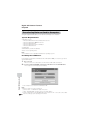
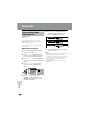
• The time code display will be recorded along
with the edited sequences if the TC OUT
menu item is set to “ON”. Set to “OFF” before
editing (see page 60).
61
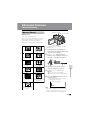
Advanced Features
1