1
BEFORE USING THE PRODUCT
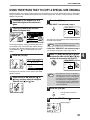
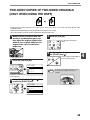
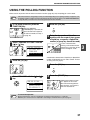
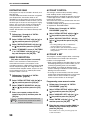
DISABLING (ENABLING) AUTO TRAY SWITCHING
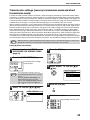
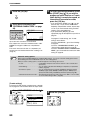
When auto tray switching is enabled and paper runs out during copying or printing, the job will continue using paper
from a different tray if that tray has the same size of paper in the same orientation. (This function does not operate
when using the bypass tray or when a fax is being printed.) This function has been enabled at the factory. If you
prefer to disable the function, follow the steps below.
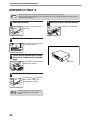
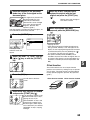
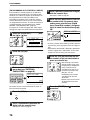
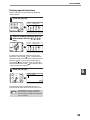
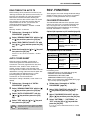
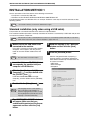
1
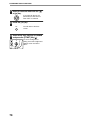
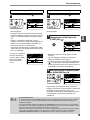
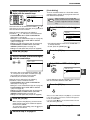
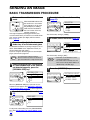
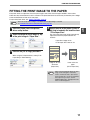
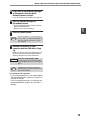
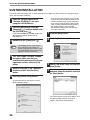
Press the [SPECIAL FUNCTION] key.
DUPLEX
SPECIAL FUNCTION
DUPLEX SCAN
DUPLEX SCAN
ACC.
The special function
screen will appear.
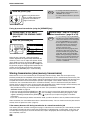
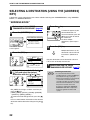
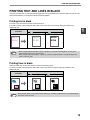
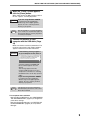
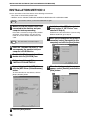
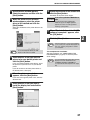
Select "PAPER SIZE SET" with the [ ]
or [ ] key.
GH
PQR
DUPLEX
SPECIAL FUNCTION
DUPLEX SCAN
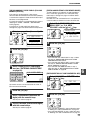
3
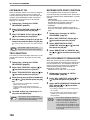
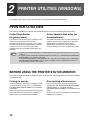
Press the [OK] key.
BACK
OK
GHI
The paper size setting
screen will appear.
4
SPECIAL FUNCTION
SPECIAL MODES
ORIG. SIZE ENTER
PAPER SIZE SET
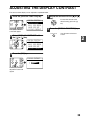
DISPLAY CONTRAST
PAPER SIZE SET
812 x11R
11x17
11x17
8 12 x14
8 12 x13
8 12 x11
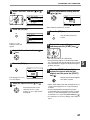
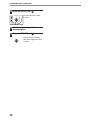
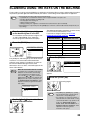
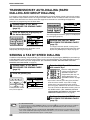
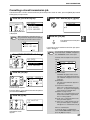
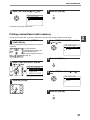
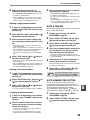
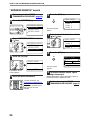
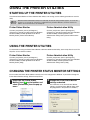
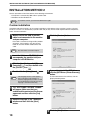
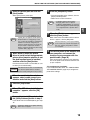
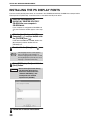
Press the [ ] key repeatedly until
"AUTO TRAY SWITCHING" appears.
PAPER SIZE SET
AUTO TRAY
SWITCHING
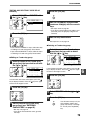
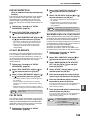
Move the cursor to the lowest tray and then press the
[ ] key again. The above screen will appear.
22
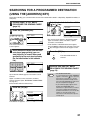
Press the [OK] key.
OK
SPECIAL FUNCTION
SPECIAL MODES
ORIG. SIZE ENTER
PAPER SIZE SET
DISPLAY CONTRAST
The above screen appears in copy mode.
2
5
PAPER SIZE SET
AUTO TRAY
SWITCHING
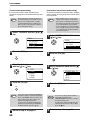
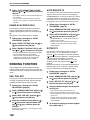
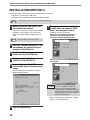
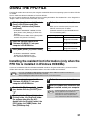
When a checkmark does not appear in the checkbox,
the auto tray switching function will not operate.
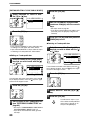
6
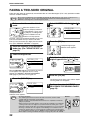
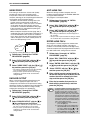
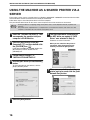
Press the [ ] key.
You will return to the
paper size setting screen.
PAPER SIZE SET
812 x11R
11x17
11x17
8 12 x14
8 12 x13
8 12 x11
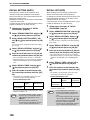
To re-enable auto tray switching, press the [OK] key in
the screen of step 5 so that a checkmark appears.























































































































![3 Pulse la tecla [OK].](http://vs1.manualzilla.com/store/data/006242630_1-7a1c03e0b02b6620550bbf18f6c5e232-150x150.png)