1
MCD297
Quick Start Guide
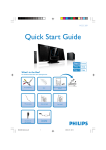
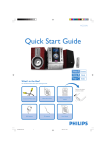
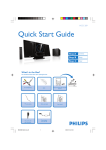
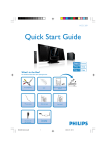
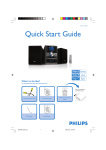
What’s in the Box?
You should find these items upon opening the box.
Quic
1
k St
art
USB/
Guid
e
Quick Start Guide
Composite Video Cable
Remote control with
battery
2
User Man
ual
MW antenna
MCD297 QUG_Eng
FM antenna
1
User Manual
2008.6.24, 10:37 AM
Remove the plastic
protective sheet
1
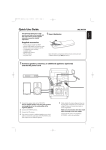
Connect the speaker cables.
2
Connect the FM and MW antennas.
Tip
3
See the User Manual for other TV
connection options.
Connect the composite video cable to a TV.
4
Connect the power cords of the system and TV.
MW loop
antenna
A
FM wire
antenna
LINE OUT
Speaker
(right)
L
COAXIAL
SUB WOOFER
OUT
R
FM aerial
75 Ω
VIDEO
MW aerial
S-VIDEO
VIDEO OUT
R
Speaker
(left)
L
A To listen to the sound of this DVD Player
through your TV, use the audio cables (white/
red-not supplied) to connect LINE OUT
(L/R) jacks of the DVD Player to the
corresponding AUDIO IN jacks on the TV.
+
–
SPEAKER 4Ω
AUDIO OUT
L
R
AC power cord
B
B To listen to the sound of your TV through
this DVD player, use a cinch cable (not
supplied) to connect AUX-IN on the front
panel of the DVD player to the
corresponding AUDIO OUT jacks on the TV.
USB/
Setting up the TV
1
Press SOURCE (DISC on the remote) to select disc source.
2
Turn on the TV and set it to the correct Video In channel.
MCD297 QUG_Eng
2
2008.6.24, 10:37 AM
Setting the clock
Important!
– To set clock in the Eco Power mode, press and hold ECO POWER/STANDBY ON on the set for 3 seconds
or more to switch to normal standby mode first before proceeding with the procedures below.
1
In standby mode, press and hold CLOCK on the system.
2
When the hour digits flash, turn the VOLUME -/+ control on the front panel or press
VOL +/- on the remote to set the hours.
3
Press CLOCK again and the minute digits flash. Then turn the VOLUME -/+ control on
the front panel or press VOL +/- on the remote to set the minutes.
4
Press CLOCK again to confirm the time setting.
Before using the remote control
1 Pull out the plastic protective sheet.
2 Select the source you wish to control by pressing one of the source
select keys on the remote control (for example CD,TUNER).
3 Then select the desired function (for example ÉÅ , à , á)
Remove the plastic protective sheet
Setting system menu options
USB/
LATIN
DIVX(R) VOD
Tip
See chapters "Preparations" and "System Menu Options" in the User
Manual for detailed descriptions.
MCD297 QUG_Eng
3
2008.6.24, 10:37 AM
Playing a disc
1
Press OPEN•CLOSE 0 to open the disc tray and load in a disc, then press the same
button again to close the disc tray.
➜ Make sure the label side of the disc is facing up.
2
Playback will start automatically. If not pressÉÅ.
3
To stop playback, press 9.
Programming and tuning to radio stations
1
Press SOURCE (TUNER on the remote) to select tuner source.
2
Press PROG/ANGLE for more than two seconds to program all available stations in
order of waveband.
3
Press PRESETí/ë until the desired preset station is displayed.
Tip
Detailed playback features and additional functions are described in the
accompany owner's manual.
Playing a USB mass storage device
With the Hi-Fi system, you can use USB flash memory (USB 2.0 or USB1.1),
USB flash players (USB 2.0 or USB1.1), memory cards (requires an additional card reader to
work with this Hi-Fi system).
1
Insert the USB device’s USB plug into the socket
on the front panel of the main set.
2
Press SOURCE (or USB/AUX on the remote control) once or more to select USB.
3
Play the USB’s audio files as you do with the albums/tracks on a CD.
C Royal Philips Electronics N.V. 2007
All rights reserved.
PDCC-J.W.Wang 0746
http://www.philips.com
MCD297 QUG_Eng
4
2008.6.24, 10:37 AM