1
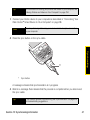
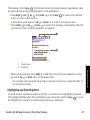
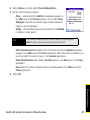
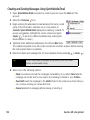
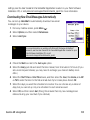
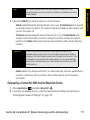
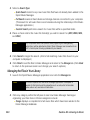
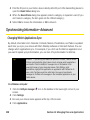
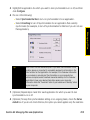
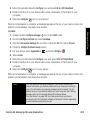
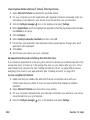
6. (Optional) Repeat steps 4 and 5 for each application for which you want to turn
synchronization on or off.
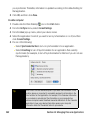
7. (Optional) To keep this synchronization setting on an ongoing basis, click Make Default.
If you do not select this button, the option you select applies only the next time you
synchronize. Thereafter, information is updated according to the default setting for the
application.
8. Click OK, and then close the Conduit Settings screen.
If your computer is enabled with Bluetooth wireless technology, you can synchronize
wirelessly over a Bluetooth connection. When you synchronize using your device’s Bluetooth
wireless feature, you don’t need your cable. This is especially useful if you travel with a laptop
enabled with Bluetooth wireless technology.
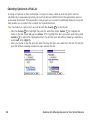
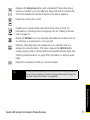
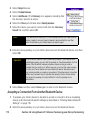
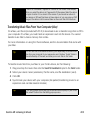
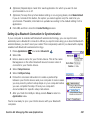
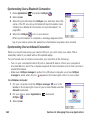
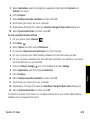
1. Press Applications
and select Bluetooth
.
2. Select On.
3. Enter a device name for your Centro device. This is the name
that appears on the other Bluetooth device’s screen when it
connects to your Centro device.
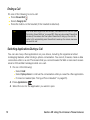
4. Select Setup Devices.
5. Select HotSync Setup.
6. Follow the onscreen instructions to create a partnership
between your Centro device and your computer. In some cases
you may need to perform setup steps on your computer before
you can complete this step. Check your computer’s
documentation for specific setup instructions.
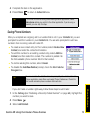
7. After you finish the HotSync Setup, select Done to return to
Applications view.
You’re now ready to sync your Centro device with your Bluetooth
computer.
Section 6A: Managing Files and Applications
261
Managing Files
Setting Up a Bluetooth Connection for Synchronization