1
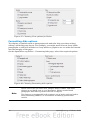
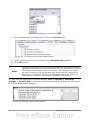
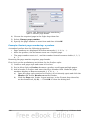
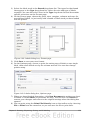
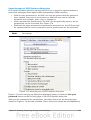
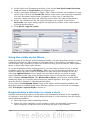
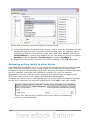
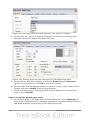
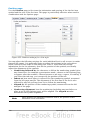
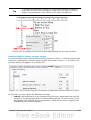
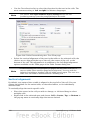
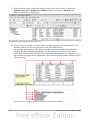
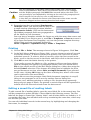
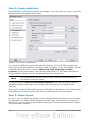
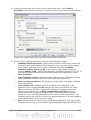
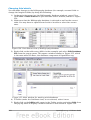
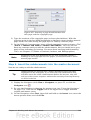
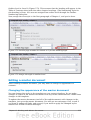
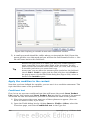
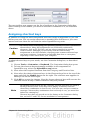
6) To assign Ctrl+9 to be the shortcut key combination for the List 1 style, select
List 1 in the Function list, and then click Modify. Ctrl+9 now appears in the
Keys list on the right, and List 1 appears next to Ctrl+9 in the Shortcut keys
box at the top.
7) Make any other required changes, and then click OK to save these settings
and close the dialog box.
Example: Assigning macros to shortcut keys
A common use for assigning macros to shortcut keys is to enable quick and easy
insertion of special characters. This example shows how to set up keyboard shortcuts
for inserting en-dashes and em-dashes.
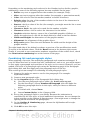
First, you need to record a macro for inserting each type of dash. Then, you need to
assign those macro to shortcut key combinations.
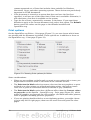
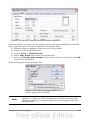
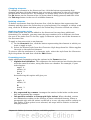
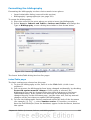
1) Choose Tools > Macros > Record Macro to start recording a
macro.
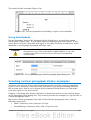
A small window is displayed so you know that OpenOffice.org is
recording.
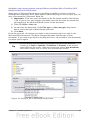
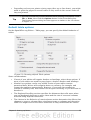
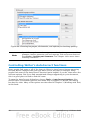
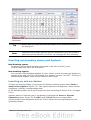
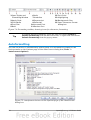
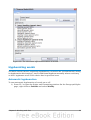
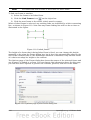
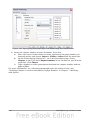
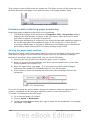
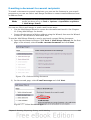
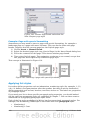
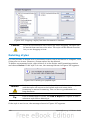
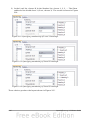
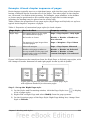
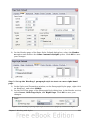
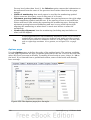
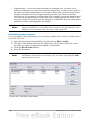
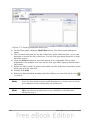
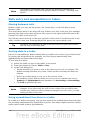
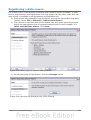
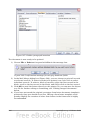
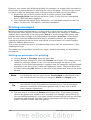
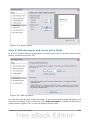
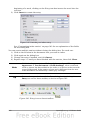
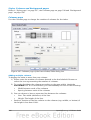
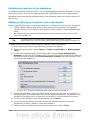
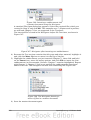
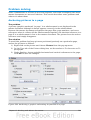
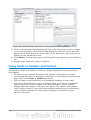
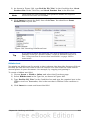
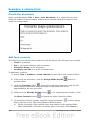
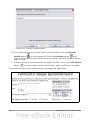
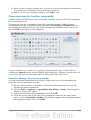
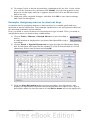
2) Choose Insert > Special Characters to open the Special Characters dialog
box. Scroll down until you find the en-dash (U+2013) and em-dash (U+2014)
characters. Select one of them and click OK.
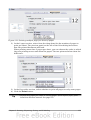
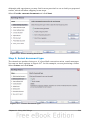
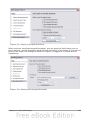
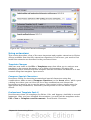
Figure 438: Find and choose the en-dash.
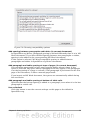
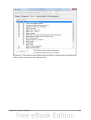
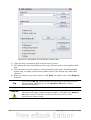
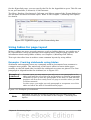
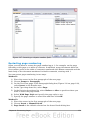
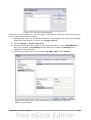
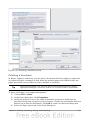
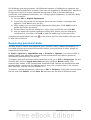
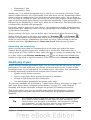
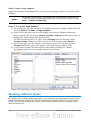
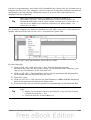
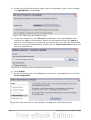
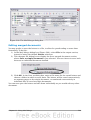
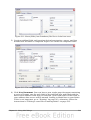
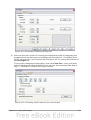
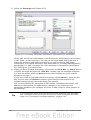
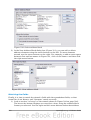
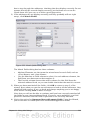
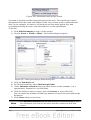
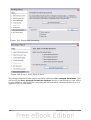
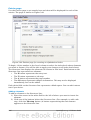
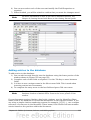
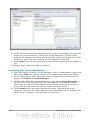
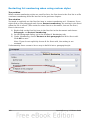
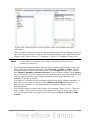
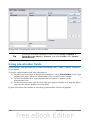
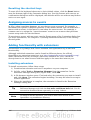
3) Click the Stop Recording button to stop recording, save the macro, and
display the OpenOffice.org Basic Macros dialog box (see Figure 439). Type a
descriptive name for the new macro in the Macro name box on the upper left.
Chapter 16 Customizing Writer
443