1
6:32 PM
Quick Reference Guide
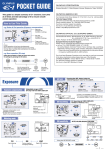
CAMERA DIAGRAM AND CONTROLS
AEL/AFL/0 (Protect) button
</Y/j (Remote control/
Self-timer/Drive) button
(Copy/Print) button
Viewfinder
Diopter adjustment dial
INDEX
1. Camera Diagram and Controls
2. How to use the mode dial
3. How to use the buttons and control dial
4. How to Use the Autofocus
5. Flash Modes
6. Image Quality Modes
7. Viewing Pictures on a TV
8. How to Erase All Pictures
9. E-mailing a Picture
10. Printing a Picture
V (One-touch WB) button
#(Flash) switch
(AF frame
selection) button
q (Playback) button
WB (White
balance) button
S(Erase) button
AF (Focus mode)
button
MENU button
INFO (Information
display) button
Monitor
Arrow pad
Mode dial
Easy shooting modes
AUTO Full-auto shooting
Allows you to take a picture if you simply press the
shutter button.
i PORTRAIT
Suitable for shooting a portrait-style image of a person.
l LANDSCAPE
Suitable for shooting landscapes and other outdoor
scenes.
& MACRO
Suitable for taking close-up pictures (macro shooting).
j SPORT
Suitable for capturing fast-moving action without blurring.
/ NIGHT & PORTRAIT
Suitable for shooting both the main subject and background at night.
Lens release button
Connector cover
Mount
(Attach the lens after removing the body
cap from the camera to prevent dust
and dirt from entering the camera body.)
Card access lamp
Hot shoe
Multi-connector
Lens lock pin
Battery compartment lock
SSWF indicator
CCD mark
When focusing,
measure from this
point if you know
the distance to the
subject.
Tripod socket
Battery compartment cover
P Program shooting
Allows you to shoot using an aperture and shutter speed that the camera sets.
A Aperture priority shooting
Allows you to set the aperture manually. The camera sets the shutter speed automatically.
S Shutter priority shooting
Allows you to set the shutter speed manually. The camera sets the aperture automatically.
M Manual shooting
Allows you to set the aperture and shutter speed manually.
Shutter button
AF frame
AF confirmation mark
Card cover
Eject button
This camera has a variety of functions to enable you to optimize settings
for various shooting conditions. You can set the functions using the
buttons and the control dial while viewing the monitor.
b. Use the control dial
(direct button). The direct menu is displayed.
to set.
Other buttons
S (Erase) button : Erases unwanted images.
INFO (Information display) button :
Shooting : Displays shooting information on the control panel screen.
Playback : Displays shooting information or histogram of the recorded image.
Each time this button is pressed, the information display is changed.
# (flash) switch : Raises the flash.
AEL button : Locks the exposure.
(AF frame selection) button : Selects the AF frame, allowing you to perform
multiple AF or to perform AF using one of the 3 frames.
V (One-touch WB) button : Saves optimum white balance for the current
shooting conditions.
ISO button : Sets the ISO sensitivity.
q (Playback) button : Plays back images on the monitor.
(Metering) button : Selects the metering mode.
AF (Focus mode) button : Selects the focus mode.
MENU button : Displays the menu.
</Y/j (Remote control/Selftimer/Drive) button : Sets Remote control /
Selftimer / Drive.
0 (Protect) button : Protects images from being accidentally erased.
HOW TO USE THE AUTOFOCUS
Harfway down
xD card slot
a. Press the button for the function you want to set
WB (White balance) button : Selects the white balance appropriate to the light
source from the following options: Auto, preset white balance settings,
customized white balance settings or registered white balance.
Advanced shooting modes
CF card slot
HOW TO USE THE BUTTONS AND
CONTROL DIAL
F (Exposure compensation) button : Sets the exposure compensation value.
15 different shooting modes are available to suit a wide range of shooting situations. When the mode
dial is set to this mode, the shooting mode selection screen is displayed.
c. Press the shutter button completely to take the
Lens attachment
mark
ISO button
(Metering)
button
Power switch
HOW TO USE THE MODE DIAL
and exposure are locked remains lit as long as the
shutter button is kept depressed.
Mirror
Control dial
Shutter button
b. The AF confirmation mark indicating that the focus
Self-timer/Remote control
lamp/Remote control receiver
i button
F (Exposure
compensation)
button
a. While positioning the AF frame over the subject,
press and hold the shutter button halfway.
Flash
FLASH MODES
IMAGE QUALITY MODES
This camera features multiple flash modes. You can select the
appropriate flash mode to the suit the situation.
Your camera is equipped with multiple image quality modes, which
determine the quality and image size of the pictures you take. Below is
a general description of the commonly used modes. For a detailed
description of all quality modes, refer to the Advanced Manual.
AUTO
!
• Auto-flash - The camera decides if the flash is needed.
• Red-eye reduction flash - Reduces the incidence of red-eye by
emitting pre-flashes to shrink pupil size before taking the picture.
H
• Slow synchronization + Red-eye reduction flash - This mode is for
SLOW
SLOW when you want to use slow synchronization, yet also reduce
the red-eye phenomenon.
#SLOW • Slow synchronization (1st curtain) - The flash fires right after the
shutter fully opens.
H
• Slow synchronization (2nd curtain) - 2nd curtain flash fires just
SLOW2
before the shutter closes.
#
• Fill-in flash - The flash always fires. Suitable for taking subjects lit
from behind by strong light.
$
• Flash off - The flash is turned off. Suitable for when flash
photography is not permitted. In this mode, the flash can be used
as an AF illuminator when it is raised.
Image becomes clearer
Number of pixels increases
s0004qsg_e.fm Page 2 Friday, September 2, 2005
Application
Number of
pixels
Noncompression
1/1
TIFF
Select for the print
size
3264x2448
3200x2400
2560x1920
1600x1200
1280x960
1024x768
For small-sized
print and website
Quality (Compression)
Low
High
High
compression
compression
compression
1/2.7
1/4
1/8
SHQ
High
compression
1/12
HQ
–
SQ
640x480
All the way down
picture.
Manual flash : With [MANUAL FLASH] to set to [ON], you can set the amount of light
(FULL, 1/4, 1/16, or 1/64) in the flash mode setting.
Shutter button
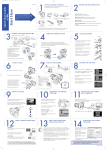
VIEWING PICTURES ON A TV
HOW TO ERASE ALL PICTURES
E-MAILING A PICTURE
WARNING - PERFORMING THESE STEPS WILL DELETE ALL STORED
PICTURES!
a. Turn the camera and TV off, and connect the
a. Press the MENU button. Use ac to select
b. Turn on the TV and set it to the video input
b. Use ac to select [CARD SETUP], then press
video cable as illustrated.
mode. For details on switching to the video
input mode, refer to the TV’s instruction
manual.
[ ], then press d.
d.
q button
c. Use ac to select [ALL ERASE], then press
Multi-connector
d. Use ac to select [YES], then press the i
the i button.
c. Turn the camera on and press the q (playback)
buttton.
Note: If the pictures are not displayed, consult
your TV manual to set up the video source.
Using the OLYMPUS Master software (included), you can share your pictures with
others by using the built-in e-mail feature.
After installing OLYMPUS Master, open the program and click “ Browse
Images”. From the “Browse” window, select the picture(s) you want to send and
click the “ E-mail” tool button.
button.
At this time, you can resize your pictures to make them more manageable for email. This helps you stay within the e-mail capacity limitations set by your e-mail
provider.
Video cable
When finished, click the “ Launch Mailer” button at the bottom of the
window. Your default e-mail program will open, and the selected picture(s) will
automatically be attached to a new message.
Video input
terminal
PRINTING A PICTURE
Using the OLYMPUS Master software (included), you can make prints of your
pictures using your own photo printer.
After installing OLYMPUS Master, open the program and click the “Print Images”
icon on the main menu. You can create many different types of prints such as an
index print, photos, albums, or calendars. Simply select the image(s) and add
them to one of the many layouts within OLYMPUS Master. For detailed
instructions, please refer to the “Help” menu in the software.
You can also order prints online using the “Print Online” feature in OLYMPUS
Master.
What you can do with OLYMPUS Master software
• The provided software CD includes OLYMPUS Master
software for viewing and editing images. Once
installed, you can take advantage of viewing and
|editing your images as shown below. For information
on how to use OLYMPUS Master software, see Help
after installation.
• Install OLYMPUS Master on your computer from the provided CD-ROM.
OLYMPUS Master allows you to register as the camera’s owner. Doing so will
enable you to receive information on software or firmware upgrades from
Olympus.
CONTACT INFORMATION
Two Corporate Center Drive, P.O. Box 9058, Melville, NY 11747-9058
Technical Support (USA):
24/7 online automated help: http://www.olympusamerica.com/E1
Phone customer support: 1-800-260-1625 (toll free)
Our phone customer support is available from 8am - 10pm, (Monday to
Friday) ET
E-mail: [email protected]
Olympus software updates can be obtained at: http://olympus.com/digital
Alternatively, you can print your pictures by connecting your PictBridge*
compatible camera directly to a PictBridge* compatible printer, such as the
Olympus P-10 Digital Photo Printer. This permits fast, easy printing without using
a computer.
*For detailed instructions on using PictBridge, please refer to your camera’s
Advanced Manual.
© 2005