1
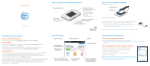
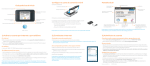
Get to Know Your Device
Power/WPS access
LCD screen
AT&T Mobile Hotspot Elevate 4G*
Your Device LCD Screen
Home Screen
Audio switch
(red = muted)
Network activity
Messages*
Network indicator
Quick Start
• View at http://att.elevate
GPS
External RF
antenna
connector
Battery
Signal strength
AT&T
micro USB port
SSID
External RF
antenna connector
LED
Power Button:
• Press and hold 2 seconds – power on/off the hotspot
• Press and release – wake up the LCD screen
• Press – access additional screens
LED States:
• Flashing blue slowly – powered on
• Flashing blue quickly – updating firmware
Default Audio Alerts:
• You have a new SMS message (e.g. a message from AT&T about your service)
• Battery is low
• A device has connected to your Mobile Hotspot
Wi-Fi Key
Wi-Fi
• Wi-Fi on/off
• Number of
connected devices
SSID: Elevate-AD9B
Wi-Fi Key: 12345678
Press
to scroll
Press the power key
to scroll to other
screens.
Data usage
Press the power button once to access more screens:
• WPS
• Web Interface
• Messages / Alerts
• About Elevate
* Supports receiving SMS messages, including messages from AT&T about your service
More Information
On your device:
• Check the LCD screen for device status.
• Go to the device Web User Interface at http://att.elevate for setup and
advanced features.
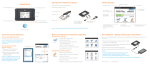
Step 1: Set up Device
1. Remove the back cover. Insert the battery, as shown.
Gold contacts
On the Web:
• For more information about using your new device, visit the interactive web
tutorial available at att.com/Tutorials. Select manufacturer: Sierra Wireless;
model: Mobile Hotspot Elevate 4G.
• Fast, affordable tech support for you and your home.
Visit att.com/quickstarthelp to learn more about AT&T ConnecTech® Laptop
Connect Quick Start Services for premium expert assistance. Our experts will
help you save time by arranging your PC settings from the comfort of your
home or office so you can enjoy your connection. Terms and conditions apply.
• Additional support is available online including device specifications,
troubleshooting and user forums at att.com/DeviceSupport.
On the phone:
• Call AT&T Customer Care at 800-331-0500 for assistance with your AT&T
service. Please enter the 10-digit wireless phone number associated with your
DataConnect service when prompted to be directed to a specialized Care team.
The wireless phone number associated with your DataConnect rate plan can be
found:
• at http://att.elevate
• on your monthly statement
2400186 Rev. 1
Battery
SIM card
• Slide metal bar and
then lift up
Step 2: Connect to
the Internet
1. Press and hold the power button for 2 seconds.
2. The LCD displays “Connect your computer to Wi-Fi network”, the
Network SSID, and Wi-Fi Key.
AT&T
SSID: Elevate-AD9B
Wi-Fi Key: 12345678
2. Replace the cover.
When you need to charge the battery, use the USB cable to attach the
Mobile Hotspot to:
• A wall socket, using the AC adapter (fastest option)
• The USB port on your laptop
Note: The LCD goes blank to save power. Press and release the power
button to view information.
3. On your computer or mobile device, open your Wi-Fi/network
connection manager.
4. Find the Wi-Fi SSID Elevate-xxxx (also displayed on the LCD screen).
5. When prompted, enter your Wi-Fi Key displayed on the LCD screen.
6. Launch your browser.
Wi-Fi SSID
(Network Name)
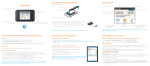
1. With the LCD screen powered on, press the power button on your Mobile
Hotspot to view the WPS Setup screen.
2. Double-press the power button to enable WPS.
3. Within 2 minutes, press the WPS button on the wireless device you want to
connect.
4. Your Mobile Hotspot and the wireless device will communicate and
establish the connection.
Wi-Fi Protected Setup (WPS) allows WPS-enabled devices to be connected to
a Wi-Fi network without the use of a keyboard. The WPS feature is available
on certain cameras, printers, and laptops.
Connect WPS devices
1. Open the Wi-Fi menu on the device and view the list of available networks.
2. Select your Mobile Hotspot Wi-Fi network. (e.g. Elevate-xxxx)
3. Select Connect and enter the Wi-Fi Key displayed on the LCD screen.
Connect other wireless devices (smartphones, media players,
cameras, etc.)
*For detailed instructions, see the Online Help on the homepage.
Access the shared files using a Web browser
1. Connect to the Wi-Fi network.
2. Type http://att.elevate/dav into your browser.
Mac OS X
1. Select Go > Connect to Server, and in the Server address box, type
http://att.elevate/dav.
2. Click Connect.
3. Drag and drop (or copy) files to the shared folder in Finder.
Share or access files over Wi-Fi*
Windows
1. Map a network drive to http://att.elevate/dav.
2. Drag and drop (or copy) files you want to share to the shared folder.
You can share photos, music, data files, etc. on a microSD card over your Wi-Fi
network.
Before you begin
1. Remove the back cover and insert a microSD card.
2. Log in as Administrator at http://att.elevate.
Your default Admin Login is attadmin.
3. Click the microSD icon.
4. Select Wi-Fi.
Connect additional laptops
1. Open the Wi-Fi network manager on your computer.
2. Select your Mobile Hotspot Wi-Fi network displayed on the LCD screen.
(e.g. Elevate-xxxx)
3. Enter the Wi-Fi Key displayed on the LCD screen and launch your browser.
Use the microSD Card
* Note: Alternatively you can enter the device IP address http://192.168.1.1
Status and
Setup
Admin Login
Connect Other Devices
Note: If you change your Wi-Fi Key (password), you may need to update the
saved information in your laptop’s Wi-Fi Connection Manager.
Reset button
Restore device settings to defaults:
1. Remove the back cover.
2. Press and hold the reset button for 5 seconds.
Change passwords and settings:
1. Log in as Administrator at http://att.elevate.
Your default Admin Login is attadmin.
2. Click the Device Security menu option.
3. Change network name, security, Wi-Fi Key, and Admin Login.
to scroll
1. Go to http://att.elevate.
2. Click the Session Data icon.
Sierra Wireless and the Sierra Wireless logo are trademarks of Sierra Wireless. LTE
is a trademark of ETSI. © 2012 AT&T Intellectual Property. All rights reserved. AT&T,
the AT&T logo and all other AT&T marks contained herein are trademarks of AT&T
Intellectual Property and/or AT&T affiliated companies. All other marks contained
herein are the property of their respective owners.
Limited 4G LTE availability in select markets. 4G speeds delivered by LTE, or HSPA+
with enhanced backhaul, where available. Deployment ongoing. Compatible device
and data plan required. LTE is a trademark of ETSI. Learn more at att.com/network.
*AT&T’s HSPA+ network can deliver 4G speeds when combined with enhanced backhaul. Your wireless device can’t distinguish between HSPA+ cell sites with enhanced
backhaul and those without. Enhanced backhaul not available everywhere. Learn
more at att.com/network.
Actual data upload and download speeds depend on various factors, including the
device, network utilization, file characteristics, terrain, etc. Learn more at:
wireless.att.com/learn/articles-resources/wireless-terms.jsp, your AT&T
Wireless Customer Agreement, Section 3.2 Where and How Does AT&T Service Work?
• E: Connected to AT&T’s EDGE/2G network.
• 4G*: Connected to AT&T’s HSPA+ network. AT&T’s HSPA+ network is capable of
delivering 4G speeds when combined with enhanced backhaul. 4G
availability is increasing with ongoing backhaul deployment.
• 4G LTE: Connected to AT&T’s 4G LTE network.
Your 4G LTE wireless device will indicate which of AT&T’s wireless networks you are
connected to. A network indicator does not necessarily mean that you will experience any particular upload or download data speeds.
* Note: Actual billed usage can be higher than the estimated data usage displayed
in the usage meter. For example, actual billed usage may be higher when traveling
internationally or outside AT&T’s network, or using the SIM card with another device.
Press
SSID: Elevate-AD9B
Wi-Fi Key: 12345678
AT&T
The LCD screen shows the data
usage.* If the LCD screen is
blank, press and release the
power button.
On the Web User Interface:
To view your data usage:
To access the device Web User Interface, first connect to your Mobile
Hotspot.
In your browser, enter http://att.elevate*. Log in with your Admin Login
(attadmin) to modify settings.
Wireless Number
Connect a device:
• Wi-Fi SSID Elevate-xxxx (displayed on the LCD screen)
• Wi-Fi Key as shown on the LCD screen
On the Mobile Hotspot LCD:
Check Your Data Usage
Web User Interface
Passwords