1
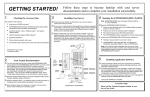
Follow these steps to become familiar with your server
documentation and to complete your installation successfully.
GETTING STARTED!
1
Checking the Accessory Box
The accessory box contains:
Keys for the LOCKED front door**
EXPRESSBUILDER bootable CD-ROM containing setup utilities,
maintenance tools and system documentation.
Customer Notices,* Alerts,* Software Notes,** and System
Release Notes
Network Operating System (NOS) software**
Application Software**
Power cord(s), keyboard, and mouse
3
4
Installing Your Server
Running the EXPRESSBUILDER CD-ROM
Boot the EXPRESSBUILDER CD-ROM to:
Follow the Server Setting Up information in your User’s Guide to
unpack and install your server.
Ensure correct hardware setup if you installed additional adapter
boards or devices in Step 3.
If your server includes Network Operating System software preloaded
at the factory, it will boot-up to the Login Prompt. Default root password
is “9hnAdx6Nz”. CHANGE THIS PASSWORD as shown in your
User’s Guide.
Prepare your server for operating system installation.
Re-install Linux.
Run EXPRESS5800 utilities independently of the operating system.
Options ordered with your server are already installed. If you have
additional adapter boards and devices for your server, install them
before putting the server in the location you have selected. Follow the
procedures in the System Upgrade, Chapter 8 of the system User’s
Guide, plus installation inserts and vendor documents that came with
the option.
Autorun the EXPRESSBUILDER CD-ROM under Windows to:
Read/print documentation in your User’s Guide.
Install ESMPRO, or Management Workstation Application (MWA).
ServerCare Guide containing the service and warranty information.
Note: If you received system diskettes with your server, these
diskettes provide the latest available system utilities information. Use
these diskettes instead of running the system utilities from the
EXPRESSBUILDER CD-ROM.
USB floppy
disk drive
*If required for your server.
**On certain models.
2
Your System Documentation
You may view and print the User’s Guide and EXPRESSBUILDER
User’s Guide from the EXPRESSBUILDER CD-ROM. To do this, insert
the CD-ROM into the CD-ROM device on a system running a
Microsoft® Windows® Operating System with Internet Explorer 4.01 or
later installed. Do not boot from the EXPRESSBUILDER CD-ROM.
Use the Adobe® Acrobat® PDF viewer to view and print the
documents. If you do not have Adobe Acrobat PDF viewer, select
“Install Adobe Acrobat Reader” on the CD-ROM to install the reader.
Read the System Release Notes. The System Release Notes provide
the latest available system information.
Read the Software Notes. The Software Notes provide information on
configuring and running software preloaded on your system.
Read “Linux Setup and Operation” in Chapter 3 of your User’s Guide,
before installing your operating system.
2
SCSI
backup
device
1000Mbps
network
5
2
100Mbps
network
1
Reserved for
maintenance
2
Reserved for
maintenance
1
Installing Application Software
Locate application software media and accompanying installation
procedures. Install application software following procedures in the
applicable installation guide.
If your Network Administrator advises, install your server management
software using the EXPRESSBUILDER CD-ROM.
Your server installation is complete.
Display
1
Mouse
Keyboard
Typical Server Connections
Need More Help?
Please call the Technical Support number in your
ServerCare Guide.
FCC DECLARATION OF CONFORMITY
TRADE NAME:
TYPE:
320Lb (Tower version)
EXP351E
320Lb-R (Rack version)
EXP351ER
FCC STATEMENT (Class A Equipment):
The equipment listed in the above table has been tested and found to comply with the limits for a Class A
digital device, pursuant to part 15 of the FCC Rules. These limits are designed to provide reasonable protection
against harmful interference when the equipment is operated in a commercial environment. This equipment
generates, uses, and can radiate radio frequency energy, and if not installed and used in accordance with the
instruction manual, may cause harmful interference to radio communications. Operation of this equipment in a
residential area is likely to cause harmful interference, in which case the user will be required to correct the
interference at his own expense.
Changes or modifications not expressly approved by NEC Solutions (America), Inc. could void the user’s
authority to operate the equipment.
Copyright © 2004 NEC Solutions (America) Inc.
Trademarks
Adobe and Acrobat are trademarks of Adobe Systems, Inc.
ESMPRO is a registered trademark of NEC Corporation.
Microsoft and Windows are registered trademarks of Microsoft Corporation.
Other product and company names are registered trademarks and trademarks of their respective holders.
PN: 455-01725-001
December 2004