1
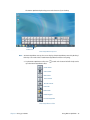
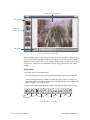
An alert sounds when you’ve accessed the BIOS Setup Utility. If you miss the splash screen,
restart the Tablet PC and try again.
TIP:
If a keyboard is attached, you can press F2 to open the Setup Utility then press the arrow
keys to select items and press Enter to select a submenu.
Backing up your system
To protect against loss or accidental data deletion, schedule backups to occur automatically
on a regular basis. Windows® 7 includes a a backup tool that you can use to schedule
backups on a regular basis and configure what you want to back up.
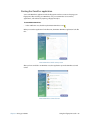
To schedule backups:
1. From the Control Panel, tap System and Security category then tap Back up your
computer.
2. Tap Set up back up.
Follow the on-screen instructions.
You can restore files from a backup. For more information, open Windows® Help and search
for “Restore files from a backup.”
Restoring your system
Windows® 7 has specialized tools for restoring your system in case of system failure. This
section covers:
• Creating a system image to use to restore your Tablet PC if necessary
• Restoring the J3600 from a system image using Windows® Control Panel
• Restoring the Tablet PC from BIOS if Windows® 7 can’t run
NOTE: System images are designed for restoring your entire system at once when you have a
serious problem with Windows® 7. If you want to install particular files, folders, or other
data, use Windows® Backup.
Creating a system image
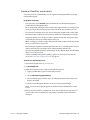
You can use a system image to restore the contents of your Tablet PC if it ever stops
working. A system image is an exact copy of a drive and includes Windows® 7, your system
settings, programs, and files. The system image requires an external drive, such as a USB
flash drive, on which to store the image.
Chapter 2 Using your J3600
Backing up your system 67