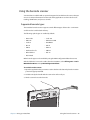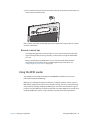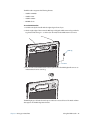
1
C5te/F5te Tablet PC
Model CFT-003
User’s Guide
© 2013 Motion Computing, Inc. All rights reserved.
This document contains information protected by
copyright. No part of this document may be
reproduced in any form without written consent from
Motion.
The information in this document is provided “as is”
and is subject to change without notice. Motion is not
liable for errors or omissions in this document.
Motion, Motion Computing, View Anywhere, and
QuickNav are trademarks or registered trademarks of
Motion Computing, Inc. in the U.S.A. and other
countries.
Acrobat is a registered trademark of Adobe Systems
Incorporated.
Bluetooth is a registered trademark owned by the
Bluetooth SIG, Inc., U.S.A. and licensed to Motion
Computing, Inc.
Intel, Intel Atom, Core, vPro, and Centrino are
trademarks or registered trademarks of Intel
Corporation or its subsidiaries in the United States and
other countries.
Motion Computing, Inc. has made every effort to
identify trademarked properties and owners on this
page. All brands and product names used in this
document are for identification purposes only and
may be trademarks or registered trademarks of their
respective companies.
The warranties for Motion products are set forth in the
express limited warranty statements accompanying
such products. Nothing in this document constitutes
an additional warranty.
The Motion Computing products and services may be
covered by one or more patent-protected inventions.
Additional patents may also be pending. For more
information, see
www.motioncomputing.com/info/patents.asp.
The end user may access only one operating system
language version.
L'utilisateur final ne peut accéder qu'à une seule
version linguistique du système d'exploitation.
Der Endbenutzer darf nur auf eine Sprachversion des
Betriebssystems zugreifen.
Computrace is a registered trademark of Absolute
Software Corp.
De eindgebruiker heeft slechts toegang tot één
taalversie van het besturingssysteem.
OmniPass is a trademark of Softex, Inc.
L'utente finale può accedere a una sola lingua del
sistema operativo.
Realtek is a trademark of Realtek Semiconductor
Corporation.
Microsoft, Windows, and Windows Journal are
trademarks or registered trademarks of Microsoft
Corporation in the United States and/or other
countries.
Qualcomm, Gobi, and Gobi 3000 are trademarks or
registered trademarks of Qualcomm Incorporated.
Wi-Fi is a registered trademark of the Wi-Fi Alliance.
HDMI, the HDMI logo, and High-Definition Multimedia
Interface are trademarks of HDMI Licensing LLC in the
United States and other countries.
AMI and AMI Aptio are trademarks of American
Megatrends, Inc.
End users may not loan, rent, lease, lend, or otherwise
transfer the CDs or DVDs provided for recovery
purposes to another user, except as permitted in the
End User License Agreement for such product.
This product incorporates copy protection technology
that is protected by U.S. and foreign patents, including
patent numbers 5,315,448 and 6,836,549, and other
intellectual property rights. The use of Macrovision's
copy protection technology in the product must be
authorized by Macrovision. Reverse engineering or
disassembly is prohibited.
Model CFT-003
PN 024-02-0392-A00
El usuario final sólo podrá acceder a una versión de
idioma del sistema operativo.
Loppukäyttäjä voi käyttää vain yhtä
käyttöjärjestelmän kieliversiota.
Användaren har endast tillgång till en språkversion av
operativsystemet.
Slutbrugeren har kun adgang til ét af
operativsystemets sprogversioner.
Sluttbruker kan aksessere kun én av
operativsystemets språkversjoner.
O utilizador final pode alcançar somente uma versão
de língua do sistema de exploração.
O usuário final pode acessar apenas uma versão de
idioma do sistema operacional.
Contents
Chapter 1 Getting Started . . . . . . . . . . . . . . . . . . . . . . . . . . . 1
Optional features. . . . . . . . . . . . . . . . . . . . . . . . . . . . . . . . . . . . . . . . . . . . . . . . . . . . . . . . . . . . . . . . 2
Mobile broadband with GPS . . . . . . . . . . . . . . . . . . . . . . . . . . . . . . . . . . . . . . . . . . . . . . . . . . 2
Discrete GPS with WAAS, EGNOS, and MSAS (optional) . . . . . . . . . . . . . . . . . . . . . . . . 2
Security . . . . . . . . . . . . . . . . . . . . . . . . . . . . . . . . . . . . . . . . . . . . . . . . . . . . . . . . . . . . . . . . . . . . . . 2
View Anywhere display . . . . . . . . . . . . . . . . . . . . . . . . . . . . . . . . . . . . . . . . . . . . . . . . . . . . . . . 3
Other optional features . . . . . . . . . . . . . . . . . . . . . . . . . . . . . . . . . . . . . . . . . . . . . . . . . . . . . . . 3
Overview of the C5te/F5te . . . . . . . . . . . . . . . . . . . . . . . . . . . . . . . . . . . . . . . . . . . . . . . . . . . . . . . 4
Top side. . . . . . . . . . . . . . . . . . . . . . . . . . . . . . . . . . . . . . . . . . . . . . . . . . . . . . . . . . . . . . . . . . . . . . 4
Front. . . . . . . . . . . . . . . . . . . . . . . . . . . . . . . . . . . . . . . . . . . . . . . . . . . . . . . . . . . . . . . . . . . . . . . . . 5
Right side . . . . . . . . . . . . . . . . . . . . . . . . . . . . . . . . . . . . . . . . . . . . . . . . . . . . . . . . . . . . . . . . . . . . 6
Back . . . . . . . . . . . . . . . . . . . . . . . . . . . . . . . . . . . . . . . . . . . . . . . . . . . . . . . . . . . . . . . . . . . . . . . . . 7
Pen . . . . . . . . . . . . . . . . . . . . . . . . . . . . . . . . . . . . . . . . . . . . . . . . . . . . . . . . . . . . . . . . . . . . . . . . . . 8
Where to begin with your C5te/F5te . . . . . . . . . . . . . . . . . . . . . . . . . . . . . . . . . . . . . . . . . . . . . 9
Step 1: Power up the tablet . . . . . . . . . . . . . . . . . . . . . . . . . . . . . . . . . . . . . . . . . . . . . . . . . . . 9
Step 2: Connect to a wireless network . . . . . . . . . . . . . . . . . . . . . . . . . . . . . . . . . . . . . . . . 10
Step 3: Get familiar with your C5te/F5te Tablet PC . . . . . . . . . . . . . . . . . . . . . . . . . . . . 12
Step 4: When you take a break . . . . . . . . . . . . . . . . . . . . . . . . . . . . . . . . . . . . . . . . . . . . . . . 12
Optional setup tasks. . . . . . . . . . . . . . . . . . . . . . . . . . . . . . . . . . . . . . . . . . . . . . . . . . . . . . . . . . . . 14
Create a recovery image . . . . . . . . . . . . . . . . . . . . . . . . . . . . . . . . . . . . . . . . . . . . . . . . . . . . . 14
Attach the pen tether . . . . . . . . . . . . . . . . . . . . . . . . . . . . . . . . . . . . . . . . . . . . . . . . . . . . . . . 14
Connect the tablet to a docking station . . . . . . . . . . . . . . . . . . . . . . . . . . . . . . . . . . . . . . 14
Connect the tablet to a display monitor . . . . . . . . . . . . . . . . . . . . . . . . . . . . . . . . . . . . . . 15
For more information. . . . . . . . . . . . . . . . . . . . . . . . . . . . . . . . . . . . . . . . . . . . . . . . . . . . . . . . . . . 15
Chapter 2 Using your C5te/F5te . . . . . . . . . . . . . . . . . . . .16
Introducing the C5te/F5te desktop and applications. . . . . . . . . . . . . . . . . . . . . . . . . . . . . 17
Changing the taskbar. . . . . . . . . . . . . . . . . . . . . . . . . . . . . . . . . . . . . . . . . . . . . . . . . . . . . . . . 17
Using the Motion Dashboard . . . . . . . . . . . . . . . . . . . . . . . . . . . . . . . . . . . . . . . . . . . . . . . . . . . 18
Accessing Motion tools from the Windows® notification area . . . . . . . . . . . . . . . . . . . . 19
Using touch . . . . . . . . . . . . . . . . . . . . . . . . . . . . . . . . . . . . . . . . . . . . . . . . . . . . . . . . . . . . . . . . . . . . 20
Calibrate touch . . . . . . . . . . . . . . . . . . . . . . . . . . . . . . . . . . . . . . . . . . . . . . . . . . . . . . . . . . . . . . 21
How to use gestures with the multiple-touch display . . . . . . . . . . . . . . . . . . . . . . . . . 21
Changing to one-tap open for touch . . . . . . . . . . . . . . . . . . . . . . . . . . . . . . . . . . . . . . . . . 21
Customizing touch input mode . . . . . . . . . . . . . . . . . . . . . . . . . . . . . . . . . . . . . . . . . . . . . 22
Adjusting touch settings. . . . . . . . . . . . . . . . . . . . . . . . . . . . . . . . . . . . . . . . . . . . . . . . . . . . . 22
Adjusting pen settings. . . . . . . . . . . . . . . . . . . . . . . . . . . . . . . . . . . . . . . . . . . . . . . . . . . . . . . 23
Adjusting Tablet PC settings . . . . . . . . . . . . . . . . . . . . . . . . . . . . . . . . . . . . . . . . . . . . . . . . . 23
Entering text and handwriting recognition . . . . . . . . . . . . . . . . . . . . . . . . . . . . . . . . . . . . . . 24
Opening and closing the input panel. . . . . . . . . . . . . . . . . . . . . . . . . . . . . . . . . . . . . . . . . 25
Docking or floating the input panel . . . . . . . . . . . . . . . . . . . . . . . . . . . . . . . . . . . . . . . . . . 26
Entering numbers with numbers pad . . . . . . . . . . . . . . . . . . . . . . . . . . . . . . . . . . . . . . . . 26
Contents
iii
Entering special keys with the extended keyboard. . . . . . . . . . . . . . . . . . . . . . . . . . . . 27
Using handwriting recognition . . . . . . . . . . . . . . . . . . . . . . . . . . . . . . . . . . . . . . . . . . . . . . 27
Using the front panel buttons. . . . . . . . . . . . . . . . . . . . . . . . . . . . . . . . . . . . . . . . . . . . . . . . . . . 28
Configuring front panel buttons . . . . . . . . . . . . . . . . . . . . . . . . . . . . . . . . . . . . . . . . . . . . . 29
Setting display options . . . . . . . . . . . . . . . . . . . . . . . . . . . . . . . . . . . . . . . . . . . . . . . . . . . . . . . . . 30
Adjusting the display brightness . . . . . . . . . . . . . . . . . . . . . . . . . . . . . . . . . . . . . . . . . . . . . 30
Rotating the display orientation . . . . . . . . . . . . . . . . . . . . . . . . . . . . . . . . . . . . . . . . . . . . . 30
Enabling or disabling automatic rotation . . . . . . . . . . . . . . . . . . . . . . . . . . . . . . . . . . . . . 30
Setting up an external display . . . . . . . . . . . . . . . . . . . . . . . . . . . . . . . . . . . . . . . . . . . . . . . 30
Using the built-in microphones . . . . . . . . . . . . . . . . . . . . . . . . . . . . . . . . . . . . . . . . . . . . . . . . . 33
Using speech recognition. . . . . . . . . . . . . . . . . . . . . . . . . . . . . . . . . . . . . . . . . . . . . . . . . . . . . . . 33
Setting up speech recognition . . . . . . . . . . . . . . . . . . . . . . . . . . . . . . . . . . . . . . . . . . . . . . . 33
Using dictation and voice commands . . . . . . . . . . . . . . . . . . . . . . . . . . . . . . . . . . . . . . . . 34
Using the cameras. . . . . . . . . . . . . . . . . . . . . . . . . . . . . . . . . . . . . . . . . . . . . . . . . . . . . . . . . . . . . . 35
Using the web camera . . . . . . . . . . . . . . . . . . . . . . . . . . . . . . . . . . . . . . . . . . . . . . . . . . . . . . . 35
Using the documentation camera. . . . . . . . . . . . . . . . . . . . . . . . . . . . . . . . . . . . . . . . . . . . 35
Using the barcode scanner . . . . . . . . . . . . . . . . . . . . . . . . . . . . . . . . . . . . . . . . . . . . . . . . . . . . . 40
Supported barcode types. . . . . . . . . . . . . . . . . . . . . . . . . . . . . . . . . . . . . . . . . . . . . . . . . . . . 40
Barcode scanner tips . . . . . . . . . . . . . . . . . . . . . . . . . . . . . . . . . . . . . . . . . . . . . . . . . . . . . . . . 41
Using the RFID reader . . . . . . . . . . . . . . . . . . . . . . . . . . . . . . . . . . . . . . . . . . . . . . . . . . . . . . . . . . 41
Using the battery . . . . . . . . . . . . . . . . . . . . . . . . . . . . . . . . . . . . . . . . . . . . . . . . . . . . . . . . . . . . . . . 43
Checking tablet battery power. . . . . . . . . . . . . . . . . . . . . . . . . . . . . . . . . . . . . . . . . . . . . . . 43
Removing and replacing the battery . . . . . . . . . . . . . . . . . . . . . . . . . . . . . . . . . . . . . . . . . 45
Hot-swapping the battery . . . . . . . . . . . . . . . . . . . . . . . . . . . . . . . . . . . . . . . . . . . . . . . . . . . 47
Long-term battery storage. . . . . . . . . . . . . . . . . . . . . . . . . . . . . . . . . . . . . . . . . . . . . . . . . . . 47
Disposing of used batteries . . . . . . . . . . . . . . . . . . . . . . . . . . . . . . . . . . . . . . . . . . . . . . . . . . 47
Battery and power management tips. . . . . . . . . . . . . . . . . . . . . . . . . . . . . . . . . . . . . . . . . 48
Changing the power plan. . . . . . . . . . . . . . . . . . . . . . . . . . . . . . . . . . . . . . . . . . . . . . . . . . . . 48
Changing how the power button functions . . . . . . . . . . . . . . . . . . . . . . . . . . . . . . . . . . 49
Using Wi-Fi (802.11a/g/n) . . . . . . . . . . . . . . . . . . . . . . . . . . . . . . . . . . . . . . . . . . . . . . . . . . . . . . . 49
Enabling or disabling Wi-Fi . . . . . . . . . . . . . . . . . . . . . . . . . . . . . . . . . . . . . . . . . . . . . . . . . . 49
Setting up a Wi-Fi connection. . . . . . . . . . . . . . . . . . . . . . . . . . . . . . . . . . . . . . . . . . . . . . . . 50
Using Mobile Broadband with GPS . . . . . . . . . . . . . . . . . . . . . . . . . . . . . . . . . . . . . . . . . . . . . . 50
Enabling Mobile Broadband with GPS . . . . . . . . . . . . . . . . . . . . . . . . . . . . . . . . . . . . . . . . 50
Using the GPS receiver. . . . . . . . . . . . . . . . . . . . . . . . . . . . . . . . . . . . . . . . . . . . . . . . . . . . . . . 51
Using the Connection Manager . . . . . . . . . . . . . . . . . . . . . . . . . . . . . . . . . . . . . . . . . . . . . . . . . 51
Using the discrete GPS receiver with WAAS, EGNOS, and MSAS . . . . . . . . . . . . . . . . . . 51
Using Bluetooth . . . . . . . . . . . . . . . . . . . . . . . . . . . . . . . . . . . . . . . . . . . . . . . . . . . . . . . . . . . . . . . . 52
Enabling or disabling Bluetooth. . . . . . . . . . . . . . . . . . . . . . . . . . . . . . . . . . . . . . . . . . . . . . 52
Setting up a Bluetooth device. . . . . . . . . . . . . . . . . . . . . . . . . . . . . . . . . . . . . . . . . . . . . . . . 52
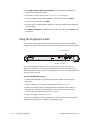
Using the fingerprint reader . . . . . . . . . . . . . . . . . . . . . . . . . . . . . . . . . . . . . . . . . . . . . . . . . . . . 53
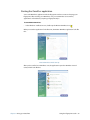
Starting the OmniPass application . . . . . . . . . . . . . . . . . . . . . . . . . . . . . . . . . . . . . . . . . . . 54
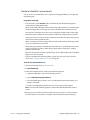
Create an OmniPass user account . . . . . . . . . . . . . . . . . . . . . . . . . . . . . . . . . . . . . . . . . . . . 55
Replace your passwords . . . . . . . . . . . . . . . . . . . . . . . . . . . . . . . . . . . . . . . . . . . . . . . . . . . . . 56
Setting up strong logon security . . . . . . . . . . . . . . . . . . . . . . . . . . . . . . . . . . . . . . . . . . . . . 56
Using the smart card reader . . . . . . . . . . . . . . . . . . . . . . . . . . . . . . . . . . . . . . . . . . . . . . . . . . . . 57
Using the SIM card slot . . . . . . . . . . . . . . . . . . . . . . . . . . . . . . . . . . . . . . . . . . . . . . . . . . . . . . . . . 58
Using Windows® Action Center . . . . . . . . . . . . . . . . . . . . . . . . . . . . . . . . . . . . . . . . . . . . . . . . . 60
Setting up user accounts . . . . . . . . . . . . . . . . . . . . . . . . . . . . . . . . . . . . . . . . . . . . . . . . . . . . . . . 60
Locating your serial number . . . . . . . . . . . . . . . . . . . . . . . . . . . . . . . . . . . . . . . . . . . . . . . . . . . . 61
Backing up your system . . . . . . . . . . . . . . . . . . . . . . . . . . . . . . . . . . . . . . . . . . . . . . . . . . . . . . . . 61
Contents
iv
Restoring your system . . . . . . . . . . . . . . . . . . . . . . . . . . . . . . . . . . . . . . . . . . . . . . . . . . . . . . . . . . 61
Creating a system image. . . . . . . . . . . . . . . . . . . . . . . . . . . . . . . . . . . . . . . . . . . . . . . . . . . . . 62
Restoring your system image from Windows® Control Panel . . . . . . . . . . . . . . . . . . 62
Restoring your system image if you can’t start Windows® 7 . . . . . . . . . . . . . . . . . . . 63
Restoring your system without a system image. . . . . . . . . . . . . . . . . . . . . . . . . . . . . . . 63
Finding other software . . . . . . . . . . . . . . . . . . . . . . . . . . . . . . . . . . . . . . . . . . . . . . . . . . . . . . . . . 64
Chapter 3 Caring for your C5te/F5te . . . . . . . . . . . . . . . .65
General care. . . . . . . . . . . . . . . . . . . . . . . . . . . . . . . . . . . . . . . . . . . . . . . . . . . . . . . . . . . . . . . . . . . . 65
Caring for the display . . . . . . . . . . . . . . . . . . . . . . . . . . . . . . . . . . . . . . . . . . . . . . . . . . . . . . . . . . . 66
Cleaning solutions. . . . . . . . . . . . . . . . . . . . . . . . . . . . . . . . . . . . . . . . . . . . . . . . . . . . . . . . . . . . . . 66
Caring for the pen . . . . . . . . . . . . . . . . . . . . . . . . . . . . . . . . . . . . . . . . . . . . . . . . . . . . . . . . . . . . . . 66
Replacing pen tips. . . . . . . . . . . . . . . . . . . . . . . . . . . . . . . . . . . . . . . . . . . . . . . . . . . . . . . . . . . 67
Cleaning in a healthcare environment. . . . . . . . . . . . . . . . . . . . . . . . . . . . . . . . . . . . . . . . . . . 67
Disinfecting procedures . . . . . . . . . . . . . . . . . . . . . . . . . . . . . . . . . . . . . . . . . . . . . . . . . . . . . 67
Training and documentation considerations . . . . . . . . . . . . . . . . . . . . . . . . . . . . . . . . . 68
Cleaning the fingerprint reader . . . . . . . . . . . . . . . . . . . . . . . . . . . . . . . . . . . . . . . . . . . . . . . . . 68
Caring for the tablet battery . . . . . . . . . . . . . . . . . . . . . . . . . . . . . . . . . . . . . . . . . . . . . . . . . . . . 69
Traveling with your C5te/F5te Tablet PC. . . . . . . . . . . . . . . . . . . . . . . . . . . . . . . . . . . . . . . . . 69
Chapter 4 Troubleshooting and FAQs. . . . . . . . . . . . . . .70
Troubleshooting . . . . . . . . . . . . . . . . . . . . . . . . . . . . . . . . . . . . . . . . . . . . . . . . . . . . . . . . . . . . . . . 70
Power issues . . . . . . . . . . . . . . . . . . . . . . . . . . . . . . . . . . . . . . . . . . . . . . . . . . . . . . . . . . . . . . . . 70
Battery issues . . . . . . . . . . . . . . . . . . . . . . . . . . . . . . . . . . . . . . . . . . . . . . . . . . . . . . . . . . . . . . . 72
Display issues . . . . . . . . . . . . . . . . . . . . . . . . . . . . . . . . . . . . . . . . . . . . . . . . . . . . . . . . . . . . . . . 72
Touch or pen issues . . . . . . . . . . . . . . . . . . . . . . . . . . . . . . . . . . . . . . . . . . . . . . . . . . . . . . . . . 73
Ports and connectors issues. . . . . . . . . . . . . . . . . . . . . . . . . . . . . . . . . . . . . . . . . . . . . . . . . . 74
Network issues . . . . . . . . . . . . . . . . . . . . . . . . . . . . . . . . . . . . . . . . . . . . . . . . . . . . . . . . . . . . . . 75
Audio issues. . . . . . . . . . . . . . . . . . . . . . . . . . . . . . . . . . . . . . . . . . . . . . . . . . . . . . . . . . . . . . . . . 78
System issues . . . . . . . . . . . . . . . . . . . . . . . . . . . . . . . . . . . . . . . . . . . . . . . . . . . . . . . . . . . . . . . 78
Frequently asked questions. . . . . . . . . . . . . . . . . . . . . . . . . . . . . . . . . . . . . . . . . . . . . . . . . . . . . 79
Index . . . . . . . . . . . . . . . . . . . . . . . . . . . . . . . . . . . . . . . . . . . . . .81
Contents
v
Getting Started
1
The Motion® C5te/F5te Tablet PCs are rugged, powerful, and provide robust computing
power and a variety of integrated features to enable any mobile workflow.
The C5te/F5te Tablet PCs include these features:
• Intel® Core™ i3, i5, or i7 vPro™ Processors (i7 Processor includes Intel vPro™ technology)
• Windows® 7 Professional (32-bit or 64-bit)
• USB 3.0 port
• mSATA SSD with capacities of 64GB, 128GB, or 256GB
• DDR3L 1600MHz SDRAM memory
• Intel® HD Graphics 4000
• 10.4" XGA TFT LCD with 1024 × 768 native resolution
• Corning® Gorilla® Glass for increased display damage resistance
• AFFS+ LED Backlight Display Technology
• Dual input—digitizer pen and capacitive 10-point touch
• View Anywhere® display for optimal viewing in all lighting conditions*
• Intel Display Power Saving Technology (DPST)
• Hot-swappable battery
• Integrated 802.11a/b/g/n Wi-Fi® and Bluetooth® 4.0
• Integrated mobile broadband and GPS receiver*
• Integrated 1.3 MP web camera and 3.0 MP documentation camera*
• Integrated fingerprint reader with OmniPass software
• Integrated 1D/2D barcode reader*
• Integrated 13.56MHz HF RFID with read/write capability*
• Smart card reader*; ISO 7816 PC/SC compliant, EMV2 2000 Level 1
• Trusted Platform Module (TPM) for hardware-based security and optional Computrace®
Complete*, which allows you to identify your Tablet PC in the case of loss or theft.
* Optional features are available when you purchase your tablet.
Chapter 1 Getting Started
1
Optional features
This section describes the optional features available when you purchase your C5te/F5te.
Mobile broadband with GPS
You can purchase a C5te/F5te Tablet PC with an optional embedded mobile broadband
with GPS module that enables you to connect to a variety of mobile broadband networks
for sending and receiving data wirelessly. You can typically use mobile broadband
anywhere you can use your mobile phone. Mobile broadband is based on cellular network
technology, so you can use it in more places than other wireless technologies.
The GPS receiver uses satellites to determine the current location, altitude, heading, and
horizontal velocity of the C5te/F5te. The augmentation feature uses signals from
geostationary satellites to improve on the reliability and accuracy of the signals from the
GPS satellites. You don’t need a network connection or an account with a mobile
broadband network carrier to use the GPS receiver. You can use it with your preferred
mapping applications to find your current and desired locations.
Motion Connection Manager is an application that you can use to manage your mobile
broadband and GPS network connections. For information on setting up mobile
broadband, see Set up mobile broadband with GPS on page 10.
Discrete GPS with WAAS, EGNOS, and MSAS (optional)
Your tablet may have an embedded discrete global positioning system (GPS) module that
supports the Wide Area Augmentation System (WAAS) for improved accuracy in the United
States; European Geostationary Navigation Overlay Service (EGNOS) for improved accuracy
in Europe; and Multi-functional Satellite Augmentation System (MSAS) for improved
accuracy in Japan. The proper Augmentation system will be detected based on your
location. No special selection is required.
Security
Your C5te/F5te includes several features that you can use to enhance the security of your
data and serve as the foundation for complementary security technologies. The core
security features include password-protected BIOS, networking control, optional
Computrace® Complete tracking software, a built-in fingerprint reader, Dashboard Security
Center, and Trusted Platform Module (TPM) 1.2.
Chapter 1 Getting Started
Optional features 2
TPM
With the built-in TPM and Infineon Security Platform Tools, you can create and manage
digital certificates, user and device authentication, full disk data encryption, and restricted
network access. These features are most commonly used by enterprises and enabled by the
system administrator. To download and install TPM, go to http://
www.motioncomputing.com/support/driver_download.asp, select the link to the
operating system for your Tablet PC, and then scroll down to (TPM) Trusted Platform
Module Software.
Computrace® Complete
The C5te/F5te Tablet PC can be purchased with the optional Computrace® Complete, which
offers enhanced data protection, improved IT asset management, and managed computer
theft recovery. With Computrace, organizations can track, manage, and secure their entire
computer fleet—including remote and mobile devices—on or off the network.
View Anywhere display
The View Anywhere display option enhances outdoor viewing and bright-light viewing
environments and it includes all the features of the standard display plus:
• A protective layer that improves the sunlight contrast ratio and significantly reduces
reflection and glare.
• Improved sunlight contrast ratio, which enhances viewability at wide viewing angles.
• Reduced reflection and glare and improved light pass-through efficiency.
Other optional features
Other C5te/F5te optional features include:
• Web and documentation cameras—See Using the cameras on page 35.
• Barcode scanner—See Using the barcode scanner on page 40.
• RFID reader—See Using the RFID reader on page 41.
• Smart card reader—See Using the smart card reader on page 57.
Chapter 1 Getting Started
Optional features 3
Overview of the C5te/F5te
The following illustrations show the buttons, slots, and ports on the C5te/F5te Tablet PC.
Top side
RFID button
RFID status
light
Chapter 1 Getting Started
Barcode
scanner button
Fan cover
RFID (optional)
status light
Shows the status of the RFID reader.
RFID reader
(optional) button
Use to trigger the RFID reader.
Barcode scanner
(optional) button
Use to trigger the barcode scanner.
Fan cover
Protects the fan assembly.
Overview of the C5te/F5te 4
Front
Function button
Dashboard button
Directional pad
Battery gauge
B button
A button
Microphones
Web camera
Touchscreen display
Docking connector
Chapter 1 Getting Started
Function button
Activate secondary functions for other buttons.
Dashboard button
Open Motion Dashboard.
Directional pad
Use for basic navigation. Equivalent to the arrow keys on a
keyboard. The center button is equivalent to the Enter key.
A button
Set up a custom action.
B button
Set up a custom action.
Battery gauge
Shows battery status.
Overview of the C5te/F5te 5
Microphones
Record sounds and use for speech recognition.
Web camera
(optional)
Use for web-based video communication.
Touchscreen
display
Use your finger or pen to navigate the tablet.
Docking
connector
Connect to a C5te/F5te docking station.
Right side
Power
button
Windows® security
button
Power adapter
port, USB 2.0/3.0 port,
and cover
Chapter 1 Getting Started
RFID antenna
area
Camera
button
Fingerprint
reader
Barcode scanner
Power adapter
port, USB port, and
cover
Connect the power adapter.
RFID (optional)
antenna area
Scan zone for reading RFID tags.
Camera (optional)
button
Use to activate the built-in documentation camera.
Windows® Security
button
Use to log on to or lock the tablet. Equivalent to
Ctrl+Alt+Del on a keyboard.
Fingerprint reader
Scan your fingerprints for added security. You can also
use the fingerprint reader as a navigation device.
Power button
Turns the tablet on and off.
Barcode scanner
(optional)
Reads 1D and 2D barcode labels.
Overview of the C5te/F5te 6
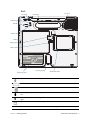
Back
Pen tether
Fan cover
Pen holder
Camera light
Speaker
Camera lens
Battery
Battery gauge
Battery latch
Regulatory label
Docking guide
Smart card reader
Pen tether
Attach the pen tether.
Pen holder
Use to store the pen when not in use.
Fan cover
Protects the fan assembly.
Camera (optional)
lens
Capture images to the hard drive.
Camera (optional)
light
Provides light for the documentation camera.
Speaker
Use for listening to audio.
Battery
Powers the tablet when it is not plugged in or docked.
Chapter 1 Getting Started
Overview of the C5te/F5te 7
Battery gauge
Indicates the level of battery charge when you press the button next to
the gauge.
Battery latch
Opens the battery compartment’s door.
Regulatory label
Contains regulatory and safety information.
Docking guide
Aligns the unit with the docking station (sold separately).
Smart card reader
(optional)
Reads information on a smart card.
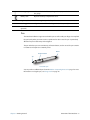
Pen
The C5te/F5te Tablet PC supports touch with a pen as well as with your finger. You may find
the pen handy when you want to write a quick email or take notes. The pen is particularly
effective for precise data entry and navigation.
The pen includes a pressure-sensitive tip, a function button, and an eraser. The pen contains
no batteries and requires no external power.
Eraser
Function button
Tip
C5te/F5te pen
You can purchase additional pens from the Motion Computing Accessories page. For more
information on using the pen, see Using touch on page 20.
Chapter 1 Getting Started
Overview of the C5te/F5te 8
Where to begin with your C5te/F5te
This section includes some steps you can follow to power up and get familiar with your
C5te/F5te Tablet PC.
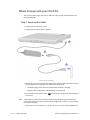
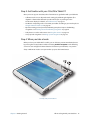
Step 1: Power up the tablet
1. Plug the power cord into an outlet.
2. Plug the power cord into the AC adapter.
3
2
1
Power up the C5te/F5te
3. Pull out the port door located at the bottom of the right side of the C5te/F5te to expose
the AC adapter port and plug the AC adapter cord into the port.
• The battery gauge turns amber to indicate that the battery is charging.
• Keep the tablet on AC power until the battery is fully charged.
4. Press and release the power button
to turn it on.
located on the top right side of the C5te/F5te
NOTE: You don’t have to wait until the Tablet PC is fully charged before using it. However, it’s
recommended that you keep the power adapter plugged into an outlet so your C5te/F5te
can continue charging.
5. Follow the on-screen instructions to set up your user account and activate Windows® 7.
Chapter 1 Getting Started
Where to begin with your C5te/F5te 9
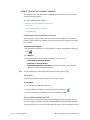
Step 2: Connect to a wireless network
The C5te/F5te comes with built-in Wi-Fi and Bluetooth. Your Tablet PC may also include
mobile broadband with GPS.
To set up available wireless networks:
• Enable wireless from the Motion Dashboard
• Set up Wi-Fi
• Set up mobile broadband with GPS
• Set up Bluetooth
Enable wireless from the Motion Dashboard
To set up wireless, you must first enable the wireless network adapters from the Motion
Dashboard. The Dashboard is a Motion Computing application for configuring your C5te/
F5te Tablet PC.
To enable wireless adapters:
1. Open the Motion Dashboard. From the Windows® taskbar, tap the Motion Dashboard
icon
.
2. Tap Wireless.
3. Tap the checkboxes next to all wireless networks you want to use:
• Enable Bluetooth Internal Wireless
• Enable 802.11 Internal Wireless
• Enable Mobile Broadband with GPS (If this option is not listed, your C5te/F5te
doesn’t have mobile broadband installed.)
NOTE: To extend battery life, enable only the wireless devices that you’ll be using.
Set up Wi-Fi
Connect to the Internet and other computers wirelessly over Wi-Fi.
To set up Wi-Fi:
1. Enable Wi-Fi from the Motion Dashboard.
2. From the Windows® notification area, tap the wireless network icon
.
3. Tap the desired wireless network from the list of available networks.
Set up mobile broadband with GPS
If you purchased your C5te/F5te with the optional mobile broadband module, you can
connect to high-speed cellular networks worldwide. With the mobile broadband module
and a data plan from one of several cellular network providers, you have full Internet access.
Chapter 1 Getting Started
Where to begin with your C5te/F5te 10
The mobile broadband module includes a GPS receiver that provides the current location of
your C5te/F5te. With the GPS receiver, you can use most GPS navigation and mapping
applications. You use the Motion Connection Manager to manage your mobile broadband
network connections and monitor the GPS.
To set up mobile broadband:
1. Enable mobile broadband from the Motion Dashboard.
2. Start the Motion Connection Manager. From the Start menu, select All Programs >
Motion Computing > Motion CM.
3. Tap the help icon
and select the help topic, Setting up mobile broadband.
4. Follow the instructions to set up a network profile and connect to the mobile broadband
network.
NOTE: Before you can connect to a mobile broadband network, you must have an active account
with a cellular network provider. Some providers require a SIM card for mobile broadband
access; if you’re not sure whether you need one, contact your mobile broadband provider.
Set up Bluetooth
The C5te/F5te has a built-in Bluetooth adapter that provides short-range wireless
connectivity with other Bluetooth-enabled devices.
To set up Bluetooth:
1. Enable Bluetooth from the Motion Dashboard.
2. Add a Bluetooth device:
a. From the Windows® notification area, tap the Bluetooth icon
Device.
and select Add a
b. Make sure the device is discoverable according to the Bluetooth device
manufacturer’s instructions. When a Bluetooth device is discoverable, it is visible to
other Bluetooth devices within range.
c. Select the desired Bluetooth device from the list of available devices.
d. Follow the on-screen instructions to complete the procedure.
3. Make the C5te/F5te discoverable (visible) to other Bluetooth devices:
a. From the Windows® notification area, tap the Bluetooth icon
settings.
and select Open
b. On the Options tab, select Allow Bluetooth devices to find this computer.
Chapter 1 Getting Started
Where to begin with your C5te/F5te 11
Step 3: Get familiar with your C5te/F5te Tablet PC
Once you’ve set up your C5te/F5te, take a few minutes to get familiar with your Tablet PC.
• Calibrate touch. You can adjust the touch settings by calibrating the digitizer. (The
digitizer is software that detects the position of the pen or your finger on the
touchscreen display.) For details, see Calibrate touch on page 21.
• Use Motion Computing tools to customize your tablet according to your work style. See
Using the Motion Dashboard on page 18.
• Open the writing pad and provide handwriting samples to improve handwriting
recognition. See Entering text and handwriting recognition on page 24.
• Take photos or use the web camera. See Using the cameras on page 35.
• Set up speech recognition. See Using speech recognition on page 33.
Step 4: When you take a break
When you leave your Tablet PC for a while, you can lock it to prevent unauthorized access
by pressing the Security button and then selecting Lock this computer on the following
screen. You can configure the Power button to shut down your Tablet PC, or to put it in
Sleep or Hibernate mode to save power when you press the Power button.
Security and power buttons
Chapter 1 Getting Started
Where to begin with your C5te/F5te 12
Lock and unlock the Tablet PC
To lock the Tablet PC, either:
• Press the security button
on the right side of the tablet.
• If a keyboard is attached, press Ctrl+Alt+Delete.
To unlock the tablet:
• Press the security button
or Ctrl+Alt+Delete again.
Sleep mode
Place your tablet in Sleep mode when you go away for a short period of time. Sleep mode
conserves battery power while you’re away and when you return, your desktop is the same
as you left it. Sleep mode is sometimes called “standby.”
To put the tablet in Sleep mode:
• Save your files.
• Press and release the power button
.
Note: While in Sleep mode, the power button flashes green.
To wake up the tablet from Sleep mode:
• Press and release the power button
.
The tablet quickly resumes activity and your desktop is the same as you left it.
Hibernate mode
If you intend to leave your tablet for several hours or more, you can put the tablet in
Hibernate mode. Like sleep, when you return from hibernate, your desktop is the same as
you left it.
It takes longer to start up from Hibernate mode than sleep, but it consumes very little
power, saves data to disk beforehand, and is still faster than starting your tablet after
shutting it down.
To put the tablet in Hibernate mode:
• From the Start menu, tap the arrow next to Shut down and select Hibernate.
Hibernate
Hibernate from the Start menu
Chapter 1 Getting Started
Where to begin with your C5te/F5te 13
For more information on power options, see Changing how the power button functions on
page 49.
Optional setup tasks
Create a recovery image
Once you’ve set up your C5te/F5te the way you like it, including installing your applications,
create a system image on an external USB drive. This is a safety measure in the event that
your system stops working.
A system image is an exact copy of a drive and includes Windows® 7, your system settings,
programs, and files. For more information, see Creating a system image on page 62.
Attach the pen tether
The C5te/F5te pen comes with a tether so that you can attach the pen to your tablet to
avoid misplacing it.
To attach the pen tether:
1. Slip one end of the tether through the hole at the end of the pen, then pull the pen
through the loop until it is tight.
2. Slip the other end of the tether through the attach point on the C5te/F5te, then pull the
pen through the loop until it is tight.
You can purchase additional pens from the Motion Computing Accessories page.
Connect the tablet to a docking station
A variety of docking solutions for the C5te/F5te are available for purchase on the Motion
Computing Accessories page.
The docking stations for the C5te/F5te adds functionality to your tablet, including port
expansion for Ethernet, VGA monitors, and USB devices such as printers, keyboards, and
mice. The docking station also charges the tablet and includes a charging bay for an extra
battery. Mobile docks are also available for your C5te/F5te and enable you to mount your
Tablet PC in a variety of vehicles. For details on installing and using the docking station, see
the User’s Guide that accompanies your docking station.
Chapter 1 Getting Started
Optional setup tasks 14
Connect the tablet to a display monitor
Connect a display monitor to your C5te/F5te Tablet PC using the VGA port located on the
docking station.
After connecting the monitor, set up the external display from the Motion Dashboard as
described in Setting up an external display on page 30.
For more information
This User’s Guide introduces the full set of C5te/F5te features and provides instructions for
common tasks you’ll perform. The rest of this book is organized as follows:
• Using your C5te/F5te—Provides instructions for basic C5te/F5te tasks including how to
customize your tablet to fit the way you work using Motion Dashboard, how to use the
cameras, how to set up speech recognition, and more.
• Caring for your C5te/F5te—Provides suggestions for the care and maintenance of your
Tablet PC.
• Troubleshooting and FAQs—Provides answers for common issues you may encounter
as you begin to use your C5te/F5te.
The Getting Started document located on the Tablet PC’s desktop provides a number of tips
to get you started using the tablet quickly.
NOTE: If you don’t have access to a particular feature or setting on your Tablet PC, contact your
system administrator for additional information.
You will find other useful information on our website:
• Tablet PC Tips & Tricks
• Motion Computing Support
• Free online training videos
• Knowledge Base
• Motion Computing Accessories
• Motion Computing Store
NOTE: This guide is available in French, German, Spanish and Portuguese at our website.
Chapter 1 Getting Started
For more information 15
Using your C5te/F5te
2
This chapter provides information about performing the following tasks:
• Using the Motion Dashboard on page 18
• Using touch on page 20
• Entering text and handwriting recognition on page 24
• Using the front panel buttons on page 28
• Setting display options on page 30
• Using the built-in microphones on page 33
• Using speech recognition on page 33
• Using the cameras on page 35
• Using the barcode scanner on page 40
• Using the RFID reader on page 41
• Using the battery on page 43
• Using Wi-Fi (802.11a/g/n) on page 49
• Using Mobile Broadband with GPS on page 50
• Using the Connection Manager on page 51
• Using the discrete GPS receiver with WAAS, EGNOS, and MSAS on page 51
• Using Bluetooth on page 52
• Using the fingerprint reader on page 53
• Using the smart card reader on page 57
• Using Windows® Action Center on page 60
• Setting up user accounts on page 60
• Locating your serial number on page 61
• Backing up your system on page 61
• Restoring your system on page 61
• Finding other software on page 64
Chapter 2 Using your C5te/F5te
16
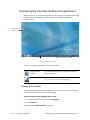
Introducing the C5te/F5te desktop and applications
When you start up your C5te/F5te for the first time, the desktop may look like the following
illustration. Motion Computing applications appear in the taskbar and Windows®
notification area.
Getting Started
document
Windows® Notification Area
Taskbar
Motion Computing desktop
The Motion Computing applications are described below.
Motion Getting
Started
Document that contains tips for starting out with the
C5te/F5te Tablet PC.
Motion Dashboard
Motion application for changing tablet settings. See
Using the Motion Dashboard on page 18.
Changing the taskbar
You may find it convenient to place the Windows® taskbar on the left edge of the display,
especially if your Tablet PC has a touchscreen display.
To place the taskbar on the left edge of the screen:
1. Press and hold the Start menu icon and tap Properties.
2. Tap the Taskbar tab.
3. Make sure that Lock the taskbar is checked.
Chapter 2 Using your C5te/F5te
Introducing the C5te/F5te desktop and applications 17
4. Under Taskbar location on screen, select Left.
5. Tap OK.
TIP:
As an option, you can hide the taskbar altogether; it reappears when you tap the area. From
the Taskbar tab, tap the Auto-hide the taskbar checkbox.
Using the Motion Dashboard
The Motion Dashboard provides a convenient way to change common tablet-related
settings.
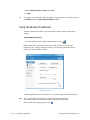
To open Motion Dashboard:
• From the Windows® taskbar, tap the Motion Dashboard icon
.
Motion Dashboard is organized into categories, which are listed on the left of the
Dashboard. Tap a category to display its settings. In the following illustration, Motion
Dashboard is open to Display settings.
Motion Dashboard
The following table lists some of the tasks you can perform using the Motion Dashboard.
NOTE: This is a partial list of tasks that you can perform with Motion Dashboard.
Some of these tasks are described in this chapter; all tasks are described in
Motion Dashboard by tapping the help icon
Chapter 2 Using your C5te/F5te
.
Using the Motion Dashboard 18
Dashboard Category
Task
Display
•
•
•
•
•
Rotate the display orientation.
Adjust the brightness of the display.
Set advanced graphic properties.
Set up an external display.
Dim the display automatically.
Audio
•
•
•
•
Adjust speaker and microphone volume.
Adjust advanced audio settings.
Suppress background noise.
Balance speakers.
Pen & Tablet
• Configure your Tablet PC to use touch only, pen only, or
both simultaneously.
• Adjust touch to left-handed setting.
• Adjust sensitivity to flicks and gestures.
• Use the pen function button for erasing digital ink instead
of performing the right-click action.
• Use the automatic learning feature to train your Tablet PC
to recognize your handwriting more accurately.
Wireless
• Enable and disable Wi-Fi, Bluetooth, and mobile
broadband
• Choose to have wireless disabled on startup (it’s enabled
by default).
• Adjust Wi-Fi, Bluetooth, and mobile broadband properties.
Power
• Select a power plan.
• Change what the power button does when pressed: sleep,
hibernate, or shut down.
Security
• Set up the fingerprint reader and other security options.
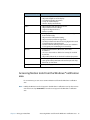
Accessing Motion tools from the Windows® notification
area
For convenience, you can access common Motion tools from the Windows® notification
area.
NOTE: Initially, the Motion icons don’t appear in the Windows® notification area. Tap the arrow to
view more icons. Tap Customize to have the icons appear in the Windows® notification
area.
Chapter 2 Using your C5te/F5te
Accessing Motion tools from the Windows® notification area 19
Arrow
Wireless
indicator
Motion utilities
Power
indicator
Motion icons in the Windows® notification area
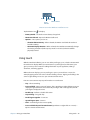
Tap the Motion icon
to display:
• Battery Health—Shows the current battery charge level.
• Motion Dashboard—Opens the Motion Dashboard.
• Options—Lists options you can set:
– Show Hard Drive Activity—When selected, the Motion icon blinks when there is
hard drive activity.
– Automatic Display Rotation—When selected, the C5te/F5te automatically changes
the viewing orientation (landscape to portrait or vice versa) when the tablet is
physically rotated.
Using touch
With the C5te/F5te Tablet PC, you can use either your finger, a pen, or both to interact with
the touchscreen display. While it’s convenient to use your finger most of the time, a pen
gives you more precise control for adding information to your application, editing a
document, or drawing graphics.
With touchscreen displays, you use your finger or pen as you would use a mouse. For
example, tapping twice is the same as double-clicking a mouse. Tapping and holding is the
same as right-clicking a mouse to open context-sensitive menus.
Here are some common ways to perform tasks on a touchscreen:
• Tap—Select something
• Press and hold—Open a menu of options. This is equivalent to right-clicking a mouse to
display the right-click menu. Press and hold your finger until a circle appears, then lift
your finger to display the menu.
• Double-tap—Perform a double-click action
• Tap and drag—Drag and drop
• Pinch fingers together—Zoom out
• Spread fingers apart—Zoom in
• Flick—Scroll through a list or move quickly
• Press and hold the pen’s function button (equivalent to a right-click on a mouse)—
Open a context-sensitive menu
Chapter 2 Using your C5te/F5te
Using touch 20
NOTE: If the tablet doesn’t respond when you tap with your finger, try using more area of your
fingertip. Unlike other types of touchscreens, the C5te/F5te capacitive touchscreen doesn’t
respond to other input. For example, you can’t tap it with another object such as a credit
card or if you’re wearing gloves.
Calibrate touch
The digitizer is an application that detects the position of the pen or your finger on the
touchscreen display. You should calibrate the digitizer the first time you start your
Tablet PC. Then, you can recalibrate the digitizer whenever the pointer doesn’t align with
the pen tip or finger.
To calibrate the digitizer:
1. Open Motion Dashboard.
2. Tap Pen & Tablet.
3. Under Pen & Tablet, tap Calibrate Digitizer.
4. Tap the Calibrate button in the Display tab.
5. Choose Pen input or Touch input in the following pop-up display.
6. Provide calibration samples by tapping the crosshairs with your pen or finger in the
following screen as directed.
7. Tap Yes or No when asked if you want to save the calibration data.
How to use gestures with the multiple-touch display
The C5te/F5te Tablet PC touchscreen display supports multi-touch, which allows you to
directly manipulate items on-screen, such as to navigate websites and view photos. For
example, you can use your fingers to scroll through lists, zoom in and out, rotate, and so on.
Changing to one-tap open for touch
With touch, you may want to change how you select and open items. By default, Windows®
folders are set up so that you tap once to select an item and double-tap to open it. For
touchscreen displays, you can change the behavior to point to select an item and open an
item with one tap instead of two.
To change folder options:
1. From the Windows® Control Panel, tap Appearance and Personalization, Folder
Options, then tap Specify single- or double-click to open.
2. Under Click items as follows, tap Single-click to open an item (point to select).
For more information, open Windows® Help and search for “folder options.”
Chapter 2 Using your C5te/F5te
Using touch 21
Customizing touch input mode
You can determine how touch input is configured by setting the input mode. You can use:
• Your finger only; no pen input is detected.
• The pen only; no finger input is detected.
• Both your finger and a pen.
• Switch between touch and pen input, in which case you double-tap to switch to touch
input. This is useful to avoid the tablet from responding to unintentional touch input.
To configure touch settings:
1. Open Motion Dashboard.
2. Tap Pen & Tablet.
3. Tap Touch Settings.
4. From the Digitizer Options tab, under Input Mode tap the desired mode.
Adjusting touch settings
You can adjust how the Tablet PC interprets your finger movements. The default settings
will be sufficient for most users, but if you need to make adjustments you can do the
following
• Adjust how quickly the tablet responds when you double-tap your finger
• Adjust how quickly the tablet responds when you press and hold your finger
• Show the touch pointer when interacting with items on the screen
• Change the touch pointer location, which can be helpful if you’re left-handed
•
Enable or disable multi-touch gestures and inkings
• Change the location of menus to appear to the right of your hand, which is helpful if
you’re left-handed
To change touch settings:
1. Open Motion Dashboard.
2. Tap Pen & Tablet.
3. Tap Pen & Input Devices.
4. Tap the Touch tab.
5. To enable Touch, tap Use your finger as an input device.
6. To enable multi-touch gestures, tap Enable multi-touch gestures and inking.
7. To adjust the Double-tap action, under Touch action, tap Double-tap, then tap
Settings. Move the slider to make your adjustments.
8. To adjust the Press and hold action, under Touch action, tap Press and hold, then tap
Settings. Move the slider to make your adjustments.
9. To display the touch pointer on the screen, tap Show the touch pointer.
Chapter 2 Using your C5te/F5te
Using touch 22
10.To change what the touch pointer looks like or where it’s positioned, tap Advanced
Options.
To change the location of menus for left-handed users:
1. Open Motion Dashboard.
2. Tap Pen & Tablet.
3. Tap Tablet PC Settings.
4. Tap the Other tab and tap Left-Handed.
Adjusting pen settings
If the pen doesn’t respond as accurately as you would like, you can make adjustments. For
example, you can:
• Use the button on the pen to perform the right-click action or act as an eraser
• Adjust how quickly the tablet responds when you double-tap the pen
• Adjust how quickly the tablet responds when you press and hold the pen button
To change pen settings:
1. Open Motion Dashboard.
2. Tap Pen & Tablet.
3. Tap Pen & Input Devices.
4. Tap the Pen Options tab.
5. To adjust the speed and spacial tolerance of the Double-tap action, under Pen action,
tap Double-tap then tap Settings. Move the slider to make your adjustments.
6. To adjust the speed and duration of the Press and hold action, under Pen action, tap
Press and hold then tap Settings. Move the slider to make your adjustments.
7. To enable the function button on the pen, tap Use the pen button as a right-click
equivalent.
8. To enable the eraser, select the Use the top of the pen to erase ink option.
Adjusting Tablet PC settings
From Tablet PC Settings, you can change from right-handed to left-handed use.
To change hand orientation:
1. Open Motion Dashboard.
2. Tap Pen & Tablet.
3. Tap Tablet PC Settings.
4. Tap the Other tab and make your desired change.
Chapter 2 Using your C5te/F5te
Using touch 23
The Configure your pen and touch displays option on the Tablet PC Settings Display
tab is useful for assigning touch to the appropriate display when one or more displays are
connected to the tablet. By default, Windows® 7 assumes that an external display is for
touch input. To change this, run Setup from Tablet PC Settings to assign touch to your
tablet display.
NOTE: A keyboard must be connected to the tablet to perform this procedure.
To assign touch to the desired display:
1. Open Motion Dashboard.
2. Tap Pen & Tablet.
3. Tap Tablet PC Settings.
4. Tap the Display tab.
5. Tap Setup next to “Configure your pen and touch displays.”
6. Tap Touch Input.
7. Press the Enter key until you see the instructions appear on the display that you want to
use for touch input.
8. Follow the on-screen instructions.
9. Press Esc to end the process.
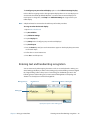
Entering text and handwriting recognition
You can enter text by either tapping characters on the on-screen keyboard or writing on a
virtual writing pad. When you write on the writing pad, your handwriting converts to digital
ink. “Digital inking” refers to the process of converting your handwriting to text. In the
following picture of the writing pad, someone started writing Motion Computing and
“Motion” has already been converted to digital ink.
Writing pad icon
Keyboard icon
Video demonstrations of writing tips
Writing pad
Input panel open to the writing pad
Chapter 2 Using your C5te/F5te
Entering text and handwriting recognition 24
TIP:
Tap the icons at the top of the input panel to view videos on making editing gestures. To
hide the video tips, tap the icon on the right.
By tapping the keyboard icon at the top of the pad, the input panel opens to the on-screen
keyboard.
Here’s the input panel open to the on-screen keyboard. Tap the Tools menu for more input
panel options and for viewing Help Topics.
Tools
Help
Input panel open to the on-screen keyboard
TIP:
You can resize the keyboard panel by dragging the handle at the bottom right of the
keyboard. Also, you can use the Ctrl, Alt, Fn, Del, and Bksp keys as you would on a normal
keyboard.
Opening and closing the input panel
The Tablet PC input panel often opens automatically when you tap in a text field. You can
also tap the tab located on the left side of the screen to expand the input panel.
To open the input panel, either:
• Tap at the place you want to enter text, such as in a text box. Then tap the input panel
icon
.
• Tap the input panel tab on the left edge of the screen
.
To close the input panel:
• Tap the close button
at the top-right. The input panel slides back to the edge of
the screen.
Chapter 2 Using your C5te/F5te
Entering text and handwriting recognition 25
Docking or floating the input panel
By default, the input panel is floating and you can move it anywhere on the screen by
placing your finger or pen on the title bar and dragging it.
If you prefer, you can dock the input panel so that it always appears in the same location,
either at the top or bottom of the screen.
To dock or undock the input panel:
• At the top of the input panel, tap Tools.
• Select Docking.
• Select either Dock at the top of the screen, Dock at the bottom of the screen or Float.
TIP:
If you're left-handed, you can move the input panel to the right edge of the screen to make
it easier to use.
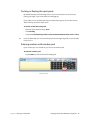
Entering numbers with numbers pad
If you need to type a lot of numbers, you can use the numbers pad.
To open the numbers pad:
• Tap the Num key at the bottom of the writing pad.
Numbers pad
Chapter 2 Using your C5te/F5te
Entering text and handwriting recognition 26
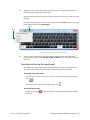
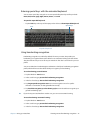
Entering special keys with the extended keyboard
You can enter special keys using the on-screen expanded keyboard. Special keys include
Home, End, Insert, PgUp, PgDn, PrtScn, Pause, and ScrLk.
To open the expanded keyboard:
• Tap the Tools key at the top of the input panel and choose Show Expanded Keyboard.
Special keys
Tools
Expanded keyboard
Using handwriting recognition
Handwriting recognition is enabled by default. The more you write, the quicker your
handwriting is recognized because the tablet has an automatic learning tool that collects
data about the words you use and how you write them. This data is stored under your user
profile.
You can use Windows® Handwriting Personalization to build your handwriting recognition
profile, which will increase the tablet’s ability to recognize your handwriting.
To use handwriting personalization:
1. Tap the Windows® Start button.
2. In the search box, type personalize handwriting recognition.
3. in the list of results, tap Personalize handwriting recognition.
4. Tap Target specific recognition errors to correct recognition errors for specific
characters or words that are being identified incorrectly.
5. Tap Teach the recognizer your handwriting style to train the tablet to recognize your
general handwriting style.
TIP:
If you inherit your C5te/F5te from another user, you can reset automatic learning.
To reset handwriting automatic learning:
1. Tap the Windows® Start button.
2. In the search box, type personalize handwriting recognition.
3. in the list of results, tap Personalize handwriting recognition.
Chapter 2 Using your C5te/F5te
Entering text and handwriting recognition 27
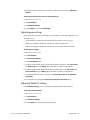
4. Tap Change automatic learning settings.
5. Select Don’t use automatic learning, and delete any previously collected data.
You can find other handwriting applications at the Motion Computing Store.
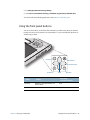
Using the front panel buttons
You can use the buttons on the front of the Tablet PC to perform many functions without
having to use the pen. The buttons are customizable, so you can modify their functions to
suit the way you work.
A
B
Function
Dashboard
Directional pad
A button
Button
Primary
Enter
B button
Secondary
(Function+button)
Function
Activates secondary function for
other buttons
N/A
Dashboard
Starts Motion Dashboard
Opens Windows® Journal™
Chapter 2 Using your C5te/F5te
Using the front panel buttons 28
Button
Secondary
(Function+button)
Primary
Directional
pad
Moves the pointer or navigates
through documents. Equivalent to
arrow keys on a keyboard.
Left = Shift+Tab
Right = Tab
Up = Page Up
Down = Page Down
Enter
Makes a selection—equivalent to
the Enter key
Windows® logo key
A
Performs application-specific
function
Rotates the display orientation
B
Activates the barcode scanner (if
installed)
Cancels the current task—
equivalent to the Esc key
The directional pad orientation rotates to match the display orientation. To move the
pointer in a certain direction, press that direction on the pad regardless of orientation. For
example, “up” in landscape orientation becomes “left” in portrait orientation.
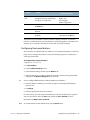
Configuring front panel buttons
As you become more familiar with your tablet, you can customize the buttons on the front
panel. You can configure the buttons to start your favorite program, run a command, or
enter a key combination.
To configure the front panel buttons:
1. Open Motion Dashboard.
2. Tap Pen & Tablet.
3. Tap the Tablet PC Settings button.
4. In the Tablet PC Settings window, tap the Buttons tab.
5. Select the primary or secondary orientation for which you want to change the button
settings from the Button settings for: drop-down list.
TIP:
You can configure different button settings for different orientations.
6. Select the button combination you want to change. The currently selected buttons
appear in red.
7. Tap Change.
8. Select the appropriate action for the button.
For some actions, you must enter more information, such as the location of a program to
start. You can select an action for Press and another for Press and hold. For more
information, tap What is press and hold?
NOTE: To reset the buttons to their default values, tap the Reset button.
Chapter 2 Using your C5te/F5te
Using the front panel buttons 29
Setting display options
Use the procedures in this section to customize your display settings. You can adjust the
brightness level, rotate the display, and change the order in which the display rotates.
Adjusting the display brightness
Changing the brightness of the display is useful when you want to conserve battery power.
To adjust the display brightness:
1. Open Motion Dashboard.
2. Tap Display.
3. Move the Brightness slider to the desired level.
TIP:
For optimal battery conservation and viewability, set the brightness scale to the mid-point
or slightly above.
Rotating the display orientation
You can easily change the screen orientation to fit your current task. For example, you may
want to use the portrait orientation for filling out forms or reading a PDF or e-book. At other
times, you may want a landscape orientation for web browsing or sketching.
To rotate the display:
1. Open Motion Dashboard.
2. Tap Display.
3. Tap the Rotate Screen button.
Enabling or disabling automatic rotation
You can set the display to automatically rotate when you physically rotate the tablet. By
default, automatic rotation is disabled.
To enable or disable rotating the display automatically:
1. From the Windows® notification area, tap Options.
2. Select or clear the Automatic Display Rotation check mark.
Setting up an external display
You can use your tablet with an external monitor or projector.
Chapter 2 Using your C5te/F5te
Setting display options 30
Display settings
When connecting to an external display, specify whether to:
• Duplicate (mirror) the displays
• Extend the tablet’s display to span across the external monitor
• Use the external monitor only or use the tablet only
Mirror display
The “mirror display” theme duplicates the tablet display on both the display and monitor.
This is useful when using your Tablet PC with a projector.
Tablet PC
External monitor
Mirror display
Extended with monitor primary
The “extended with monitor primary” display scheme expands the desktop area across the
tablet and external monitor, where the external monitor is the primary monitor. You can set
the external monitor to use a different display resolution than the Tablet PC.
The C5te/F5te 10.4" XGA display has a resolution of 1024 X 768.
Tablet PC
External monitor
Extended with monitor primary
Chapter 2 Using your C5te/F5te
Setting display options 31
Extended with tablet primary
The “extended with tablet primary” display scheme expands the desktop area across the
tablet and external monitor, with the tablet as the primary display. You can set the external
monitor to use a different display resolution than the tablet.
Monitor only
The “monitor only” display scheme uses the external monitor only.
Tablet only
The “tablet only” display scheme uses the tablet display only.
Connect an external monitor
To connect an external monitor to the C5te/F5te, you use the CFT-Series docking station,
which is sold separately.
To set up an external monitor:
1. Connect the monitor cable from the external monitor into the CFT-Series docking station
according to the CFT-Series Docking Station User’s Guide.
2. Plug in the external monitor and turn it on.
3. If necessary, install software and drivers for the monitor. See the manufacturer’s
documentation for more information.
4. Open Motion Dashboard.
5. Tap Display.
6. Select a Display Scheme.
7. If your Tablet PC doesn’t respond to touch, follow the steps below to enable touch on the
correct display.
Resetting touch after adding other monitors
After setting up an external monitor, touch might be disabled on your tablet because
Windows® 7 assumes that the external display is for touch input. You can enable touch on
the correct display from the Motion Dashboard by following the procedure below. You’ll
need a keyboard.
To enable touch when your tablet is connected to an external display:
1. If it isn’t already, attach a keyboard to the tablet.
2. Open Motion Dashboard.
3. Tap Pen & Tablet.
4. Tap Tablet PC Settings.
5. Select the Display tab.
6. Tap Setup next to “Configure your pen and touch displays.”
Chapter 2 Using your C5te/F5te
Setting display options 32
7. Tap Touch Input.
8. Press the Enter key until you see the instructions appear on the display that you want to
use for touch input.
9. Follow the on-screen instructions.
10.Press Esc to end the process.
Resetting the display after returning the tablet to the docking station
If you set up your tablet in a docking station with the display scheme expanded across both,
and you remove the tablet temporarily from the docking station, the display scheme may
need to be reset when you return the tablet to the docking station.
TIP:
If the display still doesn’t work properly, change the Display Scheme to Tablet Only and
then change it back to the desired scheme.
Using the built-in microphones
You can use the built-in array microphones to record audio, dictate notes, and use voice
commands. The two microphones are used at the same time to optimize sound detection
for speech recognition and voice recording.
Using speech recognition
You can use speech recognition to interact with your tablet by voice. You can dictate
documents and emails or use voice commands to control programs.
• Dictation mode—With Dictation mode, your tablet listens to everything you say and
converts your words to text. You can use dictation mode to enter text directly into any
document or text box.
• Voice command mode—With Voice command mode, your tablet listens for specific
words that correspond to a list of available voice commands. You can use commands to
switch between programs, save documents, copy, paste or undo.
Setting up speech recognition
Before you can use speech recognition, you must configure the microphones and train the
system for the characteristics of your voice. You can then take the available speech tutorial
to learn basic voice commands.
Chapter 2 Using your C5te/F5te
Using the built-in microphones 33
Set up the microphones
For best results, move to a quiet environment.
To set up the microphones:
1. In Control Panel, tap the Ease of Access category, then tap Speech Recognition.
2. Tap Set up microphone.
3. If you’re using the tablet’s microphone array, select Other.
4. Follow the instructions in the setup program.
5. If the microphones are set to an appropriate level, the meter will stay in the green zone
while you read the sentences. If the level is too low or too high, use Motion Dashboard to
adjust the level (page 18).
Train your tablet to recognize your speech
Use this procedure to improve your tablet’s ability to understand your voice.
To train your tablet to recognize your speech:
1. In Control Panel, tap Speech Recognition.
2. Tap Train your computer to better understand you.
3. Follow the instructions in the setup program.
Taking the speech tutorial
You can use the speech tutorial to learn basic commands and dictation. The tutorial takes
about 30 minutes to complete.
To take the speech tutorial:
1. In Control Panel, tap Speech Recognition.
2. Tap Take Speech Tutorial.
3. Follow the instructions in the tutorial program.
Using dictation and voice commands
After you’ve set up speech recognition, you can open it from Control Panel.
To use Dictation and Voice Commands:
1. In Control Panel, tap Speech Recognition.
2. Tap Start Speech Recognition.
3. Ensure that the Speech Recognition window is open and listening.
Chapter 2 Using your C5te/F5te
Using speech recognition 34
4. Do one of the following:
• For voice commands, say the appropriate command. For a list of commands, search
Windows® Help and Support for “speech commands.”
• For dictation, open the program you want to use and start speaking.
For more information about speech recognition, search Windows® Help and Support for
“speech recognition.”
Using the cameras
Your C5te/F5te may include built-in web and documentation cameras.
Using the web camera
The web camera is a 1.3MP camera that supports color images and streaming video. It’s
located on the front of your tablet. You can use the web camera for web-based video
communication. The web camera has a maximum resolution of 1280x1024 pixels.
Use the software of your choice to operate the web camera.
Using the documentation camera
You can use the built-in documentation camera to take pictures and save them to your hard
drive. The documentation camera is a 3MP, auto-focus camera. The camera lens is on the
back of the tablet and includes a light to illuminate the subject.
The documentation camera can capture pictures in BMP, JPG, and TIFF formats, and it has a
maximum resolution of 2048 × 1536 pixels.
Chapter 2 Using your C5te/F5te
Using the cameras 35
SnapWorks™ by Motion®
The C5te/F5te includes an application called SnapWorks™ that enables you to shoot, save,
edit, email, print, and copy your photos.
Taking a photo with SnapWorks
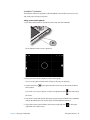
1. Press the Camera button to activate the camera and open the viewfinder.
A
B
The SnapWorks camera screen is displayed.
2. Point your camera at the subject you want to photograph.
You can use the grid and center circle to help you line up your subject(s).
3. Tap the camera icon
take a picture.
on the right side of the screen or press the Camera button to
To zoom in or out on your subject, use the zoom adjustment slider
on the left side of
the screen.
4. Your photo is saved and stored in the image storage location specified in the SnapWorks
settings. By default, this is the C:\Users\[your username]\Pictures directory.
5. If you want to take a photo with the web camera, tap the Flip icon
in the upper
right-hand corner of the screen.
Chapter 2 Using your C5te/F5te
Using the cameras 36
After you take your photo, you can tap the Flip icon again to return to the
documentation camera viewfinder.
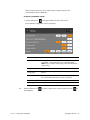
Configuring SnapWorks settings
1. Tap the Settings icon
in the upper left-hand corner of the screen.
The SnapWorks configuration screen is displayed.
TIP:
Setting
Description
Camera Resolution
Change the resolution of your photos—High = 2048 × 1536
pixels; Med = 1024 x 768 pixels; Low = 640 x 480 pixels
(Note: These resolution values apply to the documentation
camera only.)
Image Storage
Specify the location where your photos are stored.
Default Saved
Image Type
Use to select the image format you want to use for your
photos.
GPS Stamp Visible
Tap On to include a GPS location stamp on your photo. You
can see the GPS stamp when you view your photo.
Time Stamp Visible
Tap On to include a time stamp on your photo.
Language
Select your preferred language for the SnapWorks interface.
Tap the Left Arrow icon
to return to the previous screen. Tap the Close icon
to
exit SnapWorks.
Chapter 2 Using your C5te/F5te
Using the cameras 37
SnapWorks help
Tap the Help icon
to open the Key screen where you can view all SnapWorks™ icon
descriptions.
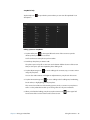
Editing a photo in SnapWorks
1. Tap the Gallery icon
in the upper left-hand corner of the screen to open the
directory where your photos are stored.
You’ll see the most recent photos you have taken.
2. Double-tap the photo you want to edit.
The photo opens and you’ll see two icons at the bottom left-hand corner of the screen
that you can tap to open the SnapWorks photo editing tools.
3. Tap the Adjust Image icon
to access editing tools to rotate, crop, or create a mirror
image of your photo.
You can also make contrast and brightness adjustments to your photo in this screen.
4. Tap the Annotate Image icon
to access editing tools for adding text, handwriting,
brush strokes, or highlighting part of your photo.
This screen also includes tools for drawing squares, circles, or arrows on your photo as
well as a color palette that enables you to change the color of your annotations.
5. When you’re finished editing your photo, tap the Camera icon
in the upper left-
hand corner of the screen to return to the camera screen.
Chapter 2 Using your C5te/F5te
Using the cameras 38
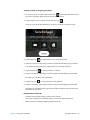
Sending, printing, and copying your photos
1. To send your photo via email, tap the Gallery icon
in the upper left-hand corner of
the screen to open the directory where your photos are stored.
2. Tap your photo once to select it, then tap the Send icon
.
You’ll see a pop-up window that tells you to choose a method to send your image.
3. Tap the Email icon
to send your photo as an email attachment.
4. Select the resolution of the image you want to email in the following pop-up window.
Your default email program opens and the photo you selected is attached.
5. Tap the Printer icon
to send your photo to a printer.
6. Select the resolution of the image you want to print in the following pop-up window.
The photo you selected is sent to the printer.
7. Tap the Copy icon
to copy your photo to the clipboard.
8. Select the resolution of the image you want to copy in the following pop-up window.
The photo you selected has been copied to the clipboard and you can paste it into the
application of your choice.
Documentation camera tips
• Hold the camera steady and give it a few seconds to focus.
• If your pen is tethered, ensure that the tether is not in front of the camera lens.
• Make sure you have adequate lighting to take your photo.
Chapter 2 Using your C5te/F5te
Using the cameras 39
Using the barcode scanner
Your C5te/F5te is available with an optional integrated 1D and 2D barcode scanner that you
can use to retrieve information from barcodes. Many applications use barcodes for asset
tracking, identification, and process controls.
Supported barcode types
The C5te/F5te barcode scanner supports several different types of barcodes—a minimum
set of barcodes is enabled at the factory.
The following symbologies are enabled by default:
• Aztec Code
• Code 128
• EAN-128
• EAN-UCC-CC-AB
• Code 39
• DataMatrix
• UPC-A
• UPC-E
• EAN-8
• EAN-13
• Interleaved 2 of 5
• PDF417
• Micro PDF417
• RSS-14
• RSS Limited
Other barcode types can be enabled by using the MCA Configuration Editor that comes
with the Tablet PC. To access the editor, from the Start Menu, select All Programs > Intel >
MCA Platform Driver and tap MCA Configuration Editor.
To use the barcode scanner:
1. Open the application that you want to receive the barcode data and place the insertion
point in the appropriate field.
2. Hold the unit by the handle with the scanner lens in front of you.
3. Aim the scanner lens at the barcode.
Chapter 2 Using your C5te/F5te
Using the barcode scanner 40
4. Press and release the barcode scanner button on the top of the unit. Ensure that the scan
beam covers the entire barcode.
If the scan was successful, the data will appear in the application and you will hear a chime
sound as confirmation.
Barcode scanner tips
• You will typically get the best scans if the lens is six to seven inches from the barcode.
• If you’re having trouble scanning a barcode, use two hands to steady the tablet while
you scan.
• Many users find that using the B button to scan a barcode works better for them
ergonomically. To learn more about reconfiguring the front panel buttons, see
Configuring front panel buttons on page 29.
Using the RFID reader
Your Tablet PC may include an integrated 13.56 MHz RFID reader that you can use to
retrieve information from RFID tags.
RFID tags use radio frequency (RF) transmissions to identify a product, animal, or person.
RFID doesn’t require direct contact or line-of-sight scanning, and can be scanned through
many materials, including clothing. An RFID tag can store much more data than a typical
barcode, and some RFID tags can both transmit and record data. RFID can be used for asset
tracking, identification, process control, healthcare, and pharmaceutical applications.
Chapter 2 Using your C5te/F5te
Using the RFID reader 41
The RFID reader supports the following formats:
• ISO/IEC 14443A/B
• ISO/IEC 15693
• ISO/IEC 18000-3
• MIFARE Classic
To use the RFID reader:
1. Hold the unit by the handle with the right edge in front of you.
2. Aim the right edge of the unit at the RFID tag and align the RFID antenna/logo with the
tag. Ensure that the tag is 1–1.5 inches (25–40 mm) from the RFID antenna scan area.
RFID tag
1 – 1.5 inches
3. Press and release the RFID button on the top of the unit. The RFID light will come on to
indicate that the unit is scanning.
The RFID light goes off and the unit beeps to indicate a successful scan. The ASCII and Hex
data appears in the RFID Tag Data window.
Chapter 2 Using your C5te/F5te
Using the RFID reader 42
NOTE: RFID tags are typically used with specialized applications. See your system administrator for
more information.
Using the battery
The C5te/F5te includes a high-capacity Lithium-ion battery that fits into the back of the
unit. Under normal conditions, you can run the tablet on battery power for up to six hours.
Battery life varies by configuration, applications in use, utilized features, and operating
conditions. Maximum battery capacity decreases with time and use. Motion battery life
estimates based on MobileMark® 2007 performance testing.
DANGER: To avoid personal injury, handle the battery with care. Don’t open, puncture,
short, or expose it to fire or water. Keep the battery in an environment with ambient
temperature of less than 104°F (40°C). For example, don’t leave the battery in a closed car in
hot weather for an extended time. For more information, see the Safety and Regulatory
Guide packaged with the tablet.
Checking tablet battery power
You can check the remaining battery power several ways:
•
When the tablet is plugged in to an outlet, the battery gauge shows whether the battery
is fully charged (green) or charging (amber).
• From the Motion Dashboard.
• From the Windows® notification area.
Chapter 2 Using your C5te/F5te
Using the battery 43
The battery gauge is located on the front of the C5te/F5te Tablet PC as shown:
You can use the battery gauge on the front of the unit to monitor the status of the battery.
A
B
To check the remaining battery power while running on the battery:
1. Locate the battery gauge on the front of the tablet.
2. Count the number of battery gauge lights. When the tablet is on battery power, the lights
indicate:
• Four green lights: The battery is 75% to 100% charged.
• Three green lights: The battery is 50% to 75% charged.
• Two green lights: The battery is 25% to 50% charged.
• One green light: The battery is 25% charged.
• Flashing amber light: The battery is low and requires an immediate charge.
When the tablet is on AC power, the lights indicate:
• One amber light: The battery is less than 25% charged.
• Two amber lights: The battery is 25% to 50% charged.
• Three amber lights: The battery is 50% to 75% charged.
• Four amber lights: The battery is 75% charged.
• Four green lights: The battery is 100% charged.
To check the remaining battery power when the tablet is off:
• Press the button next to the battery gauge on the back of the battery.
Chapter 2 Using your C5te/F5te
Using the battery 44
The indicator lights show the remaining charge. Each light represents about 25% of
the total charge.
Press
To check the remaining battery power from the Motion Dashboard:
1. Open Motion Dashboard.
2. Tap Power, which displays the percentage of remaining battery charge.
To check the remaining battery power from the Windows® notification area:
• Tap the power indicator, which looks different depending on whether the tablet is
plugged in.
– If the tablet is plugged in, tap the plug icon
.
– If the tablet is on battery power, tap the battery icon
.
Removing and replacing the battery
Before you remove the battery, ensure that the tablet is plugged in, turned off, or in
Hibernate (page 13) or Sleep mode (page 13). If you’re hot-swapping the battery (page 47),
you can do so while the tablet is on and running on battery power.
Chapter 2 Using your C5te/F5te
Using the battery 45
To remove the battery:
1. With the back of the unit facing you, slide and hold the battery latch.
2. Insert your finger under the finger grip and remove the battery from the battery
compartment.
2
1
To replace the battery:
1. Place the tabbed end of the battery into the battery compartment.
2. Press the battery down until it locks into place.
Chapter 2 Using your C5te/F5te
Using the battery 46
Hot-swapping the battery
Changing a tablet battery while the tablet is in use and running on battery power is called
“hot-swapping.” You can hot-swap a battery only if you have a second charged battery to
replace the battery that is low on power.
While hot-swapping the battery, you will notice the following behaviors:
• The tablet’s display gets dimmer. Once the charged battery is in the tablet, the tablet’s
display brightens again.
• The battery gauge’s LED lights turn off. Once the charged battery is in the tablet, the LED
lights turn on again.
• The power button is disabled. (The power button is disabled at any time the tablet has
no battery and is not running on AC power through the power adapter.)
Important: You have one minute to hot-swap the battery. If you don’t insert a charged
battery within one minute, the tablet goes into Hibernate mode. If the tablet is in Sleep
mode and you don’t insert a battery within one minute, the tablet wakes up, then goes into
Hibernate mode.
To hot-swap the battery:
1. Remove the battery (page 45).
2. Insert the new battery (page 45).
Important: Use only Motion Computing C5/F5-Series batteries with the tablet.
Long-term battery storage
Don’t store any batteries with a full charge; this can cause a permanent loss of charging
capacity. For long-term storage, ensure that the charge level is between 20% and 40% (two
contiguous LEDs illuminated), and remove the battery from the tablet. Check stored
batteries every 90 days to determine the charge status. If only one LED or no LED is
illuminated, recharge the batteries to a level between 20% and 40%.
For optimum care, store the battery in a cool, dry environment. Never expose the battery to
temperatures above 60ºC (140ºF).
NOTE: In storage, the batteries will self-discharge at a rate of 10% of the total capacity per month.
Disposing of used batteries
A Lithium-ion (Li-ion) battery should be disposed of at a hazardous materials recycling
center when it is no longer serviceable. Don’t throw it in a waste receptacle because the
battery could be deposited in a landfill.
Chapter 2 Using your C5te/F5te
Using the battery 47
Battery and power management tips
• To lengthen the battery’s usable life, use AC power when you can. The battery charges
automatically when the tablet runs on AC power.
• For optimal battery life, use AC power when using a USB device such as a DVD player or
external hard disk drive.
• When running on battery power, place the tablet in Hibernate or Sleep mode if you’re
going to leave it unattended for more than a few minutes. For more information on
hibernate and Sleep mode, see Changing how the power button functions on page 49.
• Remember that the display, processor, wireless cards and accessories all draw on the
battery, so adjust properties and disable unused accessories while running on battery
power.
• Condition your battery once a month. To condition it, run the tablet on battery power
until the battery’s charge level drops below 20%.
• When running on battery power, adjust the display to a dimmer setting and enable
Dynamic. Open Motion Dashboard, tap the Display tab and tap Dynamic.
• Turn off wireless devices when they aren’t being used. Open Motion Dashboard, tap the
Wireless tab, and clear the checkbox next to the wireless device you want to disable.
Changing the power plan
By default, the C5te/F5te uses the Motion Optimized power plan that is designed
specifically for Motion Computing tablets. It balances the need to save power while
maximizing tablet performance. When the tablet senses no current activity, it goes into
Power Saver mode automatically.
If necessary, you can change the Motion Optimized power plan from the Motion
Dashboard.
To change the power plan:
1. Open Motion Dashboard.
2. Tap Power.
3. Tap Power Options.
4. Select a power plan from the list of available plans.
NOTE: Setting the power plan to Power Saver reduces the tablet’s performance.
Chapter 2 Using your C5te/F5te
Using the battery 48
Changing how the power button functions
When you press and release the power button, it can go into one of the following modes:
• Sleep—The tablet pauses all activity immediately and quickly resumes when awakened.
This saves power when you’re away from your tablet for a short time. However, you will
lose unsaved data if there’s a power failure.
• Hibernate—The tablet saves the contents of memory to the hard drive and shuts down.
Pressing the power button restores the desktop exactly as you left it. Hibernate
consumes about as much power as a night light and takes less time to restart than the
Shut down option.
• Shut down—Tablet shuts down. Pressing the power button reboots the tablet.
By default, the tablet goes to sleep when you press and release the power button
. To
wake up your tablet, press and release the power button again. You can put the tablet in
Hibernate mode or shut it down completely from the Start menu.
You can change how the power button behaves when it is pressed either to hibernate or to
shut down the tablet. You can set the behavior individually, depending on whether the
tablet is running on battery or plugged in.
To change what happens when the power button is pressed:
1. Open Motion Dashboard.
2. Tap Power.
3. Under Power Switch on battery, select what you want to happen when the power
switch is pressed while the tablet is running on battery.
4. Under Power Switch plugged in, select what you want to happen when the power
switch is pressed while the tablet is plugged into an outlet.
Using Wi-Fi (802.11a/g/n)
Use the information in this section to set up a Wi-Fi connection. Wireless access requires an
appropriate access point. Internet access requires a working Internet connection.
DANGER: FAA regulations require that you disable any wireless connection when traveling
by air. Failure to disable the wireless connection on the system while traveling by air can
cause communications problems with aircraft instruments.
Enabling or disabling Wi-Fi
Before you can establish a Wi-Fi connection, you must enable the Wi-Fi adapter. You can
enable the Wi-Fi adapter using Motion Dashboard.
Chapter 2 Using your C5te/F5te
Using Wi-Fi (802.11a/g/n) 49
NOTE: Wireless cards consume battery power. To reduce power consumption when running on
battery power and when Wi-Fi is not being used, disable Wi-Fi in the Motion Dashboard.
To enable or disable Wi-Fi:
1. Open the Motion Dashboard to the Wireless panel (page 18).
2. Select or clear the Enable Internal 802.11 Wireless check box.
Setting up a Wi-Fi connection
Follow these steps to create a Wi-Fi connection.
To set up a Wi-Fi connection:
1. Open the Motion Dashboard to the Wireless panel (page 18).
2. Ensure that Enable Internal 802.11 Wireless is selected.
3. Tap the Properties button.
4. In the Network Connections center, tap the wireless network connection.
5. Tap Connect To, then select a network.
If you are connecting to a secure network, you may need to enter authentication
information. If you are connecting to an unsecured network, you may be prompted to
select whether to connect to the unsecured network or connect to a different network.
Using Mobile Broadband with GPS
Your Tablet PC may be equipped with an optional embedded Mobile Broadband with GPS
module. Use the information in this section to enable Mobile Broadband and the Mobile
Broadband GPS receiver. Mobile Broadband access requires an account with a Mobile
Broadband network carrier. To use the GPS receiver, you do not need a network connection
or an account with a Mobile Broadband network carrier.
WARNING: FAA regulations require that you disable any wireless device when traveling by
air. Failure to disable the wireless device on the tablet while traveling by air can cause
communication problems with aircraft instruments.
Enabling Mobile Broadband with GPS
Before you can establish a Mobile Broadband connection or use the Mobile Broadband GPS
receiver, you must enable Mobile Broadband with GPS in Motion Dashboard.
Chapter 2 Using your C5te/F5te
Using Mobile Broadband with GPS 50
NOTE: Wireless cards consume battery power. To reduce power consumption when running only
on battery power and when Mobile Broadband is not being used, disable Mobile
Broadband and GPS in the Motion Dashboard.
To enable Mobile Broadband with GPS:
1. Open the Motion Dashboard to the Wireless panel (page 18).
2. Select the Enable Mobile Broadband with GPS checkbox.
Using the GPS receiver
The Mobile Broadband module includes a GPS receiver. The GPS receiver provides the
current location, altitude, heading, and horizontal velocity of the tablet through the
Connection Manager user interface and through a virtual communications port.
You can use the Connection Manager to monitor the Mobile Broadband GPS receiver.
To use the GPS receiver, you do not need a network connection or an account with a Mobile
Broadband network carrier.
Using the Connection Manager
The Connection Manager lets you configure the Mobile Broadband module with network
profiles that enable it to function on various mobile broadband carrier networks. A network
profile includes a mobile broadband network name and the information required to
connect to the network.
The Connection Manager also lets you start, stop, and manage the Mobile Broadband GPS
receiver.
To start the Connection Manager:
• Tap Start > All Programs > Motion Computing > MotionCM.
For more information, see the Connection Manager Help.
Using the discrete GPS receiver with WAAS, EGNOS,
and MSAS
The discrete GPS receiver uses satellites to provide the current location, altitude, heading,
and horizontal velocity of the tablet through a virtual communications port. There is no
user interface for the discrete GPS receiver. The discrete GPS receiver is always on whenever
the tablet is powered on. The virtual communications port assigned to the discrete GPS
receiver by Windows® can be viewed in the Control Panel System Device Manager.
Chapter 2 Using your C5te/F5te
Using the Connection Manager 51
NOTE: To use the discrete GPS receiver, you don’t need a network connection or an account with a
Mobile Broadband network carrier or service provider.
Using Bluetooth
You can use Bluetooth to connect to accessory devices or other computers. The devices can
communicate with each other when they are in range.
Enabling or disabling Bluetooth
Before you can set up a Bluetooth device, you must enable the Bluetooth adapter on the
tablet. After you enable Bluetooth, the Bluetooth icon ( ) appears in the notification area.
You can tap on this icon to get shortcuts to the Bluetooth Settings window and the Add
New Connection Wizard.
NOTE: To reduce power consumption when running on battery power and when Bluetooth is not
being used, disable Bluetooth in the Motion Dashboard.
To enable or disable Bluetooth:
1. Open Motion Dashboard to and tap Wireless panel (see Using the Motion Dashboard on
page 18).
2. Select or clear Enable Internal Bluetooth Wireless.
After you enable Bluetooth, the Bluetooth adapter tries to discover other Bluetooth devices
within range. When a Bluetooth device is discoverable, it is visible to other Bluetooth
devices in range. For information about making the Bluetooth device discoverable, see the
device’s documentation.
Setting up a Bluetooth device
Before you can use a Bluetooth device with your Tablet PC, you need to set up the
Bluetooth connection. When the device is set up, or paired with the system, a passkey is
used to create a secure connection between the system and the Bluetooth device.
NOTE: Although the passkey exchange helps to secure your data, Bluetooth wireless technology
should not be considered completely secure.
To set up a Bluetooth connection:
1. Ensure that Bluetooth is enabled.
2. Place the Bluetooth device in discoverable mode. Each Bluetooth device may have a
different way to make it discoverable. See the manufacturer’s documentation for more
information.
3. Click Start, then enter “bluetooth device” in the search field.
4. Select Add a Bluetooth device from the search results.
Chapter 2 Using your C5te/F5te
Using Bluetooth 52
5. The Select a device to add to this computer window is displayed and Windows®
searches for your Bluetooth device.
6. If the device is not discovered, see Bluetooth wireless tips on page 76.
7. Select your Bluetooth device after Windows® shows the device, then click Next.
8. Select a pairing option, then click Next.
9. Once the device is added, Windows® displays a confirmation that the Bluetooth device
has been added.
10.Tap Devices and Printers to verify that the device has been added or click Close to close
the window.
Using the fingerprint reader
You can use the fingerprint reader to log on to the tablet by scanning your fingerprint
instead of entering a password. This feature provides another level of security for the tablet.
Scan fingerprint
Fingerprint reader
If you use the fingerprint reader, you can avoid having to enter passwords for your
applications and websites. For example, instead of entering various passwords to your
different website accounts, you can use your fingerprint to serve as a master password that
works for all your accounts.
To set up a fingerprint password:
1. Start the Motion OmniPass™ application that you use to define and manage your
fingerprint.
2. Create an Omnipass user account (called enrolling the user). See page 55.
3. Replace passwords for sites by registering OmniPass credentials. After enrolling in
OmniPass, the next time you’re prompted for your password you can replace the
password with your OmniPass credentials. See page 56.
4. Set up strong logon security. See page 56.
You can also use OmniPass to protect sensitive data stored on your tablet and to perform
additional security measures. For details, see the OmniPass help.
Chapter 2 Using your C5te/F5te
Using the fingerprint reader 53
Starting the OmniPass application
You use the OmniPass application with the fingerprint reader to create and manage your
fingerprints. After enrolling as an OmniPass user, you use OmniPass to secure files,
applications and websites by requiring a fingerprint swipe.
To start Motion OmniPass:
• In the Windows® notification area, double-tap the Motion OmniPass icon ( ).
When you start the application for the first time, the Motion OmniPass application looks like
this:
Motion OmniPass Initial Start Up
After you’ve enrolled as an OmniPass user, the application opens the OmniPass Control
Center, which looks like this:
Chapter 2 Using your C5te/F5te
Using the fingerprint reader 54
Create an OmniPass user account
You can enroll as a new OmniPass user to register your fingerprint. Before you begin, read
the following tips.
Fingerprint reader tips
• For best results, use the Practice option to familiarize yourself with the fingerprint
reader before enrolling the first time.
• Be consistent. Hold your finger and scan at the same angle each time. For example, if you
enroll your finger with your hand open, hold your hand this way each time you scan.
• The scanner is bi-directional. You can move your finger from right to left or left to right.
• Read the prompts carefully and ensure that you wait for the prompt before you swipe.
• Swiping too fast or too slow can make a capture unsuccessful. Change the swipe speed
until you learn what speed works best.
• When scanning, press hard enough to fully contact both the nickel-colored ring and the
sensor; you don’t have to press hard.
• Rub your fingers together to stimulate the natural skin oils so your fingerprint is easier to
detect. Conversely, wipe dirt or debris off your finger before scanning it so nothing
interferes with the scan.
• If you’re having trouble enrolling a specific finger, enroll a different finger. Enroll multiple
fingers in case one is injured.
• If you’re repeatedly having trouble getting a good scan, you may need to clean the
sensor. See Cleaning the fingerprint reader on page 68.
To enroll as a new OmniPass user:
1. If you haven’t already done so, Start OmniPass.
2. Tap Enroll New User.
3. Follow the instructions in the setup program. When prompted:
1. Supply your Windows® login user name and password.
2. Select Authentec Fingerprint Device.
3. Choose which finger you want to use as your fingerprint password and swipe your
finger as instructed.
4. Enroll a second fingerprint, which you can use if you injure your first finger.
Note: You can enroll another fingerprint at another time from the OmniPass Control
Center.
4. Back up your user profile to an external drive that you can store in a secure location in
the event that your user profile is corrupted or if your Tablet PC must be reimaged.
Chapter 2 Using your C5te/F5te
Using the fingerprint reader 55
Replace your passwords
Once you’ve enrolled in OmniPass, you can use your OmniPass credentials instead of your
password to log on to your accounts that require passwords. This is called password
replacement. You set up password replacement the next time you’re prompted for a
password. Instead of entering the password, you register your OmniPass credentials.
To register OmniPass credentials:
1. At the user name and password prompt, enter your user name and password, but don’t
log on. (Don’t tap Enter, Submit, or OK.)
2. Right-click the OmniPass icon, and select Remember Password. The Windows® arrow
pointer changes to the OmniPass golden key.
3. Tap the key cursor on the window that has the password that you want OmniPass to
remember.
Note: For some applications, you may have to use the password wizard to register
passwords. If so, from OmniPass Control Center, tap Password Wizard and follow the
instructions.
4. At the Friendly Name prompt, enter a descriptive name to identify the site that you’re
registering.
5. Check Automatically enter. This allows you instant access to the site without requiring a
fingerprint scan or password. OmniPass will automatically submit your user name and
password without prompting for verification.
Setting up strong logon security
For an additional level of security, you can enable strong logon security. Strong logon
security forces you to authenticate with a specific security device (such as the fingerprint
reader or a Smart Card) before allowing access to Windows®.
NOTE: After strong logon security is enabled, the Windows® Welcome screen and Windows® Fast
User Switching are disabled.
WARNING: After strong logon security is enabled, if the fingerprint reader or smart card
reader fails, you may not be able to log on to the computer.
To enable strong logon security:
1. Start Motion OmniPass (page 53).
2. Tap Change Your OmniPass Settings.
3. Tap the Change System Settings tab.
4. Select the Enable strong logon security checkbox.
5. Tap Save all changes.
6. Tap OK and restart the computer.
Chapter 2 Using your C5te/F5te
Using the fingerprint reader 56
After you restart the computer, you should configure the authentication rules for strong
logon security.
To configure authentication rules:
1. Start Motion OmniPass (page 53).
2. Tap Change Your OmniPass Settings.
3. Tap Set user authentication rules and policies.
4. Select the appropriate authentication rules.
5. Tap OK.
Using the smart card reader
Your tablet may include the optional smart card reader located on the back of the tablet
next to the battery. This device uses smart card software to read information from the smart
card when the card is inserted into the reader.
The smart card is an ISO 7816 PC/SC compliant, contact type smart card reader/writer.
Depending on the smart card software you’re using:
• You may receive an acknowledgement when the smart card is fully engaged in the
reader.
• You may receive a prompt or be required to shut down the software before removing the
smart card.
• Some smart cards may require you to insert the smart card for authentication and then
remove the smart card when authentication is completed.
• Some smart cards may require keeping the card in the reader while the smart card
software is running.
To insert the smart card:
1. Place the smart card in front of the smart card reader opening with the metal contacts of
the embedded chip facing the back of the tablet.
2. Slide the smart card into the smart card reader until the card is firmly seated in the
reader.
To remove the smart card:
1. Depending on your smart card software, you may be required to shut down the smart
card software first before removing the card. With this type of software, removing the
smart card while the tablet is running can result in logging off or shutting down the
tablet.
2. Pull the card straight out of the reader.
Chapter 2 Using your C5te/F5te
Using the smart card reader 57
Smart card reader
Smart card
Using the SIM card slot
The SIM card slot holds one SIM card. You need to use a SIM card only if you’re using mobile
broadband on a GSM/UMTS/HSPA network. Contact your service provider for additional
information.
To insert a SIM card:
1. Turn off the tablet and remove the battery (page 45).
2. Locate the SIM slot door and open it.
Diagnostic port
SIM card slot
Note: The SIM card slot and a diagnostic port are behind the SIM card slot door. The SIM
card slot is below the diagnostic port.
Chapter 2 Using your C5te/F5te
Using the SIM card slot 58
3. Place the SIM card label-side down on the battery tray. Ensure that the notch on the SIM
card is in the upper-right corner.
4. Slide the SIM card into the SIM card slot until it clicks into place. You may need to use a
paper clip to push the SIM card all the way in.
To remove a SIM card:
1. Turn off the tablet and remove the battery (page 45).
2. Open the SIM card slot door.
3. Press the card in slightly until it pops out. You may need to use a paper clip to push the
SIM card in to release it.
Chapter 2 Using your C5te/F5te
Using the SIM card slot 59
Using Windows® Action Center
Windows® Action Center provides a central location for you to manage the tablet’s security
settings and learn more about improving security. If a problem is detected (such as an outof-date antivirus application), the Action Center sends you an alert and provides
recommendations for how to remedy the situation.
To learn more, open Motion Dashboard to the Security panel, then tap Windows® Action
Center.
Setting up user accounts
If you share the tablet with other users, you can set up a user account for each user. User
accounts control which files and programs users can access and what types of changes
users can make to the computer. A user account allows each person to have their own
settings.
If you have an administrator account, you can add new user accounts from the Microsoft®
Management Console. For detailed instructions on setting up new users, open Windows®
Help and search for “Create a user account.”
Chapter 2 Using your C5te/F5te
Using Windows® Action Center 60
Locating your serial number
You can locate the serial number for your C5te/F5te in these places:
• White label underneath the battery, which is located on the back of the tablet. The
number begins with “S/N.” To remove the battery, see Removing and replacing the
battery on page 45.
• Windows® Start menu
• BIOS setup utility
To locate your serial number from the Start menu:
1. From the Start menu, tap Computer, then tap and hold anywhere in the window to
open the options menu. Select Properties.
2. Under the System section of the page, view Model.
The serial number begins with “S/N.”
Backing up your system
To protect against loss or accidental deletion, schedule backups to occur automatically on a
regular basis. Windows® 7 has a backup tool that you can use to configure what you want to
backup and schedule backups on a regular basis.
To schedule backups:
1. From the Control Panel, tap System and Security category then tap Back up your
computer.
2. Tap Set up backup.
Follow the on-screen instructions.
You can restore files from a backup. For more information, open Windows® Help and search
for “Restore files from a backup.”
Restoring your system
Windows® 7 has specialized tools for restoring your system in case of system failure. This
section covers:
• Creating a system image to use to restore your computer if necessary
• Restoring the computer from a system image using Windows® Control Panel
• Restoring the tablet from BIOS if Windows® 7 can’t run
NOTE: System images are designed for restoring your entire system at once when you have a
serious problem with Windows® 7. If you want to install particular files, folders or other data,
use Windows® Backup.
Chapter 2 Using your C5te/F5te
Locating your serial number 61
Creating a system image
You can use a system image to restore the contents of your tablet if it ever stops working. A
system image is an exact copy of a drive and includes Windows® 7, your system settings,
programs, and files. The system image requires an external drive, such as a USB flash drive,
on which to store the image.
NOTE: We recommend that you create a system image as soon as you set up your tablet and then
periodically update it.
To create a system image:
1. Locate a USB flash drive or other external drive on which to store your system image.
2. From the Windows® Control Panel, tap System and Security category, then tap Back up
your computer.
3. From the navigation bar on the left, tap Create a system image, then follow the
on-screen instructions.
For complete instructions, open Windows® Help and search for “Back up your programs,
system settings, and files.”
Restoring your system image from Windows® Control Panel
Use the Recovery tool from the Control Panel to restore your system if you can still access
Windows® 7 or if you’re restoring your system image onto a different computer.
To restore your system from Windows® Control Panel:
1. Locate the external drive that contains your system image.
2. From the Windows® Control Panel, tap System and Security category, then tap Backup
your computer.
3. Tap Recover your system settings or your computer, then Advanced Recovery
Methods, then Use a system image...
4. Follow the on-screen instructions.
For more information, open Windows® Help and search for “Back up your programs, system
settings, and files.”
Chapter 2 Using your C5te/F5te
Restoring your system 62
Restoring your system image if you can’t start Windows® 7
If you need to restore your system and cannot access Windows® 7, you can access the
recovery tool in the Windows® Advanced Boot Options screen.
NOTE: Before starting, locate the external drive that contains the system image you created
previously (page 62) and ensure that a keyboard is attached to your tablet.
To restore your system image from the Windows® Advanced Boot Options screen:
1. Press the tablet’s power button
to start the tablet.
2. Press and hold the F8 key to display the Windows® Advanced Boot Options screen.
Press F8 as soon as the tablet starts up to access the Windows® Advanced Boot Options
screen. If the Windows® logo appears, try again by waiting until the Windows® logon
prompt appears, and restarting your tablet from the Start menu.
3. In the Advanced Boot Options screen, select Repair your computer and press Enter.
The message “Windows is loading files...” and a progress bar will be displayed and there
will be a brief waiting period while the necessary files load.
4. Select a keyboard layout in the System Recovery Options dialog box, then press Enter.
5. Select a user name and enter the password, then press Enter.
6. Attach the external drive that contains the system image.
7. In the System Recovery Options dialog box, use the Tab key to navigate to System
Image Recovery and then press Enter.
8. Follow the instructions to Re-image your computer.
Restoring your system without a system image
If you need to restore your Windows® 7 system and you do not have a system image, you
can restore Windows® to its original factory image. This does not restore any of your files or
any programs that you have installed.
To reinstall the original factory image:
1. Ensure that a keyboard is attached to the tablet.
2. Press the tablet’s power button
to start the tablet.
3. Press and hold the F8 key to display the Windows® Advanced Boot Options screen.
You need to press F8 as soon as the tablet starts up to access the Windows® Advanced
Boot Options screen. If the Windows® logo appears, you need to try again by waiting
until the Windows® logon prompt appears, and restarting your tablet from the Start
menu.
4. In the Advanced Boot Options screen, select Repair your computer and press Enter.
Chapter 2 Using your C5te/F5te
Restoring your system 63
The message “Windows is loading files...” and a progress bar will be displayed and there
will be a brief waiting period while the necessary files load.
5. Select a keyboard layout in the System Recovery Options dialog box, then press Enter.
6. Select a user name and enter the password, then press Enter.
7. In the System Recovery Options dialog box, use the Tab key to navigate to Reinstall
Windows.
8. Press Enter to reinstall Windows®.
9. Check to see whether Windows® was able to save any data from the tablet. Look in the
folder called Windows.old.
Finding other software
For information about other software for your tablet, go to Motion Computing Accessories
and the Motion Computing Store. You will find links to software solutions for purchase as
well as free downloads from Motion Computing and its service partners.
Chapter 2 Using your C5te/F5te
Finding other software 64
Caring for your C5te/F5te
3
Proper care and maintenance will keep your C5te/F5te Tablet PC working and in good
condition. For general information about care of the tablet and its components and
accessories, see the Safety and Regulatory Guide included with your Tablet PC.
WARNING: Follow the guidelines listed below when caring for your C5te/F5te Tablet PC
and its components. Improper use may damage the Tablet PC and its components and void
the warranty.
General care
• Protect the Tablet PC from exposure to extreme temperatures, shock, liquids, and strong
magnetic fields.
• Don’t place heavy objects on top of the Tablet PC.
• If you’re storing the tablet for a long time, unplug the power adapter and remove the
battery after partially discharging it.
• Don’t open the case. Opening the case will void your warranty.
Chapter 3 Caring for your C5te/F5te
65
Caring for the display
Follow these suggestions to keep your display clean:
• Clean fingerprints and smudges from the display surface by wiping it with the cloth
provided.
• If needed, use a cleaning solution recommended by Motion Computing to clean the
display. Spray the solution on a cloth then wipe the display. Never spray directly onto the
display surface and never use an abrasive cleaner.
• If liquid is spilled on the display, wipe it up immediately with a soft cloth like the one
provided with the tablet.
• Use only the C5te/F5te pen to write on the display. Any other object could damage the
display surface.
• Protect the display surface from unnecessary contact by using a case when transporting
the Tablet PC.
• Cover the display with a protective display film.
• Avoid exposing the display to direct sunlight for long periods of time.
• If your tablet comes with a View Anywhere display, clean with any alcohol-based
product recommended for anti-reflective glass. Other cleaning products might leave a
residue.
• You can also purchase protective display films as well as protective cases from the
Motion Computing Accessories page.
Cleaning solutions
Motion Computing maintains a list of C5te/F5te chemical disinfectants and cleaning
products on its website.
WARNING: Don’t use any corrosive or abrasive cleaners to clean or disinfect the tablet.
Caring for the pen
If you use a pen with your tablet:
• Store the pen in the pen holder when not in use.
• Avoid storing the pen vertically on its tip. It can damage the pen-to-digitizer function.
• Keep the pen away from any liquid because the pen contains electronic components
that could be damaged when wet.
• In certain environments, particles or debris can stick to the pen tip or the Tablet PC
display. Make sure you wipe off the pen with a soft cloth to avoid scratching the display.
• Change the tips regularly, especially if you drop the pen onto a rough surface that could
damage the tip or embed debris in it. Damaged pen tips can scratch the display.
Chapter 3 Caring for your C5te/F5te
Caring for the display 66
NOTE: To order pens or new pen tips, go to Motion Computing Accessories.
Replacing pen tips
Pen tips eventually wear down or get damaged, so the pen includes extra tips and a tool for
replacing them.
With typical use, you should change the pen tip every 90 days. If you use the pen in a dirty
or dusty environment, you should change the pen tip every 30 days. Particles can become
embedded in the pen tip and scratch the display.
To replace the pen tip:
1. Grasp the old tip with the replacement tool. Use the notch on the ring to grab the tip.
2. Pull the old tip out of the pen.
3. Insert a new tip, placing the flat end of the pen tip in first.
4. Apply slight pressure to push the tip in to place.
Cleaning in a healthcare environment
This section describes the cleaning procedures for the Tablet PC in a healthcare
environment.
Disinfecting procedures
You should periodically disinfect the tablet according to the institutional polices of surface
and equipment safety and cleanliness. Motion Computing has tested a variety of
antimicrobial solvents and information about specific products is available upon request.
According to the Centers for Disease Control and Prevention, “items that do not ordinarily
touch the patient or touch only intact skin aren’t involved in disease transmission, and
generally do not necessitate disinfection between uses on different patients”.1 We
recommend using an EPA-approved low-level disinfectant when general cleaning is
required. For a list of cleaning solutions tested by Motion Computing, see Cleaning
solutions on page 66.
If the tablet becomes soiled with blood or other body fluids, a hospital-approved low-level
disinfectant that is tuberculocidal/virucidal when used at recommended dilutions and
contact times can be used.
1. Centers for Disease Control and Prevention. “Sterilization or Disinfection of Medical Devices-General
Principles.” 2002.
<www.cdc.gov/ncidod/dhqp/bp_sterilization_medDevices.html> (20 Sept. 2006).
Chapter 3 Caring for your C5te/F5te
Cleaning in a healthcare environment 67
Visibly soiled areas should first be cleaned and then disinfected, or a detergent disinfectant
can be used. For disinfection, the cleaned areas should be moistened with the appropriate
germicide and allowed to air-dry.1
If the tablet is used with patients who are infected or colonized with vancomycin-resistant
enterococci or other drug-resistant microorganisms judged by the infection control
program (based on current state, regional, or national recommendations, to be of special or
clinical or epidemiologic significance or with highly virulent microorganisms such as Ebola
or Lassa), then the unit should be dedicated to one patient or patient cohort or subjected to
low-level cleaning between patient uses.1
Training and documentation considerations
All users of tablet computers in the healthcare environment should be provided with
training on proper cleaning procedures. Cleaning procedures should be added to the
institution's policies and procedures for infection prevention.
Cleaning the fingerprint reader
Under normal circumstances, you should clean the fingerprint reader once a month, or
whenever necessary.
To clean the fingerprint reader:
1. Shut down the tablet, unplug it, and remove the battery.
2. Lightly spray a cotton swab with household window cleaner.
3. Gently rub the sensor surface with the cotton swab, slowly rotating the swab so a new,
clean surface of the swab is constantly exposed to the sensor surface. Don’t allow
cleaner to drip or run down into the electronics around the sensor.
Don’t use bleach, solvents, or abrasives. Don’t spray or pour any liquid directly on the
sensor.
4. After cleaning, gently rub the surfaces again with a clean, dry cotton swab. Use a clean
swab each time you clean the sensor.
Chapter 3 Caring for your C5te/F5te
Cleaning the fingerprint reader 68
Caring for the tablet battery
To maximize the performance of the battery, condition the battery once a month. To
condition it, run the tablet on battery power until the battery’s charge level drops below
20%. Then use AC power until it is fully charged.
You will receive a message if the tablet detects that the battery needs conditioning.
For more information about batteries, see Using the battery on page 43.
Traveling with your C5te/F5te Tablet PC
Use the following tips when you travel with your C5te/F5te Tablet PC:
• Put the Tablet PC in a case to protect the display. Motion Computing sells a variety of
cases for the C5te/F5te. You can purchase one at the Motion Computing Accessories
page.
• Store the pen in the pen holder located on the back side of the tablet handle.
• Pack the Tablet PC securely in a briefcase or hand-carried luggage and keep it separate
from toiletries, liquids, and food. Don’t pack it in checked luggage.
• Before extended use in the field or long trips away from AC power, adjust the power
properties to maximize battery conservation. See Changing the power plan on page 48.
• For international travel, use the appropriate adapters for your destination’s electrical
outlets. You don’t need to buy a voltage converter; the Motion AC adapter will
automatically adjust to different voltages.
• You may want to carry proof of ownership or a merchandise passport when traveling
internationally.
• Consult your insurance and credit card companies to learn about emergency travel
assistance in case your Tablet PC becomes lost or disabled.
• Don’t carry your tablet through a metal detector.
• Turn off the Tablet PC or place it in Hibernation mode for airplane takeoff and landing.
NOTE: The FAA requires that you suspend Wi-Fi, Bluetooth, and mobile broadband connections
before boarding a plane. You can disable them all at once. To disable the wireless devices,
open Motion Dashboard, tap the Wireless tab, and clear the checkbox next to each the
wireless devices listed.
DANGER: Don’t transport Li-ion batteries in checked baggage. The baggage hold can get
very hot, which can cause the Li-ion battery to overheat and result in a possible explosion.
You can take up to two spare batteries in carry-on luggage, in addition to the one in the
unit. Transporting batteries in checked baggage or transporting more than two spare
batteries is a violation of federal transportation regulations.
Chapter 3 Caring for your C5te/F5te
Caring for the tablet battery 69
4
Troubleshooting and
FAQs
Motion Computing Tablet PCs are thoroughly tested for performance and quality, but
occasionally issues can still occur. If you don’t find the information you’re looking for in this
section, go to Motion Computing Support.
NOTE: Enterprise users should contact their support organization for assistance with resolving
tablet, application, or connectivity issues.
Troubleshooting
Use the information in this section to identify and resolve common issues. If an issue has
more than one potential cause, the most common cause is listed first.
Power issues
The tablet doesn’t shut down
• An application might have stopped responding. Use Task Manager to manually stop the
application. Press Ctrl+Alt+Delete or press the Security button and select Start Task
Manager. You can also press and hold the power button
tablet to shut down. However, this is not recommended.
for five seconds to force the
• If the tablet doesn’t shut down after holding the power switch for five seconds, do the
following:
1. Remove the battery (see Removing and replacing the battery on page 45).
2. Unplug the power adapter.
Chapter 4 Troubleshooting and FAQs
70
3. Press the camera, Windows® Security, and dashboard buttons simultaneously. For the
locations of these buttons, see below.
Dashboard button
A
B
Windows® Security button
Camera button
The tablet won’t enter Hibernation mode
• Hibernation might not be enabled. Enable hibernation by adjusting the power button
behavior from Motion Dashboard. See Changing how the power button functions on
page 49.
The tablet doesn’t return from Hibernation mode while on battery power
• The battery might be depleted. Plug the Tablet PC’s power adapter into an AC outlet and
into the Tablet PC.
The power button is blinking but nothing is happening
• The tablet is in Sleep mode. Press the power button to wake up the tablet. To power off
the tablet completely, you can press and hold the power button for
about five
seconds. However, this is not recommended. Under normal conditions, power off the
tablet from the Start menu by tapping Shut down.
The display goes black while the Tablet PC is still turned on
• The tablet might have turned off the display to save power. To restore the display, touch
the screen with your finger or the pen.
• The tablet might have gone into Sleep mode. Press and hold the power button
for
about one second.
• The tablet might have gone into low-battery Hibernation mode. In Hibernation mode,
the power status light is off. Plug the tablet in to AC power, then press and hold the
power button for about one second.
Chapter 4 Troubleshooting and FAQs
Troubleshooting 71
Battery issues
The battery doesn’t last very long (less than four hours)
• Hot or cold conditions can adversely affect the battery charge. Use AC power if you’re
operating the tablet in these conditions.
• Accessory devices such as a DVD player and applications that make heavy use of the
hard drive can drain the battery more quickly. Remove the accessory devices or use AC
power if possible.
• Condition the battery once a month by using the tablet on battery power and allowing
the battery charge to drop below 20% before connecting the battery to AC power.
• The battery may be weakening. Use a different battery if possible.
• For other battery optimizing tips, see Battery and power management tips on page 48.
Display issues
When I connect to an external monitor, the cursor appears on the external monitor
and not on my tablet
• This is a known Windows® 7 issue. If you’ve connected multiple touch-enabled displays,
Windows® may not assign touch to the correct display. To fix this issue, run Setup to
assign touch to the appropriate display. Make sure a keyboard is attached to your tablet
and then open Motion Dashboard. Tap Pen & Tablet, then tap Tablet PC Settings. Tap
the Display tab, then tap Setup next to “Configure your pen and touch displays.” Tap
Touch Input, then press the Enter key until you see the instructions appear on the
display that you want to use for touch input. Follow the on-screen instructions for
setting up touch on this display.
When I disconnect an external monitor, the desktop area is larger than the Tablet PC
display
• The tablet may have expanded the desktop beyond the display area of the Tablet PC
display when it was connected to the external monitor. Use Motion Dashboard to reset
the Tablet PC to the display setting for stand-alone tablets. Open Motion Dashboard, tap
Display. Then, from the Display Scheme drop-down list, select Tablet Only.
• The display resolution might not match the native resolution of the LCD. You can use
other display resolutions, but you will get the best display quality when the display
resolution matches the native resolution of the LCD. Use Windows® Display Properties to
set the display resolution to 1024 × 768 pixels. For more information, open Windows®
Help and Support and search for “change resolution”.
The display goes black while the Tablet PC is still turned on
• The Tablet PC might have turned off the display to save power. To restore the display, tap
the screen with the pen (or touch the screen if your tablet has a touchscreen display).
• The tablet might have gone into Sleep mode. Press and hold the power button
for
about one second.
• The tablet might have gone into low-battery Hibernation mode. In Hibernation mode,
the power status light is off. Plug the tablet into AC power, then press and hold the
power button for about one second.
Chapter 4 Troubleshooting and FAQs
Troubleshooting 72
The display is too dim
• The display brightness may be set too low. Use Motion Dashboard to brighten the
display. Open Motion Dashboard, tap Display, then move the brightness slider to the
desired level.
The display is unreadable or distorted
• The screen resolution and color quality may not be set correctly. Use Windows® Display
Properties to reset the display settings. From Windows® Control Panel, select Hardware
and Sound category. Under Display, change the resolution until the display appears
normal.
• The display driver may have been removed or become corrupted. Use Windows® Device
Manager to reinstall the driver. For more information, open Windows® Help and Support
and search for “update driver”.
To update the display device driver:
1. Make sure that the tablet is connected to a network.
2. In Control Panel, tap the System and Security category.
3. Select System.
4. Under System, select Device Manager.
5. Expand Display adapters.
6. Select the adapter and select Action > Update Driver Software.
7. Follow the on-screen instructions.
Touch or pen issues
The Tablet PC doesn’t respond to the pen I’m using
• Use only the C5/F5-Series pen with the tablet. The Tablet PC doesn’t respond to other
digitizer pens, even Motion Computing pens for other models.
When I add an external display, touch input doesn’t appear on the desired display
• Run touch set up on the desired display. Make sure a keyboard is attached to your tablet
and then open Motion Dashboard. Tap Pen & Tablet, then tap Tablet PC Settings. Tap
the Display tab, then tap Setup next to “Configure your pen and touch displays.” Tap
Touch Input, then press the Enter key until you see the instructions appear on the
display that you want to use for touch input. Follow the on-screen instructions for
setting up touch on this display.
When I write, I inadvertently click the function button on the pen
• Try adjusting how you hold the pen. Avoid resting your finger on the function button.
You can also disable the function button. Open Motion Dashboard, then tap Pen &
Tablet. Tap Pen & Input Devices and tap the Pen Options tab. Clear the checkbox, “Use
the pen button as a right-click equivalent.”
Chapter 4 Troubleshooting and FAQs
Troubleshooting 73
The pen function button doesn’t work
• You may not be pressing the button early enough. Try pressing and holding the pen
function button before you touch the pen to the display surface.
• The pen function button may be disabled. To enable it, open Motion Dashboard, then
tap Pen & Tablet. Tap Pen & Input Devices and tap the Pen Options tab. Tap the
checkbox next to “Use the pen button as a right-click equivalent.”
The eraser doesn’t work
• The eraser may not be enabled. You can use Tablet and Pen Settings window to enable
the eraser. See Adjusting pen settings on page 23. The eraser works on digital ink only,
not text.
On-screen instructions require me to press Enter or Esc, but I don’t have a keyboard
• Connect a keyboard to the tablet to continue.
The C5te/F5te responds to my finger but not my pen
• The tablet may be configured to ignore pen input. To check, open Motion Dashboard,
then tap Pen & Tablet. Tap Touch Settings and tap the Digitizer Options tab. Set Input
mode to the recognize both touch and pen.
The C5te/F5te tablet is too sensitive to touch
• Consider changing a touch setting so that you have to double-tap the display to enable
touch. Open Motion Dashboard, then tap Pen & Tablet. Tap Touch Settings and then
Auto mode.
The pointer on the screen doesn’t align with the pen
• The pen may need to be calibrated. Open Motion Dashboard, then tap Pen & Tablet,
and tap Calibrate digitizer. The calibration program begins. Don’t touch the display
until the program has finished.
Ports and connectors issues
The tablet doesn’t recognize the USB device
• Windows® 7 may take a short time to recognize the USB device. Wait a few moments to
see if Windows® recognizes the device.
• The device may not be connected properly. Check the connection and ensure it is
inserted properly into the USB port.
• The correct driver might not be included with Windows® 7. Check the manufacturer’s
website for a current driver.
The C5te/F5te is in its dock, but the tablet doesn’t recognize any accessory devices,
such as the external disk drive or monitor
• The C5te/F5te may not be fully seated in the dock. Remove it from the dock and then
replace it.
Chapter 4 Troubleshooting and FAQs
Troubleshooting 74
Network issues
The wireless adapter keeps connecting even when I don’t want it to
• Disable the desired wireless adapter from the Motion Dashboard. Open Motion
Dashboard, tap Wireless, and clear the checkbox next to the wireless adapter that you
want to disable.
I can’t connect to a wired Ethernet network
• To connect to an Ethernet network, your C5te/F5te must be connected to a docking
station. The Ethernet port for the C5te/F5te is located on the dock.
• The connection may be loose. Remove the Ethernet cable and reconnect it.
• The Ethernet network may be experiencing problems. Check with someone near you to
determine if he or she has network access.
• Replace the Ethernet cable.
Wi-Fi issues
I can’t connect to a Wi-Fi network
• Your C5te/F5te may not have located a Wi-Fi network. From the Start menu, tap Control
Panel then Network and Internet. View your active networks. If no network is
connected, tap Connect to a network and select a network from the list.
• Wi-Fi must be enabled from the Motion Dashboard. Open Motion Dashboard, tap
Wireless, and tap the checkbox next to Enable 802.11 Internal Wireless.
• You may not have access to the network. Obtain a user name and password from a
network administrator.
• Your tablet’s security settings may prevent a connection. For example, the network may
not be broadcasting the network name (SSID) or encryption may be required. Check
with your system administrator.
Bluetooth issues
I can’t connect to a Bluetooth network
• Bluetooth must be enabled from the Motion Dashboard. Open Motion Dashboard, tap
Wireless, and tap the checkbox next to Enable Bluetooth Internal Wireless.
• Your Bluetooth device must be paired. From the Windows® notification area, tap the
Bluetooth icon and select Add a Device. Make sure the Bluetooth device is
discoverable according its manufacturer’s instructions. Select the desired Bluetooth
device from the list of available devices. Follow the on-screen instructions to complete
the procedure.
• Your Bluetooth device is out of range. The Bluetooth devices are designed for shortrange communication and can connect at distances up to 33 feet (10 meters).
No other Bluetooth device can detect the C5te/F5te tablet
• From the Windows® notification area, tap the Bluetooth icon
and select Open
settings. On the Options tab, select Allow Bluetooth devices to find this computer.
Chapter 4 Troubleshooting and FAQs
Troubleshooting 75
I tried to pair my Bluetooth device several times but it isn’t detected:
• Bluetooth must be enabled from the Motion Dashboard. Open Motion Dashboard, tap
Wireless, and tap the checkbox next to Enable Bluetooth Internal Wireless.
• Ensure that the Bluetooth device you’re adding is discoverable. See the device’s
manufacturer’s instructions for more information.
• Ensure that the Bluetooth device battery is charged.
• Check which Bluetooth devices are connected. From the Windows® notification area, tap
the Bluetooth icon and select Show Bluetooth Devices. The Devices window
displays all the Bluetooth devices that are currently connected.
• If the tablet still can’t detect the Bluetooth device, contact the device manufacturer for
assistance.
My Bluetooth device doesn’t work properly
• Some issues arise when using Bluetooth devices as listed below.
Bluetooth wireless tips
Motion Computing and its Bluetooth partners have worked to ensure a positive experience
with this technology and to ensure Bluetooth interoperability. In doing so, we have found
the following issues:
• Interference—If you’re running Bluetooth and Wi-Fi at the same time, interference can
affect the Bluetooth performance. This is most noticeable if:
– You try to transfer large amounts of data, such as with file transfers
– Several Bluetooth devices are operating in an office simultaneously
• Speech Recognition—Bluetooth audio has not been fully developed for speech
recognition. Therefore, for speech recognition, we recommend that you not use a
Bluetooth wireless headset.
• Disconnection—Some Bluetooth devices will disconnect when they go into powersaving mode. Most devices will automatically reconnect when they become active again.
• Incompatible drivers—If you attempt to install other wireless headset or other audio
drivers (such as Bluetooth or USB) over the Tablet PC audio drivers, a malfunction of the
Tablet PC audio system may occur because the drivers may not be compatible.
• Interoperability—If you’re having issues with interoperability of Bluetooth devices,
contact the manufacturer of your Bluetooth device and check its compatibility with the
Bluetooth software installed on your Tablet PC.
• Security—Bluetooth devices use a passkey to create a secure connection between the
Tablet PC and the Bluetooth device. Although the passkey exchange helps to secure
your data, Bluetooth wireless technology shouldn’t be considered completely secure.
Chapter 4 Troubleshooting and FAQs
Troubleshooting 76
Mobile broadband with GPS issues
I can’t connect to a mobile broadband network
• Mobile broadband is only available if you purchased your C5te/F5te with the optional
Mobile Broadband with GPS module.
• A mobile broadband network requires you to have a data plan from a cellular network
provider.
• You may need a SIM card from your network provider. If the network is on a UMTS
network (such as AT&T®, Orange® or T-Mobile®), your network carrier must provide you
with a SIM card and you insert the SIM card (see Using the SIM card slot on page 58). The
SIM card contains your account information.
• Mobile Broadband with GPS must be enabled from the Motion Dashboard. Open Motion
Dashboard, tap Wireless, and tap the checkbox next to Enable Mobile Broadband with
GPS.
• Motion Connection Manager must be running. The Motion Connection Manager icon
appears in the Windows® notification area when it is running. To start it, from the
Windows® Start menu, select All Programs > Motion Computing > MotionCM.
• Mobile broadband must be set up through the Motion Connection Manager. To set it up,
from the Windows® Start menu, select All Programs > Motion Computing >
MotionCM. Tap the Help icon and select the help topic, “Setting up mobile broadband.”
Follow the instructions to set up a network profile and connect to a mobile broadband
network.
I changed my SIM card and now I can’t connect to my mobile broadband network
• The tablet should be shut down when changing or inserting the SIM card. Restart the
tablet to enable the SIM card.
The GPS doesn’t work
• The GPS receiver is only available if you purchased your C5te/F5te with the optional
Mobile Broadband with GPS module.
• Mobile Broadband with GPS must be enabled from the Motion Dashboard. Open Motion
Dashboard, tap Wireless, and tap the checkbox next to Enable Mobile Broadband with
GPS.
• The GPS navigation or mapping application your are using must be able to handle
standard NMEA GPS information.
Chapter 4 Troubleshooting and FAQs
Troubleshooting 77
My GPS isn’t working properly
• Mobile Broadband with GPS must be enabled from the Motion Dashboard. Open Motion
Dashboard, tap Wireless, and tap the checkbox next to Enable Mobile Broadband with
GPS.
• If performance is slow, you may be blocking GPS antenna, which is located on the right,
bottom side of the Tablet PC. Don’t hold the tablet in this area (shown below) when
using the GPS receiver.
GPS receiver
antenna area
Audio issues
No sound is coming from the built-in speakers
• Ensure that nothing is connected to the audio in/out jack. Connecting headphones or
external speakers disables the built-in speaker.
• The volume may be set too low or muted. You can use Motion Dashboard to increase the
volume or turn mute off. Open Motion Dashboard, then tap Audio, and move the slider
to the desired volume.
No sound is coming from the built-in speakers or external speakers
• The volume may be set too low or muted. You can use Motion Dashboard to increase the
volume or turn mute off. Open Motion Dashboard, then tap Audio, and move the slider
to the desired volume.
• The integrated audio components may have been overwritten. If you install a third-party
audio device (such as a USB or Bluetooth device), the integrated audio may stop
working. If this happens, reinstall the audio drivers. After you install these, if you still have
issues with recording, contact your system administrator or service provider.
System issues
I forgot my BIOS password and can’t access my tablet
• You can enter several incorrect passwords before the BIOS temporarily locks the system.
You can try again by restarting the system. If you still can’t log on, contact your system
administrator.
The tablet seems to be operating slower than usual
• Reboot.
• The solid state drive (SSD) may be full or nearly full. You can use Disk Cleanup to free up
space on your drive. For instructions, open Windows® Help and search for “disk cleanup.”
• Unlike traditional hard drives, SSD drives, such the one installed in C5te/F5te, see no
performance benefit from traditional HDD defragmentation tools. Using these tools
Chapter 4 Troubleshooting and FAQs
Troubleshooting 78
simply adds unnecessary wear to the SSD. It is recommended that you disable any
automatic or scheduled defragmentation utilities on your tablet.
I want to make my tablet run faster
• Change the Power plan to High Performance from the Motion Dashboard (see Using
the Motion Dashboard on page 18), Power tab.
• Adjust your Windows® settings. For instructions, open Windows® Help and search for
“improve performance.”
Frequently asked questions
How can I make the battery charge last longer?
• By default, the power plan for the C5te/F5te is a balance between optimal performance
and a long battery charge. If you want the tablet to run longer between charges, use the
Power saver power plan. Open Motion Dashboard, tap Power. Tap Power Options and
select Power saver.
• Use the Dynamic display setting. This automatically controls the display to conserve
power. Open Motion Dashboard, tap Display, then tap Dynamic.
• Set the display to the dimmest level you’re comfortable with. Open Motion Dashboard,
tap Display, then move the Brightness slider to the desired level.
• Disconnect any Ethernet connections that aren’t being used. Disable the wireless
adapter and Bluetooth adapter if you’re not using them. Disconnect unnecessary USB
devices. To disable the adapter, open Motion Dashboard, tap Wireless, and clear the
checkbox next to the adapters you’re not using.
• Stop unnecessary background applications and processes.
How do I know if the tablet is charging when I plug it in to a power adapter?
• The battery gauge button on the front of the tablet is amber when the tablet is charging.
How do I check the battery charge when I’m running on the battery?
• The battery gauge on the front of the tablet shows the level of battery charge. The
number of lights indicate the level of charge where four green lights indicate a full
charge and one green light indicates that about 20% charge is remaining. If the lights are
flashing amber, the battery is low and requires immediate charging.
How do I clean the display screen?
• To clean the display screen, wipe it with a soft cloth (like the one supplied). Don’t spray
cleaners, pour any liquid, or wipe any abrasive cleaner on the screen or any surface of the
Tablet PC. Don’t use tissues or paper towels to clean the screen. They contain wood
fibers that may scratch the surface.
• Motion Computing maintains a list of C5te/F5te chemical disinfectants and cleaning
products on its website.
How do I clean the View Anywhere display screen?
• To clean the View Anywhere display screen, wipe it with a soft cloth (like the one
supplied). If needed, clean with any alcohol-based product recommended for use on
anti-reflective glass. Other cleaning products may leave a residue. Don’t spray cleaners,
Chapter 4 Troubleshooting and FAQs
Frequently asked questions 79
spray or pour any liquid, nor wipe any abrasive cleaner on the screen nor any surface of
the unit. Don’t use tissues or paper towels to clean the screen. They contain wood fibers
and may scratch the surface.
Will scratches affect the performance of the display or digitizer?
• Our testing has not found appreciable loss of performance on a scratched display.
How sensitive is the screen to various elements?
• As with any computer or electronic device, you should protect the Tablet PC from liquids,
dirt and sand, other contaminants, and extreme heat.
Will any monitor, USB device, keyboard, or mouse work with the Tablet PC?
• If the device has a driver for Windows®, it will work with the Tablet PC. For a list of
products that have been tested for Windows®, look for the Windows® Marketplace
Tested Products page on the Microsoft website.
How do I adjust the Tablet PC for left-handed use?
• From the Motion Dashboard (see Using the Motion Dashboard on page 18), tap Pen and
Tablet, then Tablet PC Settings, then the Other tab. You can select left- or righthanded; this changes the location of the menus.
How can I stop the display screen from rotating automatically?
• From the navigation area, tap the Motion icon
then tap Options and clear
Automatic Display Rotation.
What do I need to use the Tablet PC in another country?
• You will need a travel plug adapter, which you can find in airports and travel stores. You
don’t need to buy a voltage converter; the Motion AC adapter will automatically adjust
to different voltages.
Where can I learn more about my C5te/F5te?
• To learn more about the C5te/F5te, check out our training tutorials and knowledge base
articles. Motion Computing also offers corporate training classes.
Can I recycle my old computer?
• Yes. Motion Computing has a recycling program that allows free return of all Motionbranded products and non-Motion-branded electronics with the purchase of a similar
Motion tablet for processing and disposal in an environmentally safe manner. For details,
go to Motion Computing recycling program.
Chapter 4 Troubleshooting and FAQs
Frequently asked questions 80
Index
Numerics
802.11 Wi-Fi 10
802.11a/b/g
enabling 49
setting up 50
using 49
boot options 63
buttons
about 28
configuring 29
functions 28
C
A
AC power 9
accessories 15, 64
amber light 79
amber lights 44
antenna, GPS 78
audio
drivers 78
settings 19
troubleshooting 78
automatic display rotation 20
enabling or disabling 30
Automatic Updates 60
B
battery
checking status 43, 79
gauge 5, 9
health 20, 69
hot swapping 47
optimizing 48, 79
status light 44
swapping 47
tips 48
using 43–48
battery gauge 44
battery gauge button 44
BIOS
boot options 63
troubleshooting password 78
blinking lights 44
blinking power button 71
Bluetooth
discovery 76
enabling 52
setting up 11, 52, 76
tips 76
troubleshooting 75
using 52
Index
C5te/F5te
getting started 9
optional features 2
optional setup tasks 14
overview 4
specifications 1
calibrating for touch 21
calibrating the digitizer 21
calibrating the pen 21
camera
button 6
documentation 6, 7
help 38
settings 37
web 6
cameras 35
care and maintenance
display 66
fingerprint reader 68
general care 65
pen 66
replacing pen tips 67
tablet pen 66
checking battery status 43
CL900
locating serial number 61
cleaning
fingerprint reader 68
cleaning the display 66
Computrace® Complete 3
conditioning the battery 69
configuring
front panel buttons 29
connecting
display monitor 15
docking station 14
context-sensitive menu 20, 23
Corning Gorilla glass 1
credit card 21
81
Ctrl+Alt+Del 6, 13
customizing buttons 29
D
Dashboard button
about 28
configuring 29
desktop
Getting Started doc 17
introduction 17
dictation mode 33
digital ink 24
digitizer
Motion Dashboard options 22
digitizer pen
calibrating 21
directional pad 5, 29
Discrete GPS receiver with WAAS, EGNOS,
and MSAS 51
discrete GPS with WAAS, EGNOS, and
MSAS 2
display
automatic display rotation 20, 30, 80
care and cleaning 66
connecting external 15
Display Scheme 32
extended 31
locking display orientation 30
mirror 31
orientation 80
resetting after returning the tablet to
a docking station 33
rotating 30
scratch resistance 1
scratches 80
settings 30–33
touch with multiple 24, 32
troubleshooting 72–73
turning off automatic rotation 80
using 30
Display Scheme 32
disposing of used batteries 47
docking connector 6
docking input panel on the screen 26
docking station 14
documentation camera 35
double-tap 20, 22, 23
downloads, free 64
Index
E
enabling
802.11a/b/g 49
Bluetooth 52
Wi-Fi 49
End key 27
eraser
use pen function button as 23
Esc button
configuring 29
extended display 31
external display, using 31
F
FAA wireless air travel requirement 69
features
optional 2
finding your tablet’s 61
fingerprint reader 53
about 53
tips 55
five-way directional controller 5, 29
flashing lights 44
flicks 20, 22
free downloads 64
front panel buttons
about 28
configuring 29
front panel light 44
Function button
about 28
configuring 29
G
gestures 22
enable multi-touch 22
Getting Started 17
Gorilla glass 1
GPS antenna 78
GPS receiver 2, 10
troubleshooting 77
green lights 44
H
hard drive activity 20
hibernate 13, 71
about 49
Home key 27
hot swapping battery 47
82
I
indicator light 44
inking 22, 24
input mode 22
input panel
docking 26
numbers pad 26
input panel, docking or floating 26
Insert key 27
integrated microphones 33
Internet Options 60
K
keyboard 80
show special keys 27
Knowledge Base 15
knowledge base 80
L
landscape mode 30
LCD
View Anywhere 3
left-handedness 19, 23, 26, 80
locking
the tablet 13
locking display orientation 30
M
microphones 19, 33
using 33
mirror display 31
mobile broadband 10
mobile broadband with GPS
troubleshooting 77
mobile Broadband with GPS module 2, 50
monitor only display 32
monitors
touch 32
touch input 24
monitors, using multiple 30
Motion Computing Accessories 15, 64
Motion Computing Store 15, 28
Motion Computing Support 15, 70
Motion Connection Manager 11, 77
Motion Dashboard 17, 18, 20
opening 10, 18
using 18–28
Motion Dashboard button 28
Motion Optimized power plan 48
Motion utilities 19
Index
moving taskbar location 18
multi-touch gestures 22
N
network profiles 51
definition 51
notification area 19
numbers pad 26
O
OmniPass
about 53
create a user account 55
set up a fingerprint password 53
starting 54
optimization
battery 48
power plan 48
optional features 2, 3
Computrace® Complete 3
mobile broadband with GPS 2
security 2
TPM 3
View Anywhere display 3
P
Page Down 29
Page down key 27
Page Up 29
Page up key 27
password replacement
about 56
using 56
passwords and user accounts 60
Pause key 27
pen
calibrating 21
care and maintenance 66
disable function button 23
disabling pen input 22
taking care of 66
troubleshooting 73
use function button as eraser 23
Pen & Input Devices 22
portrait mode 30
portrait orientation 30
power adapter
port 6
power button 49
blinking 71
83
power plan
Motion Optimized 48
Power Saver 79
Power Switch on battery or plugged in 49
Print screen key 27
R
recycle old computer 80
removing the battery 45
repairing Windows 63
replacing pen tips 67
replacing the battery 45
right-click 20, 23
rotating the display 30, 80
S
scheme
display 32
scratch resistance 1
scratches 80
screen. See display 80
Scroll lock key 27
security 2
serial number 61
setting up
802.11a/b/g 50
Bluetooth 52, 76
docking station 14
external monitor 15
mobile broadband 10
strong logon security 56
the tablet PC 9
Wi-Fi 10, 50
setting up users and passwords 60
Shift+Tab 29
Shut down 71
shut down 49
SIM card slot 58
sleep 13
about 49
smart card reader 57
SnapWorks™ by Motion® 36
configuring settings 37
copying a photo 39
editing a photo 38
help 38
printing a photo 39
sending a photo 39
taking a photo 36
software solutions 64
Index
spatial tolerance 23
speaker 19, 78
specifications 1
speech recognition 33–35
setting up 34
status light 5, 44
strong logon security
about 56
enabling 56
swapping batteries 47
system image 14, 62
T
Tab key 29
Tablet & Pen Settings 29
tablet only display 32
tablet PC
accessories 15
desktop 17
managing with Motion Dashboard
18
optional features 2
shutting down 49
software 64
specifications 1
training tutorials 80
Tablet PC input panel 26
Tablet PC Tips & Tricks 15
taking a photo 36
taskbar 10, 18
moving to left 18
text
entering 24
touch
and pen 22
calibrating 21
disabling touch input 22
gestures 22
on multiple displays 32
pointer, adjusting 22
pointer, show or hide 22
resetting after adding other monitors
32
setting spatial tolerance, speed, and
duration 23
troubleshooting 73
using 20–23
using multiple monitors 24
touchscreen display 6
caring for 66
84
TPM 3
training 15
training classes
corporate 80
training tutorials 80
traveling with your tablet PC 69
troubleshooting
audio 78
battery 72
display 72
input 73
U
USB 2.0 port
troubleshooting 74
USB port 6
user accounts 60
using
802.11a/b/g 49
Bluetooth 52
external display 31
external monitors 30
microphones 33
Motion Dashboard 18–28
power plans 48
sleep mode 49
speech recognition 33
Wi-Fi 49
W
web camera 6, 35
Wi-Fi 10
enabling 49
setting up 50
using 49
Windows
Advanced Boot Options 63
notification area 19, 30
repairing 63
Setup wizard 9
speech recognition 33
Windows.old directory 64
Windows Firewall 60
Windows Security Center
about 60
using 60
Windows® Action Center 60
wireless
setting up 802.11 Wi-Fi 10
setting up Bluetooth 11
setting up mobile broadband 10
wireless network
setting up 10
troubleshooting 75–76
wireless networking 10, 11
WWLAN. See mobile broadband
Z
V
zoom in and out 20
View Anywhere display 3
voice commands 33
Index
85