1
Frequently asked questions
How can I make the battery charge last longer?
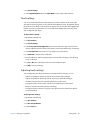
• By default, the power plan for the C5m/F5m is a balance between optimal performance
and a long battery charge. If you want the tablet to run longer between charges, use the
Power saver power plan. Open Motion Dashboard, tap Power. Tap Power Options and
select Power saver.
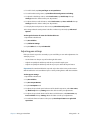
• Use the Dynamic display setting. This automatically controls the display to conserve
power. Open Motion Dashboard, tap Display then tap Dynamic.
• Set the display to the dimmest level you are comfortable with. Open Motion Dashboard,
tap Display then move the Brightness slider to the desired level.
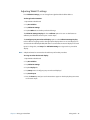
• Disable any unused devices. Open Motion Dashboard, tap Wireless and clear the
checkbox next to the adapters you aren’t using.
• Stop unnecessary background applications and processes.
How do I know if the tablet is charging when I plug it in to a power adapter?
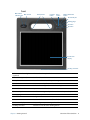
• The battery gauge button on the front of the tablet is amber when the tablet is charging.
How do I check the battery charge when I’m running on the battery?
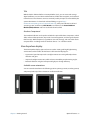
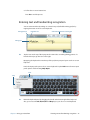
• The battery gauge on the front of the tablet shows the level of battery charge. The
number of lights indicate the level of charge where four green lights indicate a full
charge and one green light indicates that about 20% charge is remaining. If the lights are
flashing amber, the battery is low and requires immediate charging.
How do I clean the display screen?
• To clean the display screen, wipe it with a soft cloth. Don’t spray cleaners, pour any
liquid, or wipe any abrasive cleaner on the screen or any surface of the Tablet PC. Don’t
use tissues or paper towels to clean the screen. They contain wood fibers that may
scratch the surface.
• Motion Computing maintains a list of C5m/F5m chemical disinfectants and cleaning
products on its website.
How do I clean the View Anywhere display screen?
• To clean the View Anywhere display screen, wipe it with a soft cloth. If needed, clean
with any alcohol-based product recommended for use on anti-reflective glass. Other
cleaning products may leave a residue. Don’t spray cleaners, spray or pour any liquid, nor
wipe any abrasive cleaner on the screen nor any surface of the unit. Don’t use tissues or
paper towels to clean the screen. They contain wood fibers and may scratch the surface.
Will scratches affect the performance of the display or digitizer?
• Our testing has not found appreciable loss of performance on a scratched display.
How sensitive is the screen to various elements?
• As with any computer or electronic device, you should protect the Tablet PC from liquids,
dirt and sand, other contaminants, and extreme heat.
Will any monitor, USB device, keyboard, or mouse work with the C5m/F5m?
• If the device has a driver for Windows, it will work with the tablet PC. For best results, an
external monitor should be digital—and capable of connecting with the C5m/F5m
Chapter 4 Troubleshooting and FAQs
Frequently asked questions 69