1
nrf`h=obcbobk`b=drfab=
jfqbi
RSMT=táêÉäÉëë=e~åÇëÉí
1
2
3
4
5
6
7
8
9
10
11
12
13
14
15
16
17
18
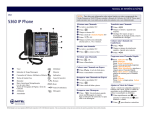
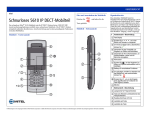
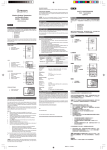
Top/Alarm Button
Earpiece Speaker
Colour Display
Four-way Navigation Key
On-hook and On/Off key
Tactile Indicators
Sound Off Key
Space
Multi-purpose Connector
Microphone
Key Lock and Upper/Lower Case
Voice Mail Access
Off-Hook Key
Softkeys
Mute and PTT Button
Volume Down
Volume Up
LED
Display Icons
Signal Strength
New Message
Battery Status
New Message, Important
Sound Off
Headset Connected
Bluetooth Headset Connected
Bluetooth Enabled
Making a Call
Dial the number and press
. The name of
the called party is displayed if available.
OR
Press
to open the call list and use the
Navigation key to scroll the list of your last
OR
Wait for an answer, announce the transfer
and then select Release.
Conference
twenty calls. Press Call or
to dial.
OR
1. Press the Menu softkey.
2. Select Contacts, and select Call List.
3. Select contact from list.
1. Press the More softkey.
4. Press
5. Press More and then select Join to
conference all the parties together.
or Call to dial the number.
2. Select New Call to put the current call on
hold.
3. Dial the number of the third party.
4. Wait for an answer.
Answering a Call
• Press
mode.
OR
to answer a call in normal
Rejecting a Call
• When the ring signal sounds, press
Call information will be stored in the Call
list.
Read Message
Missed Call
Ending a Call
Incoming Call
• Press
Outgoing Call
Placing a call on Hold
• Press upper and lower volume
buttons to increase/decrease volume.
System Connection
1. Press the More softkey.
To change ringer volume:
Key Lock
2. Select Hold/Retrieve to put the call on
hold.
• In the menu, select Settings.
Phone Lock
To retrieve the Held call:
• Select Sound & Alerts.
Personal Alarm
1. Press the More softkey.
• Select Volume.
2. Select Hold/Retrieve to retrieve the call
on hold.
• Use the navigation key arrows to adjust
selected volume and press Back to save.
Microphone Off
Loudspeaker Off
1. Press and hold the On-hook key
until “Switch on/off is displayed.
2. Press “Yes/No.”
Transferring a Call
1. Press the More softkey.
2. Select New Call.
3. Dial the number to which you want to
transfer the call and press Call.
4. Select Release to connect the two parties.
• Press the
Handsfree key to answer in
speaker mode.
Voice Mail
Loudspeaker On
Turning the Handset On/Off
to end a call.
j=jáíÉä=EÇÉëáÖåF=áë=~=êÉÖáëíÉêÉÇ=íê~ÇÉã~êâ=çÑ=jáíÉä=kÉíïçêâë=`çêéçê~íáçåK==«=OMNNI=jáíÉä=kÉíïçêâë=`çêéçê~íáçåK=^ää=çíÜÉê=éêçÇìÅíë=~åÇ=ëÉêîáÅÉë=~êÉ=íÜÉ=íê~ÇÉã~êâë=çÑ=íÜÉáê=êÉëéÉÅíáîÉ=ÜçäÇÉêëK=^ää=êáÖÜíë=êÉëÉêîÉÇK
Adjusting Volume Levels
To adjust earpiece volume
during a call:
nrf`h=obcbobk`b=drfab=
To turn Loudspeaker on/off:
• Press the Handsfree key
Menu Structure
before or during a call.
On-hook/Standby Menu
To turn ring signal on/off in standby mode:
• Press
to toggle ring signal on/off. (The silenced icon
appears.)
To Transfer Audio Between the Bluetooth Headset and Handset Earpiece
• Press More during the call
• Select Audio Transfer.
• Press Select.
Locking/Unlocking the Keypad
• Press
and then Lock to lock.
• Select
Messaging
and then Yes to unlock.
Charging the Battery
Place the handset in the desktop charger. The Battery icon indicates charge level. The phone
is fully functional while in the charger.
Connections
Navigating the Menu
Services
Enter the menu by pressing the Menu key. Use the Left/Right navigation keys to choose a
tab, and then press the middle round (Confirmation) button on the navigation key or the
Select softkey to open it. Use the Up/Down navigation keys to scroll through menu choices.
Press the middle Confirmation button to make a selection or press Back to back up one step.
Confirm your settings by pressing the Confirmation button. Return to standby mode by
Profiles
pressing Back or the
Calls
key.
Inbox
Settings
Sound & alerts
Write new message
Locks
Unsent
Display
Sent
Time & Date
Bluetooth
Answering
Headset
Messages
System
Language
In charger
Owner ID
Add new
Back
Normal
Add new
Call list
Missed calls
Shortcuts
Contacts
Call contact
Call time
Add contact
Call services
Edit contact
Softkeys
Delete contact
Hot key
Central phonebook
Navigation key
Multifunction button
Note: Menu options are dependent upon system programming.
j=jáíÉä=EÇÉëáÖåF=áë=~=êÉÖáëíÉêÉÇ=íê~ÇÉã~êâ=çÑ=jáíÉä=kÉíïçêâë=`çêéçê~íáçåK==«=OMNNI=jáíÉä=kÉíïçêâë=`çêéçê~íáçåK=^ää=çíÜÉê=éêçÇìÅíë=~åÇ=ëÉêîáÅÉë=~êÉ=íÜÉ=íê~ÇÉã~êâë=çÑ=íÜÉáê=êÉëéÉÅíáîÉ=ÜçäÇÉêëK=^ää=êáÖÜíë=êÉëÉêîÉÇK