1
d.2 Pro DJ Production Console
Appendix A: Service Information
Warranty Service
Details concerning Warranty Service are spelled out in
the Warranty section on page 31.
If you think your d.2 Pro has a problem, please do everything you can to confirm it before calling for service.
Doing so might save you from the deprivation of your
mixer and the associated suffering.
These may sound obvious to you, but here are some
things you can check. Read on:
If the FX button [30] is pressed on that channel,
make sure your effects processor is connected correctly and is working.
•
Try the same source signal in the other channel, set
up exactly like the suspect channel.
Bad Output
•
Is the associated level control (if any) turned up?
•
If it’s one of the main outputs, try unplugging the
others. For example, if it’s the XLR left main out,
unplug the RCA left out. If the problem goes away,
it’s not the mixer.
•
If a left output is presumed dead, switch the left
and right cords at the mixer end. If the problem
stays on the left side, it’s not the mixer.
Troubleshooting
No Power
•
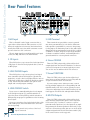
Make sure the power cord is securely seated in the
IEC socket [14] and plugged all the way into the
AC outlet.
Bad Sound
•
Make sure the AC outlet is live (check with a tester
or lamp).
•
Is the input connector plugged completely into the
jack?
•
Make sure the rear panel power switch [13] is in
the on position (up).
•
•
Are the EQ controls on the front panel illuminated?
If not, make sure the AC outlet is live.
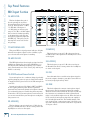
Is it loud and distorted? Make sure the input level
control [25] is set correctly. Reduce the signal level
on the input source if possible.
•
If possible, listen to the signal with headphones
plugged into the input source device. If it sounds
bad there, it’s not the d.2 Pro causing the problem.
•
If you are using a turntable with a phono-level
output, and the sound is low and distorted, check
that the line/phono switch [4] is set to phono. Note
that the phono section requires your cartridge to be
a moving magnet type. It may be too low to amplify
the low levels of a moving coil type.
•
Are all the lights out in your town? If so, contact
your local power company to get power restored.
•
If no LEDs are illuminated, and you are certain that
the AC outlet is live, it will be necessary to have your
d.2 Pro serviced. There are no user serviceable parts
inside. Refer to “Repair” on the next page to find out
how to proceed.
Bad Channel
•
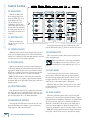
Check the transform switch [41] is not in the center position.
•
Is a fader or crossfader reverse LED [46] on?
•
Noise/Hum
•
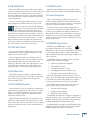
Turn down the FX return knob [36]. If the noise
disappears, it’s coming from whatever is plugged
into the FX returns [7].
Check the channel’s program fader [42] is not fully
down.
•
Check that your turntable’s audio ground wire is
connected to the gnd terminals [5].
•
Are that channel’s EQ controls all turned down?
•
•
Is the signal source turned up? Make sure the
signal level from the selected input source is high
enough to light up some of the program meter LEDs
[43].
Turn down each channel, one by one. If the noise
disappears, it’s coming from whatever is plugged
into that channel. Check your whatever.
•
Check the signal cables between the input sources
and the d.2 Pro. Disconnect them one by one. When
the noise goes away, you’ll know which input source
is causing the problem.
•
18
•
Is the correct input chosen with the source select
switch [26], and its pgm level [25] turned up
enough?
d.2 Pro DJ Production Console