1
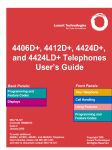
4406D+, 4412D+, 4424D+,
and 4424LD+ Telephones
User’s Guide
Back Panels:
Front Panels:
Programming and
Feature Codes
Your Telephone
Displays
Call Handling
Using Features
555-710-127
Comcode 108665472
Issue 2
January 2000
To order additional
4406D+, 4412D+, 4424D+, and 4424LD+ Telephone
User’s Guides, please call 800-457-1235
and refer to document number 555-710-127.
Programming and
Feature Codes
Copyright 1999
Lucent Technologies
All Rights Reserved
Your Telephone
Line
Buttons
In this User Guide, fixed buttons on your telephone are
indicated by a solid red background ( Spkr ). Buttons you
label and program are represented by red letters on a white
background ( CampOn ).
Line buttons are buttons used to make or receive inside or
outside calls. Line buttons are labeled differently depending
on how your system is configured. For example, you may
have line buttons that provide you with direct access to an
outside line, Pool buttons that provide you with access to an
outside line after dialing an access code (usually a 9), Shared
buttons that allow lines to be shared among co-workers, or
Intercom buttons that provide you with access to internal dial
tone.
In addition, line buttons may be labeled with an "R" (for Ring),
"V" (for Voice), or "OO" (for Originate Only):
Ring Buttons - Calls you make arrive as ringing calls.
Voice Buttons - Calls you make arrive as voice-announced calls.
Originate Only - Line button can only be used to make (not
receive) calls.
In this guide, LINE represents a button that is labeled with an
outside line number and EXT represents a button that may
be labeled with an extension number or an Intercom number.
Your Telephone
Using
the
Speakerphone
To use the speakerphone, press Spkr .
To mute, press Mute . The Speakerphone / Mute LED flashes
continuously, indicating that the call has been muted. To
return to normal operation, press Mute again. The
Speaker / Mute LED returns to steady.
Use the following guidelines to get the best performance from
your speakerphone:
Place your telephone at least one foot from any wall.
Avoid placing your telephone in a partly enclosed area,
such as underneath a low shelf over your desktop.
Place your telephone as far as possible from interfering
noises, such as your PC or a fan.
Place your telephone on a hard, flat surface.
The microphone is located on the right side of the
telephone. Allow at least one inch of clearance.
Your speakerphone performs better when the volume is set
in the middle or lower range because you can more easily
break into the conversation than when the speakerphone is set
at maximum.
Line
Button
Lights
Steady red
The line you are using or will use when you lift the
handset or press Spkr .
Steady green
The line is in use, or the feature programmed onto the
line button is on.
Flashing green
An incoming call is ringing on this line button, or a call
you transferred is returning on this line button.
Fast-flashing green
You have put a call on hold on this line button.
Slow-flashing green
Someone else has put a call on hold on this line button.
Your Telephone
Tones
Dial tone (steady tone)
You can make a call.
Busy (slow repeating tone)
The phone you are calling is busy.
Fast busy (fast repeating tone)
No lines are available.
Error (alternating high-low tones)
You dialed or used a feature incorrectly.
Confirmation (double break in dial tone followed by steady
tone)
You used a feature correctly.
Callback (5 short beeps)
A line or pool you selected, or an extension you called, is busy
and the system is putting your call into the callback queue.
Call Waiting (1 or 2 beeps)
You have an inside call (1 beep) or an outside call (2 beeps)
waiting for you.
Rings
1 long ring
Inside call.
1 short ring and 1 long ring
Outside call.
1 long ring and 3 short rings
Outside call transferred to you or a call you transferred
returning to you.
1 beep each minute
Call on hold reminder tone.
Call Handling
Make a
Call
To make an outside call:
1: Press the Line button.
2: Do one of the following:
Press Spkr .
Lift the handset.
Use the headset.
If required, dial the dial-out code, usually 9 .
To make an inside call:
1: Press EXT .
2: Do one of the following:
Press Spkr .
Lift the handset.
Use the headset.
3: Dial the extension.
Answer a
Call
To answer an outside or inside call, do one of the following:
Press Spkr .
Lift the handset.
Use the headset.
To enable Hands-Free Answer on Intercom:
Press a programmed HFAI button, which allows you to
respond to voice-signaled (not ringing) intercom calls without
having to lift the handset or press any buttons.
Call Handling
Transfer
a Call
To transfer a call using the dialpad:
1: Press Trnsfr .
The system puts the call on hold and selects an EXT
button.
2: Dial the extension or outside number.
To cancel or return to the call on hold, press the button next
to the flashing
Green Light .
3: Announce the call (optional).
4: Hang up.
To transfer a call using one-touch manual transfer:
1: Press Trnsfr .
2: Press the programmed AutoDial button.
3: Announce the call (optional).
4: Hang up.
To transfer a call using one-touch auto transfers, if
available:
Press the programmed AutoDial button.
Check with your System Manager to see if you have one-touch
manual transfer or one-touch auto transfer.
Transfer
a Call to
a Voice
Mailbox
To transfer a call to a voice mailbox:
1: Do one of the following:
Press the programmed Feature button, and press
5 6 .
Press the programmed Direct Voice Mail button (see
"Direct Voice Mail" under "Covering Calls Features").
Select Direct Voice Mail from the display (DicVM or Direct
VM).
You cannot select features from the 4406D+ display.
2: Dial the extension number.
3: Hang up.
Call Handling
Place a
Call on
Hold
To place a call on hold:
1: Press the Hold button.
2: To retrieve the call (or conference) on hold, press the line
button next to the fast-flashing
Green Light (a call you put
on hold) or the slow-flashing
Green Light (a call put on
hold at another extension).
When a call is on hold, the telephone beeps once each minute
appears on the display.
and
Make a
Conference
Call
While connected to the first party:
1: Press Conf .
The system puts the call on hold and selects an EXT button.
2: Connect with the next party.
You can connect to the next party by:
Dialing an outside telephone number or an extension.
Retrieving a call on hold.
Answering an incoming call.
3: Press Conf again. Calls are now conferenced.
Repeat Steps 1 3 to add up to a total of 2 outside and 2 inside
(not including yours) parties.
To drop a participant:
1: Press the programmed Drop button.
The 4400-Series telephones do not have a fixed Drop button;
you must program a Drop button onto a button.
2: Press the line button of the party that you want to drop.
To put the conference on hold:
Press Hold .
To return to the conference:
Press any line button used to connect a participant.
To end the conference:
Hang up.
Using Features
Use a
Feature
To use a feature, do one of the following:
Press Feature and then select the feature from the display
(not for the 4406D+ telephone).
Press
to move to the next screen of features.
Press
to return to the previous screen of features.
Press Feature and then dial the feature code.
Press the line button programmed with the feature.
Program
a Feature
Button
To program a Feature button:
1: Label a button as "Feature."
2: Press EXT .
3: Lift the handset.
4: Enter programming mode by pressing # 0 0 .
5: Press the button you labeled.
2 0 .
6: Press
0 0 .
7: Exit programming mode by pressing #
Program
a Feature
onto a
Button
To program features, extensions, and phone numbers:
1: Label the button.
2: Press EXT .
3: Lift the handset.
4: Press # 0 0 .
5: Press the button you labeled.
6: Dial the appropriate programming code (see the following
pages). Dial any additional numbers (such as extensions) if
needed.
7: To program another button, repeat steps 1, 5, and 6; or exit by
0 0 .
pressing #
Using Features
Special
Characters
Features that dial numbers automatically may need special
characters to allow for correct dialing or system response.
Hold Inserts 1 5 second pause in the dial sequence.
Consecutive pauses are allowed. P appears on the display.
Conf Sends switchhook flash. Must be first entry in
sequence. F appears on the display.
# # Used to signal end of dialing sequence for Auto Dial
buttons or to separate grouped digits. The ## appears
on the display.
Trnsfr Stop. Halts dialing sequence to allow for system
response. (Requires manual restart.)
Headsets
Headsets for 4400-Series telephones allow one-touch operation,
hands-free. The headset plugs into the headset jack. Two
buttons are used for headset operation:
Headset Status. Press Headset Status to switch between
headset and handset operation.
To program: EXT + lift handset + # 0 0 + Headset Status +
0 0 .
7 8 2 + #
Headset Hangup. Press Headset /Hangup to disconnect a call.
The Headset/Hangup button is programmed by your System
Manager.
Programming and Feature Codes
Call Handling Features
Call Waiting When Call Waiting is turned on at an extension and you are
already on a call, you hear one tone for inside calls or two tones
for outside calls when a second call arrives at that extension.
To turn on Call Waiting at your extension: lift the handset and
1 1 .
press
To turn off Call Waiting at your extension: lift the handset and
1 1 .
press
To pick up a Call Waiting call: hang up and the waiting call rings,
or press Feature (or # )+ 8 7 .
Camp-On
Camp-On allows you to complete a transfer to a busy extension.
The call is put on hold until the extension can receive a call; then
it rings automatically and you hear a priority ring (1 long ring and
3 short rings).
To use with the feature code:
Feature (or # )+ 5
Drop
7 .
To program onto a button:
EXT + lift handset + # 0 0
5 7 +
+ Camp-On +
#
0 0 .
You must program a Drop button onto a button. Use Drop to
drop a participant from a conference call.
The display shows 4400-Drop.
To program a Drop button: EXT + lift handset + # 0 0 +
Drop +
7 8 7 + #
0 0 .
HFAI
To use Hands-Free Answer Intercom (HFAI), you must program
an HFAI button onto a button. When you press HFAI , you can
talk to a person who calls you on an intercom call without lifting
the receiver.
To program an HFAI button: EXT + lift handset + HFAI +
7 7 9 + #
# 0 0 +
0 0 .
Programming and Feature Codes
Call Handling Features (continued)
Paging
There are two types of paging:
Group, where you can broadcast an announcement through the
speakerphones of telephones on extensions that are placed into
paging groups.
Loudspeaker, where you can broadcast an announcement over a
loudspeaker connected to the system.
Group Paging
To broadcast an announcement to a paging group, lift the
handset and dial the extension of the paging group. You can
also program a button with a paging group extension by using
the Auto Dial feature (see "Auto Dial" under "Dialing Features").
Loudspeaker
Paging
Pages over a loudspeaker paging system are heard everywhere
in the building or only in a particular area, depending on whether
or not the loudspeaker system is a multizone paging system.
To broadcast an announcement over a loudspeaker, press the
button labeled for "Loudspeaker Paging." If you do not have this
button on your telephone, see your System Manager.
Park
Park places a call on hold at your extension so that it can be
picked up from any extension in the system. You pick up a
parked call by using the Pickup feature.
To use without programming
a Park button:
1. While on the call, press
Trnsfr .
2. Dial your own extension.
You hear a busy tone.
3. Press Trnsfr .
To program onto a button:
EXT + lift handset + #
8 6 +
+ Park +
#
0 0 .
0 0
Programming and Feature Codes
Call Handling Features (continued)
Pickup
Pickup allows you to answer calls that are ringing, parked, or on
hold anywhere in the system. There are two types of Pickup:
Individual and Group. Use Individual Pickup to pick up a call for
one specific extension. Use Group Pickup to answer calls ringing
at extensions in your Pickup group.
Individual
Pickup
There are three types of Individual Pickup: General, Extension,
and Line. Use Extension to pick up a parked call.
General
To use with a programmed
General Pickup button:
Pickup + ext. number (or
line number).
Extension
To use with the feature code:
Feature (or # )+ 9 + ext.
Line
EXT + lift handset + # 0 0
9 +
+ Pickup +
#
0 0.
To program onto a button:
number.
EXT + lift handset + # 0 0
9 + ext.
+ Pickup +
0 0 .
number + #
To use with the feature code:
To program onto a button:
Feature (or # )+ 9 + line
number.
Group Pickup
To program onto a button:
To use with the feature code:
Feature (or # )+ 8
8.
EXT + lift handset + # 0 0
9 + line
+ Pickup +
0 0 .
number + #
To program onto a button:
EXT + lift handset + # 0 0
8 8 +
+ Pickup +
#
0 0.