1
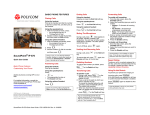
Network Phone ASP - Polycom 301 Phone Quick Reference Guide Dialing Plan Number Fill in these important numbers for your dialing plan. Making Calls When making calls outside your dealership, dial “9” and then the 10digit number. You do not need to press “1” for long distance calls. Answering Calls There are several different ways of answering calls on your phone. Sales Service Parts Office 5# 6# 7# 8# Description My Direct Dial or Extension Operator/Attendant Off-Site Voice Mail Number Department Name Department Extension Zone Overhead Paging In-phone Zone Paging 1. Pick up the handset, press the line button, or press the Headset button. 2. Dial the number according to your dial plan. 3. If authorization codes are configured on your system and you are making a long distance call, you will hear a voice prompt. Enter your account code to place the call. Note: If you hear a reorder tone, enter your authorization code, and the call still does not go through, contact your administrator for assistance. Pick up the handset; or Press the Headset button (if headset is connected and being used); or Press the Answer softkey (to answer in listen-only mode); or Press the line button (to answer in listen-only mode); or Multiple Inbound Calls 1. Use the arrow keys to select the call to answer. 2. Press the Answer softkey. The first call is automatically placed on hold and the second call is answered. Ending Calls Perform any one of the following options to end a call: There are several ways to end a call on your phone. Forwarding All Calls Note: You cannot set up a shared line to forward calls. Note: When activating Call Forwarding using the Feature Access Code, the phone’s graphical display does not indicate that the line is activated to forward all calls. Replace the handset in its cradle. Press the EndCall softkey. Press the Headset button (if using the headset). Turning on Call Forwarding 1. Press Fwd softkey. 2. If your phone has multiple lines, select the line to forward. 3. Dial the number to forward the calls to. 4. Press the Enable softkey to activate the call forwarding. Turning off Call Forwarding 1. Press the Fwd softkey. 2. If your phone has multiple lines, select the line to disable forwarding on. 3. Press the Disable softkey. Using Do Not Disturb Turning on Do Not Disturb Press the Do Not Disturb button. When Do Not Disturb is turned on, incoming calls will not ring on your phone and go immediately to voice mail. Turning off Do Not Disturb Press the Do Not Disturb button again. Placing Calls on Hold 1. While on a call, press the Hold button or Hold softkey. 2. To resume the call, press the Hold button or Resume softkey. © 2007 ADP, Inc. *280975* 1 66934-00 Quick Reference Guide Transferring Calls You can transfer incoming calls to other extensions at your dealership. Note: Blind transfers display the original party’s caller ID, while warm transfers display the caller ID for the person who transfers the call. Blind (Unsupervised) Transfer This is the preferred method for transferring calls, as it is faster and passes the original calling party’s caller ID. 1. While on a call, press the More sofkey and then the Trnsfr softkey. 2. Press the Blind softkey. 3. Dial the extension you want to transfer the call to. Warm (Supervised) Transfer 1. While on a call, press the More sofkey and then the Trnsfr softkey. 2. Dial the extension you want to transfer the call to. 3. Announce the call, and then hang up. Note: If you accidentally push the Split softkey in Step 3, press the EndCall softkey, and begin at Step 1 again. Transferring Calls to Voice Mail 1. While on a call, press the Trnsfr softkey. 2. Press *55 and then the user’s extension. 3. Press the Trnsfr softkey again to transfer the caller to the extension’s voice mail. Call Park Park a Call 1. While on a call, press the Trnsfr softkey. 2. Press 2# (or the Park speed dial button, if configured). 3. Park the call to an appropriate extension: • To park the call on your extension, press # and hang up. • To park the call to another extension, dial the extension, press #, and then hang up. Retrieve a Parked Call To retrieve a parked call, go off-hook, press 3# (or the Park Retrieval speed dial button, if configured), and then dial the extension where the call is parked. Your dealership’s operator generally parks calls to a dedicated range of extensions (6001 – 6005), while all other employees park calls to their own extension. Parked calls revert back to you if no one picks up the call within 45 seconds. Paging Groups for paging over the phone can consist of up to five different phone extensions. To use the overhead all-page feature, use extension 3000 or press 4#. Paging Overhead Speakers (if configured) Go off-hook, press 4#, and then announce your message. Paging Over the Phone 1. Go off-hook, and then press the paging group key for the group you want to page: • 5#: Sales • 6#: Service • 7#: Parts • 8#: Administrative/Office 2. Announce your message, and then hang up when finished. Call Pickup Group Call Pickup To answer an incoming call on another phone in your call pickup group: With call pickup, you can answer a call ringing on another phone from your phone. For group call pickup, you can only answer incoming calls on other phones that have been specifically configured in the same group as your phone. Holding 3-Way Conference Calls You can hold conference calls with two additional callers. © 2007 ADP, Inc. Press *98. If multiple calls are ringing in your pickup group, your phone will answer the call that arrived first. Directed Call Pickup To answer any incoming call on your system: Press *97 and then the extension of the phone line to answer. 1. 2. 3. 4. Make a call to the first party. Press the More softkey then the Conf softkey (places the first party on hold). Dial the number for the second party. After the second party picks up the call, announce the conference and press the Conf softkey to join all parties on the call. Note: Even if you hang up, the other two parties can continue the conference. 2 66934-00 Quick Reference Guide Call Lists You can view lists of missed, received, and placed calls. Contact Directory You can save frequently-called numbers to the Contact Directory. Depending on the configuration of the phone, you can associate entries as speed dials on a line button. Using Speed Dials You can assign speed dials to unused line buttons, which you can then press to call the number associated with the speed dial. You can also set up eight, one-digit speed dial entries (Speed Dial 8). Feature Access Codes 1. Press the Menu button. 2. Use the Up and Down arrow keys to select Features, and then press the Select softkey. 3. Use the Up and Down arrow keys to select Call Lists, and then press the Select softkey. 4. Use the Up and Down arrow keys to select the appropriate list, and then press the Select button. 5. To view the details of the call, select the call and then press the Select button. To dial a number on a list, select the number and then press the Dial softkey. Adding Entries 1. Press the Menu button. 2. Select Features and then Contact List. 3. Press the More softkey, and then press the Add softkey. 4. Use the dialpad to enter the first and/or last name of the contact. Press the Next softkey after each entry. 5. Enter the 10-digit phone number (no leading 1 or 9 required) for the contact. 6. Configure any other settings as wanted. 7. Press the Save softkey to save the new contact. Searching Entries 1. Press the Menu button. 2. Select Features and then Contact List. 3. Press the More softkey twice and then the Search softkey. 4. Use the dialpad to enter the first few characters of the person’s first or last name. 5. Press the Search softkey. All matching entries display. Adding Speed Dials When adding a new entry in your Contact Directory, be sure to specify a valid number in the Speed Dial Index field for it to be associated with an available line button (e.g., if you have two line buttons available, enter either 1 or 2). Calling Speed Dials Use one of the following to call a speed dial entry: Press the line button associated with the speed dial entry to call the contact. Press the up scroll button to view the speed dial entries, select an entry to dial, and then press the Dial softkey to dial the contact. Code Feature Code Feature #8 Automatic Callback Deactivate *98 Call Pickup You can dial feature access codes to access a variety of features and services for your phone. *72 Call Fwd All – Activate *70 Cancel Call Waiting *73 Call Fwd All – Deactivate *99 Clear Voice Message Waiting Indicator (MWI) To speed up the activation or deactivation of a feature, press # immediately after entering the feature access code. *90 Call Fwd Busy – Activate *97 Directed Call Pickup *91 Call Fwd Busy – Deactivate *55 Direct Voice Mail Transfer *92 Call Fwd No Answer – Activate *78 Do Not Disturb Activate *93 Call Fwd No Answer – Deactivate *79 Do Not Disturb Deactivate © 2007 ADP, Inc. *68 Call Park *66 Last Number Redial *88 Call Park Retrieve *50 Paging 3 66934-00 Quick Reference Guide Accessing Voice Mail The first time you access your voice mailbox, the system will prompt you to record a name greeting and change your password. Setting Up Your Voice Mailbox When you access your voice mailbox for the first time, be sure to change or set up the following options: Change your passcode (PIN) Record your first and last name Record a no-answer greeting and a busy greeting Voice Mail Extension:___________ Voice Mail Indicators When you have a new voice mail message, the following indicators are active: Default Passcode:______________ Flashing red LED Text message on phone screen Envelope icon next to extension on LCD Accessing Voice Mail from Your Office Phone 1. Press the Menu button. 2. Select Features, and then select Messages. 3. Press the Connect softkey. 4. Follow the voice prompts to access your messages. Accessing Voice Mail from Another Phone or Outside the Office 1. Dial your extension (inside the office) or direct dial number (outside the office). 2. Let the call ring to voice mail, and then press *. 3. Enter your passcode and then # to access your voice mailbox. Voice Mail Prompts © 2007 ADP, Inc. 4 66934-00