1
Linksys E2100L
Chapter 2: Cisco Connect
Router Details
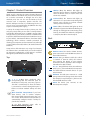
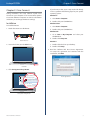
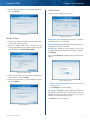
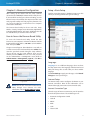
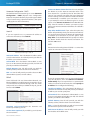
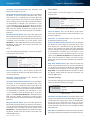
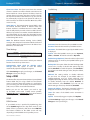
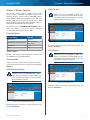
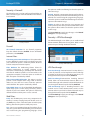
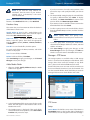
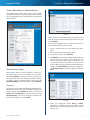
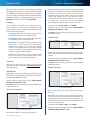
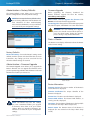
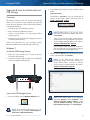
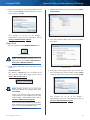
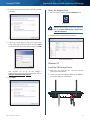
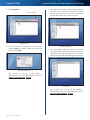
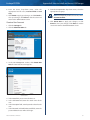
The Router details screen appears, displaying the Model
name, Model number, Serial number, Firmware version,
Operating system, Software version, Connection type
(WAN), IP address (LAN), IP address (WAN), and Computer
IP address. (WAN stands for Wide Area Network, such as
the Internet. IP stands for Internet Protocol. LAN stands for
Local Area Network.)
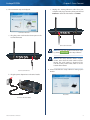
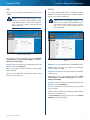
Click OK to open the web browser and access the
browser‑based utility. For more information, refer to
How to Access the Browser-Based Utility, page 11.
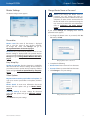
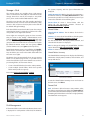
How to Exit Cisco Connect
To exit Cisco Connect, click Close on the main menu.
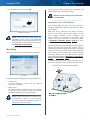
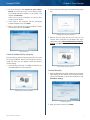
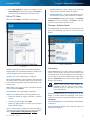
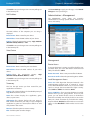
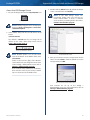
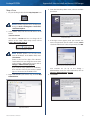
Copy To copy the details to a text file, click Copy and
follow these instructions:
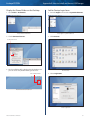
1. Open a text editor, such as Microsoft Word or Notepad.
2. Go to Edit > Paste.
3. Go to File > Save.
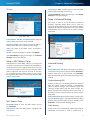
Main Menu
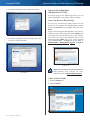
How to Access Cisco Connect
Windows
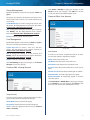
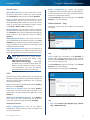
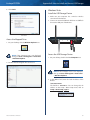
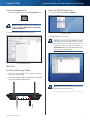
To access Cisco Connect, go to Start > All Programs >
Cisco Connect.
Mac
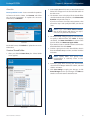
Router Details
Click Close to return to the Router settings screen.
To access Cisco Connect, go to Go > Applications > Cisco
Connect.
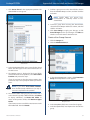
Advanced Settings
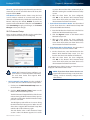
If you are an advanced user familiar with router
administration, you can access the browser-based utility
to use the advanced configuration settings of the Router.
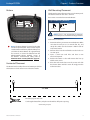
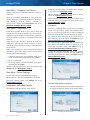
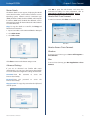
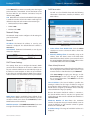
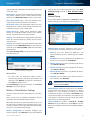
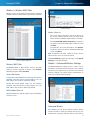
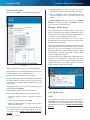
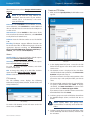
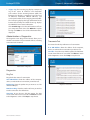
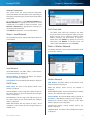
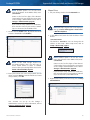
Username Enter this
browser‑based utility.
username
to
access
the
Password Enter this
browser‑based utility.
password
to
access
the
Copy password To copy the password to the Clipboard,
click this option.
Advanced Settings
Advanced Wireless-N Router
10