1
Linksys E2100L
Chapter 2: Cisco Connect
Chapter 2: Cisco Connect
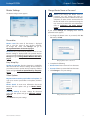
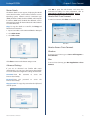
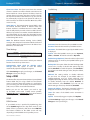
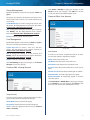
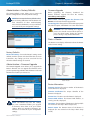
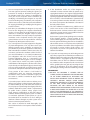
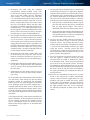
During installation, the setup software installs Cisco
Connect on your computer. Cisco Connect offers options
to connect additional computers or devices to the Router
and allows you to change the Router’s settings.
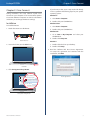
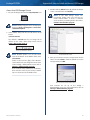
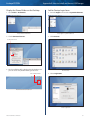
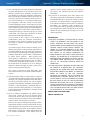
If you do not see this, access setup on the CD directly.
To do so, perform the following steps for your specific
operating system:
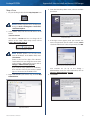
Windows 7
a. Go to Start > Computer.
b. Double-click your CD-ROM drive.
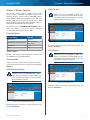
Installation
Windows Vista
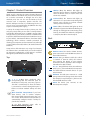
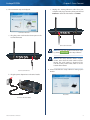
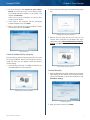
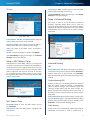
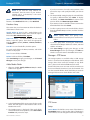
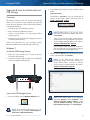
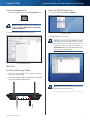
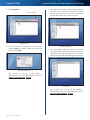
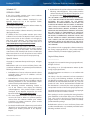
To install the Router:
a. Go to Start > Computer.
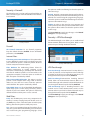
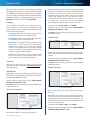
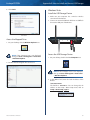
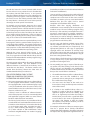
1. Attach the antennas to the Router.
b. Double-click your CD-ROM drive.
Windows XP
Internet
4
3 Ethernet
2
1
USB
12VDC
Power
a. Go to Start > My Computer and select your
CD‑ROM drive.
b. Double-click Setup.exe.
Attach Antennas
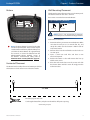
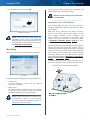
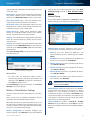
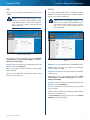
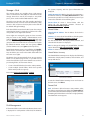
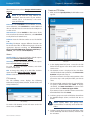
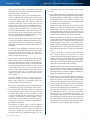
2. Insert the CD into your CD-ROM drive.
Mac OS X
a. Double-click the CD on your desktop.
b. Double-click Setup.
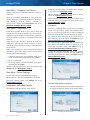
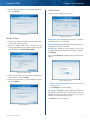
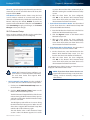
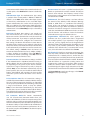
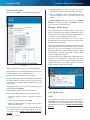
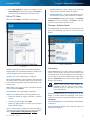
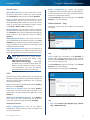
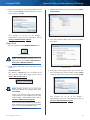
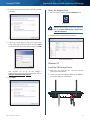
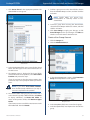
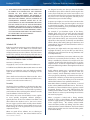
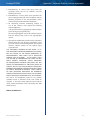
4. Read the Software End User License Agreement.
To accept the agreement and continue with the
installation, click Next.
Insert CD
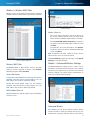
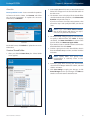
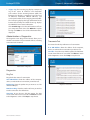
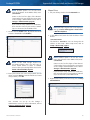
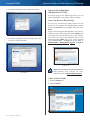
3. Click Set up your Linksys Router.
DVD/CD-RW Drive (E:) Linksys
Router Setup
Always do this for software and games:
AutoPlay
License Agreement
DVD/CD-RW Drive (E:) Linksys
Router Setup
Install or run program
Always do this for software and games:
Install or run program
Set up your Linksys Router
Published by Cisco Consumer Products LLC
General options
Open folder to view files
using Windows Explorer
Speed up my system
using Windows ReadyBoost
Set up your Linksys Router
Published by Cisco Consumer Products LLC
General options
Set AutoPlay defaults in Control Panel
Open folder to view files
using Windows Explorer
Speed up my system
using Windows ReadyBoost
Set AutoPlay defaults in Control Panel
Set Up Your Linksys Router
Advanced Wireless-N Router
3