1
Apps & More
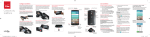
QSlide
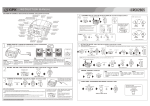
Use the QSlide feature to overlay
applications on your phone’s display for
easy multi-tasking.
1. Drag the Notification Panel at the top
of your screen downward, then tap the
desired app from the QSlide apps section.
2. Drag the title bar to move the app, or drag
the bottom right corner to resize it.
Tap to return to full window view.
Slide to adjust transparency.
Tap to exit the QSlide function.
NOTE: The QSlide feature can support up to two windows
at the same time.
Camera
1. From the Home screen, tap Camera
2. Tap the Shutter button to snap a
picture.
MBM64377101 (1.1)
This booklet is made from 100% post-consumer recycled paper.
This booklet is printed with soy ink.
©2014 Verizon Wireless. All Rights Reserved. verizonwireless.com
Printed in Korea
LG-VS980_KK_VZW_QRG_EN_V1.1_140917.indd 10-18
.
Try the new features below when using the
Camera.
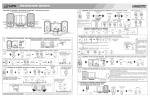
Shot & Clear : When you snap a picture, you
can remove the outlined objects* from the
photo by tapping them.
* When taking a picture, moving objects are shown as
dashed lines.
1. Tap
and select Shot & Clear to turn
this feature on.
2. Tap the Shutter button to snap a
picture, then tap any of the outlined
objects to remove them from the photo.
2. Tap the Recording button to record a
video.
3. Pinch to zoom in on a certain area to
increase sound sensitivity and decrease
noise.
2. Tap Settings at the bottom of the screen
to adjust the TalkBack settings.
Dual Camera : Allows you to snap a picture
with the front and rear cameras at the same
time.
Bluetooth®
Backup Assistant and Media Manager are
now Backup Assistant Plus. Protect your
contacts when you need it on the go or at
home. Go to verizonwireless.com/baplus.
1. Tap
and select Dual camera to turn
this feature on.
2. Drag the small screen to move it to your
desired location. Touch and hold the
small screen to resize it. Tap on the small
screen to switch screens.
Video
1. From the Home screen, tap Camera .
2. Tap and slide the Mode Switch button
downwards and tap the Record button
to record a video.
Try the new features below when recording
video.
Audio zoom : Focuses the audio recording on
a particular area of your choosing; this will
increase microphone sensitivity and reduce
background noise.
NOTE: You must record in landscape orientation to use
this function.
1. Tap
> Audio zoom and select On.
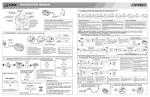
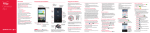
1. From the Home screen, tap Apps >
Settings > Bluetooth.
2. Tap the switch
to turn Bluetooth on.
3. Tap Search for devices to search for and
display nearby Bluetooth devices.
4. Tap the name of the device you want to
pair with your phone.
NOTE: Depending on the type of device you are pairing
with, you will be asked to enter a passkey, confirm
matching passkeys, or the device will automatically pair.
Accessibility
Improves accessibility for users who have
impaired vision, hearing, or reduced dexterity.
1. From the Home screen, tap Apps >
Settings >Accessibility.
2.Set the desired options to improve
accessibility.
TalkBack : Provides screen reading to assist
people with impaired vision.
1. Tap TalkBack, then tap the TalkBack
switch
to turn it on.
NOTE: When TalkBack is on, double tap when you hear the
item you want. (You can change to a single tap in Settings.)
Backup Assistant∞ Plus
Email
Check email on the go with popular Internetbased email accounts, including Yahoo!® Mail,
AOL® Mail, Gmail®, Windows Live® Hotmail®
and Verizon.net.
Setting Up Your Google Account
Now your Gmail, Google contacts, and
Google calendar events can all be loaded to
your phone automatically.
1. At the Google Account setup screen, tap
Existing or New.
2. Enter your username and password or any
other necessary information (if creating
an account).
3. Tap the Continue button to sign in.
Record your Google account information.
Please keep this document in a safe place.
Username: @gmail.com
Password: Setting Up Other Email Accounts
1. From the Home screen, tap Apps >
Settings
> Add account.
2. Tap Email and select the desired provider.
3. Enter your email address and password
and any other necessary information.
Set Up Voice Mail
1. From the Home screen, tap Phone
2. Dial *86.
3.
Tap Call .
4. Follow the setup tutorial.
.
Access Voice Mail
1. From the Home screen, tap Phone .
2. Dial *86.
3.
Tap Call .
4. Enter your password and follow the prompts.
From any phone—Dial your wireless number.
When you hear the greeting, press # to
interrupt and follow the prompts.
NOTE: Voice mailboxes not set up within 45 days will be
canceled. Your voice mailbox is not password protected
until you create a password by following the setup tutorial.
Visual Voice Mail
View a list of messages without dialing into a
mailbox. Listen or erase with the tap of a button.
Play it up with music, ringtones, wallpapers,
apps and games. Keep up with Twitter™ and
Facebook. For details and pricing, go to
verizonwireless.com.
Data charges may apply.
Family and Safety Apps & Services. Get
the most robust parental controls. Go to
verizonwirelss.com/safeguards.
Location Based Services
Installing Apps
More than hundreds of thousands of apps are
available to download from Google Play.
From the Home Screen, tap Apps
Store .
Verizon SafeGuards
>Play
QuickRemote
Convert your phone into a programmable
Universal Remote for all of your infrared
devices like TVs, DVD or audio players,
projectors and more.
1. From the Home screen, tap Apps >
QuickRemote . Select a room at the
top left, then tap the button to add a
remote.
2. Select the type and brand of the device,
then follow the onscreen instructions to
configure the device.
Mobile Web
Take the Internet on the go. You can reach the
latest news, get the weather and follow your
stocks. From the Home screen, tap Chrome .
This phone can determine its location, which
is useful for services such as navigation,
shopping and weather. For your safety,
it’s defaulted to only acquire your location
when you dial 911. To use Location Based
Services, from the Home screen, tap Apps
> Settings
> Location .
Your wireless device can determine its (and your) physical,
geographical location (“Location Information”) and can
associate Location Information with other data. Additionally,
certain applications, services and programs are capable of
accessing, collecting, storing and using Location Information
and disclosing Location Information to others. You should use
caution when determining whether or not Location Information
should be made available to others and you should review any
applicable third party policies before providing access. To limit
potential unauthorized access to your Location Information,
Verizon Wireless offers various mechanisms and settings to
manage access to location data. By enabling location settings
you are permitting third party access to Location Information
through software, widgets or peripheral components you
choose to download, add or attach to your wireless device or
through web access, messaging capabilities or other means and
you are authorizing Verizon Wireless to collect, use and disclose
your Location Information as appropriate to provide you with
any location services that you enabled.
VZ Navigator®
Get premium GPS voice navigation and 3D
maps with spoken real-time traffic alerts.
Find movie times, event info and gas stations.
Go to verizonwireless.com/navigator.
Global Ready™
Verizon Wireless keeps you connected around
the corner and around the world. For up-todate information on destinations and rates go
to verizonwireless.com/tripplanner.
Customer Information
Your Wireless Device and Third Party Services
Verizon Wireless is the mobile carrier associated with this
wireless device, but many services and features offered
through this wireless device are provided by or in conjunction
with third parties. Verizon Wireless is not responsible for
your use of this wireless device or any non-Verizon Wireless
applications, services and products including any personal
information you choose to use, submit or share with others.
Specific third party terms and conditions, terms of use,
and privacy policies shall apply. Please review carefully all
applicable terms and conditions and policies prior to using
this wireless device and any associated application, product
or service.
Hearing Aid Compatibility Information
This phone has been tested and rated for use with hearing
aids for some of the wireless technologies that it uses.
However, there may be some newer wireless technologies
used in this phone that have not been tested yet for use with
hearing aids. It is important to try the different features of
this phone thoroughly and in different locations, using your
hearing aid or cochlear implant, to determine if you hear
any interfering noise. Consult your service provider or the
manufacturer of this phone for information on hearing aid
compatibility. If you have questions about return or exchange
policies, consult your service provider or phone retailer.
14. 9. 17.
10:10