1
Q u i c k S tart G u i d e
QWERTY Keyboard
Eco-Friendly Attributes
Update Facebook® Status
Add a Shortcut
Add Favorite Media
Add Favorite Contacts
Take a Picture/
Record a Video
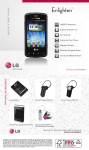
Optional Accessories
LGusa.com/extravert
Extended Battery
Bluetooth® Headset HBM-260
Bluetooth Headset HBM-905
Bluetooth Stereo Headset
LG TONE™ HBS-700
Bluetooth Headset HBM-230
Maximize your phone with cutting-edge accessories at
LGusa.com/extravert
All materials in this guide including, without limitation, the design, the text, and any marks are the property of
LG Electronics, Inc. Copyright © 2011 LG Electronics, Inc. ALL RIGHTS RESERVED. Extravert™ is a trademark of
Verizon Wireless. The Bluetooth® word mark and logos are registered trademarks owned by Bluetooth SIG, Inc.
and any use of such marks by LG Electronics MobileComm, U.S.A., Inc. is under license. Other trademarks and
trade names are those of their respective owners. Unless otherwise specified herein, all accessories referenced
herein are sold separately. All features, functionality, and other product specifications are subject to change.
Screen shots are simulated and subject to change.
FPO
Cert no. XXX-XXX-XXX
XX%
9
10
Getting to Know Your Phone
1
2
11
3
4
12
13
5
14
6
8
7
Make a Phone Call
1.Proximity Sensor
2. Lock Key
3. Earpiece
4. Touch Screen
5.Back/Voice Commands/
Voice Memo Key
6.
7.
8.
9.
10.
1 1 .
Send Key
Microphone
Power/End Key
3.5mm Headset Jack
Camera Lens
Speaker
Extravert’s large virtual dialing pad makes dialing
phone numbers quick and easy.
.
1.From standby mode, touch
2.Dial the desired number and press
, or
touch Contacts >
(next to the desired contact).
12. Volume Keys
13. Charging/Data Port
14. Camera/Video Key
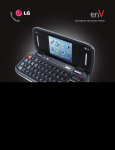
QWERTY Keyboard
1
10
9
2
8
3
4
5
Send a Message
1.Function/Favorites Key
2. Shift/Text Message Key
3. Vibrate Mode Key
4. Voice Commands Key
5. Space/Social Networks Key
When you need to communicate quickly
and privately, send a text message using
Extravert’s QWERTY keyboard.
1.From standby mode and with the
.
keyboard open, press
2.Enter a name, phone number, or email
address, or touch
to access your
contact list.
3.Touch Add Text and enter a message.
4.Touch Done.
5.You can add media to your message
by touching Add Attachment. When
you’re ready, touch Send.
SHIFT
6
6.
7.
8.
9.
10.
7
Speakerphone Key
Directional Keys
OK Key
Return Key
Clear & Back Key
Eco-Friendly Attributes*
LG Extravert™ has several eco-friendly attributes.
Its battery cell does not contain lead, cadmium,
or mercury, and the battery cover is composed of
30% recycled post-consumer plastic.
In addition, the gift box is made of 76% postconsumer recycled paper; the in-box collateral
is made of 60% post-consumer recycled
paper; and both are printed with soy ink.
LG is also reducing paper consumption by
forgoing the traditional printed manual in
favor of a downloadable digital manual.
Update Facebook® Status
*Phone hardware and packaging include recycled materials.
Your favorite social networks are just a touch
away with Extravert. Check and update your
Facebook, MySpace™, and Twitter® accounts
right from your phone!
1.From standby mode and with the
keyboard open, press SPACE .
2.Touch Facebook Status.
3.Enter a status update and touch Done.
4.Touch Send.
5.You will receive a text message with
instructions on how to link your phone
to your Facebook account for future
updates. Touch View Now.
9
10
Getting to Know Your Phone
1
2
11
3
4
12
13
5
14
6
8
7
Make a Phone Call
1.Proximity Sensor
2. Lock Key
3. Earpiece
4. Touch Screen
5.Back/Voice Commands/
Voice Memo Key
6.
7.
8.
9.
10.
1 1 .
Send Key
Microphone
Power/End Key
3.5mm Headset Jack
Camera Lens
Speaker
Extravert’s large virtual dialing pad makes dialing
phone numbers quick and easy.
.
1.From standby mode, touch
2.Dial the desired number and press
, or
touch Contacts >
(next to the desired contact).
12. Volume Keys
13. Charging/Data Port
14. Camera/Video Key
QWERTY Keyboard
1
10
9
2
8
3
4
5
Send a Message
1.Function/Favorites Key
2. Shift/Text Message Key
3. Vibrate Mode Key
4. Voice Commands Key
5. Space/Social Networks Key
When you need to communicate quickly
and privately, send a text message using
Extravert’s QWERTY keyboard.
1.From standby mode and with the
.
keyboard open, press
2.Enter a name, phone number, or email
address, or touch
to access your
contact list.
3.Touch Add Text and enter a message.
4.Touch Done.
5.You can add media to your message
by touching Add Attachment. When
you’re ready, touch Send.
SHIFT
6
6.
7.
8.
9.
10.
7
Speakerphone Key
Directional Keys
OK Key
Return Key
Clear & Back Key
Eco-Friendly Attributes*
LG Extravert™ has several eco-friendly attributes.
Its battery cell does not contain lead, cadmium,
or mercury, and the battery cover is composed of
30% recycled post-consumer plastic.
In addition, the gift box is made of 76% postconsumer recycled paper; the in-box collateral
is made of 60% post-consumer recycled
paper; and both are printed with soy ink.
LG is also reducing paper consumption by
forgoing the traditional printed manual in
favor of a downloadable digital manual.
Update Facebook® Status
*Phone hardware and packaging include recycled materials.
Your favorite social networks are just a touch
away with Extravert. Check and update your
Facebook, MySpace™, and Twitter® accounts
right from your phone!
1.From standby mode and with the
keyboard open, press SPACE .
2.Touch Facebook Status.
3.Enter a status update and touch Done.
4.Touch Send.
5.You will receive a text message with
instructions on how to link your phone
to your Facebook account for future
updates. Touch View Now.
Add Favorite Contacts
Add Favorite Media
Extravert lets you add up to 10 favorite contacts
for quick and easy calling and messaging.
1.From standby mode, touch .
2.Touch
.
3.Touch the name of a contact you’d like to
add as a Favorite. Touch additional names to
add them.
4.When you’re finished adding contacts,
touch Back.
5.To access a Favorite, touch .
6.Touch a contact and select an option (call,
message, or view contact information).
Keep your favorite photos, videos, and music files
close at hand on Extravert’s Favorite Media home
screen. You can add up to 12 media files!
1.From standby mode, swipe left to access the
Favorite Media home screen.
2.Select a file type from the bottom of the screen.
3.Touch a file to select it. When you’re finished,
touch Done.
4.Touch a file to view or listen to it. To send the
file to a contact as a media message, touch
and then drag a contact to the file.
Add a Shortcut
Take a Picture/Record a Video
Customize your Extravert’s home screen with handy
apps and widgets, and add up to 15 convenient
shortcuts to the Shortcuts bar!
1.From standby mode, touch .
2.Touch Shortcuts.
3.Press and drag a widget to the home screen.
4.You can add or remove shortcuts in the bar by
scrolling to the right and touching
.
5.Touch a shortcut to select it or unselect it.
6.Touch Set.
7 .To remove a shortcut from the home screen,
press and hold it and then drag it to .
Capture every moment with Extravert’s
2 megapixel camera. Capture up to
60 minutes of video with the camcorder.
Take a Picture
.
1.From standby mode, press
2.Rotate the phone to a horizontal position
for a more traditional camera feel.
to adjust the camera settings.
3.Touch
When you’re ready, press
or
touch .
4.From here you may delete the photo,
save it to My Pictures, set it as wallpaper
or a contact ID, or send it to a friend.
Record a Video
1.From standby mode, press and
.
hold
2.Rotate the phone to a horizontal
position.
to adjust the camcorder
3.Touch
settings. When you’re ready, press
or touch
.
again or touch
to
4.Press
stop recording.
Add Favorite Contacts
Add Favorite Media
Extravert lets you add up to 10 favorite contacts
for quick and easy calling and messaging.
1.From standby mode, touch .
2.Touch
.
3.Touch the name of a contact you’d like to
add as a Favorite. Touch additional names to
add them.
4.When you’re finished adding contacts,
touch Back.
5.To access a Favorite, touch .
6.Touch a contact and select an option (call,
message, or view contact information).
Keep your favorite photos, videos, and music files
close at hand on Extravert’s Favorite Media home
screen. You can add up to 12 media files!
1.From standby mode, swipe left to access the
Favorite Media home screen.
2.Select a file type from the bottom of the screen.
3.Touch a file to select it. When you’re finished,
touch Done.
4.Touch a file to view or listen to it. To send the
file to a contact as a media message, touch
and then drag a contact to the file.
Add a Shortcut
Take a Picture/Record a Video
Customize your Extravert’s home screen with handy
apps and widgets, and add up to 15 convenient
shortcuts to the Shortcuts bar!
1.From standby mode, touch .
2.Touch Shortcuts.
3.Press and drag a widget to the home screen.
4.You can add or remove shortcuts in the bar by
scrolling to the right and touching
.
5.Touch a shortcut to select it or unselect it.
6.Touch Set.
7 .To remove a shortcut from the home screen,
press and hold it and then drag it to .
Capture every moment with Extravert’s
2 megapixel camera. Capture up to
60 minutes of video with the camcorder.
Take a Picture
.
1.From standby mode, press
2.Rotate the phone to a horizontal position
for a more traditional camera feel.
to adjust the camera settings.
3.Touch
When you’re ready, press
or
touch .
4.From here you may delete the photo,
save it to My Pictures, set it as wallpaper
or a contact ID, or send it to a friend.
Record a Video
1.From standby mode, press and
.
hold
2.Rotate the phone to a horizontal
position.
to adjust the camcorder
3.Touch
settings. When you’re ready, press
or touch
.
again or touch
to
4.Press
stop recording.
Q u i c k S tart G u i d e
QWERTY Keyboard
Eco-Friendly Attributes
Update Facebook® Status
Add a Shortcut
Add Favorite Media
Add Favorite Contacts
Take a Picture/
Record a Video
Optional Accessories
LGusa.com/extravert
Extended Battery
Bluetooth® Headset HBM-260
Bluetooth Headset HBM-905
Bluetooth Stereo Headset
LG TONE™ HBS-700
Bluetooth Headset HBM-230
Maximize your phone with cutting-edge accessories at
LGusa.com/extravert
All materials in this guide including, without limitation, the design, the text, and any marks are the property of
LG Electronics, Inc. Copyright © 2011 LG Electronics, Inc. ALL RIGHTS RESERVED. Extravert™ is a trademark of
Verizon Wireless. The Bluetooth® word mark and logos are registered trademarks owned by Bluetooth SIG, Inc.
and any use of such marks by LG Electronics MobileComm, U.S.A., Inc. is under license. Other trademarks and
trade names are those of their respective owners. Unless otherwise specified herein, all accessories referenced
herein are sold separately. All features, functionality, and other product specifications are subject to change.
Screen shots are simulated and subject to change.
FPO
Cert no. XXX-XXX-XXX
XX%