1
Q u i c k S t ar t G u i d e
QWERTY Keyboard
Explore Android™ 2.3
Set Up Email
Customize Your Phone
Manage Contacts
Record and Upload Video
Set Up 3G Mobile Hotspot
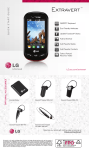
Optional Accessories
LGusa.com/enlighten
Extended Battery
Bluetooth® Headset HBM-260
Bluetooth Solar Speakerphone HFB-500
Bluetooth Headset HBM-570 –
Silver, Dark Blue, Pink, and Purple
Bluetooth Headset HBM-230
Maximize your phone with cutting-edge accessories at
LGusa.com/enlighten
All materials in this guide including, without limitation, the design, the text, and any marks are the property of
LG Electronics, Inc. Copyright © 2011 LG Electronics, Inc. ALL RIGHTS RESERVED. Enlighten™ is a trademark
of Verizon Wireless. Google and the Google logo are trademarks of Google Inc. Android and Android Market
are trademarks of Google Inc. The Bluetooth® word mark and logos are registered trademarks owned by
Bluetooth SIG, Inc. and any use of such marks by LG Electronics MobileComm, U.S.A., Inc. is under license.
Other trademarks and trade names are those of their respective owners. Unless otherwise specified herein, all
accessories referenced herein are sold separately. All features, functionality, and other product specifications are
subject to change. Screen shots are simulated and subject to change.
FPO
Cert no. XXX-XXX-XXX
XX%
Getting to Know Your Phone
9
10
11
1
2
BACK
12
3
13
4
8
5
7
14
6
FRONT
Set Up Email
1.Power/Lock Key
2. Earpiece
3. Touch Screen
4. Home Key
5. Menu Key
SIDES
6.
7.
8.
9.
10.
Microphone
Search Key
Back Key
3.5mm Headset Jack
Camera Lens
In addition to providing mobile access to your Gmail™
inbox and syncing your Gmail contacts, setting up
a Google™ account on Enlighten will allow you to
take advantage of many of your phone’s other great
features, such as Google Talk™ and Android™ Market.
Sign in to a Google Account
1.From the Home screen, touch Applications
> Gmail
.
2. Read the information and touch Next to continue.
3.Touch Sign in. (You may also create a Google
account if you don’t yet have one. Just touch Create
and follow the on-screen steps.)
4.Slide open the keyboard and enter the username
and password associated with your Google account,
and then touch Sign in again.
5.You may be asked to enter a verification code; if so,
enter the text you see in the box and touch Next.
Touch Finish setup.
6.Once syncing is complete, you’ll be taken to your
Gmail inbox. Touch an email to read it, or press the
for more options.
Menu Key
1 1 .
12.
13.
14.
Speaker
Volume Keys
USB/Charging Port
Camera Key
QWERTY Keyboard
12
1
11
2
10
3
9
4
5
6
Customize Your Phone
1.Back Key
2. Menu Key
3. Caps/Shift Key
4. Function Key
5. Symbols Key
6. Vibrate Mode Key
7
8
7.
8.
9.
10.
1 1.
12.
Space Key
Voice Dialer Key
Directional Keys
Enter Key
Backspace Key
Search Key
Add shortcuts, favorites, apps, and widgets to any
of the seven home screens. Jump quickly between
screens using simple finger motions. Organize
Enlighten to fit your lifestyle!
1.On the Home screen, pinch two fingers together
to bring up thumbnails of all seven screens.
2.Touch a blank screen’s thumbnail to switch to
that screen.
3.Press and hold an empty part of the screen.
4.Touch a category (Widgets, Shortcuts, Folders, or
Wallpapers), and then touch an item to add it to
the screen or to change the wallpaper.
Explore Android™ 2.3
Android 2.3 features many improvements over previous
versions, including enhanced copy/paste, simul-type
capability, and improved power management.
Copy/Paste
Just touch and hold a word in a text field or on a
webpage to enter free-selection mode. The word will be
highlighted in orange, and arrows will appear around it.
Simply drag the arrows to adjust the highlighted area
and then touch the selection to copy it.
Simul-Type
Quickly enter capital letters, numbers, and symbols
on the touch screen by touching “Shift+<letter>” and
“?123+<symbol>” without needing to manually switch
input modes. From certain keys, you can also access
a popup menu of accented characters, numbers, and
symbols by touching and holding the key and sliding
to select a character.
Manage Contacts
Power Management
Android 2.3 manages background applications that are
draining the battery and provides the user with more
information about power consumption. From the Home
screen, press the Menu Key
and touch Settings >
Applications > Battery use.
Use Backup Assistant to automatically back up
your mobile contacts to your online address book
for convenience and security.
1.From the Home screen, touch Applications
> Backup Assistant
(in the Tools category).
2.Read the information and touch Start.
3.Slide open the keyboard and enter and re-enter
a PIN to create a new account.
4.Touch Submit > Done.
Getting to Know Your Phone
9
10
11
1
2
BACK
12
3
13
4
8
5
7
14
6
FRONT
Set Up Email
1.Power/Lock Key
2. Earpiece
3. Touch Screen
4. Home Key
5. Menu Key
SIDES
6.
7.
8.
9.
10.
Microphone
Search Key
Back Key
3.5mm Headset Jack
Camera Lens
In addition to providing mobile access to your Gmail™
inbox and syncing your Gmail contacts, setting up
a Google™ account on Enlighten will allow you to
take advantage of many of your phone’s other great
features, such as Google Talk™ and Android™ Market.
Sign in to a Google Account
1.From the Home screen, touch Applications
> Gmail
.
2. Read the information and touch Next to continue.
3.Touch Sign in. (You may also create a Google
account if you don’t yet have one. Just touch Create
and follow the on-screen steps.)
4.Slide open the keyboard and enter the username
and password associated with your Google account,
and then touch Sign in again.
5.You may be asked to enter a verification code; if so,
enter the text you see in the box and touch Next.
Touch Finish setup.
6.Once syncing is complete, you’ll be taken to your
Gmail inbox. Touch an email to read it, or press the
for more options.
Menu Key
1 1 .
12.
13.
14.
Speaker
Volume Keys
USB/Charging Port
Camera Key
QWERTY Keyboard
12
1
11
2
10
3
9
4
5
6
Customize Your Phone
1.Back Key
2. Menu Key
3. Caps/Shift Key
4. Function Key
5. Symbols Key
6. Vibrate Mode Key
7
8
7.
8.
9.
10.
1 1.
12.
Space Key
Voice Dialer Key
Directional Keys
Enter Key
Backspace Key
Search Key
Add shortcuts, favorites, apps, and widgets to any
of the seven home screens. Jump quickly between
screens using simple finger motions. Organize
Enlighten to fit your lifestyle!
1.On the Home screen, pinch two fingers together
to bring up thumbnails of all seven screens.
2.Touch a blank screen’s thumbnail to switch to
that screen.
3.Press and hold an empty part of the screen.
4.Touch a category (Widgets, Shortcuts, Folders, or
Wallpapers), and then touch an item to add it to
the screen or to change the wallpaper.
Explore Android™ 2.3
Android 2.3 features many improvements over previous
versions, including enhanced copy/paste, simul-type
capability, and improved power management.
Copy/Paste
Just touch and hold a word in a text field or on a
webpage to enter free-selection mode. The word will be
highlighted in orange, and arrows will appear around it.
Simply drag the arrows to adjust the highlighted area
and then touch the selection to copy it.
Simul-Type
Quickly enter capital letters, numbers, and symbols
on the touch screen by touching “Shift+<letter>” and
“?123+<symbol>” without needing to manually switch
input modes. From certain keys, you can also access
a popup menu of accented characters, numbers, and
symbols by touching and holding the key and sliding
to select a character.
Manage Contacts
Power Management
Android 2.3 manages background applications that are
draining the battery and provides the user with more
information about power consumption. From the Home
screen, press the Menu Key
and touch Settings >
Applications > Battery use.
Use Backup Assistant to automatically back up
your mobile contacts to your online address book
for convenience and security.
1.From the Home screen, touch Applications
> Backup Assistant
(in the Tools category).
2.Read the information and touch Start.
3.Slide open the keyboard and enter and re-enter
a PIN to create a new account.
4.Touch Submit > Done.
Record and Upload a Video
Browse the Web
Capture every moment in detail with
Enlighten’s 3.2 megapixel camera and
camcorder. Share photos and videos via
multimedia messaging or upload them directly
to Facebook® or other online destinations.
1.From the Home screen, rotate the phone
to a horizontal position and press and hold
.
the Camera Key
to switch
2.Touch the Camera/Video slider
to video recording mode.
or Record
3.Press the Camera Key
to begin recording; press the Camera Key
or Stop
to stop.
4.Touch Share and select an option from the
list. (Steps will vary depending on
your selection.)
Open multiple browser windows and switch rapidly
between them with Enlighten.
.
1.From the Home screen, touch Browser
2.To open another browser window, press the
Menu Key
and touch Add window.
3.Touch the address bar at the top of the screen,
enter a web address, then touch Go or touch
the arrow to the right of the address bar.
4.To return to the previous window, press the
Menu Key
, touch Windows, swipe to the
desired screen, and touch it to view.
Download an App
Set Up 3G Mobile Hotspot
With more than 200,000 apps available in Android
Market, you’re sure to find just the right one for every
need. Find apps for organization, communication, and
more, or download a book, movie, or game to enjoy a
little downtime.
1.From the Home screen and with a Google account
.
already set up on your phone, touch Market
2.Read the disclaimer and touch Accept.
3.You can browse apps, games, books, and movies.
To search for an item, touch Search
, enter the
search term, and touch Go.
4.Touch an app to view details.
5.Touch Download or Install (free apps) or the
price (paid apps) to download and install the app.
(To purchase a paid app, you’ll need to set up a
payment method with Google Checkout™
. )
6.Read the application access information and
touch Accept & download.
7.Once the app has been downloaded and installed,
you can find it in the Downloads category of the
Application Launcher.
Share Enlighten’s 3G connection wirelessly with up
to five other devices with 3G Mobile Hotspot.
1.From the Home screen and with Wi-Fi off, touch
Applications
> 3G Mobile Hotspot
(in the
Tools category).
2.Touch Configure to view or change the password
that other devices will need to connect to the
mobile hotspot. Enter a new password (at least
8 characters), if desired, and touch Save > OK.
3.Touch 3G Mobile Hotspot.
4.Read the notifications and touch OK twice to
continue. It is recommended that you connect
Enlighten to a power source while 3G Mobile
Hotspot is active.
5.Touch OK. You can now connect other devices
wirelessly to Enlighten’s hotspot.
Record and Upload a Video
Browse the Web
Capture every moment in detail with
Enlighten’s 3.2 megapixel camera and
camcorder. Share photos and videos via
multimedia messaging or upload them directly
to Facebook® or other online destinations.
1.From the Home screen, rotate the phone
to a horizontal position and press and hold
.
the Camera Key
to switch
2.Touch the Camera/Video slider
to video recording mode.
or Record
3.Press the Camera Key
to begin recording; press the Camera Key
or Stop
to stop.
4.Touch Share and select an option from the
list. (Steps will vary depending on
your selection.)
Open multiple browser windows and switch rapidly
between them with Enlighten.
.
1.From the Home screen, touch Browser
2.To open another browser window, press the
Menu Key
and touch Add window.
3.Touch the address bar at the top of the screen,
enter a web address, then touch Go or touch
the arrow to the right of the address bar.
4.To return to the previous window, press the
Menu Key
, touch Windows, swipe to the
desired screen, and touch it to view.
Download an App
Set Up 3G Mobile Hotspot
With more than 200,000 apps available in Android
Market, you’re sure to find just the right one for every
need. Find apps for organization, communication, and
more, or download a book, movie, or game to enjoy a
little downtime.
1.From the Home screen and with a Google account
.
already set up on your phone, touch Market
2.Read the disclaimer and touch Accept.
3.You can browse apps, games, books, and movies.
To search for an item, touch Search
, enter the
search term, and touch Go.
4.Touch an app to view details.
5.Touch Download or Install (free apps) or the
price (paid apps) to download and install the app.
(To purchase a paid app, you’ll need to set up a
payment method with Google Checkout™
. )
6.Read the application access information and
touch Accept & download.
7.Once the app has been downloaded and installed,
you can find it in the Downloads category of the
Application Launcher.
Share Enlighten’s 3G connection wirelessly with up
to five other devices with 3G Mobile Hotspot.
1.From the Home screen and with Wi-Fi off, touch
Applications
> 3G Mobile Hotspot
(in the
Tools category).
2.Touch Configure to view or change the password
that other devices will need to connect to the
mobile hotspot. Enter a new password (at least
8 characters), if desired, and touch Save > OK.
3.Touch 3G Mobile Hotspot.
4.Read the notifications and touch OK twice to
continue. It is recommended that you connect
Enlighten to a power source while 3G Mobile
Hotspot is active.
5.Touch OK. You can now connect other devices
wirelessly to Enlighten’s hotspot.
Q u i c k S t ar t G u i d e
QWERTY Keyboard
Explore Android™ 2.3
Set Up Email
Customize Your Phone
Manage Contacts
Record and Upload Video
Set Up 3G Mobile Hotspot
Optional Accessories
LGusa.com/enlighten
Extended Battery
Bluetooth® Headset HBM-260
Bluetooth Solar Speakerphone HFB-500
Bluetooth Headset HBM-570 –
Silver, Dark Blue, Pink, and Purple
Bluetooth Headset HBM-230
Maximize your phone with cutting-edge accessories at
LGusa.com/enlighten
All materials in this guide including, without limitation, the design, the text, and any marks are the property of
LG Electronics, Inc. Copyright © 2011 LG Electronics, Inc. ALL RIGHTS RESERVED. Enlighten™ is a trademark
of Verizon Wireless. Google and the Google logo are trademarks of Google Inc. Android and Android Market
are trademarks of Google Inc. The Bluetooth® word mark and logos are registered trademarks owned by
Bluetooth SIG, Inc. and any use of such marks by LG Electronics MobileComm, U.S.A., Inc. is under license.
Other trademarks and trade names are those of their respective owners. Unless otherwise specified herein, all
accessories referenced herein are sold separately. All features, functionality, and other product specifications are
subject to change. Screen shots are simulated and subject to change.
FPO
Cert no. XXX-XXX-XXX
XX%