1
Quick Start Guide
Getting to Know Your Phone
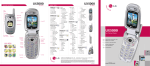
Lock Key
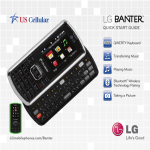
QWERTY Keyboard
Calls
3.5mm
Headset Jack
LG Freedom has a responsive touch
screen that makes dialing phone
numbers quick and easy.
Earpiece
Volume Up/
Down Keys
Send Key
Clear/Back/
Speakerphone
Key
Make a Phone Call
U.S. Cellular® Customer Care:
1-888-944-9400
When you need to communicate privately,
send a text message.
Send a Message
1. Slide open the keyboard.
Touch Screen
1. From the home screen, touch
Camera Key
2. Dial the number or start spelling the name
of the desired contact. You will see a list of
to expand the list.
contact options. Touch
3. In the To field, enter a number or a contact
name or touch Add Contact to select a name
from your contact list.
3. Touch a contact name to place the call.
4. Touch the Text field and enter your message.
Power/End
Key
Micro USB
Charging Port
Flash
Camera Lens
Messages
Speaker
Function
Key
Delete
Key
Shift/Text
Message
Key
Return
Key
OK Key
Vibrate
Mode Key
Voice
Command
Key
.
2. Press
Directional
Keys
.
5. Touch Send to send the message.
NOTE
Space/Quick
Composer
Key
SHIFT
Please don’t text and drive.
Personalize
Customize your phone by changing
ringtones and alert sounds for a more
personal touch.
Adjust Volume
1. To adjust the master volume, from the home
.
screen, press
Change Ringtone
> Settings
1. From the home screen, touch
> Sounds Settings > Call Sounds > Call
Ringtone > All Calls > Default Ringtones.
2. Touch a ringtone to select it.
Email
Contacts
My Contacts Backup
Freedom provides support for a variety
of email accounts.
Freedom has plenty of space to store
your contacts’ information.
Set up an Account
Add a Contact
1. Before you begin, you must download the
email app from easyedgeSM and launch the app
> easyedge >
from the home screen. Touch
Mobile Email.
1. From the home screen, touch
2. Read the information and touch Next.
3. Touch an account type, enter your email
address and password, and touch Next.
4. Touch No Thanks to be taken to your
email inbox.
.
2. Touch New to add a contact.
3. Touch each field and enter the contact’s
information.
4. Touch Save to save the contact.
Use My Contacts Backup to automatically back up your mobile contacts to
your online address book.
1. From the home screen, touch
Contacts Backup.
> My
2. Touch Next > Yes > Yes.
3. Enter a PIN (password) and touch OK.
4. Touch Yes to back up your contacts.
5. Touch OK. You can use your phone number and
PIN to log into your account online.
Camera and Camcorder
Social Scene
Capture every moment with the 2.0
megapixel camera and camcorder.
Take a Photo
1. From the home screen, press and hold
2. Press
or touch
.
to take a photo.
3. Touch View to return to the camera viewfinder.
All materials in this QSG including, without limitation,
the design, the text, and any marks are the property of
LG Electronics, Inc. Copyright © 2012 LG Electronics,
Inc. ALL RIGHTS RESERVED. LG and the LG logo are
registered trademarks of LG Electronics, Inc. Freedom
is a trademark of LG Electronics, Inc. The Bluetooth®
word mark and logos are registered trademarks owned
by Bluetooth SIG, Inc. and any use of such marks by LG
Electronics MobileComm, U.S.A., Inc. is under license.
easyedgeSM is a service mark of U.S. Cellular. Other
trademarks and trade names are those of their respective
owners. Unless otherwise specified herein, all accessories
referenced herein are sold separately. All features,
functionality, and other product specifications are
subject to change.
Record a Video
1. From the home screen, press and hold
and touch Video.
2. Press
to stop.
Back
Brightness
White Balance
Settings
http://www.lg.com/us
MBM63647601 (1.0) G
Printed in China
to begin recording; press it again
Video Mode
Take Picture
Social Scene from U.S. Cellular helps you
keep your friends close with Facebook,®
Twitter,® and more. Social Scene brings
your social media together in a single
app (plus Gmail,™ Google Talk,™ and live
news feeds if you want them), so you
can see the latest posts, share updates
and photos, and keep in touch your way.
Social Scene is convenient and easy to
use, and helps you stay connected to
your friends, your family, and the world.
You can download Social Scene from
your phone’s easyedge catalog with
just a few clicks. It’s a free download
and there is no subscription fee, but
do be aware that any applicable data
charges will apply for use, depending
on your plan.
Browsing
Customize
Browse the web with ease on Freedom.
Browse the Web
1. From the home screen, touch
Browser > Launch.
>
2. Swipe up and down to scroll on the page. To
go to a website, touch Menu > Go to URL.
3. Touch the URL field, enter an address, and
touch Done > Go.
Customize (continued)
Freedom has three home screens that
allow you to access important information
at a glance.
.
2. Press and hold a widget and then drag it to
the home screen.
3. Press
1. From the home screen, swipe left to
scroll right.
2. Touch Add > Contact.
Add a Widget
1. From the home screen, touch
Add a Favorite Contact
to return to the home screen.
Apps
Bluetooth®
GPS Navigation
Download applications and games from
easyedge.
Connect to headsets, computers, and
more via Bluetooth wireless technology.
With Your Navigator Deluxe, you can get
detailed maps of any location.
Download Applications
Connect to a Device
1. From the home screen, touch
easyedge > Your Navigator.
3. Touch the names of contacts you wish to
add, and then touch Done.
1. From the home screen, touch
> easyedge Shop > Catalog.
4. Touch a favorite contact to view calling and
messaging options.
2. Touch a category to view it.
Change the Wallpaper
4. Follow on-screen instructions to download
the app.
1. From the home screen, touch
> Settings >
Display Settings > Wallpaper.
2. Touch an image to view it.
3. Touch Set. > easyedge
3. Touch an app to view details.
1. Place the Bluetooth device you wish to pair
with in pairing mode. From the home screen,
> Settings > Bluetooth.
touch
>
2. Read the EULA and touch Accept.
2. Touch Turn On.
3. From the Your Navigator Deluxe home
screen, you can select:
3. Touch Add > Start.
•Navigation for turn-by-turn direction to
an address, airport, a contact’s address,
and more
•Messages for sending a place message
and viewing messages you’ve received
•Local Search to search for nearby
businesses, the cheapest gas prices,
and more
•Maps & Traffic to see where you currently
are located on a map and what traffic is in
the area
•Movies & Events to find nearby movie
theaters and events near your location
•My Places to view recent searches and
your favorite spots
4. Touch the name of the device you wish to
pair with.
5. Touch Yes to connect to the device.
View Pictures