Transcript
7” ANDROID TABLET QUICK START GUIDE
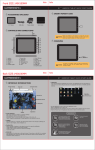
INSERT MEMORY CARD
ACCESSORIES INCLUDED
7” Device
USB cable
Power adapter
Deluxe case
CONTROLS AND CONNECTIONS
Please pay attention to the direction you insert the card (see
NOTICE picture), or the device will be damaged. DO NOT take out the
memory card when the tablet is on. Content may be lost.
CHARGING
1. Power Key
4. HDMI Jack
2. Reset
5. Camera
3. Micro-USB Jack 6. Micro SD Slot
7. Volume- Key
8. Volume+ Key
9. Backspace Key
10. Microphone
11. DC-in Jack
12. Earphone Jack
NOTICE
As shown in the diagram, make sure that the charge plug is
inserted fully. ONLY use the supplied charger or you may
damage the tablet.
7” ANDROID TABLET QUICK START GUIDE
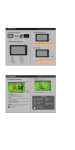
All Apps Screen
INTERFACE INTRODUCTION
System icons
All Apps Screen will show you all applications you've installed in your tablet, you can touch
any icon to start the program up.Touch and Drag the screen to the lift or touch "WIDGETS",
you will see the Widgets Screen which shows you all widgets in your tablet, you can touch
and hold it to the Home Screen.
Status icons:
Home Screen Interface:
The home screen is the starting point of your tablet. It displays applications, widgets, shortcuts and
other features. You can customize the home screen with different wallpapers and display the items you
choose
On the bottom left corner of the screen, you will find three navigation buttons.
Touch Keys
Back: The back button returns you to the previous screen you were on. Once you have backed
up all the way to the home screen, the button will not take you back any further
Home: Returns you to the home screen.
Recent apps: Displays a list of recently used apps. To open a previous app, touch it. To remove
the app from the list, swipe from left or right
After a short time without getting used, these buttons may shrink to dots or fade away, depending on
the current app. To bring them back, touch their location.
At the lift top of the screen, you will see a icon “Google”, you can tap it for searching on Google quickly.
Status icons: On the right bottom of the screen, you will see Status icons, it will tell you which apps
have sent you notifications; for example, that a message has arrived, or your tablet have connected
with PC.
To see your notifications, swipe your finger up from the right bottom of the screen.
System icons: on the right corner of the screen display the current wireless and network connection
strength, battery level, time, and more.
If the product emits an unusual
odor or excessive heat, or you
notice anything else that seems
unusual, do not use the product.
Do not try to open the device or
attempt to open and repair the
product yourself.
It will be damaged.
Avoid leaving the product in a hot
or humid place. Avoid dropping
the unit, it will be damaged.
Do not use the product
near water.
Please do not put the
device near a magnetic
field, it will be damaged.