Transcript
folio
Front SIZE:140X100MM
folio
9.7” ANDROID TABLET QUICK START GUIDE
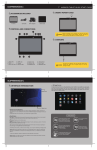
INSERT MEMORY CARD
ACCESSORIES INCLUDED
9.7” Device
USB cable
Power adapter
Carry Pouch
CONTROLS AND CONNECTIONS
Please pay attention to the direction you insert the card (see
NOTICE picture), or the device will be damaged. DO NOT take out the
memory card when the tablet is on. Content may be lost.
CHARGING
1.
2.
3.
4.
5.
6.
speaker
ON/OFF
Camera
Volume +/Reset
Indicator lights
7. Camera Key
8. “ Menu”key
9. “Home”key
10. “Backspace”key
11. “Search” key
12. MIC
13. Mini USB jack
14. charge
15. Micro SD slot
16. USB jack
17. HDMI jack
18. USB jack
19. earphone jack
NOTICE
folio
Back SIZE:140X100MM
As shown in the diagram, make sure that the charge plug is
inserted fully. ONLY use the supplied charger or you may
damage the tablet.
folio
9.7”ANDROID TABLET QUICK START GUIDE
Application
Press and hold down the application icon to move. The Application List icon will change to a
trash can if you want to drag it to the trash. The application will not be un-installed, just the
shortcut.
INTERFACE INTRODUCTION
Prompt message
Status bar
Connection status
Home key
Click to return
to the home screen
Browser key
Application list key
Settings key
Click the application list key to pop up the application screen.
Touch an application icon to start it up.
Press and hold down the application icon and the shortcut will be added to the home screen.
Press the “Home” key in the application list screen to return to the home screen.
Widgets
Applications
Screen Interface
Main screen interface is similar to a computer desktop.
Place application shortcuts and widgets here.
Touch and “swipe” to go to next page, move things on the screen, etc.
Touch 2 fingers and spread apart or bring together to zoom pictures in and out.
If the product emits an unusual
odor or excessive heat, or you
notice anything else that seems
unusual, do not use the product.
Do not use the product
near water.
Do not try to open the device or
attempt to open and repair the
product yourself.
It will be damaged.
Please do not put the
device near a magnetic
field, it will be damaged.
Widgets
Press the screen for 1-2 seconds. The “Add to Home screen” menu will pop up offering you
options to add widgets, change wallpaper, etc.
Reading Tips
When a prompt is displayed on the status bar, touch it to open the notification.
• Click selection window to open prompt message
• Click on the top of the column to read the full message
• Close the column
Status Bar
Pay attention to the status bar on the top of screen. If icons show on the left, it is a reminder
that applications are running. On the right of the status bar, there are alarm settings, Wi-Fi
connection, battery charge, etc.
Avoid leaving the product in a hot
or humid place. Avoid dropping
the unit, it will be damaged.