1
missing, update the autoloader or library firmware to
the current version.
1 Identifying product components
You can download autoloader or library firmware files
from the HP Support website at http://www.hp.com/
support.
1
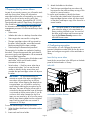
Locate the USB port
Locate the USB port on the back panel of the
autoloader or library.
3
MSL6480
2
11867
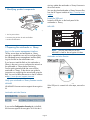
1. Two key server tokens
2. Accessory bag of token id cards and holders
3. Product documentation
2 Preparing the autoloader or library
NOTE: Only the rear USB port on the
MSL6480 is used for the encryption kit token.
Log in to the remote management interface
The key server token and autoloader or library
encryption capabilities can only be configured from
the web-based remote management interface (RMI).
Log into the RMI as the administrator user.
Autoloader and other libraries
If you have not used the RMI on this autoloader or
library in the past, you must configure the network on
the autoloader or library before continuing.
See the getting started guide that came with the
autoloader or library, or the device user guide for
instructions on configuring the network and using the
RMI. You can find these documents on the HP website
at http://www.hp.com/support/manuals.
Verify your autoloader or library firmware version
MSL6480
If the USB port is covered with silver tape, remove the
tape.
All MSL6480 firmware versions support the encryption
kit.
Autoloader and other libraries
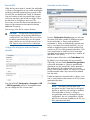
If you see the Configuration: Security tab in the RMI,
the firmware supports the encryption kit. If this tab is
Page 2