Transcript
HP PL4245N 42" Plasma HDTV
Start Here
AV
AV AUDIO
L
DVI
Y
Cb/Pb
Y
Cr/Pr
R
Cb/Pb Cr/Pr AUDIO
L
R
VGA
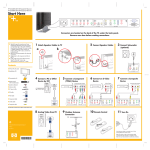
Connectors are located on the back of the TV, under the back panel.
Thank you for purchasing
an HP PL4245N
42" Plasma HDTV
1
Attach Brackets to
Speakers
2
Attach Speakers to TV
3
Connect Speaker Cables
to TV
4
Connect Subwoofer
(optional)
Step 1
OUT
Your setup time may vary.
■ Identify the type of connectors your home
entertainment equipment uses, then go to the
corresponding step on this poster and follow
those directions. (Example: To connect a cable
or satellite set-top box which connects via
S-video cabling, refer to step 7, “Connect an
S-video device.”)
■ Refer to the user documentation for advanced
connections.
■ Apply power to all components and then to
the TV.
■ Finally, refer to the section titled “Setting Up
Your Channels” in your user documentation to
finalize your TV setup.
Contents
■ HP plasma TV
Step 2
Step 3
5
Connect a PC or an
HP HD Tuner by DVI
6
Connect a Component
(YPbPr) Device
■ TV stand
Component Video Outputs
■ Speakerbars (2)
L
R
Y
Pb
Pr
Y
Pb
Pr
7
Connect an S-video
Device
8
Connect a Composite
Device
S-video Outputs
Composite Video Outputs
DVI
■ Documentation kit
■ Remote control
with AA batteries (2)
■ Speaker cables (2)
AV
■ Antenna cable
DVI
AV AUDIO
L
R
■ AC power cable
The information in this document is subject to change without notice.
9
Analog Video from PC
10 Outdoor Antenna
11 Remote Control
12 Power On
Connection
Wall
TV OUT
© 2004 Hewlett-Packard Development Company, L.P.
Signal
Coaxial
Cable
Printed in
www.hp.com
Once the power cable is connected, power on TV by
pressing PWR on the remote control.
Refer to the section in the user documentation titled
“Setting Up Your Channels” to complete TV setup.
Refer to the user documentation for advanced connections.