1
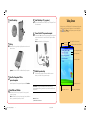
1 Install the battery:
5 Install ActiveSync 3.7 (or greater):
Click to install the latest version of ActiveSync from your Companion CD and
follow the instructions.
6
2
Connect Pocket PC to personal computer:
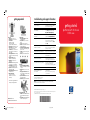
Today Screen
When you turn on your HP iPAQ Pocket PC for the first time each day (or after
4 hours of inactivity), you see the Today screen. You can also display it by
tapping
and then Today. On the Today screen, you can see at a glance
important information for the day.
Connect either USB or serial connector to appropriate port on your personal
computer and insert Pocket PC in cradle. Connect AC Adapter to cradle to
charge unit.
Note: It takes about 4 hours to fully charge the unit.
Tap to switch
to a program.
Set up:
Tap to set ISP or work connections.
Tap to change volume or mute all sounds.
Reset the device by using the stylus to lightly press the reset button on the
bottom of the unit.
Tap to change date and time.
Tap to open an item.
Your day at a glance.
Important: Do not insert Pocket PC into cradle until ActiveSync requests it.
the Companion CD into
3 Insert
personal computer:
7
Establish a partnership:
Follow the on-screen ActiveSync instructions to establish a connection
between your Pocket PC and your personal computer.
Insert the Companion CD into your personal computer and click Start Here.
4
Install Microsoft Outlook:
Bluetooth power on/off.
Check This Out! To learn more about Bluetooth, Wireless LAN (h5500 only),
Fingerprint Reader (h5500 only), and much more, refer to the User’s Guide on the
Companion CD.
Install Microsoft Outlook from your Companion CD onto your personal
computer, if necessary.
Note: Install Outlook if you plan to synchronize e-mail, contacts, calendar or
tasks on your personal computer with your Pocket PC.
304921-001 Getting Started Guide.p65
2
Note: Model shown is
hp iPAQ Pocket PC h5500 Series.
5/20/2003, 2:55 PM
Tap to create a new item.
Tap to view connection status.