1
SECTION 10 – HAZARD
AVOIDANCE
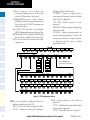
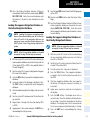
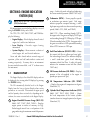
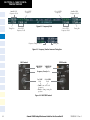
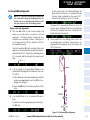
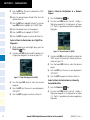
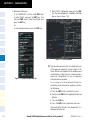
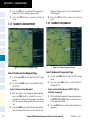
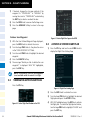
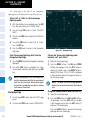
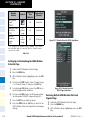
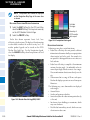
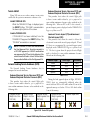
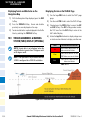
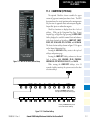
Displaying SIGMETs and AIRMETs
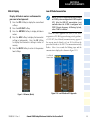
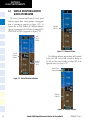
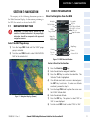
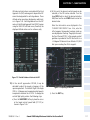
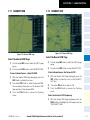
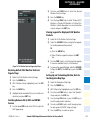
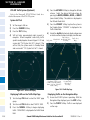
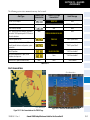
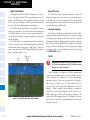
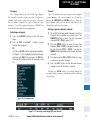
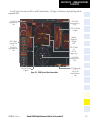
Infrared Satellite
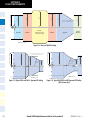
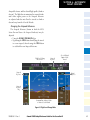
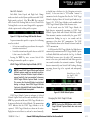
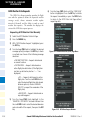
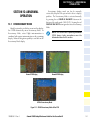
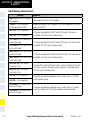
Infrared Satellite (IR SAT) data depicts cloud top
temperatures from satellite imagery. Brighter cloud top
colors indicate cooler temperatures occurring at higher
altitudes.
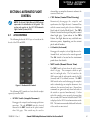
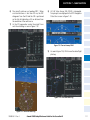
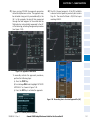
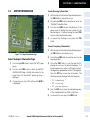
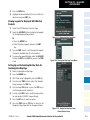
1) Select the GFDS Weather Data Link Page.
2) Select the SIG/AIR Softkey.
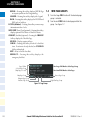
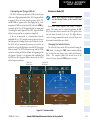
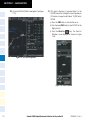
Displaying Cloud Tops information
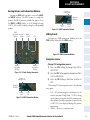
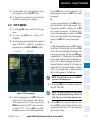
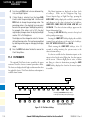
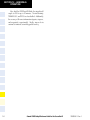
3) To view the text of the SIGMET or AIRMET, press the
RANGE Knob and move the Map Pointer over the
icon.
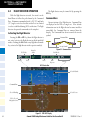
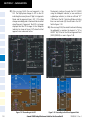
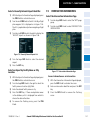
1) Select the GFDS Weather Data Link Page.
4) Press the ENT key.
2) Select the IR SAT Softkey.
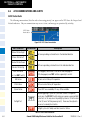
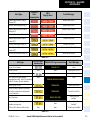
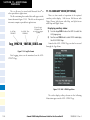
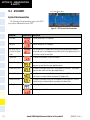
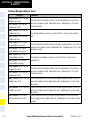
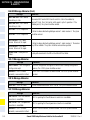
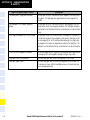
To display the Infrared Satellite legend, select the LEGEND Softkey when Infrared Satellite data is selected for
display.
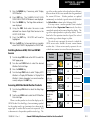
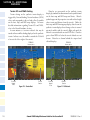
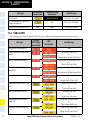
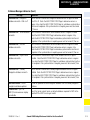
To display the SIGMET and AIRMET legend, select the
LEGEND Softkey when SIGMETs and AIRMETs are selected for display.
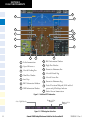
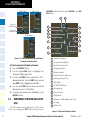
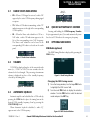
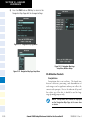
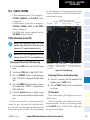
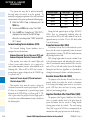
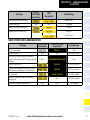
METARs and TAFs
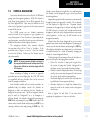
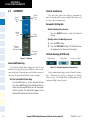
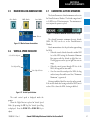
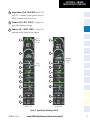
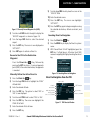
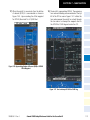
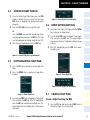
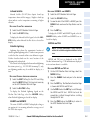
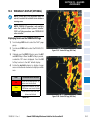
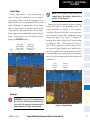
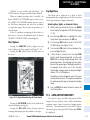
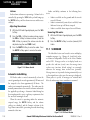
Datalink Lightning
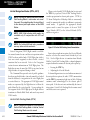
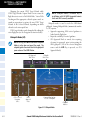
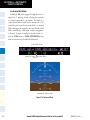
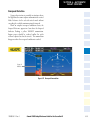
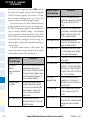
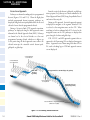
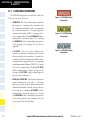
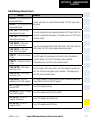
Lightning data shows the approximate location of
cloud-to-ground lightning strikes. A strike icon represents
a strike that has occurred within a two-kilometer region.
Neither cloud-to-cloud nor the exact location of the
lightning strike is displayed.
If the aircraft is also equipped with an on-board lightning
detection system (e.g., L-3 WX-500 Stormscope®), only
one lightning product may be enabled for display at a
time.
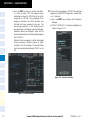
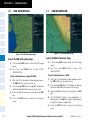
Displaying Datalink Lightning information
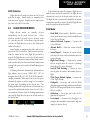
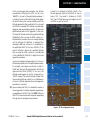
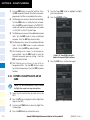
1) Select the MAP Softkey (for the PFD Inset Map,
select the INSET Softkey). This step is not necessary
on the GFDS Weather Data Link Page.
2) Select the DL LTNG Softkey.
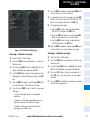
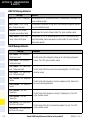
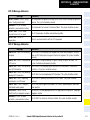
To display the Datalink Lightning legend on the
Weather Data Link Page, select the LEGEND Softkey
when Datalink Lightning is selected for display.
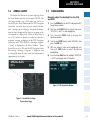
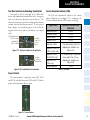
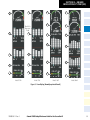
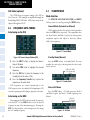
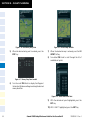
SIGMETs and AIRMETs
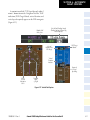
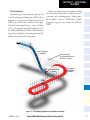
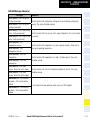
The entire SIGMET or AIRMET is displayed as long as
any portion of it is occurring within the coverage area of
the GFDS data request.
190-00384-12 Rev. A
NOTE: METAR information is only displayed
within the installed navigation database service
area.
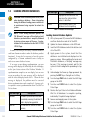
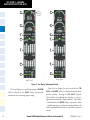
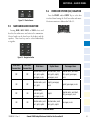
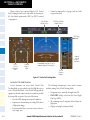
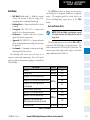
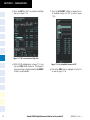
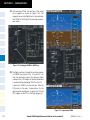
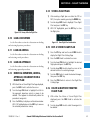
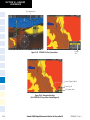
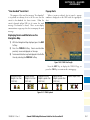
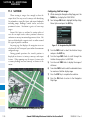
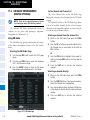
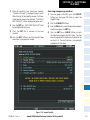
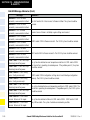
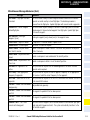
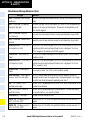
METAR and TAF text are displayed on the WPTWeather Information Page. TAF information is displayed
in its raw form when it is available.
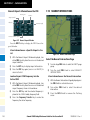
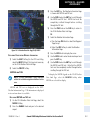
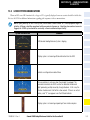
Displaying METAR and TAF text
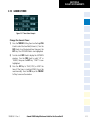
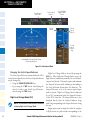
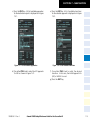
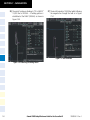
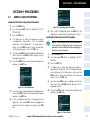
1) On the GFDS Weather Data Link Page, select the
METAR Softkey.
2) Press the RANGE Knob and pan to the desired
airport.
3) Press the ENT Key. The Weather Information Page
is shown with METAR and TAF text.
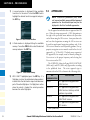
4) Use the FMS Knob or the ENT Key to scroll through
the METAR and TAF text. METAR text must be
completely scrolled through before scrolling
through the TAF text.
5) Press the FMS Knob or the CLR Key to return to
the GFDS Weather Data Link Page.
Or:
Garmin G1000 Cockpit Reference Guide for the Cessna Nav III
10-21