1
Advanced Menu
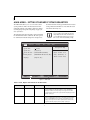
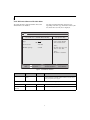
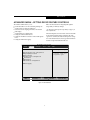
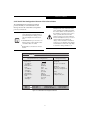
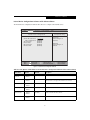
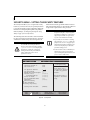
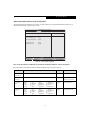
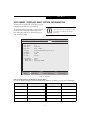
Event Logging Submenu of the Advanced Menu
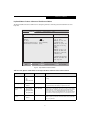
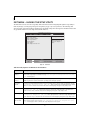
The Event Logging Submenu configures event logging features for DMI events.
Main
PhoenixBIOS Setup Utility
Security
Power Savings
Exit
Advanced
Item Specific Help
Event Logging
Event Log Capacity:
Event Log Validity:
Space Available
Valid
View Event Log:
[Enter]
Event Logging:
System Boot Event:
[Enabled]
[Disabled]
Clear All Event Logs:
[No]
Mark Events as Read:
[Enter]
Select Item
Select Menu
-/Space Change Values
Enter Select Sub-Menu
▲
F1 Help
ESC Exit
Press <Enter> key to
view the contents of
the event log.
F9 Setup Defaults
F10 Save and Exit
Figure 12. Event Logging Submenu
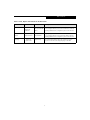
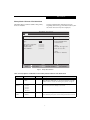
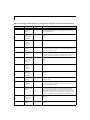
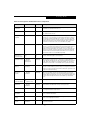
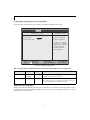
Table 12: Fields, Options and Defaults for the Event Logging Submenu of the Advanced Menu
Menu Field
Options
Default
Description
Event Log
Capacity:
Space Available
Display only.
Event Log Validity:
Valid
Display only.
View Event Log:
■
Enter
[Enter]
Allows you to view content of event log.
Event Logging:
■
Disabled
Enabled
[Enabled]
Turns event logging on and off for all DMI events.
Disabled
Enabled
[Disabled]
Turns event logging on and off for DMI system boot events.
No
Yes
[No]
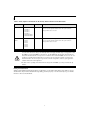
When set to [Yes] all event logs will be cleared at next boot.
Enter
[Enter]
Allows you to make all events currently in the event log as read.
■
System Boot
Event:
■
■
Clear All Event
Logs:
■
Mark Events as
Read:
■
■
19