1
LifeBook S Series Notebook BIOS
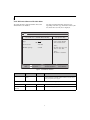
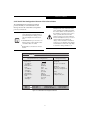
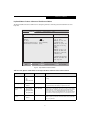
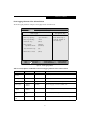
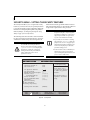
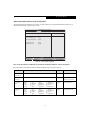
Security Chip Setting Submenu of the Security Menu
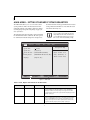
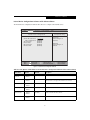
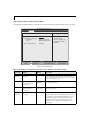
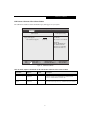
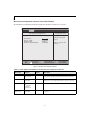
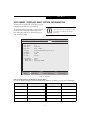
The Security Chip Setting Submenu is for enabling or disabling the embedded security chip.
Main
Advanced
PhoenixBIOS Setup Utility
Security
Power Savings
Exit
Security Chip Setting
Security Chip:
Clear Security Chip:
Item Specific Help
[Enabled]]
[Enter]
Select Security Chip
enabled or disabled.
* A reboot is required
after exit to configure
Security Chip correctly.
Clear Security Chip
becomes selectable
after the reboot.
Select Item
Select Menu
-/Space Change Values
Enter
Select Sub-Menu
▲
F1 Help
ESC Exit
F9 Setup Defaults
F10 Save and Exit
Figure 16. Security Chip Setting Submenu
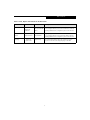
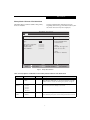
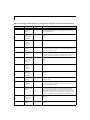
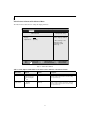
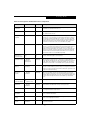
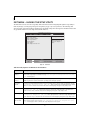
Table 16: Fields, Options and Defaults for the Security Chip Setting Submenu of the Security Menu
Menu Field
Options
Default
Description
Security Chip:
• Disabled
• Enabled
[Disabled]
Select to enable or disable the security chip. Note that after configuring
the security chip, a system reboot is required.
[Enter]
Allows you to clear the security chip. Note that if you clear the security
chip, you will not be able to access data that has already been encrypted.
This field is only visible when Security Chip is [Enabled].
Clear Security Chip
____
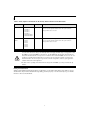
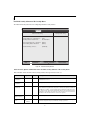
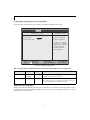
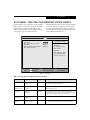
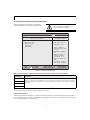
Exiting from the Security Menu
When you have finished setting the parameters on the Security Menu, you can either exit from setup utility or move to
another menu. If you wish to exit from setup utility, press the [Esc] key to go to the Exit Menu. If you wish to move to
another menu, use the cursor keys.
24