1
PowerLite S27/X27/X29/W29
®
Quick Setup
Before using the projector, make sure you read the safety instructions in the
online User’s Guide.
Camera, USB device, or Epson DC-06 document
camera
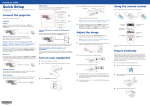
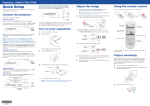
Adjust the image
Using the remote control
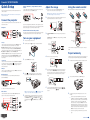
Connect a digital camera, USB flash drive, USB storage device, or Epson DC-06
document camera to the projector’s USB-A (flat) port.
1
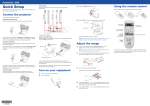
Make sure the batteries are installed as shown (two AA batteries)
Note: If you still see a blank screen or have other display problems, see
the troubleshooting tips on the back of this sheet.
Note: Your product may differ from the illustrations on this sheet, but the
instructions are the same.
USB cable
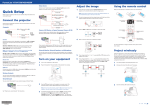
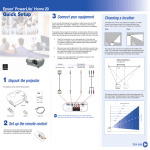
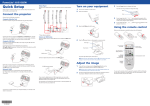
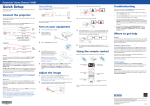
Connect the projector
Choose from the following connections. See the sections below or the online
User’s Guide for details.
Computer
USB cable
HDMI cable
2
USB port
Connect the square end of a USB cable to the projector’s USB-B (square) port.
Connect the flat end of the cable to any USB port on your computer.
Computer port
Choose which source
to display
If you connect a digital camera, USB flash drive, or USB storage device, you can
use the projector’s PC Free feature. You can also connect other Epson document
cameras to the projector. See the online User’s Guide for details.
External monitor and external speakers
You can also connect an external monitor or external speakers to your projector
to enhance your presentations. See the online User’s Guide for details.
3
Turn on your equipment
PowerLite S27: Press the Wide button to enlarge the image, or the Tele
button to reduce it.
1
2
Access projector
menus
owerLite X27/X29/W29: Turn the zoom ring to enlarge or reduce the
P
image.
Turn off projector
display
Turn on your computer or video source.
Plug in the projector. The
power light on the projector turns blue.
Navigate projector
menus
Get solutions to
common problems
PowerLite
X27/X29/W29
Windows® XP or later: After turning on the projector, follow the on-screen
instructions to install the Epson® USB Display software (EMP_UDSE.EXE; only
on first connection). If the software screen does not display automatically, open
My Computer or Computer, then double-click EPSON_PJ_UD.
OS X 10.5.8 or higher: After turning on the projector, the setup folder for USB
Display appears in the Finder. Double-click USB Display Installer and follow
the on-screen instructions to install the Epson USB Display software (only on
first connection).
o raise the image, press the foot release button and lift the front of the
T
projector. Release the button to lock the foot in position.
Turn projector
on and off
VGA cable
Audio cable
If you don’t see an image, press the Source Search button on the
projector or the remote control to select the image source.
PowerLite S27
For more information on using the remote control, see the online User’s
Guide.
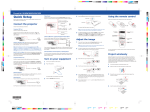
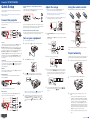
Project wirelessly
4
3
Turn the focus ring to sharpen the image.
Open the A/V Mute slide all the way.
Follow the steps here to connect the projector over a wireless network. You
will need the optional wireless LAN module (part number V12H418P12).
1
To install the wireless LAN module, first remove the screw as shown.
Connect one end of a VGA cable to the projector’s Computer1 or Computer2
port, and the other end to your computer’s
monitor port. If you are using
a laptop, switch it to external display (see “Troubleshooting”). You can also
connect an audio cable.
HDMI port
5
Connect one end of an HDMI cable to the projector’s HDMI port and the other
end to an HDMI port on your computer.
4 Press the
Wired network
You can connect the projector to your network using an Ethernet cable
(PowerLite X27/X29/W29).
power button on the projector or remote control. The
projector beeps, and the Status light flashes blue and then stays on.
2 C onnect the wireless LAN module to the USB-A (flat) port.
6
See “Project over a wired network” for instructions.
Video device
Connect multiple video devices and use the Source Search button on the
projector or remote control to switch between them.
S-Video cable
RCA video cable
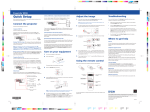
If your image looks like
or
, you may have placed the projector
off to one side of the screen at an angle. Place the projector directly in
front of the center of the screen, facing the screen squarely. If you can’t
move the projector, use the horizontal keystone slider to correct the
image.
Note: To shut down the projector, press the
power button twice, then
unplug it. You don’t have to wait for the projector to cool down.
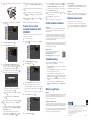
5 The default language of the menu system is English. To select another
language, press the Menu button on the projector or remote control.
Select Extended and press
. Select Language and press
. Select
your language and press
. Press the Menu button to exit the menu
system.
our projector automatically adjusts images that look like
Y
or
,
but if necessary you can press the
or
button on the projector to
correct it.
3
o configure your projector for wireless projection, do one of the
T
following:
••
Audio cable
HDMI cable
Component video to VGA cable
Audio cable
••
If you’re using the optional Quick Wireless Connection USB
key (Windows only, part number V12H005M09), press the LAN
button on the remote control. When you see SSID and IP address
information on the screen, remove the wireless LAN module
and connect the key to the projector’s USB-A port. Look for the
displayed message, remove the key, and connect it to a USB port
on your computer. Follow the on-screen instructions to install the
driver, then reconnect the wireless LAN module to the projector’s
USB-A port. For details, see the online User’s Guide.
If you’re not using the key, continue with the steps on the next
page.