1
PowerLite Home Cinema 5030UB/5030UBe
PowerLite Pro Cinema 4030/6030UB
®
®
Quick Setup
2
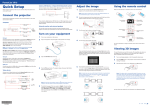
Turn on your equipment
Plug the AC adapter into the transmitter and a wall outlet.
Before using the projector, make sure you read the safety instructions in the
online User’s Guide.
1
Turn on your video source.
2
Plug in the projector.
5Turn the focus ring to sharpen the image.
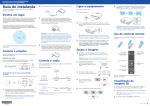
Choose a location
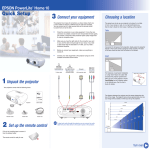
Keep the projector level and place it at a height so its lens is even with the
top or bottom of the screen and is centered horizontally. If this isn’t possible,
use the lens shift dials or the keystone correction buttons on the projector to
reposition the image (see “Adjust the image”).
3Connect the HDMI cables to your video input devices and the HDMI ports
on the side and back of the WirelessHD Transmitter. You can connect up
to five input devices to the transmitter. See “Viewing WirelessHD content”
for information on switching between input sources
but if necessary you can press the
correct this.
4To use the transmitter as a pass-through device to a television or other
power button on the
projector or the Standby button on the remote control twice, then
unplug it. You don’t have to wait for the projector to cool down.
4The default language of the menu system is English. To select another
language, press the Menu button on the projector or remote control.
Select Extended and press Enter. Select Language and press Enter.
Select your language and press Enter. Press the Menu button to exit
the menu system.
display, connect an HDMI cable to the display device and the HDMI output
port on the rear of the transmitter. See “Viewing WirelessHD content” for
information on switching between wireless and wired display modes.
Adjust the image
Choose from the following connections. For additional connection types, see
the online User’s Guide.
1If you don’t see an image, press one of the Source buttons on the remote
HDMI cable
control or the
Connect audio
Note: When setting up the projector, make sure that it is placed level
to the screen in order to provide the best possible image quality. If you
must set up the projector at an angle, use the or buttons to correct
the image shape.
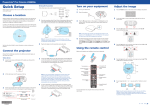
Using the remote control
Make sure the batteries are installed as shown (two AA batteries).
button on the projector to select the image source.
Note: If you still see a blank screen or have other display problems,
see “Troubleshooting.”
Connect your device’s audio output to your home theater receiver or powered
speakers.
2Turn the horizontal and vertical lens shift dials to adjust the image
position and center it on the screen.
Home theater system
RCA video cable
Turn projector on
Choose which source
to display
Video source
Component video cable
Turn projector off
Turn off projector
display
WirelessHD (PowerLite Home Cinema 5030UBe only)
3To raise the image, adjust the front feet as shown below.
Follow these steps to set up the included WirelessHD Transmitter.
Video cable
Surround sound
Receiver
Navigate projector
menus
Access projector
menus
4
Video cable
External speakers
front of the transmitter faces the front of the projector. See the online
User’s Guide for more information on the WirelessHD transmission range.
Note: Do not place the transmitter on a metal surface, as this may
interfere with the signal. Make sure there are no obstructions between
the transmitter and the projector.
Switch between
2D and 3D
Projector
Powered speakers
1Place the transmitter within 32 feet (10 m) of the projector. Make sure the
,
Note: To shut down the projector, press the
Connect the projector
Connect up to 4 video devices and use the Source buttons on the remote
control or the
button on the projector to switch between them.
or
buttons on the projector to
power button on the projector or the On button on the
remote control. The shutter opens and the power light flashes blue,
then stays on.
Note: You can connect tablets, smartphones and other devices that
support the MHL™ standard to the HDMI port on the side of the
WirelessHD Transmitter. Devices that use MHL connection include the
Samsung™ Galaxy Note II™ and the Roku® Streaming Stick™. Some
devices may require an adapter or may not require an MHL cable.
Not all features or functions may be supported. Check your device’s
documentation for more information.
Video device
or
3Press the
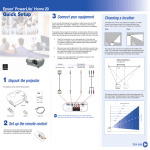
In order to view 3D images correctly, RF 3D glasses must be worn within 32 feet
(10 m) of the projector. Use the image below to determine the viewing distance
for 3D projection (the shading represents the 3D viewing area):
See the online User’s Guide for more information on where to place your
projector.
6Your projector automatically adjusts images that look like
Video source
Turn the zoom ring to reduce or enlarge the image.
Control WirelessHD
functions
Projector
Note: See your home theater receiver documentation for more information
on connections.
For more information on using the remote control, see the online
User’s Guide.