1
CPD18568_Patt_SH_E.qxd
9/3/04
3:49 PM
Page 1
Star
t
Here
Epson Stylus Photo RX620
®
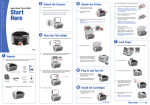
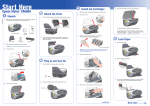
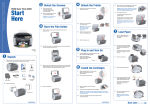
1 Unpack and Assemble
1
2 Unlock
1
2
5
Route the cable in the channel along
the side of the RX620, as shown.
Press the OK button to start ink charging. Wait about 2 minutes
until charging completes.
Open the scanner lid and remove the yellow sticker. Then unlock
the scanner as shown.
Make sure you have all the parts shown here. If any parts are missing,
contact Epson® as described on the back of this sheet.
OK button
4 Install Ink Cartridges
Epson Stylus Photo RX620
Software
CD-ROM
1
Quick Guide
Plug your Stylus Photo RX620 into an electrical outlet, then press the
On button. The green light comes on and the ink cartridge holder
moves to the left.
Note: You can store the film holder in the scanner lid behind the
white document mat.
2
Paper support
2
Ink cartridges
(6 total)
5 Load Paper
1
Open the output tray.
2
Flip the feeder guard forward and slide the edge guide to the left.
Lift open the scanner section to access the printer area.
On button
Film and slide holder
Remove all the blue packing tape from the Stylus Photo RX620.
Caution: Do not remove the yellow stickers until instructed.
3
Insert the paper support.
2
3
4
Open the ink cartridge holder.
Edge guide
Remove the orange print head lock and store it as shown.
Connect the cable.
3
Remove the ink cartridges from their packages
4
Insert each ink cartridge, then press it down so it clicks into place.
Remove the yellow sticker over the USB port and plug the square
end of your USB cable into the port, as shown below.
Caution: Do not connect the cable to your computer until you
have installed the software.
CPD-18568
Printed in XXXXXX XX-XX.XX XXX
Place a stack of paper against the right side of the sheet feeder.
Slide the edge guide lightly against the left side of the paper.
Press
3 Connect the Cable
1
3
5
Close the ink cartridge holder, then close the scanner section.
continue
Turn over
CPD18568_Patt_SH_E.qxd
9/3/04
3:49 PM
Page 1
Star
t
Here
Epson Stylus Photo RX620
®
1 Unpack and Assemble
1
2 Unlock
1
2
5
Route the cable in the channel along
the side of the RX620, as shown.
Press the OK button to start ink charging. Wait about 2 minutes
until charging completes.
Open the scanner lid and remove the yellow sticker. Then unlock
the scanner as shown.
Make sure you have all the parts shown here. If any parts are missing,
contact Epson® as described on the back of this sheet.
OK button
4 Install Ink Cartridges
Epson Stylus Photo RX620
Software
CD-ROM
1
Quick Guide
Plug your Stylus Photo RX620 into an electrical outlet, then press the
On button. The green light comes on and the ink cartridge holder
moves to the left.
Note: You can store the film holder in the scanner lid behind the
white document mat.
2
Paper support
2
Ink cartridges
(6 total)
5 Load Paper
1
Open the output tray.
2
Flip the feeder guard forward and slide the edge guide to the left.
Lift open the scanner section to access the printer area.
On button
Film and slide holder
Remove all the blue packing tape from the Stylus Photo RX620.
Caution: Do not remove the yellow stickers until instructed.
3
Insert the paper support.
2
3
4
Open the ink cartridge holder.
Edge guide
Remove the orange print head lock and store it as shown.
Connect the cable.
3
Remove the ink cartridges from their packages
4
Insert each ink cartridge, then press it down so it clicks into place.
Remove the yellow sticker over the USB port and plug the square
end of your USB cable into the port, as shown below.
Caution: Do not connect the cable to your computer until you
have installed the software.
CPD-18568
Printed in XXXXXX XX-XX.XX XXX
Place a stack of paper against the right side of the sheet feeder.
Slide the edge guide lightly against the left side of the paper.
Press
3 Connect the Cable
1
3
5
Close the ink cartridge holder, then close the scanner section.
continue
Turn over
CPD18568_Patt_SH_E.qxd
9/3/04
3:49 PM
Page 1
Star
t
Here
Epson Stylus Photo RX620
®
1 Unpack and Assemble
1
2 Unlock
1
2
5
Route the cable in the channel along
the side of the RX620, as shown.
Press the OK button to start ink charging. Wait about 2 minutes
until charging completes.
Open the scanner lid and remove the yellow sticker. Then unlock
the scanner as shown.
Make sure you have all the parts shown here. If any parts are missing,
contact Epson® as described on the back of this sheet.
OK button
4 Install Ink Cartridges
Epson Stylus Photo RX620
Software
CD-ROM
1
Quick Guide
Plug your Stylus Photo RX620 into an electrical outlet, then press the
On button. The green light comes on and the ink cartridge holder
moves to the left.
Note: You can store the film holder in the scanner lid behind the
white document mat.
2
Paper support
2
Ink cartridges
(6 total)
5 Load Paper
1
Open the output tray.
2
Flip the feeder guard forward and slide the edge guide to the left.
Lift open the scanner section to access the printer area.
On button
Film and slide holder
Remove all the blue packing tape from the Stylus Photo RX620.
Caution: Do not remove the yellow stickers until instructed.
3
Insert the paper support.
2
3
4
Open the ink cartridge holder.
Edge guide
Remove the orange print head lock and store it as shown.
Connect the cable.
3
Remove the ink cartridges from their packages
4
Insert each ink cartridge, then press it down so it clicks into place.
Remove the yellow sticker over the USB port and plug the square
end of your USB cable into the port, as shown below.
Caution: Do not connect the cable to your computer until you
have installed the software.
CPD-18568
Printed in XXXXXX XX-XX.XX XXX
Place a stack of paper against the right side of the sheet feeder.
Slide the edge guide lightly against the left side of the paper.
Press
3 Connect the Cable
1
3
5
Close the ink cartridge holder, then close the scanner section.
continue
Turn over
CPD18568_Patt_SH_E.qxd
9/3/04
3:49 PM
Page 1
Star
t
Here
Epson Stylus Photo RX620
®
1 Unpack and Assemble
1
2 Unlock
1
2
5
Route the cable in the channel along
the side of the RX620, as shown.
Press the OK button to start ink charging. Wait about 2 minutes
until charging completes.
Open the scanner lid and remove the yellow sticker. Then unlock
the scanner as shown.
Make sure you have all the parts shown here. If any parts are missing,
contact Epson® as described on the back of this sheet.
OK button
4 Install Ink Cartridges
Epson Stylus Photo RX620
Software
CD-ROM
1
Quick Guide
Plug your Stylus Photo RX620 into an electrical outlet, then press the
On button. The green light comes on and the ink cartridge holder
moves to the left.
Note: You can store the film holder in the scanner lid behind the
white document mat.
2
Paper support
2
Ink cartridges
(6 total)
5 Load Paper
1
Open the output tray.
2
Flip the feeder guard forward and slide the edge guide to the left.
Lift open the scanner section to access the printer area.
On button
Film and slide holder
Remove all the blue packing tape from the Stylus Photo RX620.
Caution: Do not remove the yellow stickers until instructed.
3
Insert the paper support.
2
3
4
Open the ink cartridge holder.
Edge guide
Remove the orange print head lock and store it as shown.
Connect the cable.
3
Remove the ink cartridges from their packages
4
Insert each ink cartridge, then press it down so it clicks into place.
Press
3 Connect the Cable
1
Remove the yellow sticker over the USB port and plug the square
end of your USB cable into the port, as shown below.
Caution: Do not connect the cable to your computer until you
have installed the software.
CPD-18568
Printed in XXXXXX XX-XX.XX XXX
3
5
Close the ink cartridge holder, then close the scanner section.
continue
Place a stack of paper against the right side of the sheet feeder.
Slide the edge guide lightly against the left side of the paper.
CPD18568_Patt_SH_E.qxd
9/3/04
3:49 PM
Page 2
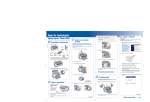
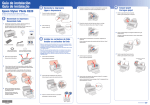
6 Install Software and
Connect to Your Computer
The software works with Windows ® 98SE, Me, 2000, and XP, and Macintosh®
OS 9.2.x and 10.2.x to 10.3.x. Follow the steps below (for Windows), or the
steps in the next column (for Macintosh).
Windows
1
Make sure the RX620 is not
connected to your computer,
then turn on your computer.
Note: If you see several New
Hardware Wizard screens, click
Cancel for each of these screens and
disconnect your RX620. You can’t
install your software that way.
2
Selecting the RX620 for Mac OS 9
1
Insert your RX620 software CD-ROM into your CD-ROM or DVD drive.
1
Open the Chooser from the Apple menu.
2
Double-click the
Epson
CD-ROM icon, if necessary. Then
double-click the
Epson installer
icon. You see this screen:
2
Select SP RX620 Series, then
select your USB port and turn on
background printing.
3
3
Click Install.
4
Read the license agreement, then
click Agree.
Close the Chooser. Now you’re
ready to copy, scan, and print. See
the Quick Guide or your on-screen
Reference Guide for instructions.
Need Ink and Paper?
®
For the best prints and copies, use genuine Epson ink and paper. You can
buy them from your local retailer or from the Epson StoreSM at (800) 873-7766,
or visit www.epsonstore.com (U.S. sales only). In Canada, please call
(800) 463-7766 for dealer referral.
T048120
Black Ink
Cartridge
T048220
Cyan Ink
Cartridge
T048520
Light Cyan
Ink Cartridge
T048620
Light Magenta
Ink Cartridge
T048320
Magenta Ink
Cartridge
T048420
Yellow Ink
Cartridge
Note: If you’re installing on Macintosh OS X, enter your
administrator name and password, if necessary.
5
Any Problems?
Macintosh OS X: Continue with the following steps.
Macintosh OS 9: Follow any on-screen instructions,
then continue with step 9.
Insert your RX620 software CD-ROM
in your CD-ROM or DVD drive.
Note: If you’re using Windows XP and you see a message asking what
to do with your CD, click Cancel.
3
Macintosh
When you see this screen,
then click Install.
Note: If you don’t see this screen,
do the following:
Windows XP: click Start >
My Computer. Then double-click
the Epson CD-ROM icon.
6
If you are having a problem with your RX620, check the message on the
control panel. Try turning the RX620 off and then back on to clear the error.
If your problem is listed here, try these suggestions. For more information,
see your Quick Guide, software Help, or on-screen Reference Guide.
Click Install at the EPSON Scan
Installer screen to install the
scanner portion of your software.
7
When the software finishes
installing, click Quit.
8
Follow the on-screen instructions to install additional software.
The Found New Hardware
Wizard appears on
your screen.
Click Cancel and disconnect the RX620.
Install the software as described on this
page.
You see an error message
when you try to print
or scan.
Make sure your RX620 is connected to your
computer, plugged into a power source, and
turned on.
The RX620 doesn’t work.
Make sure you have unlocked the scanner
and print head, as described in section 2.
Turn the RX620 off and then on again.
Note: A color ink multipack is also available (T048920).
Premium Glossy Photo Paper
Heavyweight paper with a high gloss finish that lets
you create borderless photos with no perforated
edges. Available in 4 x 6, 5 x 7, 8 x 10, and Letter
sizes.
Note: Click Quit when each part finishes installing.
9
Windows 98/Me/2000: double-click
My Computer.
Then double-click the Epson CD-ROM icon.
4
Read the license agreement, then click Agree. Several messages
display on your screen.
5
When you see this screen, plug the flat
end of the USB cable into any available
USB port on your computer.
When installation is complete, you see the Additional Software screen.
Follow the instructions on the screen to install the software. When
done, click Exit.
10
Close any open screens, remove the CD-ROM, and restart your
Macintosh.
11
Plug the flat end of the USB cable into any available USB port on your
Macintosh.
Matte Paper Heavyweight
Perfect for high-quality photo reprints and
enlargements.
Make sure the ink cartridges are pushed all
the way down.
Make sure your RX620 software is installed
correctly.
PremierArt™ Matte Scrapbook Photo Paper
for Epson
Ideal for printing beautiful-quality matte photos and
scrapbook-safe elements.
Any Questions?
Here’s where to look for answers:
Semigloss Scrapbook Photo Paper
Perfect for printing satin-finish photos that stand
out against the traditional matte background of your
scrapbook pages.
Epson Stylus Photo RX620 Quick Guide
Includes instructions on copying, printing, and scanning
without a computer.
On-screen Reference Guide
Follow the instructions below to add the RX620 to the Print Center or Printer
Setup Utility (for OS X) or the Chooser (for OS 9).
Selecting the RX620 for Mac OS X
®
1
6
Open the OS X Applications folder, then open the Utilities folder and
start Print Center or the Printer Setup Utility.
Note: It will take several minutes to install the software. Click Next or
Finish, as prompted. Don’t cancel the installation.
2
On the Printer List screen, click the
Add button.
7
When the installation is complete, print a test page, if desired. Then
click Next to install optional software.
3
On the next screen, select EPSON USB from
the pull-down menu.
8
Follow the instructions on the screen to install the software. When done,
click Exit.
4
Click Stylus Photo RX620.
9
Now you’re ready to copy, scan, and print. See the Quick Guide or your
on-screen Reference Guide for instructions.
5
6
continue
Epson Technical Support (Stylus Photo RX620 and EPSON Scan)
• World Wide Web
http://support.epson.com
• Automated Telephone Services
To use these services, you must have a touch tone telephone and call
(800) 922-8911. Your Epson SoundAdviceSM Express Code is 70595.
Use this code to quickly select your product in SoundAdvice.
• To speak to a Technical Support Representative
Dial (562) 276-4382 (U.S.) or (905) 709-3839 (Canada), 6 AM to 6 PM,
Pacific Time, Monday through Friday. Toll or long distance charges
may apply.
Software Technical Support
Note: If the RX620 doesn’t appear, make
sure it is turned on and securely connected
to your Macintosh.
When you see the Product Registration screen, register your RX620 as
instructed, then remove the CD-ROM and restart your computer.
On-screen help for EPSON Smart Panel ™
, ArcSoft PhotoImpression™
,
and EPSON Scan
Click the Help button or question mark that appears on the screen
when you’re using any of these programs.
If you see this screen, click Add.
Click Next to continue the installation.
Explains how to use your RX620 with a computer. Double-click the
Reference Guide icon on your desktop to view the guide.
Click the Add button. You see the Stylus Photo RX620 in the
Printer List.
Quit Print Center or the Printer Setup Utility. Now you’re ready to copy,
scan, and print. See the Quick Guide or your on-screen Reference
Guide for instructions.
continue
Software
Telephone and Fax
Internet and E-mail
EPSON Smart
Panel
(510) 445-8616
Fax: (510) 445-8601
www.newsoftinc.com
[email protected]
ArcSoft
PhotoImpression
(510) 440-9901
8:30 AM to 5:30 PM,
Pacific Time,
Monday–Friday
Fax: (510) 440-1270
www.arcsoft.com/techmain
[email protected]
Epson and Epson Stylus are registered trademarks and EPSON Smart Panel is a trademark
of Seiko Epson Corporation. Epson Store and SoundAdvice are service marks of Epson America, Inc.
General Notice: Other product names used herein are for identification purposes only and may be
trademarks of their respective owners. Epson disclaims any and all rights in those marks.
© 2004 Epson America, Inc. 9/04
CPD18568_Patt_SH_E.qxd
9/3/04
3:49 PM
Page 2
6 Install Software and
Connect to Your Computer
The software works with Windows ® 98SE, Me, 2000, and XP, and Macintosh®
OS 9.2.x and 10.2.x to 10.3.x. Follow the steps below (for Windows), or the
steps in the next column (for Macintosh).
Windows
1
Make sure the RX620 is not
connected to your computer,
then turn on your computer.
Note: If you see several New
Hardware Wizard screens, click
Cancel for each of these screens and
disconnect your RX620. You can’t
install your software that way.
2
Selecting the RX620 for Mac OS 9
1
Insert your RX620 software CD-ROM into your CD-ROM or DVD drive.
1
Open the Chooser from the Apple menu.
2
Double-click the
Epson
CD-ROM icon, if necessary. Then
double-click the
Epson installer
icon. You see this screen:
2
Select SP RX620 Series, then
select your USB port and turn on
background printing.
3
3
Click Install.
4
Read the license agreement, then
click Agree.
Close the Chooser. Now you’re
ready to copy, scan, and print. See
the Quick Guide or your on-screen
Reference Guide for instructions.
Need Ink and Paper?
®
For the best prints and copies, use genuine Epson ink and paper. You can
buy them from your local retailer or from the Epson StoreSM at (800) 873-7766,
or visit www.epsonstore.com (U.S. sales only). In Canada, please call
(800) 463-7766 for dealer referral.
T048120
Black Ink
Cartridge
T048220
Cyan Ink
Cartridge
T048520
Light Cyan
Ink Cartridge
T048620
Light Magenta
Ink Cartridge
T048320
Magenta Ink
Cartridge
T048420
Yellow Ink
Cartridge
Note: If you’re installing on Macintosh OS X, enter your
administrator name and password, if necessary.
5
Any Problems?
Macintosh OS X: Continue with the following steps.
Macintosh OS 9: Follow any on-screen instructions,
then continue with step 9.
Insert your RX620 software CD-ROM
in your CD-ROM or DVD drive.
Note: If you’re using Windows XP and you see a message asking what
to do with your CD, click Cancel.
3
Macintosh
When you see this screen,
then click Install.
Note: If you don’t see this screen,
do the following:
Windows XP: click Start >
My Computer. Then double-click
the Epson CD-ROM icon.
6
If you are having a problem with your RX620, check the message on the
control panel. Try turning the RX620 off and then back on to clear the error.
If your problem is listed here, try these suggestions. For more information,
see your Quick Guide, software Help, or on-screen Reference Guide.
Click Install at the EPSON Scan
Installer screen to install the
scanner portion of your software.
7
When the software finishes
installing, click Quit.
8
Follow the on-screen instructions to install additional software.
The Found New Hardware
Wizard appears on
your screen.
Click Cancel and disconnect the RX620.
Install the software as described on this
page.
You see an error message
when you try to print
or scan.
Make sure your RX620 is connected to your
computer, plugged into a power source, and
turned on.
The RX620 doesn’t work.
Make sure you have unlocked the scanner
and print head, as described in section 2.
Turn the RX620 off and then on again.
Note: A color ink multipack is also available (T048920).
Premium Glossy Photo Paper
Heavyweight paper with a high gloss finish that lets
you create borderless photos with no perforated
edges. Available in 4 x 6, 5 x 7, 8 x 10, and Letter
sizes.
Note: Click Quit when each part finishes installing.
9
Windows 98/Me/2000: double-click
My Computer.
Then double-click the Epson CD-ROM icon.
4
Read the license agreement, then click Agree. Several messages
display on your screen.
5
When you see this screen, plug the flat
end of the USB cable into any available
USB port on your computer.
When installation is complete, you see the Additional Software screen.
Follow the instructions on the screen to install the software. When
done, click Exit.
10
Close any open screens, remove the CD-ROM, and restart your
Macintosh.
11
Plug the flat end of the USB cable into any available USB port on your
Macintosh.
Matte Paper Heavyweight
Perfect for high-quality photo reprints and
enlargements.
Make sure the ink cartridges are pushed all
the way down.
Make sure your RX620 software is installed
correctly.
PremierArt™ Matte Scrapbook Photo Paper
for Epson
Ideal for printing beautiful-quality matte photos and
scrapbook-safe elements.
Any Questions?
Here’s where to look for answers:
Semigloss Scrapbook Photo Paper
Perfect for printing satin-finish photos that stand
out against the traditional matte background of your
scrapbook pages.
Epson Stylus Photo RX620 Quick Guide
Includes instructions on copying, printing, and scanning
without a computer.
On-screen Reference Guide
Follow the instructions below to add the RX620 to the Print Center or Printer
Setup Utility (for OS X) or the Chooser (for OS 9).
Selecting the RX620 for Mac OS X
®
1
6
Open the OS X Applications folder, then open the Utilities folder and
start Print Center or the Printer Setup Utility.
Note: It will take several minutes to install the software. Click Next or
Finish, as prompted. Don’t cancel the installation.
2
On the Printer List screen, click the
Add button.
7
When the installation is complete, print a test page, if desired. Then
click Next to install optional software.
3
On the next screen, select EPSON USB from
the pull-down menu.
8
Follow the instructions on the screen to install the software. When done,
click Exit.
4
Click Stylus Photo RX620.
9
Now you’re ready to copy, scan, and print. See the Quick Guide or your
on-screen Reference Guide for instructions.
5
6
continue
Epson Technical Support (Stylus Photo RX620 and EPSON Scan)
• World Wide Web
http://support.epson.com
• Automated Telephone Services
To use these services, you must have a touch tone telephone and call
(800) 922-8911. Your Epson SoundAdviceSM Express Code is 70595.
Use this code to quickly select your product in SoundAdvice.
• To speak to a Technical Support Representative
Dial (562) 276-4382 (U.S.) or (905) 709-3839 (Canada), 6 AM to 6 PM,
Pacific Time, Monday through Friday. Toll or long distance charges
may apply.
Software Technical Support
Note: If the RX620 doesn’t appear, make
sure it is turned on and securely connected
to your Macintosh.
When you see the Product Registration screen, register your RX620 as
instructed, then remove the CD-ROM and restart your computer.
On-screen help for EPSON Smart Panel ™
, ArcSoft PhotoImpression™
,
and EPSON Scan
Click the Help button or question mark that appears on the screen
when you’re using any of these programs.
If you see this screen, click Add.
Click Next to continue the installation.
Explains how to use your RX620 with a computer. Double-click the
Reference Guide icon on your desktop to view the guide.
Click the Add button. You see the Stylus Photo RX620 in the
Printer List.
Quit Print Center or the Printer Setup Utility. Now you’re ready to copy,
scan, and print. See the Quick Guide or your on-screen Reference
Guide for instructions.
continue
Software
Telephone and Fax
Internet and E-mail
EPSON Smart
Panel
(510) 445-8616
Fax: (510) 445-8601
www.newsoftinc.com
[email protected]
ArcSoft
PhotoImpression
(510) 440-9901
8:30 AM to 5:30 PM,
Pacific Time,
Monday–Friday
Fax: (510) 440-1270
www.arcsoft.com/techmain
[email protected]
Epson and Epson Stylus are registered trademarks and EPSON Smart Panel is a trademark
of Seiko Epson Corporation. Epson Store and SoundAdvice are service marks of Epson America, Inc.
General Notice: Other product names used herein are for identification purposes only and may be
trademarks of their respective owners. Epson disclaims any and all rights in those marks.
© 2004 Epson America, Inc. 9/04
CPD18568_Patt_SH_E.qxd
9/3/04
3:49 PM
Page 2
6 Install Software and
Connect to Your Computer
The software works with Windows ® 98SE, Me, 2000, and XP, and Macintosh®
OS 9.2.x and 10.2.x to 10.3.x. Follow the steps below (for Windows), or the
steps in the next column (for Macintosh).
Windows
1
Make sure the RX620 is not
connected to your computer,
then turn on your computer.
Note: If you see several New
Hardware Wizard screens, click
Cancel for each of these screens and
disconnect your RX620. You can’t
install your software that way.
2
Selecting the RX620 for Mac OS 9
1
Insert your RX620 software CD-ROM into your CD-ROM or DVD drive.
1
Open the Chooser from the Apple menu.
2
Double-click the
Epson
CD-ROM icon, if necessary. Then
double-click the
Epson installer
icon. You see this screen:
2
Select SP RX620 Series, then
select your USB port and turn on
background printing.
3
3
Click Install.
4
Read the license agreement, then
click Agree.
Close the Chooser. Now you’re
ready to copy, scan, and print. See
the Quick Guide or your on-screen
Reference Guide for instructions.
Need Ink and Paper?
®
For the best prints and copies, use genuine Epson ink and paper. You can
buy them from your local retailer or from the Epson StoreSM at (800) 873-7766,
or visit www.epsonstore.com (U.S. sales only). In Canada, please call
(800) 463-7766 for dealer referral.
T048120
Black Ink
Cartridge
T048220
Cyan Ink
Cartridge
T048520
Light Cyan
Ink Cartridge
T048620
Light Magenta
Ink Cartridge
T048320
Magenta Ink
Cartridge
T048420
Yellow Ink
Cartridge
Note: If you’re installing on Macintosh OS X, enter your
administrator name and password, if necessary.
5
Any Problems?
Macintosh OS X: Continue with the following steps.
Macintosh OS 9: Follow any on-screen instructions,
then continue with step 9.
Insert your RX620 software CD-ROM
in your CD-ROM or DVD drive.
Note: If you’re using Windows XP and you see a message asking what
to do with your CD, click Cancel.
3
Macintosh
When you see this screen,
then click Install.
Note: If you don’t see this screen,
do the following:
Windows XP: click Start >
My Computer. Then double-click
the Epson CD-ROM icon.
6
If you are having a problem with your RX620, check the message on the
control panel. Try turning the RX620 off and then back on to clear the error.
If your problem is listed here, try these suggestions. For more information,
see your Quick Guide, software Help, or on-screen Reference Guide.
Click Install at the EPSON Scan
Installer screen to install the
scanner portion of your software.
7
When the software finishes
installing, click Quit.
8
Follow the on-screen instructions to install additional software.
The Found New Hardware
Wizard appears on
your screen.
Click Cancel and disconnect the RX620.
Install the software as described on this
page.
You see an error message
when you try to print
or scan.
Make sure your RX620 is connected to your
computer, plugged into a power source, and
turned on.
The RX620 doesn’t work.
Make sure you have unlocked the scanner
and print head, as described in section 2.
Turn the RX620 off and then on again.
Note: A color ink multipack is also available (T048920).
Premium Glossy Photo Paper
Heavyweight paper with a high gloss finish that lets
you create borderless photos with no perforated
edges. Available in 4 x 6, 5 x 7, 8 x 10, and Letter
sizes.
Note: Click Quit when each part finishes installing.
9
Windows 98/Me/2000: double-click
My Computer.
Then double-click the Epson CD-ROM icon.
4
Read the license agreement, then click Agree. Several messages
display on your screen.
5
When you see this screen, plug the flat
end of the USB cable into any available
USB port on your computer.
When installation is complete, you see the Additional Software screen.
Follow the instructions on the screen to install the software. When
done, click Exit.
10
Close any open screens, remove the CD-ROM, and restart your
Macintosh.
11
Plug the flat end of the USB cable into any available USB port on your
Macintosh.
Matte Paper Heavyweight
Perfect for high-quality photo reprints and
enlargements.
Make sure the ink cartridges are pushed all
the way down.
Make sure your RX620 software is installed
correctly.
PremierArt™ Matte Scrapbook Photo Paper
for Epson
Ideal for printing beautiful-quality matte photos and
scrapbook-safe elements.
Any Questions?
Here’s where to look for answers:
Semigloss Scrapbook Photo Paper
Perfect for printing satin-finish photos that stand
out against the traditional matte background of your
scrapbook pages.
Epson Stylus Photo RX620 Quick Guide
Includes instructions on copying, printing, and scanning
without a computer.
On-screen Reference Guide
Follow the instructions below to add the RX620 to the Print Center or Printer
Setup Utility (for OS X) or the Chooser (for OS 9).
Selecting the RX620 for Mac OS X
®
1
6
Open the OS X Applications folder, then open the Utilities folder and
start Print Center or the Printer Setup Utility.
Note: It will take several minutes to install the software. Click Next or
Finish, as prompted. Don’t cancel the installation.
2
On the Printer List screen, click the
Add button.
7
When the installation is complete, print a test page, if desired. Then
click Next to install optional software.
3
On the next screen, select EPSON USB from
the pull-down menu.
8
Follow the instructions on the screen to install the software. When done,
click Exit.
4
Click Stylus Photo RX620.
9
Now you’re ready to copy, scan, and print. See the Quick Guide or your
on-screen Reference Guide for instructions.
5
6
continue
Epson Technical Support (Stylus Photo RX620 and EPSON Scan)
• World Wide Web
http://support.epson.com
• Automated Telephone Services
To use these services, you must have a touch tone telephone and call
(800) 922-8911. Your Epson SoundAdviceSM Express Code is 70595.
Use this code to quickly select your product in SoundAdvice.
• To speak to a Technical Support Representative
Dial (562) 276-4382 (U.S.) or (905) 709-3839 (Canada), 6 AM to 6 PM,
Pacific Time, Monday through Friday. Toll or long distance charges
may apply.
Software Technical Support
Note: If the RX620 doesn’t appear, make
sure it is turned on and securely connected
to your Macintosh.
When you see the Product Registration screen, register your RX620 as
instructed, then remove the CD-ROM and restart your computer.
On-screen help for EPSON Smart Panel ™
, ArcSoft PhotoImpression™
,
and EPSON Scan
Click the Help button or question mark that appears on the screen
when you’re using any of these programs.
If you see this screen, click Add.
Click Next to continue the installation.
Explains how to use your RX620 with a computer. Double-click the
Reference Guide icon on your desktop to view the guide.
Click the Add button. You see the Stylus Photo RX620 in the
Printer List.
Quit Print Center or the Printer Setup Utility. Now you’re ready to copy,
scan, and print. See the Quick Guide or your on-screen Reference
Guide for instructions.
continue
Software
Telephone and Fax
Internet and E-mail
EPSON Smart
Panel
(510) 445-8616
Fax: (510) 445-8601
www.newsoftinc.com
[email protected]
ArcSoft
PhotoImpression
(510) 440-9901
8:30 AM to 5:30 PM,
Pacific Time,
Monday–Friday
Fax: (510) 440-1270
www.arcsoft.com/techmain
[email protected]
Epson and Epson Stylus are registered trademarks and EPSON Smart Panel is a trademark
of Seiko Epson Corporation. Epson Store and SoundAdvice are service marks of Epson America, Inc.
General Notice: Other product names used herein are for identification purposes only and may be
trademarks of their respective owners. Epson disclaims any and all rights in those marks.
© 2004 Epson America, Inc. 9/04
CPD18568_Patt_SH_E.qxd
9/3/04
3:49 PM
Page 2
6 Install Software and
Connect to Your Computer
The software works with Windows ® 98SE, Me, 2000, and XP, and Macintosh®
OS 9.2.x and 10.2.x to 10.3.x. Follow the steps below (for Windows), or the
steps in the next column (for Macintosh).
Windows
1
Make sure the RX620 is not
connected to your computer,
then turn on your computer.
Note: If you see several New
Hardware Wizard screens, click
Cancel for each of these screens and
disconnect your RX620. You can’t
install your software that way.
2
Selecting the RX620 for Mac OS 9
1
Insert your RX620 software CD-ROM into your CD-ROM or DVD drive.
1
Open the Chooser from the Apple menu.
2
Double-click the
Epson
CD-ROM icon, if necessary. Then
double-click the
Epson installer
icon. You see this screen:
2
Select SP RX620 Series, then
select your USB port and turn on
background printing.
3
3
Click Install.
4
Read the license agreement, then
click Agree.
Close the Chooser. Now you’re
ready to copy, scan, and print. See
the Quick Guide or your on-screen
Reference Guide for instructions.
Need Ink and Paper?
®
For the best prints and copies, use genuine Epson ink and paper. You can
buy them from your local retailer or from the Epson StoreSM at (800) 873-7766,
or visit www.epsonstore.com (U.S. sales only). In Canada, please call
(800) 463-7766 for dealer referral.
T048120
Black Ink
Cartridge
T048220
Cyan Ink
Cartridge
T048520
Light Cyan
Ink Cartridge
T048620
Light Magenta
Ink Cartridge
T048320
Magenta Ink
Cartridge
T048420
Yellow Ink
Cartridge
Note: If you’re installing on Macintosh OS X, enter your
administrator name and password, if necessary.
5
Any Problems?
Macintosh OS X: Continue with the following steps.
Macintosh OS 9: Follow any on-screen instructions,
then continue with step 9.
Insert your RX620 software CD-ROM
in your CD-ROM or DVD drive.
Note: If you’re using Windows XP and you see a message asking what
to do with your CD, click Cancel.
3
Macintosh
When you see this screen,
then click Install.
Note: If you don’t see this screen,
do the following:
Windows XP: click Start >
My Computer. Then double-click
the Epson CD-ROM icon.
6
If you are having a problem with your RX620, check the message on the
control panel. Try turning the RX620 off and then back on to clear the error.
If your problem is listed here, try these suggestions. For more information,
see your Quick Guide, software Help, or on-screen Reference Guide.
Click Install at the EPSON Scan
Installer screen to install the
scanner portion of your software.
7
When the software finishes
installing, click Quit.
8
Follow the on-screen instructions to install additional software.
The Found New Hardware
Wizard appears on
your screen.
Click Cancel and disconnect the RX620.
Install the software as described on this
page.
You see an error message
when you try to print
or scan.
Make sure your RX620 is connected to your
computer, plugged into a power source, and
turned on.
The RX620 doesn’t work.
Make sure you have unlocked the scanner
and print head, as described in section 2.
Turn the RX620 off and then on again.
Note: A color ink multipack is also available (T048920).
Premium Glossy Photo Paper
Heavyweight paper with a high gloss finish that lets
you create borderless photos with no perforated
edges. Available in 4 x 6, 5 x 7, 8 x 10, and Letter
sizes.
Note: Click Quit when each part finishes installing.
9
Windows 98/Me/2000: double-click
My Computer.
Then double-click the Epson CD-ROM icon.
4
Read the license agreement, then click Agree. Several messages
display on your screen.
5
When you see this screen, plug the flat
end of the USB cable into any available
USB port on your computer.
When installation is complete, you see the Additional Software screen.
Follow the instructions on the screen to install the software. When
done, click Exit.
10
Close any open screens, remove the CD-ROM, and restart your
Macintosh.
11
Plug the flat end of the USB cable into any available USB port on your
Macintosh.
Matte Paper Heavyweight
Perfect for high-quality photo reprints and
enlargements.
Make sure the ink cartridges are pushed all
the way down.
Make sure your RX620 software is installed
correctly.
PremierArt™ Matte Scrapbook Photo Paper
for Epson
Ideal for printing beautiful-quality matte photos and
scrapbook-safe elements.
Any Questions?
Here’s where to look for answers:
Semigloss Scrapbook Photo Paper
Perfect for printing satin-finish photos that stand
out against the traditional matte background of your
scrapbook pages.
Epson Stylus Photo RX620 Quick Guide
Includes instructions on copying, printing, and scanning
without a computer.
On-screen Reference Guide
Follow the instructions below to add the RX620 to the Print Center or Printer
Setup Utility (for OS X) or the Chooser (for OS 9).
Selecting the RX620 for Mac OS X
®
1
6
Open the OS X Applications folder, then open the Utilities folder and
start Print Center or the Printer Setup Utility.
Note: It will take several minutes to install the software. Click Next or
Finish, as prompted. Don’t cancel the installation.
2
On the Printer List screen, click the
Add button.
7
When the installation is complete, print a test page, if desired. Then
click Next to install optional software.
3
On the next screen, select EPSON USB from
the pull-down menu.
8
Follow the instructions on the screen to install the software. When done,
click Exit.
4
Click Stylus Photo RX620.
9
Now you’re ready to copy, scan, and print. See the Quick Guide or your
on-screen Reference Guide for instructions.
5
6
continue
Epson Technical Support (Stylus Photo RX620 and EPSON Scan)
• World Wide Web
http://support.epson.com
• Automated Telephone Services
To use these services, you must have a touch tone telephone and call
(800) 922-8911. Your Epson SoundAdviceSM Express Code is 70595.
Use this code to quickly select your product in SoundAdvice.
• To speak to a Technical Support Representative
Dial (562) 276-4382 (U.S.) or (905) 709-3839 (Canada), 6 AM to 6 PM,
Pacific Time, Monday through Friday. Toll or long distance charges
may apply.
Software Technical Support
Note: If the RX620 doesn’t appear, make
sure it is turned on and securely connected
to your Macintosh.
When you see the Product Registration screen, register your RX620 as
instructed, then remove the CD-ROM and restart your computer.
On-screen help for EPSON Smart Panel ™
, ArcSoft PhotoImpression™
,
and EPSON Scan
Click the Help button or question mark that appears on the screen
when you’re using any of these programs.
If you see this screen, click Add.
Click Next to continue the installation.
Explains how to use your RX620 with a computer. Double-click the
Reference Guide icon on your desktop to view the guide.
Click the Add button. You see the Stylus Photo RX620 in the
Printer List.
Quit Print Center or the Printer Setup Utility. Now you’re ready to copy,
scan, and print. See the Quick Guide or your on-screen Reference
Guide for instructions.
continue
Software
Telephone and Fax
Internet and E-mail
EPSON Smart
Panel
(510) 445-8616
Fax: (510) 445-8601
www.newsoftinc.com
[email protected]
ArcSoft
PhotoImpression
(510) 440-9901
8:30 AM to 5:30 PM,
Pacific Time,
Monday–Friday
Fax: (510) 440-1270
www.arcsoft.com/techmain
[email protected]
Epson and Epson Stylus are registered trademarks and EPSON Smart Panel is a trademark
of Seiko Epson Corporation. Epson Store and SoundAdvice are service marks of Epson America, Inc.
General Notice: Other product names used herein are for identification purposes only and may be
trademarks of their respective owners. Epson disclaims any and all rights in those marks.
© 2004 Epson America, Inc. 9/04