1
Epson Stylus Photo R220
Epson Media
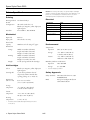
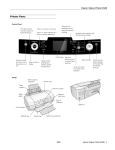
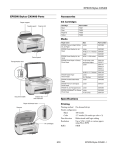
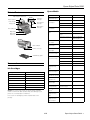
Printer Parts
Paper support extension
Ink button
and light
Paper support
Sheet feeder
Edge guide
Power button
and light
Paper button
and light
Front USB port
Output tray
Output tray
extension
Rear USB port
Power connector
Paper name*
Size
Part number
Epson Premium
Bright White Paper
Letter (8.5 x 11 inches)
S041586
Epson Photo Quality
Ink Jet Paper
Letter (8.5 x 11 inches)
S041062
A4 (8.3 x 11.7 inches)
S041061
Legal (8.5 x 14 inches)
S041067
Epson Photo Quality
Ink Jet Cards
A6 (4.1 x 5.8 inches)
S041054
Epson Glossy Photo
Paper
Borderless 4 x 6 inches
S041809
4 x 6 inches, perforated
edges
S041134/S041671
Letter (8.5 x 11 inches)
S041141/S041649/
S041272/S041271
Epson ColorLife
Photo Paper
Letter (8.5 x 11 inches)
S041500
Epson Matte Paper
Heavyweight
Borderless 8 x 10 inches S041467
Letter (8.5 x 11 inches)
S041457
Epson Double-Sided
Matte Paper
Letter (8.5 x 11 inches)
S041568
Epson Ultra Premium
Glossy Photo Paper
Borderless 4 x 6 inches
S041934
Letter (8.5 x 11 inches)
S041935
Epson Premium
Glossy Photo Paper
Borderless 4 x 6 inches
S041727/S041808
Borderless 5 x 7 inches
S041464
CD/DVD tray guide
Borderless 8 x 10 inches S041465
Letter (8.5 x 11 inches)
S041286/S041667
Epson Premium
Semigloss Photo
Paper
Letter (8.5 x 11 inches)
S041331
Epson Premium
Luster Photo Paper
Letter (8.5 x 11 inches)
S041405
Accessories
Ink Cartridges
Cartridge
Part number
Black
T048120
Cyan
T048220
Magenta
T048320
Yellow
T048420
Light Cyan
T048520
Light Magenta
T048620
Color Multipack
T048920
Caution: To ensure good results, use genuine Epson cartridges
and do not refill them. Other products may cause damage to your
printer not covered by Epson’s warranties.
Don’t use an ink cartridge beyond the expiration date on the
package.
Epson Photo Quality A4 (8.3 x 11.7 inches)
Self Adhesive Sheets
S041106
Epson Ink Jet
Transparencies
Letter (8.5 x 11 inches)
S041064
Epson Iron-On
Transfer Paper
Letter (8.5 x 11 inches)
S041153
Epson Glossy Photo
Greeting Card Kit
Letter (8.5 x 11 inches),
perforated edges
S041606
Epson Photo
Stickers®
A6 (4.1 x 5.8 inches)
S041144
Epson Semigloss
Scrapbook Photo
Paper
Letter (8.5 x 11 inches)
SCR1001
PremierArt™ Matte
Scrapbook Photo
Paper for Epson
Letter (8.5 x 11 inches)
SCR1002
*
6/05
Availability of paper types varies by location
Epson Stylus Photo R220 - 1
Epson Stylus Photo R220
Caution: To ensure good results, use genuine Epson cartridges
and do not refill them. Other products may cause damage to your
printer not covered by Epson’s warranties. Don’t use an ink
cartridge beyond the expiration date on the package.
Printer Specifications
Printing
Printing method
Nozzle
Configuration
Interfaces
Electrical
On-demand ink jet
Specification
90 nozzles (each color) × 6
Black, cyan, magenta, yellow, light cyan,
light magenta
Front USB 1.1, Rear USB 2.0
Mechanical
Paper feed
Friction
Paper path
Sheet feeder, rear entry
Sheet feeder
capacity
100 sheets of 17 lb (65 g/m2) paper
Input voltage range*
90 to 264V
Rated frequency range
50 to 60 Hz
Input frequency range
49.5 to 60.5 Hz
Rated current
0.2 to 0.4 A
Power consumption
Approx. 12 W (ISO 10561 Letter Pattern)
Approx. 3 W in sleep mode
Approx. 0.4 W in standby mode
*
Temperature
Width: 18.5 inches (462 mm)
Depth: 10.5 inches (263 mm)
Height: 7.8 inches (196 mm)
Printing
Width: 18.5 inches (462 mm)
Depth: 19.0 inches (474 mm)
Height: 11.9 inches (297 mm)
Weight
11.4 lb (5.2 kg) without ink cartridges
Colors
Black, cyan, magenta, yellow, light cyan
light magenta
Cartridge life
2 years from production date (if
unopened); within 6 months after
opening package, at 77 ºF (25 ºC)
Storage
temperature
Transit
temperature
Freezing
temperature*
*
*
50 to 95 ºF (10 to 35 ºC)
Storage*
–4 to 104 ºF (–20 to 40 ºC)
1 month at 104 ºF (40 ºC)
Transit*
–4 to 140 ºF (–20 to 60 ºC)
120 hours at 140 ºF (60 ºC)
Operation
20 to 80% RH
Storage*
5 to 85% RH
Stored in shipping container
Safety Approvals
0.5 × 2.9 × 2.2 inches
(12.7 × 73.46 × 55.25 mm)
–4 to 104 ºF (–20 to 40 ºC)
1 month at 104 ºF (40 ºC)
–22 to 122 ºF (–30 to 50ºC)
10 days at 122 ºF (50 ºC)
3.2 ºF (–16 ºC)
Ink thaws and is usable after approximately 3 hours at
77 °F (25 °C)
2 - Epson Stylus Photo R220
Operation
Humidity (without condensation)
Ink Cartridges
Dimensions
(W × D × H)
Check the label on the back of the printer for its voltage.
Environmental
Dimensions
Storage
Value
6/05
Safety standards
UL 1950, CSA C22.2 No. 950
EN60950(VDE)
EMC
FCC part 15 Subpart B Class B
CSA C108.8 Class B
Epson Stylus Photo R220
Paper
Control Panel
Paper
Type
Thickness
Weight
Single sheets
Plain, bond, and
special ink jet
papers
distributed by
Epson
0.003 to 0.004 inch
(0.08 to 0.11 mm)
for plain bond paper
17 to 24 lb
2
(64 to 90 g/m )
for plain bond
paper
Plain, bond, or
air mail paper
0.006 to 0.02 inch
(0.16 to 0.52 mm)
Envelopes
To diagnose problems, check the printer’s control panel, as
described below.
12 to 20 lb
(45 to 75 g/m2)
Printable area
Normal
Lights
Explanation
Green P power light
flashes
The printer is receiving a print job, replacing
an ink cartridge, charging ink, or cleaning the
print head.
Red ) paper light is
on
If the CD/DVD tray guide is open, close the
CD/DVD tray guide, load paper, then press
the ) paper button.
Your paper ran out or more than one sheet
loaded at a time. Load paper and press the
) paper button.
When printing on CDs or DVDs, the CD/DVD
tray is not inserted in the printer. Insert the
CD/DVD tray into the printer and press the )
paper button (see “Inserting a CD or DVD” on
page 7).
Red ) paper light
flashes
Paper is jammed in the printer.
Press the ) paper button to eject the
jammed paper. If the light is still flashing,
open the cover and remove all paper,
including any jammed or torn pieces. Then
reload paper and press the ) paper button to
continue printing.
When printing on CDs or DVDs, the CD/DVD
tray is jammed in the printer.
Pull out the CD/DVD tray and press the )
paper button.
Red H ink light flashes
One or more cartridges are low on ink. Check
the message that appears on your screen to
determine which cartridge is low, or follow
the instructions in “Checking the Ink Supply”
on page 4. Make sure you have a
replacement cartridge.
Red H ink light is on
One or more cartridges are out of ink or not
installed. Make sure you have a replacement
cartridge, then follow the steps in “Replacing
an Ink Cartridge” on page 4.
If you have just installed a new cartridge, it
may be incompatible with the printer or
incorrectly installed. Reinstall it or replace it
with the correct cartridge as described on
page 4.
Red H ink and red
) paper lights flash
alternately
The CD/DVD tray guide was left open when
you turned on the printer or when printing on
paper. Close the CD/DVD tray guide.
Green P power light is
off; red ) paper and
red H ink lights flashing
Paper may be blocking movement of the print
head. Turn off the printer, then open the
cover and remove any jammed paper or other
foreign objects. Turn the printer back on
again. If the lights are still flashing, contact
your dealer or Epson as described in your
Printer Basics book.
The printer may have an internal error. Turn
off the printer, wait a few seconds, then turn
it on again. If the lights are still flashing,
contact your dealer or Epson as described in
your Printer Basics book.
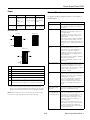
Borderless*
Envelopes
A
The minimum top margin is 0.12” (3.0 mm).
B-L
The minimum left margin is 0.12” (3.0 mm).
B-R
The minimum right margin is 0.12” (3.0 mm).
C
The minimum bottom margin is 0.12” (3.0 mm).
D-L
The minimum left margin is 0.12” (3.0 mm).
D-R
The minimum right margin is 0.12” (3.0 mm).
E
The minimum bottom margin is 0.78” (20.0 mm) for Windows.
The minimum bottom margin is 0.12” (3.0 mm) for Macintosh.
*
When printing with the borderless feature, print quality may
decline in the expanded area. Before printing large jobs using the
borderless setting, print a single sheet to confirm printout quality.
Note: Always load paper into the sheet feeder with the short edge
first. Load envelopes flap edge left with the flap side down.
6/05
Epson Stylus Photo R220 - 3
Epson Stylus Photo R220
❏ Macintosh: Choose Applications > EPSON Printer
Utility > SP R200 Series > EPSON StatusMonitor.
Replacing an Ink Cartridge
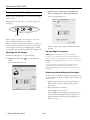
You see a window like this one:
When the red H ink light flashes, one or more ink cartridges
are low on ink.
When the red H ink light stays on, you need to replace the
cartridge(s).
Ink light
When you print, you’ll also see a message on your screen
telling you which cartridge is low or empty.
When a cartridge is more than six months old, you may need
to replace it if printouts don’t look their best. If the quality
doesn’t improve after cleaning and aligning the print head,
you can replace the cartridge even if the red H ink light is off.
Click a cartridge image to display information about the
cartridge.
Ink Cartridge Precautions
Checking the Ink Supply
Warning: Keep ink cartridges out of the reach of children.
To check the ink supply, do one of the following:
❏ Windows: Double-click the
taskbar.
If ink gets on your hands, wash them thoroughly with soap and
water. If ink gets in your eyes, flush them thoroughly with water.
icon on the Windows
Caution: To avoid damaging the printer, never move the print head
by hand.
You see a window like this one:
You cannot print if an ink cartridge is empty. Leave the empty
cartridge installed in the printer until you have obtained a
replacement. Otherwise the ink remaining in the print head nozzles
may dry out.
Removing and Installing Ink Cartridges
Be sure you have a new ink cartridge before you begin. Once
you start replacing a cartridge, you must complete all the steps
in one session.
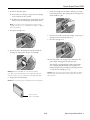
1. Make sure the printer is turned on (the green P power
light should be on, but not flashing). Then open the
printer cover.
2. Press and release the H ink button.
If your ink light is off, go to step 4.
If your ink light is on or flashing, the print head moves to
the left, and the cartridge that need to be replaced stops
under the _ ink out mark. The P power light begins to
flash. Go to step 3.
4 - Epson Stylus Photo R220
6/05
Epson Stylus Photo R220
3. Press the H ink button again.
7. Lower the cartridge into the holder, with the green circuit
board facing the front. Then gently push the cartridge down
until it clicks into place.
❏ If more than one cartridge is empty, the next cartridge
moves under the _ ink out mark.
❏ If all the empty cartridges have been identified, the print
head moves to the ink cartridge replacement position.
Note: You can also use the Status Monitor to find out which
cartridge is out of ink. See “Checking the Ink Supply” on page 4
for more information.
4. Lift up the cartridge cover.
8. If you need to replace another ink cartridge, repeat steps 5
through 7 before continuing with step 9.
9. Close the cartridge cover.
5. Press in the tab on the back of the cartridge and lift the
cartridge out of the printer. Dispose of it carefully.
10. Close the printer cover and press the H ink button. The
printer begins charging the ink delivery system.
The green P power light flashes and the printer makes
noise. Charging takes about half a minute. When it’s
finished, the green P power light stops flashing and stays
on, and the red H ink light goes out.
Warning: Keep ink cartridges out of the reach of children.
Caution: Never turn off the printer while the green P power light is
flashing, unless the printer hasn’t moved or made noise for more
than 5 mintues.
If ink gets on your hands, wash them thoroughly with soap and
water. If ink gets in your eyes, flush them thoroughly with water.
6. Unwrap the new ink cartridge.
Caution: Don’t touch the green circuit board or remove any labels.
Don’t touch the
green circuit board
6/05
Epson Stylus Photo R220 - 5
Epson Stylus Photo R220
Selecting the Paper Type Setting
Paper Loading Guidelines
Select the correct paper Type or Media Type setting so your
printer knows what kind of paper you’re using and adjusts the
ink coverage accordingly.
You can load the following number of sheets of Epson special
media:
For this paper
Plain paper sheets
Epson Iron-On Transfer Paper
Epson Ink Jet Transparencies
Paper type
Loading capacity
Select this paper Type or
Media Type setting
Premium Bright White Paper
Photo Quality Ink Jet Paper
100 sheets
Plain Paper
Photo Quality Ink Jet Cards
30 cards
Matte Paper Heavyweight
Glossy Photo Paper
ColorLife Photo Paper
Ultra Premium Glossy Photo Paper
Premium Glossy Photo Paper
Premium Semigloss Photo Paper
Premium Luster Photo Paper
Semigloss Scrapbook Photo Paper
TM
PremierArt Matte Scrapbook Photo
Paper
20 sheets
Double-Sided Matte Paper
Iron-On Transfer Paper
Glossy Photo Greeting Cards
Photo Stickers
Photo Quality Self Adhesive Sheets
Ink Jet Transparencies
1 sheet
Epson Premium Bright White Paper
Bright White Paper
Epson Photo Quality Ink Jet Paper
Epson Photo Quality Ink Jet Cards
Epson Photo Quality Self Adhesive
Sheets
Photo Quality Ink Jet Paper
Epson Matte Paper Heavyweight
Epson Double-Sided Matte Paper
PremierArt Matte Scrapbook Photo
Paper for Epson
Matte Paper - Heavyweight
Epson Glossy Photo Paper
Epson ColorLife PhotoPaper
Epson Glossy Photo Greeting Cards
Glossy Photo Paper
Epson Ultra Premium Glossy
Photo Paper
Ultra Premium Glossy
Photo Paper
Epson Premium Glossy Photo Paper
Premium Glossy Photo Paper
Epson Premium Luster Photo Paper
Premium Luster Photo Paper
Epson Premium Semigloss Photo
Paper
Epson Semigloss Scrapbook Photo
Paper
Premium Semigloss
Photo Paper
Epson Photo Stickers
Photo Stickers
CD/DVD
CD/DVD
CD/DVD Premium Surface
CD/DVD Premium Surface
Envelopes
Envelope
❏ Load all paper with the printable side up. It’s usually
brighter or whiter.
❏ If the paper has a cut corner, position it in the upper right
corner as you load it in the sheet feeder.
❏ Check the paper package for additional instructions on
using special papers.
Printing CDs and DVDs
Your printer includes a special tray that lets you print
customized text, graphics, and photos directly on any ink jetprintable CD or DVD. The Epson Print CD software makes
it easy to import your own photos, add text, and modify your
designs with a variety of special effects. You can print on both
regular 12-cm and 8-cm CDs and DVDs.
Caution: Use only ink jet-printable CDs and DVDs for printing.
Thermal-printable and regular CDs and DVDs should not be used
with this printer.
6 - Epson Stylus Photo R220
6/05
Epson Stylus Photo R220
3. Place the CD or DVD on the CD/DVD tray with the white
or printable side face-up. Make sure the disc lays flat in the
tray.
Follow the steps in these sections to print on CDs or DVDs:
❏ “Cleaning the Rollers”
❏ “Inserting a CD or DVD”
To print on a small CD (8-cm), place the small CD ring on
the tray first, then place the CD inside the ring.
❏ “Designing CDs and DVDs”
❏ “Printing Your Design”
Caution: Make sure you always use the small CD ring when
printing on 8-cm CDs and that the CD and ring lays flat on the tray,
otherwise the printer may be damaged.
Cleaning the Rollers
Before you print on CDs or DVDs, it’s a good idea to clean
the rollers inside your printer. You can do this by feeding and
ejecting several sheets of plain paper.
Always use this ring
with 8 cm CDs
1. Make sure your printer is turned on and several sheets of
letter-size paper are loaded.
2. Press the ) button to feed a sheet of paper into the printer.
3. Press the ) button again to eject the paper.
4. Repeat steps 2 and 3 several times.
Inserting a CD or DVD
4. Insert the tray carefully, making sure it’s level, not tilted up
or down. Push the tray under the tab and the two rollers.
Don’t push the tray in too far and make sure that the arrows
line up exactly.
Make sure the data, music, or video is burned on your ink
jet-printable CDs or DVDs before you print. Otherwise, dirt
or scratches on the surface may cause errors when you burn
the data. If you plan to print a large number of CDs or DVDs,
it’s a good idea to print a small sample, then wait a day and
check the quality to make sure it’s satisfactory.
If you want to check the print position or color, see your
Printer Basics book.
Before you insert a CD or DVD, make sure the printer is
turned on. Otherwise, the disc may not be positioned
correctly. Then follow these steps:
1. Push in the output tray extension, but leave the tray open.
2. Open the printer cover and pull down the CD/DVD tray
guide.
5. Follow the instructions in “Printing Your Design” on
page 8 to print with Epson Print CD.
Designing CDs and DVDs
You can use the Epson Print CD program (included on the
Printer Software CD-ROM) to create and print a design with
images, graphics, and text. See your Printer Basics book for
instructions.
6/05
Epson Stylus Photo R220 - 7
Epson Stylus Photo R220
Printing Your Design
Cleaning the Print Head
After you have created your design and loaded a CD or DVD,
you’re ready to print.
If your printouts are unexpectedly light or dots or lines are
missing, you may need to clean the print head. This unclogs
the nozzles so they can deliver ink properly. Print head
cleaning uses ink, so clean it only if quality declines.
1. Open the File menu and select Print.
2. Make sure EPSON Stylus Photo R220 Series (Windows)
or Stylus Photo R220 (Macintosh) is selected, then
click Print.
This section explains how to clean the print head using the
Head Cleaning Utility.
You can also clean the print head by holding down the H ink
button on the printer for three seconds. (This only works
when the red H ink light is off.)
Caution: When you don’t turn on your printer for a long time, print
quality can decline, so turn it on and print a few pages at least once
a month to maintain good print quality.
Running the Head Cleaning Utility
1. Make sure the printer is turned on but not printing, and the
red H ink light is off. (If the H ink light is flashing or on, you
need to replace a cartridge; see page 4 for details.)
Windows
2. Do one of the following:
❏ Windows: Right-click the icon on your taskbar (in
the lower right corner of your screen). Select Head
Cleaning.
❏ Macintosh: Open the Applications folder and select
EPSON Printer Utility. Select SP R200 Series in the
printer list, click OK, then select Head Cleaning.
3. Follow the instructions on the screen to clean the print
head.
Macintosh
Note: After you print, handle the CD or DVD carefully. To allow
the ink to dry, wait at least 24 hours before playing the disc or
inserting it in a drive. Keep printed discs away from moisture and
direct sunlight.
Cleaning takes about 45 seconds. The printer makes noise
and the green P power light flashes.
Caution: Never turn off the printer while the green P power light is
flashing, unless the printer hasn’t moved or made noise for more
than 5 minutes.
If you need to adjust the print position or color, see your
Printer Basics book.
4. When the green P power light stops flashing, make sure
paper is loaded in the printer, then do one of the following:
❏ Windows: Click Print nozzle check pattern, then click
Print.
❏ Macintosh: Click Confirmation, then click Next.
The nozzle check pattern prints.
8 - Epson Stylus Photo R220
6/05
Epson Stylus Photo R220
You see a window like this one:
5. If the nozzle check pattern has no white lines or gaps (as
shown below),
click Finish.
If the pattern has white lines or gaps (as shown below), click
Clean to clean the print head again.
If you don’t see any improvement after cleaning three or
four times, you can also turn the printer off and wait
overnight—this allows any dried ink to soften—and then
try cleaning the print head again.
5. On the test page, select the square without any visible
bands. You may need to use a magnifying glass or loupe.
6. Select one square each for rows 1 to 4, then enter the
number of the best square in the corresponding boxes on
the screen. Then click Next.
Aligning the Print Head
If you can’t find a square without visible bands, choose the
one that’s best. Then click Realignment to print another
test page and repeat this step.
If your printouts contain misaligned vertical lines, or you see
light or dark horizontal banding, you may need to align the
print head.
7. After you click Next, follow the instructions on the screen
to print the next test page.
1. Turn on the printer.
You see a window like this one:
2. Load several sheets of plain, letter-size paper.
3. Do one of the following:
❏ Windows: Right-click the icon on your taskbar (in
the lower right corner of your screen). Select Print Head
Alignment.
❏ Macintosh: Open the Applications folder and select
EPSON Printer Utility. Select SP R200 Series in the
printer list, click OK, then select Print Head
Alignment.
4. Follow the instructions on the screen to print the alignment
pattern.
8. On the test page, select the square without any visible
bands. You may need to use a magnifying glass or loupe.
9. Select one square each for rows 1 to 4, then enter the
number of the best square in the corresponding boxes on
the screen. Then click Finish.
If you can’t find a square without visible bands, choose the
one that’s best. Then click Realignment to print another
test page and repeat this step.
6/05
Epson Stylus Photo R220 - 9
Epson Stylus Photo R220
3. Remove any paper from the printer, then push down the
paper support extension, and close the paper support.
Cleaning the Printer
4. Make sure the CD/DVD tray guide is closed, then push in
the output tray extension and close the tray.
To keep your printer working at its best, you should clean it
several times a year.
5. Open the printer cover. Secure the ink cartridge holder to
the printer with tape, then close the printer cover.
1. Turn off the printer, unplug the power cord, and
disconnect the USB cable.
6. Repack the printer and its attachments in the original box
using the protective materials that came with them.
2. Remove all the paper, then use a soft brush to clean the
sheet feeder.
Keep the printer level as you transport it.
3. If the outer case or inside of the sheet feeder are dirty, clean
it with a soft cloth dampened with mild detergent. Keep the
printer cover closed to prevent water from getting inside.
After transporting the printer, remove the tape securing the
print head and test your printer. If you notice a decline in
print quality, clean the print head (see page 8); if output is
misaligned, align the print head (see page 9).
4. If ink accidentally gets inside of the printer, wipe it off with
a damp cloth in the area shown.
Related Documentation
Clean here
Warning: Don’t touch the gears or any other parts inside the
printer.
Caution: Never use a hard or abrasive brush, or benzine, alcohol, or
paint thinner for cleaning; they can damage the printer components
and case.
Don’t get water on the printer components and don’t spray
lubricants or oils inside the printer.
Don’t use any cleaning sheets included with special paper; they
may jam inside the printer.
Transporting the Printer
If you need to move your printer some distance, you must
prepare it for transportation in its original box or one of a
similar size.
Caution: To avoid damage, always leave the ink cartridges installed
when transporting the printer.
1. Open the printer cover and turn on the printer. Wait until
the print head locks in the far right position, then turn off
the printer.
2. Unplug the power cord from the electrical outlet. Then
disconnect the power cord and USB cable from the printer.
10 - Epson Stylus Photo R220
6/05
CPD-19888
Epson Stylus Photo R220 Start Here
CPD-19889
Epson Stylus Photo R220 Printer Basics
CPD-19887
Epson Stylus Photo R220 CD-ROM
with on-screen User’s Guide