1
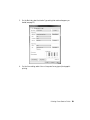
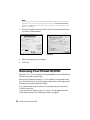
9. Select one of the following as the Color setting:
■
Epson Standard (sRGB) increases the contrast in images.
■
Epson Vivid processes colors to create standard hues.
■
Adobe RGB matches images colors to the Adobe RGB color standard.
Use this setting if your source file was captured in Adobe RGB.
Note:
For color management instructions, see http://www.epson.com/SPR2000Profiles.
For more information about print settings, click Help or see your online User’s
Guide.
10. Select a Print Quality setting (available settings depend on selected media
type):
■
Economy: for the fastest printing with reduced quality on plain paper
■
Draft: for fast printing with draft quality
■
Normal: for everyday text and image printing
■
Best Photo: for photos and graphics with high print quality and slower
speed (good to use for canvas media)
■
Photo RPM: for the best print quality and slowest print speed (best to use
for canvas media)
Then select from the following additional options:
■
High Speed for fast, bidirectional printing at lower quality.
■
Mirror Image to flip the image you’re printing.
■
Gloss Optimizer to add a glossy finish to your print.
11. Click Print.
Printing From Start to Finish 25