1
XP850QG.book Page 21 Friday, July 6, 2012 4:36 PM
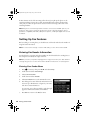
Entering Your Phone Number
1.
Select Your Phone Number from the Header menu.
2.
Use the keypad to enter your phone number, up to 20
digits. You don’t need to use dashes.
3.
■
To delete a character, press
■
To type the + symbol for an international
number, press #.
.
Press Done to return to the Header menu.
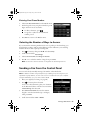
Selecting the Number of Rings to Answer
If you connected an answering machine and it is set to pick up on the fourth ring, you
should set the product to pick up on the fifth ring or later. Otherwise, your answering
machine will not be able to pick up incoming calls.
1.
Press
if necessary, then press l or r and select Setup.
2.
Scroll down and select Fax Settings.
3.
Select Communication, then Rings to Answer.
4.
Press + or – to select the number of rings, then press Done.
Note: Set the fax to answer at least one ring after the answering machine.
Sending a Fax From the Control Panel
You can send a fax by manually entering a fax number, as described below.
Note: To dial the number using a telephone, by redialing, or by selecting from your
speed dial or group dial list, see the next section. To send a fax from your computer
using the FAX Utility, see your online User’s Guide.
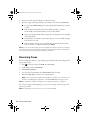
1.
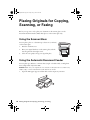
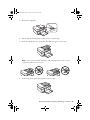
Place your original(s) for faxing (see page 10).
2.
Press
if necessary, then select Fax.
To fax a two-sided document, place your document
in the ADF. Scroll down on the fax screen and select
2-sided Faxing, then select On.
3.
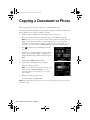
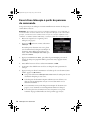
Press Enter Fax Number, then use the numeric
keypad to enter the fax number (up to 64 digits).
Then press Done.
4.
Scroll down and select Color or B&W.
Faxing a Document 21