1
XP850QG.book Page 3 Friday, July 6, 2012 4:36 PM
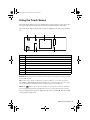
Using the Touch Screen
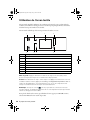
The touch screen makes it easy to use all the features of your product. To save energy, the
screen goes dark after several minutes of inactivity. Touch the screen to wake it up.
The touch screen displays only the buttons that are available for the task you are working
on.
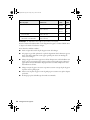
1
5
Number
2
6
3
7
4
8
Description
1
Turns product on/off
2
Returns to the Home menu
3
LCD screen shows menus and status
4
Use the arrow keys to navigate menus
5
Shows wireless network status
6
Opens the CD/DVD menu
7
Cancels/returns to the previous menu
8
Starts copying/printing/scanning/faxing
Caution: Press the touch screen gently with the tip of your finger; don’t press too hard
or use sharp objects.
Tip: To turn off the “beep” heard when you press a button, or to reduce its volume,
press Setup > Printer Setup > Sound and adjust one of the settings. If you turn off the
sound, the dialing sound made when you transmit a fax is also turned off.
Note: The
light is green when the product is connected to a network. It flashes
when network settings are being adjusted (green for wireless and orange for wired).
For more information on the icons displayed on the screen, press l or r, then select Help
on the product’s touch screen.
About Your Product 3