1
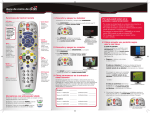
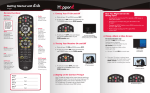
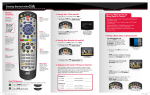
Getting Started with 522/625 Remote Functions 1. Turning Your TV On and Off SAT Mode Correct mode for operating your DISH system. TV / VIDEO PUT POWER -C hanging your TV input or channel using your TV remote or the TV itself VOLUME TV / VIDEO IN VOLUME GUIDE MUTE Cancel Go back one on-screen menu at a time. (Note: This may not be the previous screen you were viewing.) CANCEL SKIP BACK 2. Turning Your Receiver On and Off INFO SKIP BACK SKIP FWD b.To turn your receiver ON, press and release the red POWER button on your DISH remote. BACK View Live TV Return to watching live TV. Also exits all on-screen menus. FWD PAUSE PLAY RECORD AP FWD PAUSE STOP SW STOP H VIEW LIVE TV On Dem a.Start with your TV on and DISH receiver off. SKIP FWD BACK CANCEL POWER RECORD PIP TV / VIDEO abc IN PUT def ghi jkl mno pqrs tuv wxyz N tuv wxyz POWER TV / VIDEO IN PUT 3. Staying on the Correct TV Input or Channel RECALL VOLUME POWER GUIDE WSE BRO THE ES M SELECT RECALL TV / VIDEO IN DIS WSE BRO SKIP FWD SELECT RECALL BACK Remote image may vary. VIEW LIVE TV On Dem IO N SKIP FWD abc def jkl mno 1 TV1: ROOM AP ghi FWD _______________ INPUT/CHANNEL_______________ PIP abc TV2: ROOM A TV picture appears. If TV2: Tune your TV to channel 60 or 73 using the buttons on your TV remote or the TV itself. def PO IT S _______________INPUT/CHANNEL _______________ jkl b. Once your TV picture is restored, press and release the SAT mode button on your DISH remote to ensure you’re in the proper mode for controlling your receiver. mno PLAY wxyz N PIP AP abc def Receiver #2 _______________ pqrs tuv wxyz POWER POWER ghi jkl mno pqrs tuv wxyz PO IT S TV1: ROOM _______________INPUT/CHANNEL _______________ TV2: ROOM _______________INPUT/CHANNEL _______________ 2 IO tuv PLAY Receiver #1 _______________ PAUSE STOP RECORD pqrs FWD PAUSE If TV1: Cycle your TV through its inputs by pressing the INPUT, SOURCE, or TV/VIDEO button on your TV remote or the TV itself. If the picture is not restored, change your TV to channel 3 or 4 using your TV remote or the TV itself. RECORD PO IT S BACK ghi SW TV / VIDEO IN PUT TV / VIDEO PAGE IN VOLUME PUT PAGE VOLUME The SAT button lights up. MUTE GUIDE MUTE GUIDE WS BRO THE E M WS BRO THE E M RETEN815 522_625 QRG Update_FINAL.indd 1 H SKIP BACK SW TV2 has a BLUE 2 remote key and is in the room without the receiver. DIS PLAY If you have a dual-TV receiver, one receiver independently operates two TVs: TV1 has a GREEN 1 remote key and is in the room with the receiver. BACK RECORD AP SKIP FWD SW INFO PIP Dual-TV Receiver CANCEL FWD PAUSE STOP H SKIP BACK d an 1 Your TV needs to remain on the correct input or channel to watch your DISH service. If your TV is not on the correct input or channel, your TV may display a black, blue, or snowy screen, depending on your TV. The correct input or channel for your TV may be noted on a sticker on the back of your DISH remote or below. GUIDE THE ES M SKIP BACK VIEW LIVE TV On Dem STOP VIEW LIVE TV On Dem d an H PAGE VOLUME MUTE CANCEL INFO PUT CANCEL INFO PAGE MUTE SELECT N mno DVR Controls See the Getting Started with Your DVR guide for further instructions on how to use your DISH DVR. DIS IO jkl PO IT S c.To turn your receiver OFF, press and release the red POWER button on your DISH remote again. d an pqrs def A TV picture appears. WSE BRO ghi Info Display additional program info. abc PAGE PO IT S GUIDE THE ES M SW AP A black, blue, or snowy screen appears. a. Get your TV back ON the correct input or channel: VOLUME MUTE PIP For demonstration only Get your TV OFF the correct input or channel by pressing and releasing the CHANNEL UP button on your TV remote or the TV itself. (If you are already on a black, blue, or snowy screen, skip to 4a.) PLAY N DIS On Dem -P ower outage causing your TVs to get off the correct channel or input 4. Fixing a Black, Blue, or Snowy Screen RECALL d an H VIEW LIVE TV SELECT The screen saver appears whenever your receiver is OFF to remind you that your TV is still ON. d an INFO THE ES M RECALL GUIDE c.To turn your TV OFF, press and release the red TV POWER button on your DISH remote again. WSE BRO WSE BRO SELECT -P ressing the INPUT or CHANNEL buttons with your DISH remote when you are not in SAT mode PAGE PUT IO MUTE Recall Go back to the last channel viewed. -C hanging the input on your TV to operate a DVD player or video game system IO IN b. To turn your TV ON, press and release the red TV POWER button on your DISH remote. PAGE THE ES M Menu Access features and settings, including Parental Locks, Favorites Lists, Customer Support and more. Guide Display current and future TV program listings. DIS TIP: Press and release the SAT mode button to ensure you are in the proper mode for controlling your receiver. POWER How You Might Get On the Wrong Input or Channel: a. Start with your TV and DISH receiver off. 8/16/12 2:25 PM POWER TV / VIDEO IN PAGE PUT VOLUME MUTE GUIDE WSE BRO THE ES M SELECT 5. Changing Channels RECALL CANCEL INFO VIEW LIVE TV On Dem DIS d an There are three ways to change channels on your receiver. H SKIP BACK SKIP FWD Type a channel number using the number buttons on the keypad. BACK PLAY For your convenience, two Favorites Lists have been pre-programmed: All Chan– Displays all DISH channels All Sub – Displays all channels you subscribe to RECORD a. Press and release the GUIDE button to bring up the on-screen TV Guide. Press and release the GUIDE button to cycle through favorite lists. IO SW N PIP AP FWD PAUSE STOP 6. Selecting a Favorites List to Display on Your Program Guide PO IT S abc def ghi jkl mno pqrs tuv wxyz POWER TV / VIDEO IN - OR - The TV channel changes. inadvertently lock certain news or other programs that are not rated. PUT VOLUME b. When you are done, press “Lock System” and set/use a password for any of the above locks to take effect. GUIDE POWER On Dem VIEW LIVE TV PAGE VOLUME GUIDE RECALL H SKIP BACK SKIP FWD BACK - OR Use the Program Guide. a. Press and release the GUIDE button. RECALL RECORD VIEW LIVE TV On Dem SKIP FWD The TV channel changes. PIP SW SKIP BACK AP STOP PLAY TV RECORD / VIDEO def jkl mno pqrs tuv wxyz PUT THE ES M pqrs N jkl mno tuv SELECT wxyz On Dem VIEW LIVE TV RECALL H SKIP BACK SKIP FWD Press and release the CHANNEL UP/ DOWN or the PAGE UP/DOWN buttons to highlight the channel you want to watch. BACK 4. Check for anything obstructing the signal to your satellite dish, such as tree branches, severe rain, or snow build-up. If it is safe to do so, remove the obstruction or wait for it to pass. STOP The Program Guide appears. TV / VIDEO IO SW abc IN a. To exit an on-screen menu, press and release the VIEW LIVE TV button. VOLUME ghi jkl mno tuv wxyz On Dem H POWER DIS d an c. Press and release the SELECT button. SKIP BACK SKIP FWD TV / VIDEO Where to go for additional information: SKIP FWD mno RECALL AP PO IT S ghi CANCEL pqrs tuv H wxyz VIEW LIVE TV On Dem SKIP BACK SKIP FWD N PO IT S tuv mno • Press and release the MENU button and then select “Help.” • mydish.com/support • Channel 101 wxyz • FWD PAUSE STOP The TV changes to the highlighted channel. jkl def TIP: The Cancel button on your DISH remote is another option for exiting one on-screen menu at a time. pqrs d an DIS INFO abc IO N SW jkl ghi PIP WSE BRO THE ES M SW def The menu screen is exited and a TV picture appears. PLAY RECORD GUIDE abc SELECT FWD PAUSE STOP PLAY PIP BACK SKIP BACK BACK FWD VOLUME PAUSE RECORD AP CANCEL H PAGE STOP MUTE The Program Guide moves up or down. IO PUT VIEW LIVE TV INFO d an VIEW LIVE TV On Dem RECALL CANCEL INFO SELECT WSE BRO RECALL VOLUME GUIDE THE ES M WSE BRO THE ES M SELECT PUT MUTE GUIDE pqrs PAGE P OPAGE SIT def MUTE IN POWER N PIP PUT 5. Reset your receiver by unplugging it from the wall for 10 seconds. Plug it back in and turn it back on. The TV is on a menu screen. PLAY POWER RECORD BACK FWD PAUSE IN 3. Make sure you’re on the correct Favorites List. When you’re in an on-screen menu, it’s easy to exit the on-screen menu and return to the program you were watching. CANCEL INFO A PTV / VIDEO GUIDE d an b. IO def DIS PO IT S abc DIS ghi 2. Make sure your TV is on the correct input/channel. 7. Exiting On-Screen Menus VOLUME WSE BRO SW MUTE 1. Make sure your DISH remote is in SAT mode. PAGE PIP AP 75% of all technical problems that an agent can help you with can be solved by following these five easy steps: FWD PAUSE IN Troubleshooting: PO IT S abc ghi POWER BACK PLAY N DIS STOP The Program Guide indicates which list you are on. If you are on the All Chan list, channels shown in red or green are not included in your subscription. d an H FWD PAUSE CANCEL INFO d an WSE BRO THE ES M SELECT CANCEL INFO DIS MUTE IO PUT SELECT WSE BRO IN THE ES M TV / VIDEO Setting Parental Controls: a. Press and release the MENU button and then select “Locks.” • To lock all adult channels, select “Hide Adult.” • To lock all PPV channels, select “Lock PPV.” • To lock specific channels, select “Channel Locks.” • To lock a channel based on rating, select “Ratings Locks.” • Note that if you lock channels with an NR/AO rating, you may PAGE MUTE Press and release the CHANNEL UP/DOWN buttons. PN 197460 Additional Tips PLAY RECORD RETEN815 522_625 QRG Update_FINAL.indd 2 def IO SW abc N PIP AP PO IT S 8/16/12 2:25 PM