1
Getting Started with your DVR
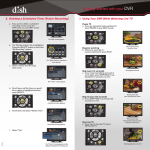
5.Deleting a Scheduled Timer (Future Recording)
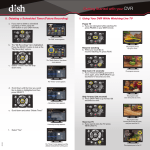
1. Using Your DVR While Watching Live TV
a. If you want to delete a scheduled
recording or timer, press the DVR
button. Select “My Recordings.”
Pause TV
a. If you are interrupted while watching TV,
press PAUSE.
b. Scroll up and select “Schedule.”
Resume watching
b. When you would like to
resume watching TV, press PLAY.
The “Daily Schedule”
screen appears.
c. Scroll up and select “Timers.”
Skip back (10 seconds)
c. If you missed something and want to
see it again, press SKIP BACK to go
backward 10 seconds at a time.
The “Timers List”
screen appears.
n Dem
HO
d. Scroll to the left until the timer you
would like to delete is highlighted and
then press SELECT.
Skip forward (30 seconds)
d. Press SKIP FWD to go forward 30
seconds at a time.
The “Timer Event”
screen appears.
n Dem
HO
A warning message
appears.
View live TV
e. If you want to view live TV, press
VIEW LIVE TV.
The program skips
forward 30 seconds at a time,
until you reach live TV.
n Dem
HO
d
an
DIS
f. Select “Yes.”
The program skips
back 10 seconds at a time.
d
an
e. Scroll up and select “Delete.”
DIS
The program resumes.
d
an
n Dem
HO
DIS
The program pauses
for up to 1 hour.
d
an
DIS
The “Dish on Demand” screen
first appears. Then the “My
Recordings” screen appears.
n Dem
HO
d
an
DIS
The program goes to live TV.
PN 181611
The “Timers List” appears
and the deleted schedule/
timer will be gone.
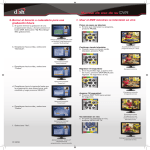
2. Recording a TV program
b. Select “My Recordings.”
n Dem
HO
d
an
DIS
Record a program NOW
a. If you are watching TV and want to begin
recording that program, press RECORD
and then select “OK.”
The “My Recordings”
screen appears.
c. Scroll through until the program you
would like to watch is highlighted, and
press SELECT.
Record a program in the FUTURE
b. If you want to schedule a recording for a
program that takes place in the future,
press GUIDE.
The “rec” logo appears
and recording
will begin.
d. Select “Start” to play your recording.
4. Deleting a Recorded Program
a. If you want to delete a recorded program,
press the DVR button.
The Program
Guide appears.
n Dem
HO
d
an
DIS
c. Scroll through the Guide until the
program that you want to record is
highlighted and then press SELECT.
n Dem
HO
d
an
DIS
d.
b. Select “My Recordings.”
The “Create Timer”
screen appears.
c. Scroll through until the program you
would like to delete is highlighted and
then press SELECT.
Scroll through and select the
Frequency you would like to use
to record the program and then
select “Create Timer.”
FREQUENCY
All Episodes
Records all episodes, including re-runs.
The “DVR Event” screen appears.
“Start” is highlighted.
New Episodes
Once
Records only new episodes.
Records the show only one time.
3. Watching a Recording
The “DVR Event”
screen appears.
d. Scroll down and select “Delete.”
The attention screen appears.
Then the Program Guide will
appear with a record icon
next to the program.
A warning message appears.
e. Select “Yes.”
n Dem
HO
d
an
DIS
a. If you would like to view a program that you previously recorded, press the DVR button.
The “Dish on Demand” screen
first appears. Then the “My
Recordings” screen appears.
The “Dish On Demand”
screen appears.
A confirmation message appears.